


iOS 27 Recent Emojis Not Showing? 8 Fixes!
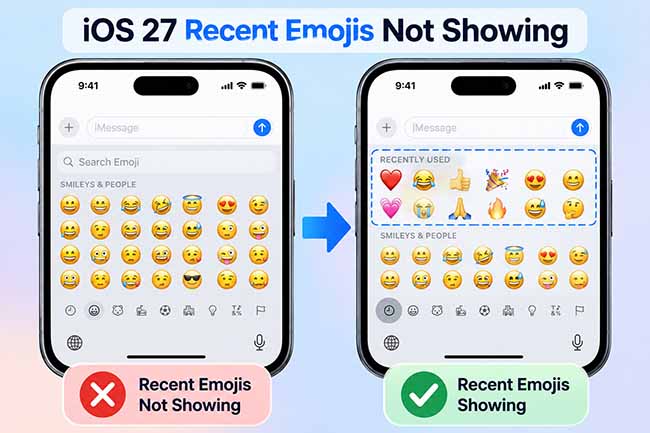
If you've updated your iPhone and noticed iOS 27 recent emojis not showing, you're not alone. The Recent or Frequently Used emoji section can sometimes disappear, stop updating, or fail to display the emojis you use most often. This can be frustrating, especially if you rely on quick access to your favorite emojis every day.
Fortunately, the iOS 27 recent emojis not showing issue is usually caused by a temporary keyboard glitch, incorrect settings, or an update-related bug. In this guide, we'll explain the possible reasons behind the problem and walk you through several practical fixes to get your recent emojis back on your iPhone.
- Why Are My Recent Emojis Not Showing on iOS 27?
-
8 Fixes For iOS 27 Recent Emojis Not Updating or Showing
- Method 1. Restart Your iPhone
- Method 2. Use Different Emojis to Refresh the Recent List
- Method 3. Remove and Re-Add the Emoji Keyboard
- Method 4. Temporarily Disable Third-Party Keyboards
- Method 5. Reset the Keyboard Dictionary
- Method 6. Repair Possible iOS 27 System Glitches with TunesKit iOS System Recovery HOT
- Method 7. Check for a New iOS 27 Update
- Method 8. Reset All Settings
- Conclusion
Why Are My Recent Emojis Not Showing on iOS 27?
If you've noticed that your recent emojis are not showing on iOS 27, there could be a few different reasons behind it. In most cases, the issue is related to the keyboard, recent usage data, or a temporary system bug rather than a serious problem with your iPhone.
- 01 A Temporary Keyboard Glitch: The iPhone keyboard can occasionally stop displaying certain sections correctly, including the Recent Emojis list.
- 02 Your Recent Emoji History Was Cleared: An iOS update, settings change, or keyboard reset may clear the emojis that previously appeared in your recent list.
- 03 The Emoji Keyboard Isn't Loading Correctly: Sometimes the Emoji keyboard may open normally but fail to load your recent or frequently used emojis.
- 04 Some iOS 27 Software Problems: If the problem appeared right after updating to iOS 27, it may be caused by a temporary software issue in the new version.
- 05 Keyboard Settings Have Changed: Changes to your keyboard language, installed keyboards, or related settings can sometimes affect how recent emojis are displayed.
- 06 A Third-Party Keyboard Is Interfering: If you use Gboard, SwiftKey, or another third-party keyboard, it may affect how Apple’s built-in emoji keyboard behaves.
- 07 You Haven't Used Enough Emojis Recently: On a newly set up or recently reset iPhone, the Recent Emojis section may be empty until you start using emojis again.
- 08 Keyboard Data Isn't Syncing Properly: In some cases, temporary system data or keyboard history may not update correctly, which can make recent emojis disappear or stop refreshing.
8 Fixes For iOS 27 Recent Emojis Not Updating or Showing
Below are the most practical ways to get your Recent or Frequently Used emojis working normally again.
Method 1. Restart Your iPhone
A temporary iOS or keyboard process can occasionally stop working correctly, causing the Recent Emojis section to appear empty or remain unchanged even after you use new emojis. Restarting your iPhone reloads these background processes and clears minor temporary glitches without changing your personal data or settings.
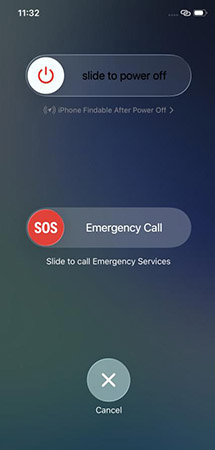
- Step 1. Press and hold the Side button and either Volume button until the power-off slider appears.
- Step 2. Drag the slider to the power off slider to the right. Wait for your iPhone to turn off completely.
- Step 3. Press and hold the Side button again until the Apple logo appears.
- Step 4. Once your iPhone restarts, open Messages or another app with a text field. Open the Emoji keyboard and check whether the Recent section is working again.
Method 2. Use Different Emojis to Refresh the Recent List
The Recent or Frequently Used section depends on your emoji usage history. If the list is empty, stuck, or showing the same emojis repeatedly, using several different emojis can sometimes trigger iOS to rebuild or refresh that history.
This method is especially worth trying if you recently updated iOS, restored your iPhone, reset keyboard settings, or have not used many emojis since setting up the device.
- Step 1. Open Messages, Notes, or another app that supports the iPhone keyboard.
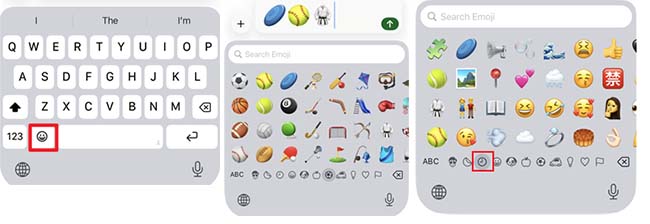
- Step 2. Tap a text field to bring up the keyboard. Tap the Emoji icon.
- Step 3. Choose several emojis from different categories. Send or enter those emojis several times.
- Step 4. Close the keyboard and open it again. Return to the Recent or Frequently Used section and see whether the emojis you just used appear.
If the list still does not change, the problem is probably not simply a lack of recent emoji activity.
Method 3. Remove and Re-Add the Emoji Keyboard
If the Emoji keyboard itself is not loading correctly, iOS may fail to display or update the Recent section. Removing and adding the Emoji keyboard again forces the system to reload the keyboard configuration, which can resolve minor configuration errors without affecting your photos, apps, messages, or other personal files.
- Step 1. Open Settings on your iPhone.
- Step 2. Go to General > Keyboard > Keyboards.
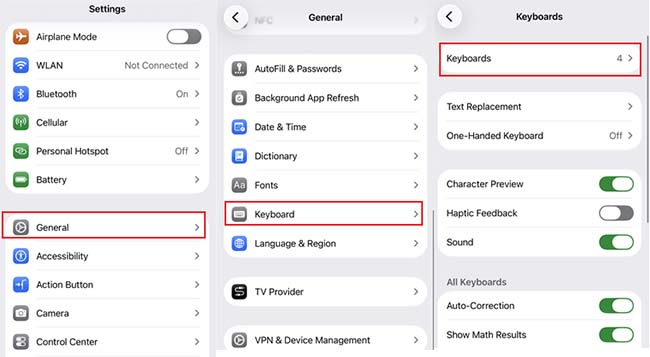
Step 3. Tap Edit in the upper-right corner. Tap the red minus icon next to Emoji and remove it.
Step 4. Return to the Keyboards screen, tap Add New Keyboard, and scroll down and select Emoji.
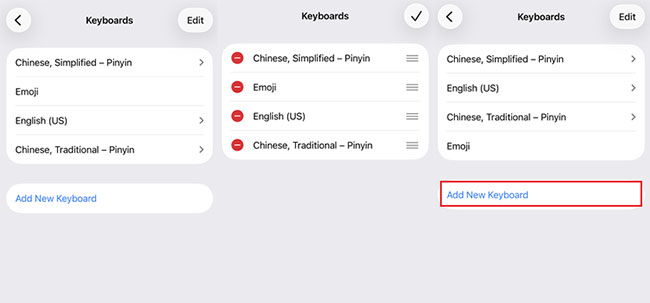
Step 5. Open Messages and bring up the Emoji keyboard again. Use a few emojis and check whether they begin appearing in the Recent section.
 Further Reading: 2026 Guide: How to Reset Emoji Keyboard on iPhone
Method 4. Temporarily Disable Third-Party Keyboards
Third-party keyboards such as Gboard or SwiftKey operate differently from Apple's built-in keyboard. Although they normally work alongside the native Emoji keyboard, keyboard extensions or switching conflicts can sometimes affect how keyboard data is loaded.
If your iOS 27 recent emojis are not updating, temporarily using only Apple's keyboard can help determine whether a third-party keyboard is involved.
- Step 1. Go to Settings > General > Keyboard > Keyboards.
- Step 2. Look for any third-party keyboards you have installed.
- Step 3. Tap Edit. Temporarily remove the third-party keyboard. Keep the Apple keyboard and Emoji keyboard enabled.
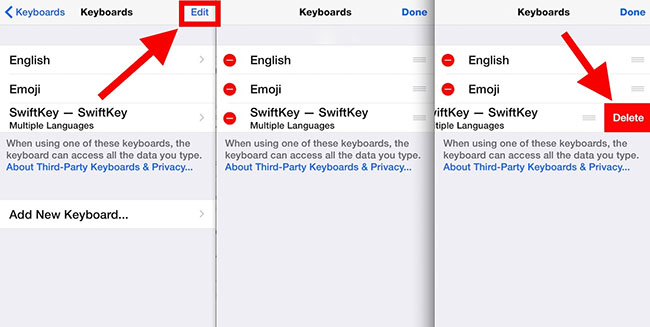
Step 4. Open Messages and use several different emojis. Check the Recent section again.
Step 5. If your recent emojis start updating normally, the third-party keyboard may have been contributing to the problem.
Method 5. Reset the Keyboard Dictionary
iOS stores keyboard-related information to improve typing predictions and remember certain usage patterns. If this data becomes inconsistent after an update or prolonged use, keyboard features may behave unexpectedly.
Resetting the keyboard dictionary gives the keyboard a fresh start and can be useful when simpler methods have not fixed the problem. Keep in mind that this will also remove custom words the keyboard has learned from your typing.
- Step 1. Open Settings. Tap General. Scroll down and choose Transfer or Reset iPhone.
- Step 2. Tap Reset. Select Reset Keyboard Dictionary. Enter your iPhone passcode if prompted.
- Step 3. Confirm the reset. Open an app such as Messages and begin using emojis again. Check whether the Recent section gradually starts updating.

After the reset, your used emoji data may no longer appear immediately, so use a few emojis first to rebuild the list.
Method 6. Repair Possible iOS 27 System Glitches with TunesKit iOS System Recovery
If restarting the iPhone, refreshing the emoji history, and resetting the keyboard do not work, the issue may be deeper than the Emoji keyboard itself. An incomplete iOS update, damaged system components, or an operating system glitch can sometimes cause built-in features such as the keyboard to behave abnormally.
In this situation, TunesKit iOS System Recovery provides another option for troubleshooting iOS-related problems. It is designed to fix various iPhone system issues, such as the keyboard not popping up, keyboard lag, and other keyboard-related bugs, without causing data loss.
Fix iOS 27 Emoji Issues with TunesKit
TunesKit iOS System Recovery can repair iOS 27 system glitches that cause recent emojis not to show or update without data loss.
 600,000+ Downloads
Here's how to fix iOS 27 recent emojis not showing using TunesKit iOS System Recovery.
Step 1. Connect iPhone to PC
Download and install TunesKit iOS System Recovery on a Windows PC or Mac. Connect your iPhone to the computer using a USB cable. Launch TunesKit and select iOS System Repair. Click Start to continue.

Step 2. Choose A Mode
Choose Standard Repair first, since this mode is intended for common iOS problems while preserving device data.

Step 3. Download the Firmware Package
Confirm that the device model and iOS information are correct. Click Download to obtain the matching firmware package.
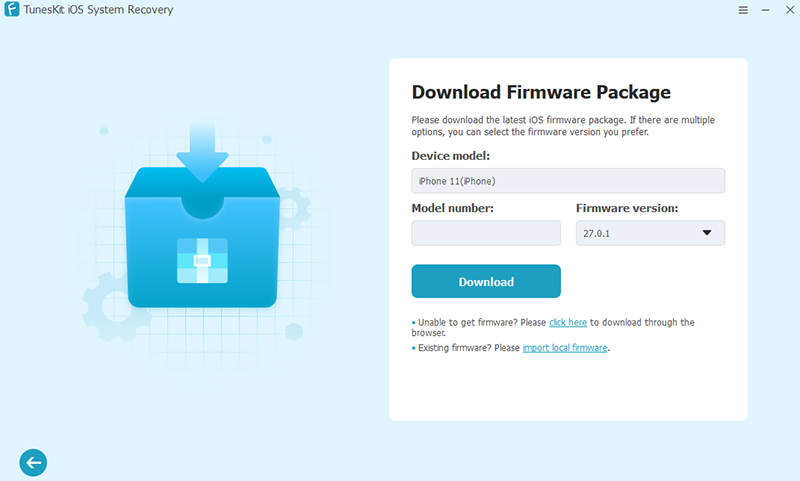
Step 4. Start to Fix
After the firmware has been downloaded and verified, click Start Standard Repair. Keep your iPhone connected until the repair process is complete. Restart the iPhone, open the Emoji keyboard, use several emojis, and check whether the Recent section updates normally.

Method 7. Check for a New iOS 27 Update
If your recent emojis stopped working immediately after an iOS update, the problem could be related to the installed version itself. Apple frequently releases follow-up versions to address software bugs, compatibility problems, and other unexpected behavior. Installing the latest available iOS version ensures that you have Apple's newest fixes before moving on to more disruptive troubleshooting.
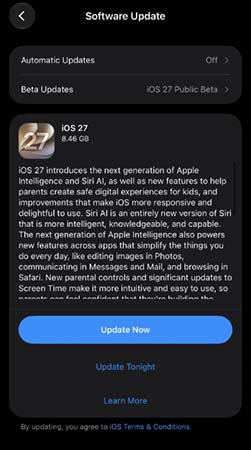
- Step 1. Connect your iPhone to a Wi-Fi network. Open Settings app on your iPhone. Go to General > Software Update.
- Step 2. Wait while your iPhone checks for available updates. If a newer iOS 27 version is available, tap Update Now.
- Step 3. Follow the on-screen instructions to complete the update. After the iPhone restarts, open the Emoji keyboard. Use several emojis and check whether the Recent list updates correctly.
Method 8. Reset All Settings
If none of the methods above work, incorrect or corrupted system settings may be affecting the keyboard. Reset All Settings restores system preferences to their defaults without deleting personal content such as photos, messages, apps, or videos.
However, settings such as saved Wi-Fi configurations, keyboard preferences, and some system customizations will need to be configured again afterward. Therefore, this option is best saved until the less disruptive fixes have failed.
- Step 1. Open Settings app on your iPhone. Go to General > Transfer or Reset iPhone.
- Step 2. Tap Reset. Select Reset All Settings. Enter your passcode when prompted.
- Step 3. Confirm the action. Allow the iPhone to restart. Reconnect to Wi-Fi and configure any necessary preferences.
- Step 4. Open the Emoji keyboard and use several emojis. Check whether the Recent section is now updating normally.
Conclusion
If your iOS 27 recent emojis are not showing or updating, the issue can often be fixed by refreshing the keyboard, resetting keyboard settings, or updating iOS. For problems caused by deeper system glitches, TunesKit iOS System Recovery is a convenient option to consider. Its Standard Repair mode can help fix iOS-related keyboard issues while preserving your data, making it a practical choice before resorting to a full reset.



