


How to Fix iOS 26 Keyboard Lag?
"I updated my iPhone to iOS 26, and since then, my keyboard feels sluggish. Key press previews don't always appear, which causes frequent typos and makes typing frustrating. --From Reddit"
After updating to iOS 26, some users have started noticing a frustrating issue: the keyboard no longer feels as smooth and responsive as before. As one Reddit user described, key press previews don't always show up, leading to frequent typos and an overall sluggish typing experience. This kind of iOS 26 Keyboard lag can quickly turn everyday texting, searching, or note-taking into a hassle.
If you're dealing with the same problem, you're not alone—and the good news is that there are several effective ways to fix it. In the following sections, we'll walk you through practical solutions to resolve iOS 26 Keyboard lag and get your iPhone typing smoothly again.
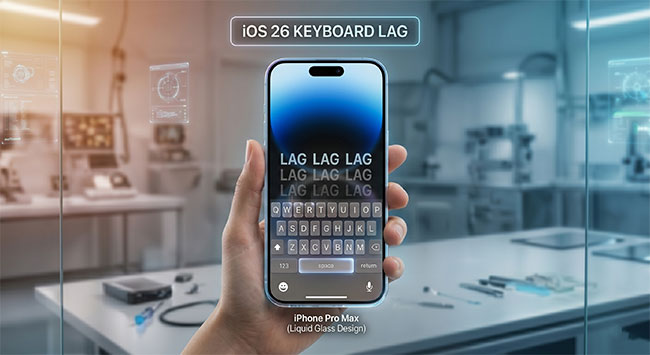
Why Is Your Keyboard Lagging on iOS 26?
If your keyboard suddenly feels slow, unresponsive, or "off" after updating to iOS 26, you're not imagining it—this has been a widely reported issue.
- 01 A real iOS 26 bug (especially early versions): Many users reported missed keystrokes, delays, and freezing while typing. A confirmed issue caused characters to not register when typing quickly, which makes the keyboard feel laggy.
- 02 Heavier autocorrect / AI predictions: New prediction models process more data in real time, which can slow response and cause incorrect corrections.
- 03 Corrupted keyboard learning data: The system may have "learned" incorrect typing patterns, leading to slower suggestions and odd behavior.
- 04 Settings that add processing load: Features like Predictive Text or Slide to Type can introduce lag, especially on older devices, because they require real-time analysis of your typing patterns and generate suggestions in the background.
- 05 Device performance constraints: Low storage, high memory usage, or multiple keyboards installed can significantly slow down input responsiveness.
How to Fix iOS 26 Keyboard Lag?
Experiencing a sluggish typing interface after updating to iOS 26 can completely disrupt your digital workflow. Often, the system is simply bogged down by background processes or bloated cache files struggling to keep up with your keystrokes. Fortunately, resolving this issue usually only takes a few minutes of adjusting your device settings.
Let's see how to fix iOS 26 keyboard lag issue step-by-step.
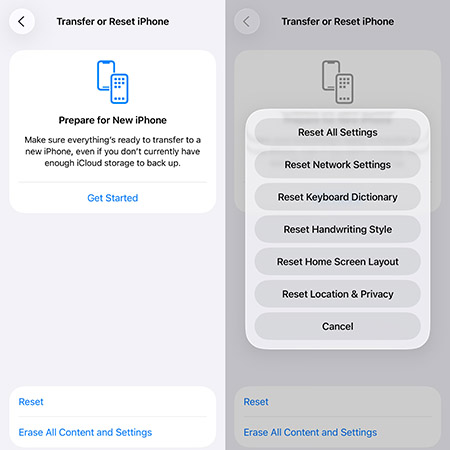
Method 1: Reset the Keyboard Dictionary
Over time, your device builds a personalized database of the slang, names, and unique words you type frequently. When this background dictionary becomes excessively large or corrupted, the operating system struggles to query the data quickly enough, resulting in a noticeable input delay. Clearing this database forces the system to start fresh and often instantly eliminates the lag.
- Step 1. Open the Settings app and navigate to General.
- Step 2. Scroll to the bottom and select Transfer or Reset iPhone, then tap Reset.
- Step 3. Choose Reset Keyboard Dictionary from the menu and enter your device passcode to confirm.
Method 2: Disable Predictive Text
The predictive text feature utilizes advanced machine learning to guess your next word as you type. While incredibly helpful, this continuous background calculation demands significant processing power from your device. Turning it off relieves stress on the processor, allowing the keyboard to register your actual keystrokes without hesitation.
- Step 1. Go to Settings, tap General, and select Keyboard.
- Step 2. Find the toggle switch labeled Predictive Text and slide it to the off position.
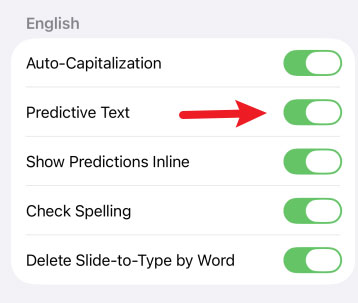
- Step 3. Test your keyboard in a blank note to see if the responsiveness has improved.
Method 3: Perform a Force Restart
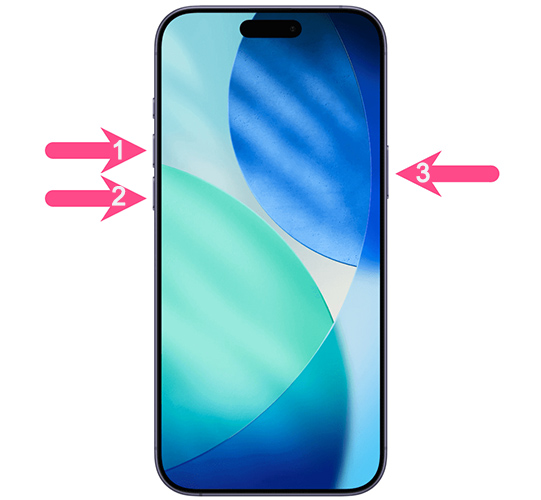
A standard reboot is helpful, but a force restart cuts power to the hardware level, completely flushing out the system memory. This action forcefully terminates rogue background applications and clears temporary cache files that might be interfering with your keyboard rendering. It is the most effective way to eliminate deep-rooted software glitches without losing any personal data.
- Step 1. Quickly press and release the Volume Up button.
- Step 2. Quickly press and release the Volume Down button.
- Step 3. Press and hold the side Power button, releasing it only when the Apple logo appears on the screen.
Method 4: Update Your Software
Major operating system updates often contain unpolished code that requires subsequent patching from developers. If a widespread keyboard bug exists in your current version of iOS 26, Apple will release an incremental update specifically designed to address the performance flaw.
- Step 1. Open Settings, go to General, and select Software Update.
- Step 2. Wait a moment for the device to communicate with the servers and check for new versions.
- Step 3. Tap Update Now button if a new patch is available.
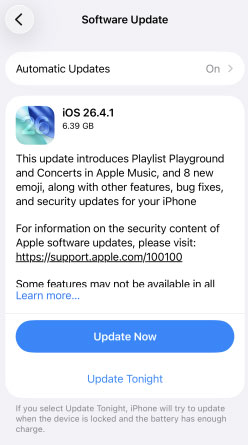
If an update is available, you generally have two convenient options:
- Update immediately over a stable Wi-Fi network.
- Schedule the update to install automatically overnight while the device is charging.
Keeping your system up to date is your best defense against persistent performance bugs.
Fix 5. Fix iOS 26 Keyboard Lag Via TunesKit iOS System Recovery
When you've tried the above methods but they still don't work, you're likely dealing with a deeper software issue. Deep-seated operating system bugs are a common cause of persistent iOS 26 keyboard lag. This is where TunesKit iOS System Recovery comes into play as a professional-grade software solution. It is specifically designed to safely fix 150+ iOS issues like Emoji Keyboard not showing up on iPhone, iPhone keyboard typing wrong letters, and haptics not working issues, etc.
TunesKit iOS System Recovery also enables you to enter or exit recovery mode in 1-click, downgrade iOS to a still signed version without jailbreak, and repair iTunes errors for free. Moreover, you can explore the latest iOS beta version without developer account.
Fix iOS 26 Keyboard Lag with Ease
Repair underlying system bugs quickly and safely—eliminating iOS 26 keyboard lag without data loss in just a few steps.
 600,000+ Downloads
Here's how to fix iOS 26 Keyboard lag via TunesKit iOS System Recovery.
Step 1Connect Your iPhone
Launch the TunesKit software on your Mac or Windows computer and connect your iPhone using a lightning-to-USB cable. Once the program successfully recognizes your connected device, click on the "iOS System Repair" module on the main dashboard, and click the Start button.

Step 2Choose a Repair Mode
Select the "Standard Repair" mode from the available options presented on the screen. This specific mode is highly recommended because it is engineered to fix common system glitches without causing any data loss to your device.

- Standard Repair: Fixes common system issues while strictly preserving all user data.
- Deep Repair: A more aggressive option for severe problems, which will erase the device's data completely.
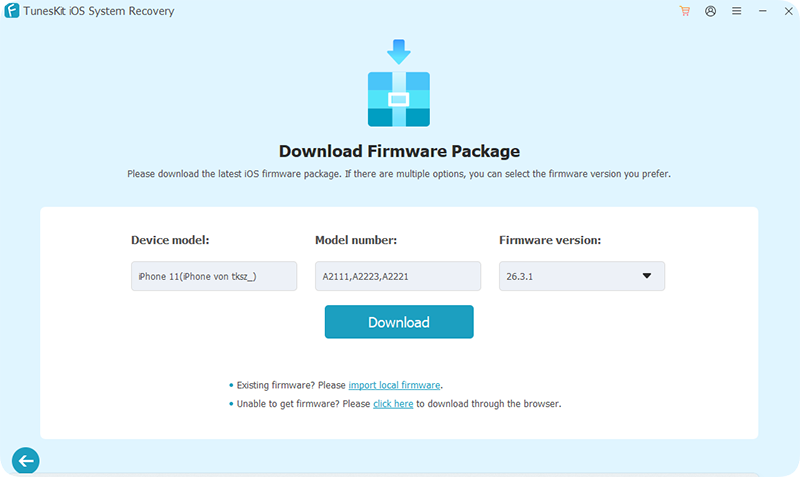
Step 3Download the Firmware Package
Verify that the device information automatically displayed on the screen matches your exact iPhone model and current software version. Once confirmed, click the "Download" button to fetch a fresh, uncorrupted iOS 26 firmware package directly from the official servers.
Step 4Repair the System
After the firmware download successfully completes, click on the "Start Standard Repair" button to initiate the automated system recovery. Keep your device securely connected to the computer until the progress bar finishes entirely and your iPhone restarts on its own.

Final Thoughts
While small tweaks can sometimes reduce iOS 26 keyboard lag, persistent issues are often rooted in deeper system bugs. Repairing the operating system itself provides a more reliable, long-term solution. By using a tool like TunesKit iOS System Recovery, you're not just masking the symptoms—you're addressing the underlying cause.
If you're still experiencing lag after basic troubleshooting, transitioning to a system repair approach is a logical next step.


