


2026 Guide: How to Reset Emoji Keyboard on iPhone
If your "Frequently Used" section is cluttered with emojis you never use, or if your symbols have suddenly disappeared after a recent iOS update, you likely need a fresh start. Resetting the iPhone emoji keyboard is a quick process that can resolve software glitches and restore your keyboard to its factory default state.
Whether you are trying to fix a technical bug or simply want to reorganize your recent history, this guide covers the most effective methods for modern iOS versions, including the latest version iOS 26.
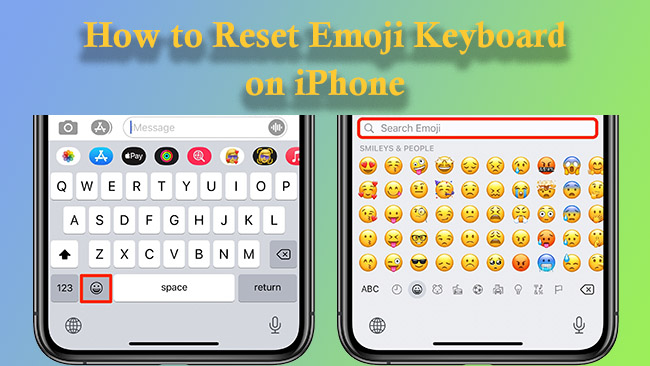
How to Reset Emoji Keyboard on iPhone
The most effective way to "reset" the emoji keyboard is to clear the iOS keyboard dictionary. This action deletes all custom words you've taught your phone and reverts the "Frequently Used" emoji panel to its original, out-of-the-box settings.
- Step 1. Open the Settings app on your iPhone and tap on General.
- Step 2. Scroll to the very bottom and select Transfer or Reset iPhone.
- Step 3. Tap on Reset at the bottom of the screen. A menu will appear with several options.
- Step 4. Select Reset Keyboard Dictionary. You will be prompted to enter your passcode to confirm the action.

Once you confirm, the emoji panel will no longer show your recent history. Instead, it will display a standard set of default emojis until you start using new ones.
How to Fix a Missing Emoji Keyboard
Sometimes the problem isn't the history, but the fact that the emoji icon is missing entirely. This often happens after a system update or if a setting was accidentally toggled off. You can fix this by refreshing the keyboard list.
If you can't see the "smiley face" or "globe" icon on your keyboard, follow these steps to bring it back:
- Step 1. Go to Settings > General > Keyboard.
- Step 2. Tap on Keyboards at the top.
- Step 3. Tap on the Edit button at the top right of screen. Tap on the minus icon to delete Emoji.

- Step 4. Back to the Keyboards setting, and tap Add New Keyboard... and select Emoji from the list to reinstall it.
How to Clear "Frequently Used" Emojis Without a Full Reset
If you don't want to lose your custom autocorrect dictionary but want to hide specific recent emojis, you can use this method. This is a manual way to push unwanted icons off your visible screen.
- Step 1. Open a simple text app like Notes.
- Step 2. Open your emoji keyboard and select a series of neutral emojis (such as various colored hearts or basic smiley faces) that you don't mind seeing.
- Step 3. Type these neutral emojis repeatedly—about 30 to 40 times.

Since the "Frequently Used" section only has limited space, the new emojis will eventually replace the old ones you wanted to hide. This is a great "pro-tip" for users who value privacy but want to keep their learned typing habits intact.
Why Are My Predictive Emojis Not Showing?
A common reason users think they need a reset is that emojis have stopped appearing in the predictive text bar above the keyboard. Before performing a full reset, check your predictive settings.
- Step 1. Navigate to Settings > General > Keyboard.
- Step 2. Ensure the Predictive toggle is turned ON. If it is already on but not working, try toggling it off and back on again.

Sometimes the "Emoji Prediction" needs a little nudge. Try typing a word like "Apple" or "Dog" and manually selecting the corresponding emoji from the keyboard a few times. This "trains" the iOS algorithm to start suggesting symbols again.
Extra Tip: How to Reset iPhone Without Passcode
In some cases, your emoji keyboard issues may be part of a larger system freeze that prevents you from even entering your passcode or accessing the Settings menu. If you are locked out of your device but need to perform a factory reset to restore functionality, a professional tool like TunesKit iPhone Unlocker can be a lifesaver.
This software is designed to bypass various screen locks, including 4-digit/6-digit passcodes, Face ID, and Touch ID allowing you to wipe the device and start fresh without needing the original credentials.
Why Choose TunesKit iPhone Unlocker?
Factory reset iPhone without passcode in few clicks. Unlock all kinds of screen lock and regain access to your iPhone, including Touch ID, Face ID, digits, etc.
 600,000+ Downloads
FAQs About Emoji Keyboard on iPhone
-
Does resetting the keyboard dictionary delete my emojis?
No. Resetting the dictionary does not delete the emojis themselves; it only clears the "Frequently Used" history and any custom words you have taught the autocorrect system. Your full library of emojis will remain available in the standard categories.
-
Why did my "Frequently Used" emojis come back after a reset?
This often happens if you have multiple devices synced via iCloud. If your iPad or Mac is still using the old history, it may sync those "recent" emojis back to your iPhone. To prevent this, try toggling "Keyboard" off and on in your iCloud settings after the reset.
-
Can I reset my emojis without losing my autocorrect data?
Unfortunately, the official iOS reset clears both. If you want to keep your custom autocorrect words but hide specific emojis, the method mentioned in part 2 earlier is your best option, as it allows you to bury unwanted icons without touching your dictionary.
-
Why are some emojis showing up as question marks or boxes?
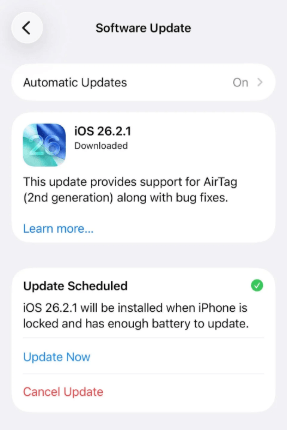
This usually means the person who sent the emoji is using a newer version of iOS than you are. To fix this, update your iPhone to the latest software version by going to Settings > General > Software Update > Update Now.
Conclusion
Resetting your iPhone emoji keyboard is a simple yet powerful way to troubleshoot technical bugs or simply refresh your digital workspace. Whether you chose to perform a full Keyboard Dictionary reset to clear your history, or utilized TunesKit iPhone Unlocker for a deeper system reset, your keyboard should now feel more organized and responsive.
If you find that your emojis still aren't appearing correctly after these steps, ensure your iPhone is running the latest version of iOS, as Apple frequently releases patches for keyboard-related glitches.


