iPhone Taking Forever to Update? 8 Solutions for iOS 27
If your iPhone update is taking forever, check whether it is still progressing. If it has stopped or the iPhone is unresponsive, start with Wi-Fi, storage, and the update file before trying a computer-based update or system repair.
An iPhone update can sometimes take much longer than expected. The estimated time may keep increasing, the screen may appear unchanged, or the progress bar may move very slowly. In many cases, the hardest part is deciding whether the update is actually stuck or simply taking longer than usual.
This guide explains how to tell the difference and what to do when an iPhone update is taking unusually long. If you are dealing with another update problem, visit our iOS 27 update guide for more targeted troubleshooting.

- Is Your iPhone Update Slow or Actually Stuck?
- Why Is My iPhone Taking So Long to Update?
-
How to Fix an iPhone Taking Forever to Update
- Solution 1: Keep an Active Update Powered and Cool
- Solution 2: Use Stable Wi-Fi and Pause Other Downloads
- Solution 3: Check Apple Services and Try Again Later
- Solution 4: Check Available iPhone Storage
- Solution 5: Delete and Redownload the iOS Update
- Solution 6: Restart or Force Restart Only When Appropriate
- Solution 7: Update with Finder or Apple Devices
- Solution 8: Repair Persistent iOS Update Issues with TunesKit HOT
- FAQs About iPhone Updates Taking Forever
- The Bottom Line
Is Your iPhone Update Slow or Actually Stuck?
Do not restart the iPhone or delete the update just because the process looks slow. First check whether there are still signs of progress.
| What You See | Is It Still Progressing? | What to Do |
|---|---|---|
| The download estimate keeps changing | Usually yes. The download is still active, but its speed may vary. | Keep Wi-Fi stable and pause other large downloads. (See Solution 2) |
| The progress bar is moving slowly | Usually yes. The update may still be working normally. | Keep the iPhone connected to power and avoid interrupting it. (See Solution 1) |
| The update moves from one stage to another | Yes. The update is continuing through the normal process. | Let it continue. |
| Preparing, Verifying, or Install Now stays unchanged | The update may be stuck at a specific stage. | Use the matching stage-specific troubleshooting guide. |
| The Apple logo and progress bar stop progressing | Installation may be stuck. | See our iPhone Stuck on Update Bar guide. |
| The whole iPhone becomes unresponsive | The update or iOS may no longer be responding normally. | Start with the fixes below. |
Looking for normal update times? See How Long Does an iPhone Software Update Take? for general timing, or How Long Does iOS 27 Take to Download and Install? for iOS 27-specific timing.
 New iPhone setup:
If the update is taking unusually long during Quick Start or backup restoration, follow our iPhone Stuck on Install Now guide for the setup-specific steps.
Why Is My iPhone Taking So Long to Update?
Several factors can make an iOS update take longer than expected.
1. Slow Network or Heavy Apple Service Demand
A slow or unstable connection can increase download time. Major iOS releases may also create temporary demand on Apple's update services, making downloads or update checks slower.
2. A Large iOS Update
Major iOS upgrades usually require more downloading and processing than smaller updates. The exact size depends on the iPhone model and the iOS version already installed.
3. Limited Available Storage
Your iPhone needs enough free storage to download, prepare, and install an update. There is no single free-space requirement that applies to every iOS update.
4. High iPhone Temperature
Software updates and charging can make an iPhone warmer than usual. If the device becomes too hot, iOS may temporarily reduce performance, which can make some processing tasks take longer.
5. An Update File or iOS System Issue
An incomplete update package or temporary iOS problem may prevent the process from progressing normally. If the same problem continues after basic troubleshooting, a computer-based update or system repair may be needed.
How to Fix an iPhone Taking Forever to Update
Start with the least disruptive methods. If the update is clearly still progressing, avoid interrupting it unnecessarily.
Solution 1: Keep an Active Update Powered and Cool
If the update is still active, keep the iPhone powered and avoid interrupting the process.
- Keep the iPhone connected to a reliable power source.
- Avoid repeatedly tapping buttons or restarting the device.
- Keep the iPhone in a cool, well-ventilated place.
- Avoid heavy apps or other demanding tasks while the update is processing.

 Tip:
If the iPhone feels unusually hot, move it to a cooler place and let it cool down. If it gets hot while charging, removing the case may also help.
Solution 2: Use Stable Wi-Fi and Pause Other Downloads
If the update is downloading unusually slowly, check the network before changing system settings.
- Step 1. Go to Settings > Wi-Fi and connect to a reliable Wi-Fi network.

- Step 2. Pause large downloads, video streaming, or other network-heavy activity.
- Step 3. If possible, try another reliable Wi-Fi network.
- Step 4. If you use a VPN or proxy, temporarily disable it and check the update again.
If only one Wi-Fi network repeatedly causes the problem, restarting the router or resetting network settings can be considered later. There is usually no need to reset network settings first.
Solution 3: Check Apple Services and Try Again Later
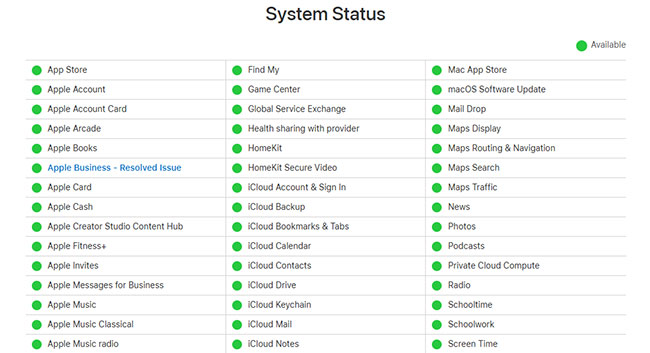
If your Wi-Fi works fine but the update is still very slow, Apple's update services may be experiencing heavy demand. Check the Apple System Status page for any reported issues. If other devices on different networks have the same problem, it is best to wait and try again later instead of restarting your iPhone repeatedly.
Keep in mind that a slow update does not always mean Apple's servers are down. Your network speed, the update size, and the current update stage can also slow things down.
Solution 4: Check Available iPhone Storage
If your iPhone is nearly full, the update may have difficulty downloading or preparing the required files. Based on TunesKit testing, keeping around 15 GB of free storage is a practical buffer for major iOS updates, although the actual space needed may vary by device and update.
- Step 1. Open Settings > General > iPhone Storage. Check how much free storage is available.
- Step 2. If storage is nearly full, remove or offload unused apps, downloads, or other large files.

- Step 3. Return to Settings > General > Software Update and try again.
Solution 5: Delete and Redownload the iOS Update
If the download or preparation repeatedly fails to finish, the downloaded update package may be incomplete. Downloading a fresh copy may help. Use this method only when you can still access Settings. Do not use it while iOS installation is already underway.
- Step 1. Go to Settings > General > iPhone Storage. Find the downloaded iOS update.
- Step 2. Tap it and choose Delete Update.
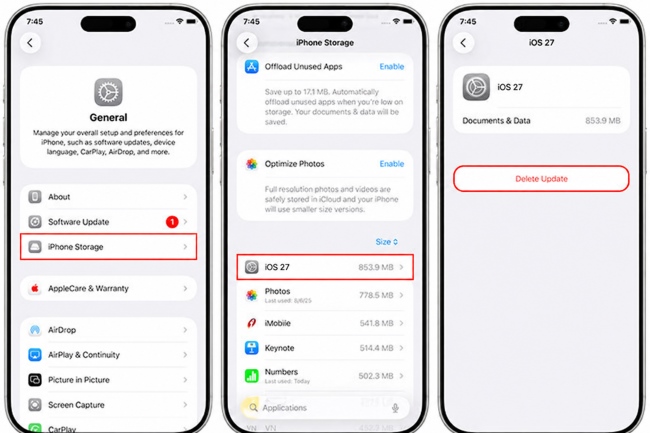
- Step 3. Go to Settings > General > Software Update. Download and install the update again.
Deleting the downloaded update package does not delete your photos, messages, or other personal data.
Solution 6: Restart or Force Restart Only When Appropriate
A restart may clear a temporary Software Update problem, but it should not be used simply because the update feels slow.
If the iPhone is still responsive:
- Step 1. Go to Settings > General > Shut Down.
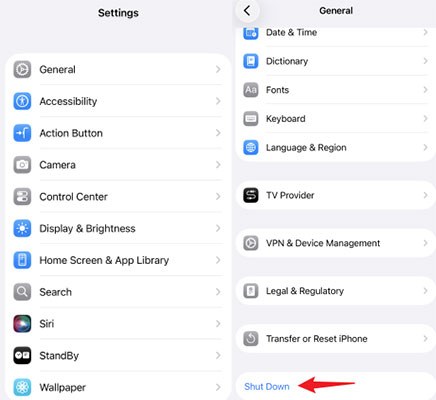
- Step 2. Drag the slider to turn off the iPhone.
- Step 3. Turn it back on and check Settings > General > Software Update again.
If the iPhone is completely unresponsive:
- Step 1. Quickly press and release Volume Up.
- Step 2. Quickly press and release Volume Down.
- Step 3. Press and hold the Side button until the Apple logo appears.
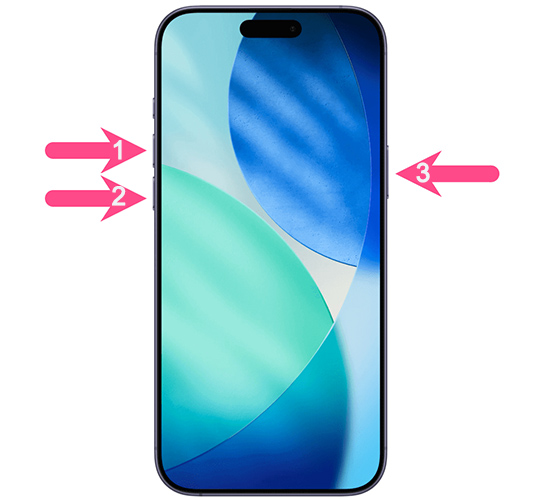
A force restart does not normally erase personal data. However, if an installation progress bar is still moving, let the update continue instead of interrupting it.
Solution 7: Update with Finder or Apple Devices
If the over-the-air update repeatedly takes unusually long or fails to complete, try updating the iPhone through a computer.
- Step 1. Connect the iPhone to your computer with a USB cable.
- Step 2. Open Finder on Mac or Apple Devices on Windows. Use iTunes on an older system if needed.
- Step 3. Select your iPhone. Choose Check for Update.
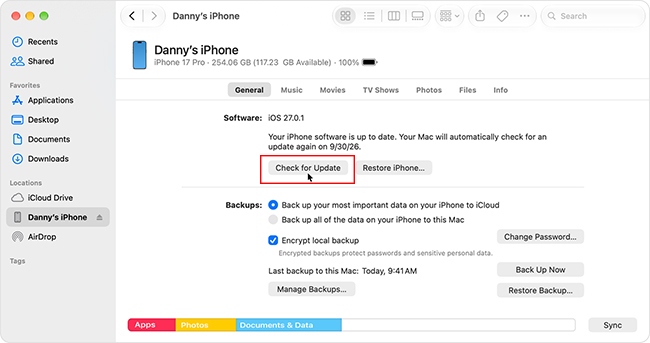
- Step 4. Click Download and Update if an update is available.
Keep the iPhone connected until the process finishes. Try a normal Update before considering Restore, because Restore erases the iPhone.
Solution 8: Repair Persistent iOS Update Issues with TunesKit
If your iPhone repeatedly takes unusually long to update or cannot complete the process after you have checked the network, storage, update file, and computer-based update options, a deeper iOS system issue may be involved.
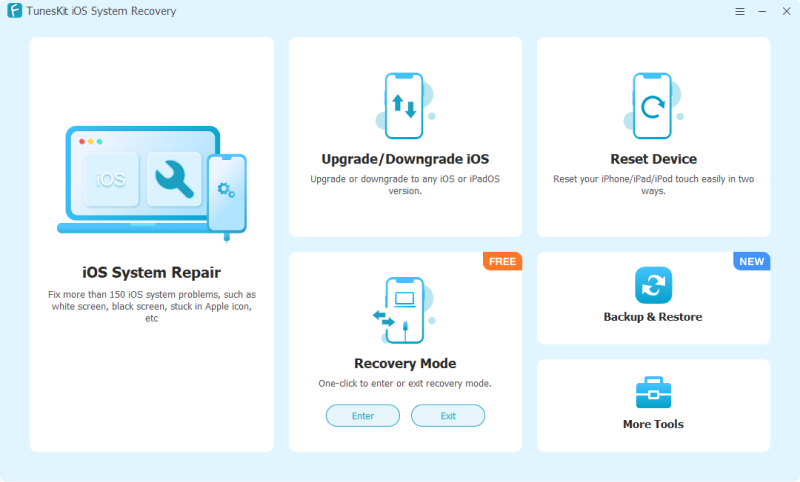
TunesKit iOS System Recovery is a desktop repair tool designed to address common iOS system and update problems. Its Standard Repair mode is designed to repair common system issues without erasing existing data.
- Step 1. Download and launch TunesKit iOS System Recovery and connect your iPhone to the computer.
- Step 2. Choose iOS System Repair > Start > Standard Repair.
- Step 3. Confirm your device information and download the appropriate firmware package.
- Step 4. Click Start Standard Repair and keep the iPhone connected until the repair finishes. Once the repair is done, your iPhone should restart normally with the update installed.
FAQs About iPhone Updates Taking Forever
-
Why does my iPhone update say several hours remaining?
The time shown is only an estimate and may change with Wi-Fi speed, server demand, and update size. If the estimate keeps changing and the download is still progressing, the update is likely slow rather than stuck.
-
Can I use my iPhone while the iOS update is downloading?
Yes. You can use your iPhone while the update is downloading, but avoid large downloads or streaming that may slow it down. Once installation begins, let the iPhone finish without interruption.
-
Should I force restart my iPhone if the update is taking forever?
No, unless the iPhone is unresponsive or the update has clearly stopped progressing. If the download estimate is changing or the progress bar is still moving, let the update continue instead of force restarting.
The Bottom Line
A slow iPhone update is not always a failed update, so check whether it is still making progress before taking further action. If the problem keeps returning, TunesKit iOS System Recovery offers Standard Repair as another option for persistent iOS update issues.
For other download, preparation, verification, installation, or post-update problems, visit our iOS update troubleshooting center to find the appropriate solution.