


iPhone Stuck on Install Now? How to Fix It in iOS 27
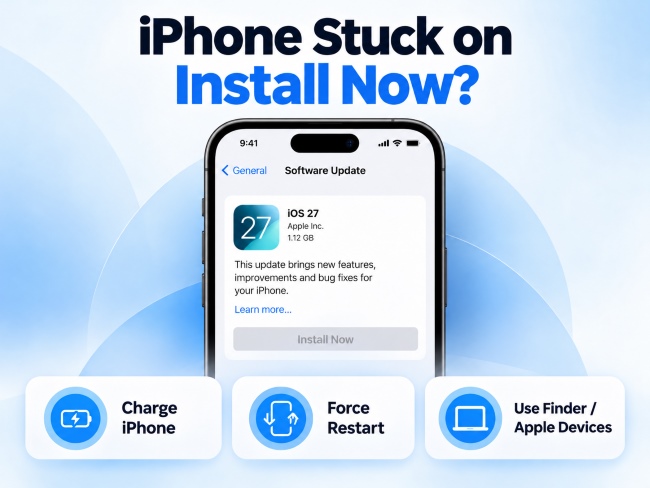
If your iPhone is stuck on Install Now, check the battery and connect it to power if needed. If the iPhone is unresponsive, try a force restart. If the problem continues, check your network or update file, or try updating with a computer.
When an iPhone gets stuck on Install Now, the button may be greyed out, tapping it may do nothing, or the update may fail to proceed. This can happen during a regular iOS update or while setting up a new iPhone.
The right solution depends on what appears on the screen and whether the iPhone still responds. This guide explains how to identify the problem and choose the appropriate fix.
If your iPhone is stuck at another update stage, visit our iOS 27 update guide for more targeted troubleshooting.
- What Does "Stuck on Install Now" Mean?
- Why Is My iPhone Stuck on Install Now?
-
How to Fix iPhone Stuck on Install Now
- Fix 1: Check Power Requirements and Wait
- Fix 2: Force Restart an Unresponsive iPhone
- Fix 3: Refresh Software Update and Check Wi-Fi
- Fix 4: Check Storage and Redownload the iOS Update
- Fix 5: Update Your New iPhone Before Transferring or Restoring Data
- Fix 6: Update with Finder or Apple Devices
- Fix 7: Repair Persistent iOS Issues with TunesKit HOT
- Fix 8: Use Recovery Mode if Other Methods Fail
- FAQs About iPhone Stuck on Install Now
- Conclusion
What Does "Stuck on Install Now" Mean?
An iPhone stuck on Install Now may show a disabled button, fail to respond when tapped, or remain on the same screen. Check which situation matches your device before troubleshooting.
| What You See | What It Means | What to Do |
|---|---|---|
| Install Now is greyed out | The installation option is currently unavailable. | Check the battery level, connect your iPhone to power, and follow any on-screen requirements. (See Fix 1) |
| Install Now does not respond | A temporary iOS or Settings issue may be preventing the update from proceeding. | Reopen Software Update if possible. If the whole iPhone is unresponsive, try a force restart. (See Fix 2) |
| During Quick Start or backup restoration | A new iPhone may require a newer iOS version before data transfer or backup restoration can continue. | See Fix 5 for the new-iPhone setup workaround. |
| Checking for Update keeps spinning | The iPhone is still checking for an available update. | See our iPhone stuck on Checking for Update guide. |
| An Unable to Check for Update alert appears | The update check has failed. | Follow our Unable to Check for Update guide. |
| An Apple logo and progress bar appear | The iPhone has moved to the installation or startup stage. | See our iPhone stuck on update bar guide. |
Identifying the screen or setup stage helps you choose the right solution without interrupting an update that may still be running.
Why Is My iPhone Stuck on Install Now?
Several issues can prevent an iPhone from proceeding with an iOS update:
- Power requirements: The iPhone may need more battery power or a connection to a power source before installation can proceed.
- Temporary iOS or Software Update glitch: A system process may stop responding when you tap Install Now.
- Network or update-service problem: An unstable connection or temporary service issue may prevent the update from proceeding.
- Storage or update-file problem: Limited free space or an incomplete download may interfere with installation.
- New-iPhone setup issue: A newer iOS version may be required before data transfer or backup restoration can continue.
How to Fix iPhone Stuck on Install Now
Start with the power and device checks. If the button remains unavailable or the update cannot proceed, try the relevant methods below.
Fix 1: Check Power Requirements and Wait
If Install Now is greyed out, check the battery level and any message displayed on the screen. Your iPhone may need to charge or connect to power before installation can proceed.
- Step 1. Connect your iPhone to a working charger.
- Step 2. Let it charge and follow any power requirements shown on the screen.

- Step 3. Return to the update screen and check whether Install Now becomes available.
Do not assume that every iPhone must reach 50% battery before updating. Follow the requirements displayed on your device.
If the installation has already started and the iPhone remains responsive, keep it connected to power and allow the process to continue. If the device becomes unresponsive, proceed to the next method.
Fix 2: Force Restart an Unresponsive iPhone
If the iPhone no longer responds to taps or button presses, a force restart may help clear a temporary system freeze. It does not normally erase personal data.
For iPhone 8 and later:
- Step 1. Quickly press and release Volume Up.
- Step 2. Quickly press and release Volume Down.
- Step 3. Press and hold the Side button until the Apple logo appears.
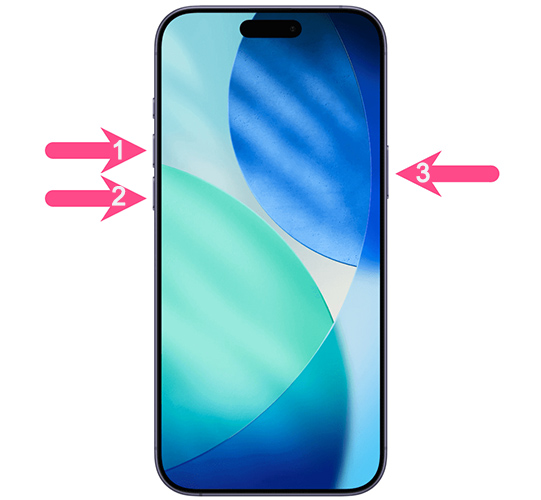
After the iPhone restarts, check whether it can continue the update. If Install Now still does not work, move to the next method.
Fix 3: Refresh Software Update and Check Wi-Fi
If the iPhone is responsive but the update does not proceed, refresh the update screen and check your connection.
- Step 1. If you can access Settings, close and reopen the app.
- Step 2. Check that you are connected to a reliable Wi-Fi network. If you are using a Personal Hotspot, try regular Wi-Fi instead.

- Step 3. Go to Settings > General > Software Update and try again.
If several devices are experiencing update problems, check Apple System Status for reported service disruptions.
Fix 4: Check Storage and Redownload the iOS Update
If you can access the Home Screen, check whether low storage or an existing update file may be interfering with the update.
- Step 1. Go to Settings > General > iPhone Storage.
- Step 2. Remove unnecessary files or apps if storage is low.

- Step 3. If an iOS update appears in the storage list, tap it and choose Delete Update.
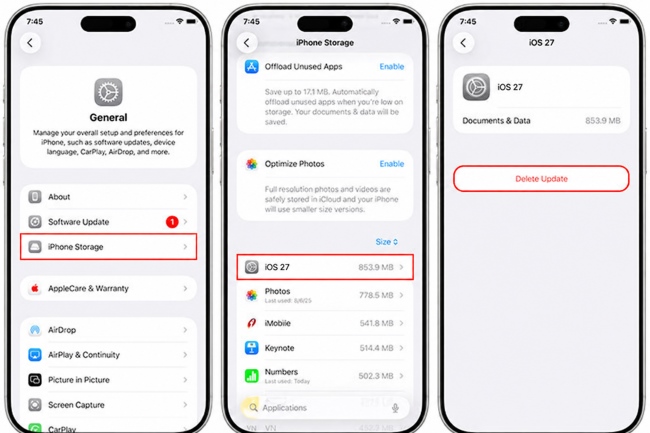
- Step 4. Return to Settings > General > Software Update and download the update again.
Delete only the iOS update file, not your personal content. If you cannot access Settings, skip this method and try a computer-based update.
Fix 5: Update Your New iPhone Before Transferring or Restoring Data
This method applies when a new iPhone requires a newer iOS version before it can transfer data from an old iPhone or restore a backup. It is not necessary for every iPhone stuck on Install Now.
If the setup process allows you to continue without transferring data, you can complete the setup first and update iOS separately.
- Step 1. On the Transfer Your Apps & Data screen, tap Don't Transfer Anything.
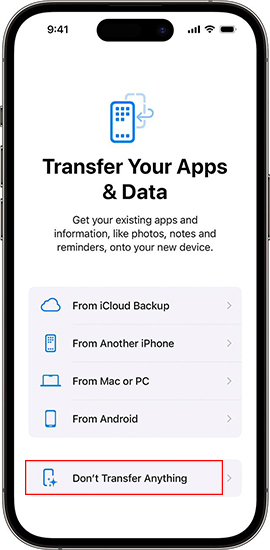
- Step 2. Complete setup, then go to Settings > General > Software Update and install the required update.
- Step 3. If you still need to restore a backup, go to Settings > General > Transfer or Reset iPhone > Erase All Content and Settings. Then set up the iPhone again and restore your backup.
 Warning: Erasing the iPhone deletes its contents and settings. Make sure your old iPhone or backup is available before proceeding.
 See Apple's official backup restoration guidance for more information.
Fix 6: Update with Finder or Apple Devices
If the iPhone still cannot complete the update, try using a computer. This provides an alternative to installing iOS directly from the device. Try a normal update before choosing Restore, which erases the iPhone.
- Step 1. Connect your iPhone to a Mac or Windows computer using a USB cable.
- Step 2. Open Finder on Mac or Apple Devices on Windows. Use iTunes on an older system if needed.
- Step 3. Select your iPhone and choose Check for Update.
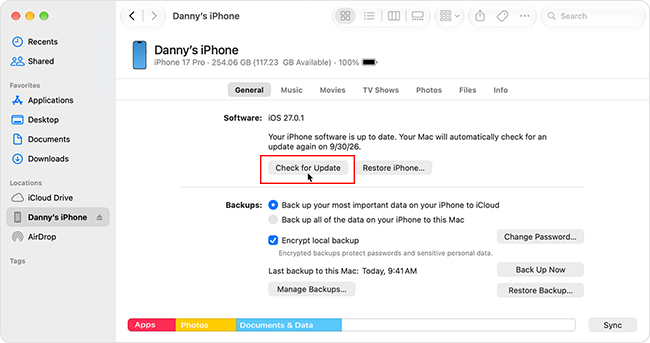
- Step 4. If an update is available, choose Download and Update and keep the device connected until the process finishes.
Fix 7: Repair Persistent iOS Issues with TunesKit
If Install Now remains stuck after basic troubleshooting and computer updating, a deeper iOS system issue may be involved.
TunesKit iOS System Recovery is a desktop repair utility for Mac and Windows designed to resolve common iOS system and update errors. Its Standard Repair mode is designed to fix underlying system issues without erasing your existing data. Completing the repair installs a clean firmware package directly, updating your iPhone to the latest iOS 27 version and bypassing the stuck Install Now screen.
- Step 1. Launch TunesKit iOS System Recovery on your computer and connect your iPhone.
- Step 2. Select iOS System Repair > Start > Standard Repair.
- Step 3. Confirm your device information and click Download to get the recommended firmware package.
- Step 4. Click Start Standard Repair and keep the iPhone connected until the process completes. Once finished, the iPhone should restart normally with the new iOS update installed.

Fix 8: Use Recovery Mode if Other Methods Fail
If the iPhone cannot complete a normal update or start correctly, Recovery Mode may help reinstall iOS through a computer.
- Step 1. Connect your iPhone to a Mac or Windows computer and open Finder or Apple Devices.
- Step 2. For iPhone 8 and later, quickly press and release Volume Up, then Volume Down, and hold the Side button until the Connect to Computer screen appears.
- Step 3. When the computer offers Update or Restore, choose Update first.
- Step 4. Use Restore only if Update fails and you understand that Restore erases the iPhone.
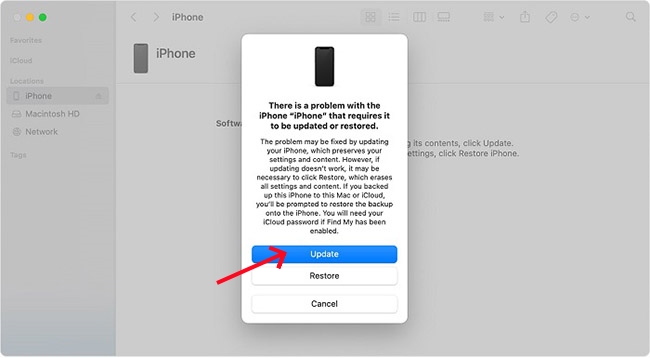
For additional instructions, see Apple's iPhone update troubleshooting guide.
FAQs About iPhone Stuck on Install Now
-
Why is Install Now still greyed out when my iPhone is charging?
Charging does not guarantee that the button will become available immediately. Check for on-screen messages, allow the battery to charge, and retry the update. If the button remains unavailable, refresh Software Update or try a computer-based update.
-
Can I update a new iPhone before transferring data?
Yes, if the setup process allows you to finish setting up the iPhone without transferring data first. You can then update iOS and restore your backup if needed. Erasing the device may be necessary before restoring the backup, so confirm that it is available before proceeding.
-
What if the screen freezes completely after I tap Install Now?
If tapping Install Now leaves the screen unresponsive for an extended period, perform a force restart to clear the temporary freeze without erasing your data. If the update still cannot start afterward, delete and redownload the update file or update using a computer.
Conclusion
If your iPhone is stuck on Install Now, first identify whether the button is unavailable, the device is unresponsive, or the problem occurs during new-iPhone setup. Start with the least disruptive checks, then try a computer-based update if needed.
If standard troubleshooting does not work, TunesKit iOS System Recovery offers another option for addressing common iOS system issues. Use Recovery Mode when necessary, and remember that Restore erases the device. If the iPhone still cannot update or start normally, contact Apple Support.
For other download, verification, or installation problems, visit our iOS 27 update guide for more targeted solutions.



