How Long Does an iPhone Software Update Take?
How long does an iPhone software update take? It usually takes 15-60 minutes depending on factors like network speed, storage, and device model, and breaks down each update stage. For cases where an update gets stuck or takes too long, TunesKit iOS System Recovery is a solution to fix common iOS update issues without data loss.
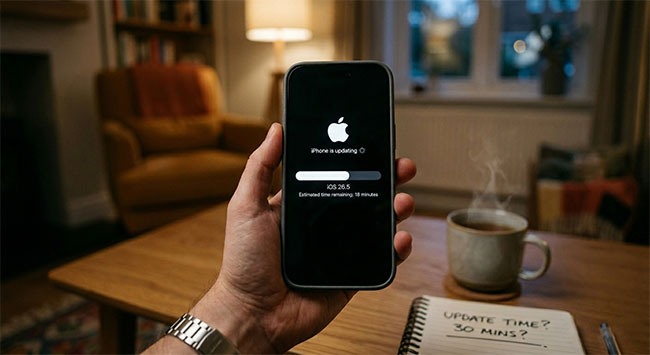
If you're preparing to install the latest iOS version, you may be wondering: how long does an iPhone update take? The answer depends on several factors, including the size of the update, your internet connection, available storage, and your iPhone model. While most updates are completed within 15 to 60 minutes, some may take longer due to download speeds or installation issues.
In this guide, we'll break down the average update times and explain what to do if your iPhone update seems to be taking too long.
How to Prepare for a Faster Update
Before you tap that install button, taking a few preparatory actions can significantly speed up the process. Preparing your device ensures that it does not get bogged down trying to make room or constantly dropping the connection. Taking a few minutes to get your phone ready can prevent the update from stalling completely.
- Step 1. Connect to a stable and fast Wi-Fi network instead of relying on a cellular data connection.
- Step 2. Free up at least 10GB of storage space so the system can unpack files without struggling.
- Step 3. Plug your iPhone into a charger to prevent the update from pausing due to a low battery.
A little preparation goes a long way in ensuring a smooth and fast upgrade experience.
How Long Does an iPhone Update Take?
If you are looking for an exact, down-to-the-minute countdown for your iPhone update, the truth is that a universal number simply does not exist. Every update is unique because the file sizes vary wildly between minor security patches and massive annual iOS overhauls. However, most users find that a standard major update takes a total of 30 to 60 minutes under normal conditions.
Your specific exact time depends entirely on the size of the update, your internet speed, and the age of your device.
A Breakdown of the Exact Wait Times
To give you a more precise idea of where those minutes go, we can divide the process into its core components. The time frame shifts dramatically depending on the specific hardware you are using. Keep in mind that older devices or slower Wi-Fi networks will naturally push these numbers toward the higher end of the spectrum.
- Downloading the software: 5 to 20 minutes for a major release.
- Preparing the files: 5 to 15 minutes of background processing.
- Installation and reboot: 10 to 30 minutes of the Apple logo loading screen.
Minor point updates, like a quick bug fix, will take significantly less time than upgrading to a brand new iOS version. For a small patch, the entire process might wrap up in just 10 or 15 minutes. If your phone takes significantly longer than the higher estimates listed above, something in the background has likely stalled.
What To Do When Your iPhone Update Is Taking Too Long
It is incredibly frustrating when you have waited patiently, only to realize your iPhone update is genuinely stuck. You have tried the force restart iPhone, you have checked your Wi-Fi, but that progress bar simply refuses to move. When the basic methods fail, it usually means there is a deeper system glitch preventing the installation from completing.
Fortunately, a frozen update does not mean your device is bricked forever. This is where TunesKit iOS System Recovery comes in handy. It is designed to bypass common iTunes errors and fix over 150 different iOS issues, including updates that are stuck in an endless loop or frozen on the Apple logo. In addition, it enables you to download and install the latest iOS 27 beta version, and downgrade iOS 27 to iOS 26 with one click.
Fix a Stuck iPhone Update with 1-click
Quickly resolve iPhone update issues, frozen progress bars, and system glitches without data loss using TunesKit iOS System Recovery.
 600,000+ Downloads
600,000+ Downloads
600,000+ Downloads
How to Fix a Stuck Update with TunesKit iOS System Recovery
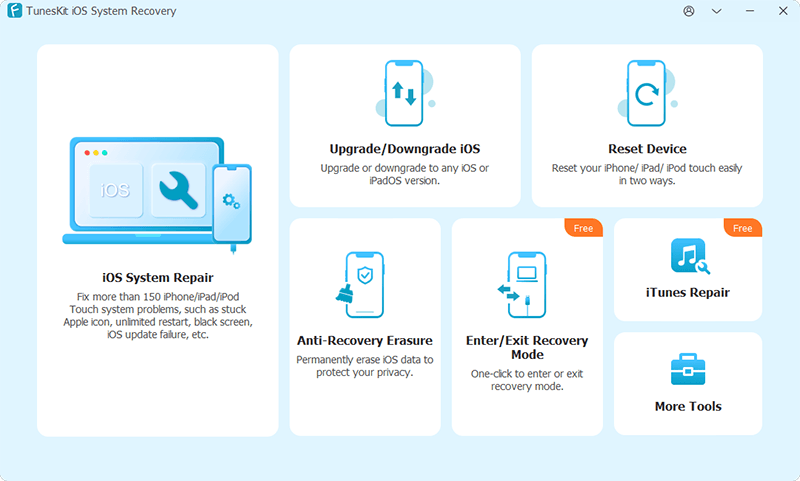
Step 1. Connect Your iPhone to PC
Download and launch TunesKit iOS System Recovery on your computer, then connect your stuck iPhone using your USB cable. Click the "iOS System Repair" button on the main interface, and click the Start button to begin the process.
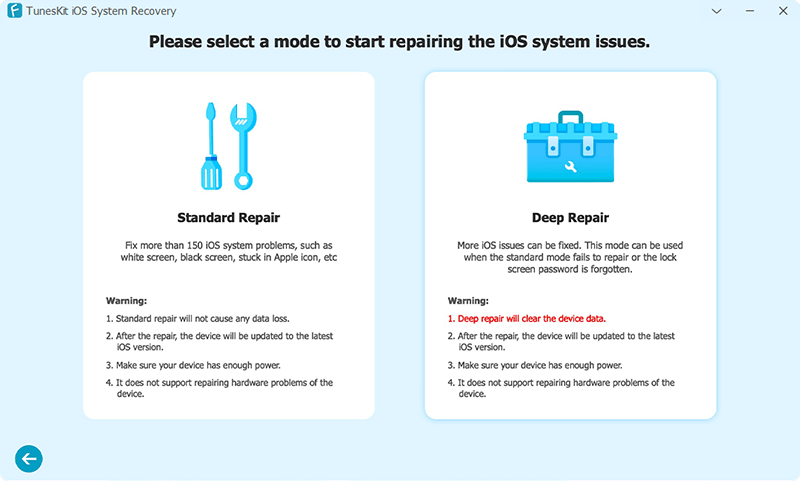
Step 2. Choose Standard Repair
Select "Standard Repair" option. This is the crucial choice that ensures your photos, messages, and apps remain completely intact during the fix. Put your device into DFU or Recovery Mode by following the clear, on-screen instructions provided by the software.
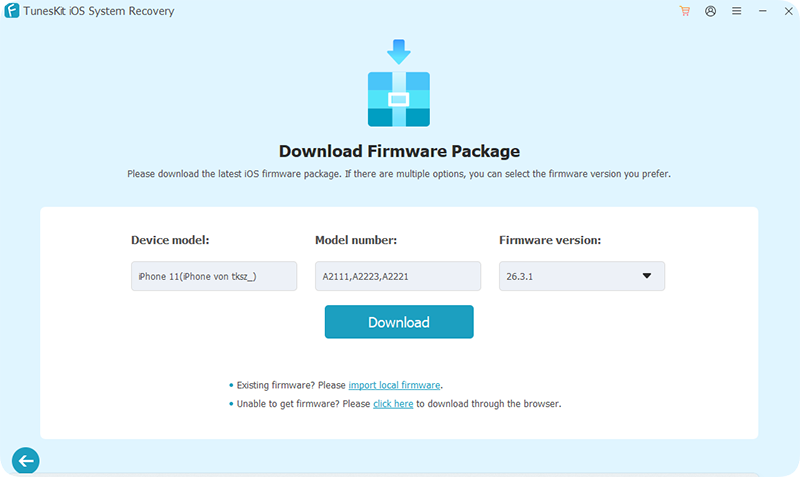
Step 3. Check and Download Firmware Package
Confirm your device model details, select the firmware version from the drop down list, and click "Download" to fetch the correct firmware package.
Step 4. Fix An Stuck Update Without Data Loss
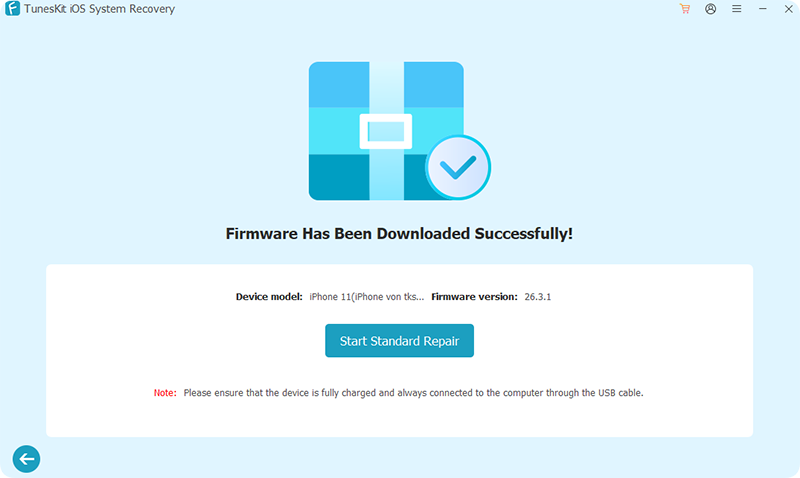
Once the download finishes, click "Start Standard Repair" and let the program safely restore your iPhone's system. Within a few minutes, your iPhone will reboot automatically. The stubborn update glitch will be cleared out, leaving you with a fully functioning device and all your personal data exactly where you left it.
FAQs About How Long Does an iPhone Update Take
-
Can I use my iPhone while it is updating?
You can safely use your device while the software is downloading in the background. However, once the actual installation begins and the Apple logo appears, the phone becomes completely unresponsive. You will not be able to make calls, send texts, or access any apps during this critical phase. It is always best to let the phone sit undisturbed until the lock screen returns.
-
Why is the "Preparing Update" stage taking so long?
The preparation phase is often the biggest bottleneck because your phone has to verify the downloaded data and shuffle existing files to create enough room. If your device is practically full, the system works much harder and slower to unpack everything. Older processors also naturally take more time to handle these heavy background tasks.
If the screen is stuck on this stage for over two hours, you likely need to force restart the device.
-
Will the update delete my personal data?
A standard software update is built specifically to upgrade the operating system without touching your photos, messages, or installed apps. Your personal data remains entirely safe during a normal over-the-air installation.
-
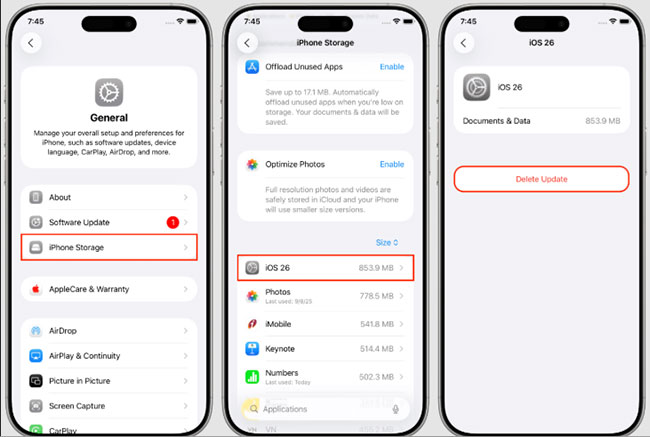
How do I stop an update that has already started downloading?
If you realize you do not have the time to wait for the installation, you can halt the process as long as the phone has not rebooted yet. Stopping it early prevents your device from locking up when you need it most.
Step 1. Open the Settings app, tap on General, and then select iPhone Storage.
Step 2. Scroll through your list of apps to locate the specific iOS update file.
Step 3. Tap the file and press "Delete Update" to completely cancel the current progress.
Conclusion
In general, an iPhone update takes about 15 to 60 minutes, depending on your network speed, device model, and available storage. If the update is taking too long or becomes stuck, it may be caused by a system issue rather than normal processing. In such cases, TunesKit iOS System Recovery can help you quickly fix iOS update problems like stuck screens or failed installations and get your iPhone back to normal with a simple repair process.