


Why Is Find My iPhone Greyed Out? 8 Ways to Fix It
If you are trying to turn off Find My iPhone but the option is greyed out and cannot be tapped, you may wonder why Apple is preventing you from changing a simple setting. This issue is common when preparing to sell an iPhone, remove an Apple Account, factory reset a device, or troubleshoot location-sharing problems.
In most cases, Find My iPhone is greyed out because of a restriction or security feature, such as Screen Time restrictions, and Stolen Device Protection. This guide explains why Find My iPhone is greyed out and how to fix it with practical solutions, from the most common causes to advanced troubleshooting methods.
- Quick Diagnosis: Why Is Find My iPhone Greyed Out?
- Why Is Find My iPhone Greyed Out?
-
How to Fix Find My iPhone Greyed Out HOT
- Fix 1. Turn Off Screen Time Restrictions
- Fix 2. Disable Stolen Device Protection
- Fix 3. Check Family Sharing Restrictions
- Fix 4. Remove an MDM Profile or Contact Your Administrator
- Fix 5. Restart Your iPhone
- Fix 6. Update iOS to the Latest Version
- Fix 7. Reset All Settings
- Fix 8. Contact Apple Support
- Why Does Apple Prevent You From Turning Off Find My iPhone?
- What Is the Relationship Between Find My and Activation Lock?
- FAQs About Find My iPhone Greyed Out
- Final Thoughts
Quick Diagnosis: Why Is Find My iPhone Greyed Out?
Before trying every solution, check which situation matches your iPhone.
| Situation | Possible Cause | Recommended Fix |
|---|---|---|
| Find My option is greyed out after enabling Screen Time | Screen Time restrictions | Allow account changes |
| You recently enabled Stolen Device Protection | Security delay or protection settings | Adjust Stolen Device Protection |
| Apple Account settings are unavailable | Account restrictions | Check Screen Time or Family Sharing |
| iPhone belongs to a company or school | MDM profile | Contact administrator or remove authorized management |
| Issue started after iOS update | Temporary software issue | Restart or update iOS |
| Child's iPhone cannot change settings | Family Sharing restrictions | Change parental controls |
Why Is Find My iPhone Greyed Out?
There are several reasons why the Find My iPhone option becomes unavailable. The most common causes are related to Apple's security restrictions rather than a hardware problem.
- 1. Screen Time Restrictions Are Enabled: Screen Time restrictions can prevent changes to important iPhone settings, including Find My. When account changes are restricted, iOS disables related options to protect your device settings.
- 2. Stolen Device Protection Is Turned On: Apple's Stolen Device Protection adds extra security for sensitive actions. If enabled, it may temporarily restrict changes to Find My settings, especially when you are away from familiar locations.
- 3. Apple Account Changes Are Restricted: If Apple Account changes are blocked through Screen Time or parental controls, your iPhone may prevent access to Find My settings because the feature is connected to your account.
- 4. Family Sharing Restrictions Are Applied: Devices managed through Family Sharing, especially child accounts, may have restrictions set by the family organizer. These controls can prevent users from modifying Find My or location settings.
- 5. Your iPhone Has an MDM Profile: A company or school iPhone may contain a Mobile Device Management profile that controls system settings. This profile can restrict access to Find My and other security options.
- 6. iOS Software Issues Occur: Temporary iOS bugs or incomplete system updates may cause certain Settings options to become unavailable. Restarting or updating your iPhone can sometimes restore normal access.
How to Fix Find My iPhone Greyed Out
After identifying the possible cause, follow these solutions. Start with the simplest fixes before trying advanced methods.
Fix 1. Turn Off Screen Time Restrictions
Screen Time is the most common reason why Find My iPhone becomes unavailable. If account changes are restricted, removing this limitation can quickly restore access to Find My settings.
- Step 1. Open the Settings app on your iPhone.
- Step 2. Scroll down and tap Screen Time.
- Step 3. Select Content & Privacy Restrictions.
- Step 4. Tap Accounts. Choose Allow under Accounts.
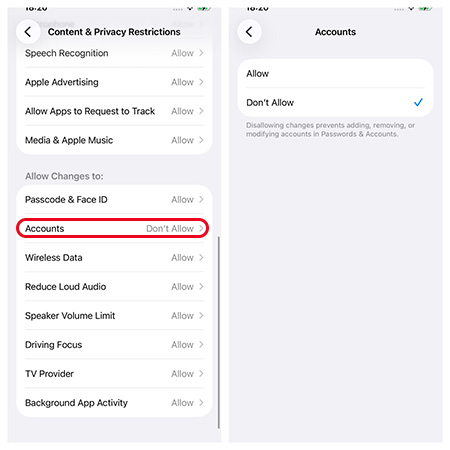
- Step 5. Return to Settings > [Your Name] > Find My to check if Find My iPhone is available again.
 Note
Note
If you forgot your Screen Time passcode, you need to reset it using the Apple Account associated with the device.
Fix 2. Disable Stolen Device Protection
Stolen Device Protection is designed to prevent thieves from changing important security settings. However, it can also temporarily block legitimate users from modifying Find My settings.
- Step 1. Open Settings. Tap Face ID & Passcode. Enter your iPhone passcode.
- Step 2. Scroll down and select Stolen Device Protection.
- Step 3. Tap the swtich to turn off Stolen Device Protection.
- Step 4. Complete Apple's required security verification.

If you are not in a familiar location, Apple may require a security delay before allowing this change.
Fix 3. Check Family Sharing Restrictions
If your iPhone belongs to a Family Sharing group, especially a child account, the family organizer may control certain settings. Removing these restrictions can restore access to Find My options.
- Step 1. Open Settings. Tap your name at the top. Select Family.

- Step 2. Check whether Screen Time or location restrictions are enabled.
- Step 3. Ask the family organizer to:
- Allow account changes
- Adjust Screen Time restrictions
- Enable location sharing if needed
After the restrictions are removed, restart the iPhone and check Find My again.
Fix 4. Remove an MDM Profile or Contact Your Administrator
If your iPhone is managed by a company or school, an MDM profile may intentionally restrict Find My settings. In this situation, only removing the management restriction can restore full access.
- Step 1. Open Settings. Tap General.
- Step 2. Select VPN & Device Management.
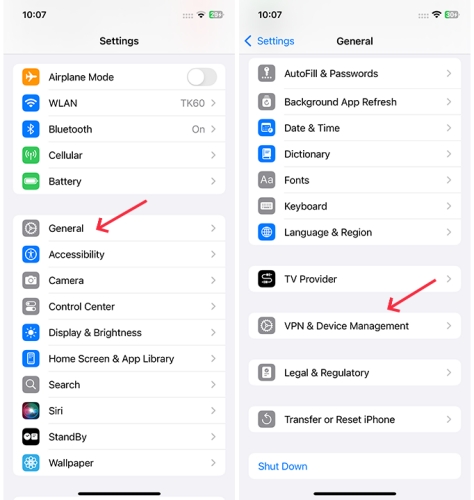
- Step 3. Check whether a management profile appears.
- Step 4. If it belongs to your organization, contact the administrator.
- Step 5. Request that the device be removed from management.
What to Do If You Cannot Remove MDM?
If you purchased a used iPhone that still has an MDM profile installed, or you are the authorized owner but cannot remove the restriction normally, a dedicated MDM removal tool may help.
TunesKit iPhone Unlocker is designed to remove certain MDM restrictions from iPhones and iPads when users are locked out by device management settings. It can help remove supported MDM profiles without requiring administrator credentials in some situations.
Key Features of TunesKit iPhone Ulocker
Easily remove MDM from iPhone without password in 3 simple steps. You won't lose your data after removing the restrictions.
 600,000+ Downloads
Fix 5. Restart Your iPhone
A temporary system glitch can sometimes make Find My settings appear unavailable. Restarting your iPhone refreshes system services and may fix minor Settings-related problems.
For iPhone X and later:
- Step 1. Pess and hold the side button + volume button.
- Step 2. Slide to power off.
- Step 3. Wait several seconds.
- Step 4. Turn the iPhone back on.

For iPhone 8 or earlier:
- Step 1. Press and hold the power button.
- Step 2. Turn off the device.
- Step 3. Restart it.

Fix 6. Update iOS to the Latest Version
If Find My iPhone became greyed out after a system update or software change, installing the latest iOS version may resolve compatibility issues and Settings bugs.
- Step 1. Open Settings. Tap General.
- Step 2. Select Software Update.
- Step 3. Tap Update Now to download and install the available update.
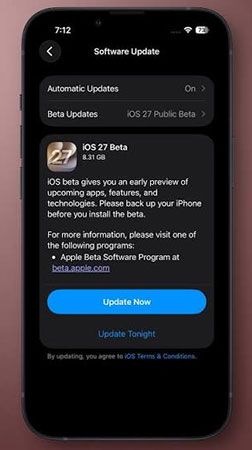
- Step 4. Restart your iPhone after installation.
 View Also: What to Do If iPhone Software Update Failed
Fix 7. Reset All Settings
Resetting all settings can fix deeper configuration problems without deleting your personal data. It restores system preferences that may interfere with Find My settings.
- Step 1. Open Settings. Tap General.
- Step 2. Select Transfer or Reset iPhone. Tap Reset.
- Step 3. Choose Reset All Settings. Enter your passcode. Confirm the reset.

This will reset WiFi passwords, network settings, privacy settings, and system preferences. Your photos, apps, and files will remain unchanged.
Fix 8. Contact Apple Support
If none of the previous methods work, the issue may involve account security, device ownership, or an Apple server-side problem. Apple Support can verify your account and provide official troubleshooting options. Before contacting Apple, you should prepare:
- Your Apple Account email
- iPhone serial number
- Proof of purchase (if needed)
- Details about when the issue started
Apple can help determine whether the restriction comes from your account, device settings, or security protections.

Why Does Apple Prevent You From Turning Off Find My iPhone?
Many users wonder why they cannot simply disable Find My iPhone when the option becomes greyed out. The reason is that Find My is directly connected to Activation Lock, Apple's security feature designed to protect lost or stolen iPhones.
When Find My iPhone is enabled, your device is linked to your Apple Account. Even if someone erases the iPhone, Activation Lock can prevent them from setting it up without your account credentials.
Because of this security system, Apple intentionally adds restrictions around disabling Find My, including:
- Requiring your Apple Account password
- Blocking changes through Screen Time restrictions
- Adding verification steps through Stolen Device Protection
- Preventing unauthorized users from removing device ownership
Therefore, a greyed-out Find My option is often a security measure rather than a system error.
What Is the Relationship Between Find My and Activation Lock?
Find My and Activation Lock are closely connected security features on iPhone. When you enable Find My iPhone, Activation Lock is automatically turned on at the same time. They work together to prevent unauthorized access to your device if it is lost or stolen. Find My allows you to:
- Locate your iPhone on a map
- Play a sound to help find it
- Mark it as lost using Lost Mode
- Remotely erase the device
Activation Lock protects your ownership of the iPhone by linking the device to your Apple Account. Even if someone erases the iPhone, they cannot set it up again without entering the original Apple Account password.
FAQs About Find My iPhone Greyed Out
-
Can I turn off Find My iPhone without my Apple Account password?
No. Apple requires your Apple Account password when disabling Find My because turning it off also removes Activation Lock. This prevents unauthorized users from disconnecting a stolen device from its owner.
-
Does resetting an iPhone remove Find My iPhone?
No. A factory reset does not remove Activation Lock if Find My iPhone is still enabled. The device remains linked to the original Apple Account until Find My is turned off.
-
Why is Find My iPhone greyed out after updating iOS?
Sometimes system updates can cause temporary Settings issues. Restart your iPhone, install the latest iOS update, or reset all settings if the problem continues.
Final Thoughts
When Find My iPhone is greyed out, it usually does not mean your iPhone is damaged. In most cases, the restriction comes from security settings designed to protect your device and Apple Account.
If you understand why Find My is restricted, you can fix the issue without unnecessary resets or complicated troubleshooting. When you are sure that the problem is caused by an MDM restriction but cannot remove it normally, you can try to TunesKit iPhone Unlocker to remove it without data loss.



