How to Set Up and Manage Screen Time With Family Sharing
Apple Screen Time with Family Sharing lets parents manage a child’s device use from their own iPhone or iPad. You can view activity reports, schedule Downtime, limit apps, control age-restricted content, and prevent settings from being changed without permission.
However, Screen Time may not work as expected if the child uses the wrong Apple Account, has not joined the family group, or the parent does not have the correct family role. This guide explains how to correctly set up Screen Time with Family Sharing, reset the Screen Time passcode, and troubleshoot common syncing problems.

- Quick Answer: How Do You Set Up Screen Time With Family Sharing?
- What Is Screen Time With Family Sharing?
- Requirements Before Setting Up Screen Time With Family Sharing
- How to Add a Child to Family Sharing
- How to Turn On Screen Time for a Child
- How to Turn Off Screen Time for a Child
- What To Do If Forgot Family Sharing Screen Time Passcode
- FAQs About Screen Time With Family Sharing
- Conclusion
Quick Answer: How Do You Set Up Screen Time With Family Sharing?
On the parent’s iPhone or iPad, open Settings > Screen Time. Under Family, select the child’s name and follow the onscreen instructions to turn on Screen Time and parental controls. If the child does not appear, add them to your Family Sharing group first: Settings > Family > Add Member. Choose Create Child Account if they do not have an Apple Account, or invite their existing account to the family group.
After setup, return to Settings > Screen Time > [Child’s Name] to manage:
- App & Website Activity;
- Downtime;
- App Limits;
- Always Allowed apps;
- Communication Limits;
- Communication Safety;
- Content & Privacy Restrictions;
- Screen Distance;
- Screen Time requests.
Create a Screen Time passcode that the child does not know. This prevents them from changing limits or approving additional time without permission.
Screen Time Family Sharing Setup at a Glance
| Your situation | What to do |
|---|---|
| Your child does not have an Apple Account | Create a child account from Settings > Family > add member icon |
| Your child already has an Apple Account | Invite the existing account to the family group |
| Your child is already in Family Sharing | Open Settings > Screen Time and select the child |
| The child does not appear under Family | Check the Apple Account, family membership, and parent role |
| You want to manage limits remotely | Set up Screen Time from the parent’s device |
| You manage Screen Time on the child’s device | Lock the settings with a Screen Time passcode |
| Screen Time data is not updating | Check the internet connection, system version, and account sync |
What Is Screen Time With Family Sharing?
Screen Time is Apple’s built-in tool for viewing device activity and managing how apps, websites, communication features, and content are used.
When Screen Time is combined with Family Sharing, a parent or guardian can manage a child’s settings remotely from their own Apple device. The child does not need to hand over the device each time a limit needs to be changed. Depending on the child’s age, device, region, and enabled features, a parent can use Screen Time to:
- View daily and weekly device activity;
- See which apps and websites are used most;
- Check how often the device is picked up;
- Review the number of notifications received;
- Schedule device-free periods with Downtime;
- Set daily limits for apps and app categories;
- Select apps that remain available at all times;
- Restrict purchases, downloads, websites, and explicit content;
- Limit who the child can communicate with;
- Receive and approve requests for more time;
- Lock parental-control settings with a passcode.
Family Sharing does not allow parents to read a child’s messages, view passwords, or remotely control everything displayed on the device. It manages supported usage limits, content settings, and parental controls.
Screen Time on the Child’s Device vs. Family Sharing
You can set up Screen Time directly on a child’s iPhone or manage it through Family Sharing. However, the two approaches are not equally convenient.
Set Up Screen Time Directly on the Child’s Device
This method can be used when the child’s device is available and you do not manage it through Family Sharing. You must create a Screen Time passcode and make sure the child does not know it. Otherwise, the child may be able to change limits, disable settings, or approve more time.
Manage Screen Time Through Family Sharing
This is generally the better choice for parents because it allows you to:
- Change restrictions from your own iPhone or iPad;
- View the child’s activity remotely;
- Approve or reject Screen Time requests;
- Reset the child’s Screen Time passcode;
- Apply age-appropriate parental controls;
- Manage multiple children from one device.
Family Sharing also helps keep the child’s Apple Account separate from the parent’s account. Each family member should use a unique Apple Account rather than sharing the same sign-in information.
Requirements Before Setting Up Screen Time With Family Sharing
Check the following items before you begin. Many Screen Time Family Sharing problems are caused by an incomplete family or account setup.
1. Each Family Member Needs a Separate Apple Account
The parent and child should not share the same Apple Account. A separate account allows Apple to correctly identify the family member, synchronize Screen Time data, apply age-based settings, and keep personal information separate. If the child is using the parent’s Apple Account, create or add a separate child account before configuring parental controls.
2. The Child Must Be in the Family Sharing Group
Open Settings > Family. Confirm that the child appears in the list of family members. If the child is missing, select the add member icon and either create a child account or invite their existing Apple Account.
3. The Parent Needs the Correct Family Role
The family organizer can manage Family Sharing settings. A member assigned as a Parent/Guardian can also manage parental controls for eligible child and teen accounts. An adult family member who has not been assigned the Parent/Guardian role may not be able to change the child’s Screen Time settings.
To check a member’s role:
- Step 1. Open Settings > Family on the organizer’s device.
- Step 2. Select the adult family member.
- Step 3. Check whether Parent/Guardian is enabled.
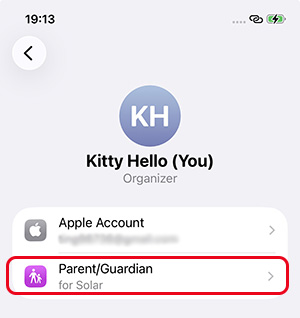
The exact wording may vary slightly by system version and region.
4. Use the Child’s Correct Date of Birth
The child’s date of birth affects which account settings and parental controls are available. Apple’s child-account age threshold can vary by country or region. Enter the child’s real date of birth when creating the Apple Account. Do not use an incorrect birthday to change the account’s permissions or classification. If the birth date was entered incorrectly, update it through the official Apple Account settings. Some changes may require approval from the family organizer.
5. Update All Devices
Install the latest available version of iOS or iPadOS on both the parent’s and child’s devices. Different or outdated system versions may cause:
- Missing Screen Time options;
- Delayed activity reports;
- Limits that do not sync;
- Requests that are not received;
- Family members that do not appear correctly.
Go to Settings > General > Software Update to install an available update, then restart both devices.
6. Connect Both Devices to the Internet
The parent’s and child’s devices should have a stable Wi-Fi or cellular connection. Family Sharing changes may take time to sync when either device is offline. After changing a restriction, keep both devices connected and allow a few minutes for the setting to update.
How to Add a Child to Family Sharing
The setup process depends on whether the child already has an Apple Account. Do not divide the process only by a fixed age such as 13, because Apple’s child-account requirements can vary by country or region.
Option 1. Create an Apple Account for a Child
Use this method when the child does not already have their own Apple Account.
- Step 1. Open the Settings app on the family organizer’s iPhone or iPad. Tap Family.
- Step 2. Tap the icon at the top of the screen. Select Create Child Account, and then tap Agree and Continue.
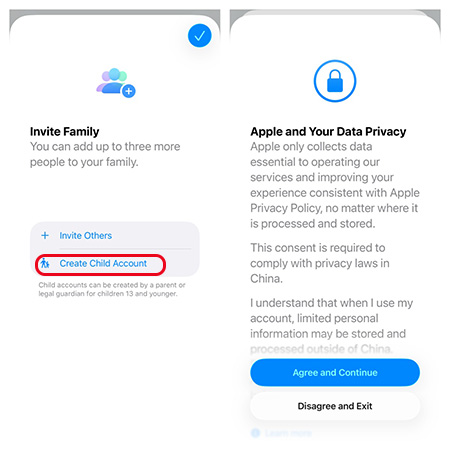
- Step 3. Enter the child’s correct name and date of birth. Check the date carefully. The birthday affects age-related account settings and may be difficult to change later.
- Step 4. Follow the onscreen instructions to create the child’s Apple Account. Apple may ask you to verify that you are an adult or confirm the family organizer’s payment method.
- Step 5. Create a secure password and configure account-recovery information. Follow the remaining prompts to enable age-appropriate settings, Ask to Buy, location sharing, and parental controls.
- Step 6. Once completed, the child should appear under Settings > Family and under the Family section in Screen Time.
Option 2. Add a Child Who Already Has an Apple Account
Use this method when the child already uses a separate Apple Account.
- Step 1. Open Settings > Family on the family organizer’s device. Tap on the add member icon at the top of the screen and then select Invite Others.
- Step 2. Choose an invitation method and send the invitation to the Apple Account used on the child’s device. Depending on the available options, you may be able to invite the child through Messages or in person.
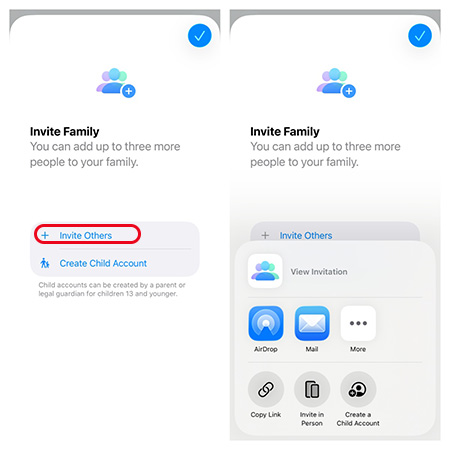
- Step 3. Accept the invitation on the child’s device.
- Step 4. Return to Settings > Family on the parent’s device and confirm that the child appears in the group. If parental consent is required because of the child’s age or region, follow the additional onscreen instructions.
Option 3. Transfer a Child From Another Family Group
An Apple Account can belong to only one Family Sharing group at a time. If the child is already in another family group, the current family organizer may need to approve a transfer to the new group. Do not create a second Apple Account merely to avoid the transfer process, because doing so can separate the child from existing purchases, data, and account settings. After the transfer is approved, check that the child appears in the new family group before setting up Screen Time.
How to Turn On Screen Time for a Child
You can turn on Screen Time for a child with two different methods. You can set it up remotely or direct on child's device.
Option 1. From a Parent’s iPhone
After the child joins the Family Sharing group, you can configure Screen Time remotely.
- Step 1. Open the Settings app on the parent’s iPhone or iPad. Scroll down and tap Screen Time.
- Step 2. Under Family, tap the child’s name. If the child does not appear, confirm that you are signed in with the organizer or Parent/Guardian account and that the child has joined the family group.
- Step 3. Tap Screen Time and follow the on-screen instructions to complete the Screen Time restriction process.
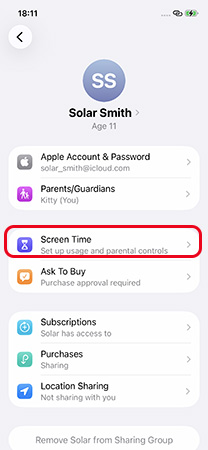
- Step 4. Set up a Screen Time passcode for your child.
After setup, return to Settings > Screen Time > [Child’s Name]. You can now view activity reports and manage the child’s restrictions from the parent’s device.
Option 2. On the Child’s Device
If you cannot use a parent iPhone or iPad, Screen Time can also be configured on the child’s device in supported situations.
- Step 1. Open Settings > Screen Time on the child’s iPhone or iPad.
- Step 2. Tap App & Website Activity. Tap Turn On App & Website Activity.
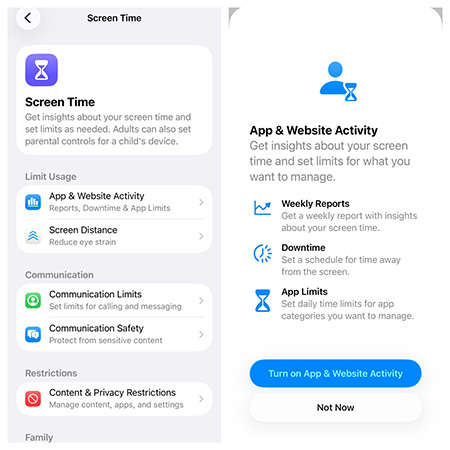
- Step 3. Configure Downtime, App Limits, content restrictions, and other controls.
- Step 4. Scroll down and tap Lock Screen Time Settings. Enter and confirm a four-digit Screen Time passcode.
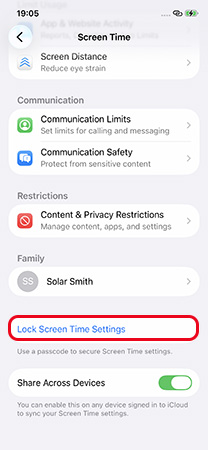
Managing Screen Time directly on the child’s device is less convenient than using Family Sharing because future changes may require access to that device. When possible, add the child to Family Sharing and manage the settings from the parent’s iPhone or iPad.
How to Turn Off Screen Time for a Child
If you no longer need to limit your child's screen time or want to reset the settings, here's how to turn off Screen Time with Family Sharing:
- Step 1. Go to Settings > Screen Time on your iPhone or iPad.
- Step 2. Tap the name of the family member whose Screen Time you want to turn off.
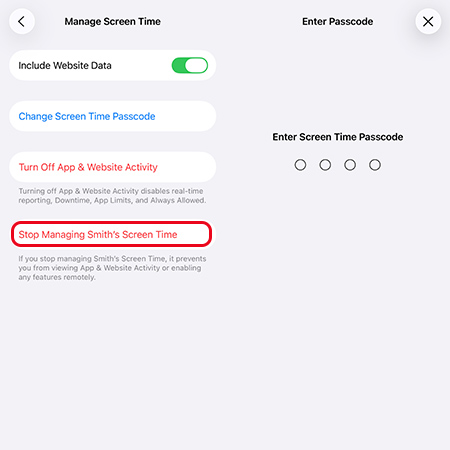
- Step 3. Scroll down and tap Manage Screen Time. Select Stop Managing Child's Screen Time. If you have a passcode set up, you will be prompted to enter it.
 View Also:
 What To Do If Forgot Family Sharing Screen Time Passcode
With so many different passcodes for various purposes, it's common to forget the Screen Time passcode. Luckily, there are several methods to regain access and reset the passcode, whether through your device settings or using professional tools.
Option 1. Reset Screen Time Passcode For Family Sharing on Settings
If you added recovery contacts when initially setting up the Screen Time passcode, resetting it is quick and easy through your device settings. Here's how to change screen time passcode for family sharing:
- Step 1. Go to Settings > Screen Time on parent's iPhone/iPad.
- Step 2. Tap your child's name, scroll down, tap Manage Screen Time.
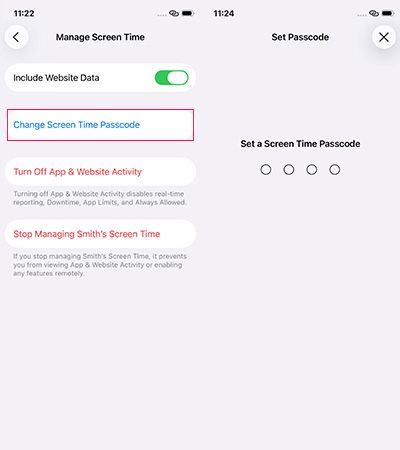
- Step 3. Tap Change Screen Time Passcode, and tap Change Screen Time Passcode again.
- Step 4. Verify your identity via Face ID/Touch ID/screen passcode.
- Step 5. Enter a new Screen Time passcode and cofirm it again to save changes.
Option 2. Remove Screen Time Passcode via TunesKit iPhone Unlocker
If you own or are authorized to manage the iPhone but cannot use the official method, TunesKit iPhone Unlocker provides a computer-based fallback. Its Unlock Screen Time Passcode mode is designed to remove Screen Time restrictions without deleting existing user data.
Use this option only on your own device or a device you have permission to manage. It should not be used by a child to bypass parental controls without authorization.
Step 1. Connect Your Kid's Apple Device to a Computer
After install TunesKit iPhone Unlocker on your computer, click Unlock Screen Time Passcode at the right. Then, connect your kid's iPhone/iPad to the computer using a USB cable. Tap the Trust option on the device if prompted the "Trust This Computer" window.

Step 2. Disable Find My Feature on iPhone/iPad
Click Start on TunesKit iPhone Unlocker, then follow the on screen instructions to turn off Find My feature on the Apple devices. This way, the program can work successfully and doesn't hurt your device data.

Step 3. Unlock Screen Time Passcode
Click the Next Step icon after disabling Find My feature. Click Unlock to start removing the screen time passcode. It will finish in few minutes. Then, you can reset the Screen Time password again.

FAQs About Screen Time With Family Sharing
-
Why can’t I see my child under Screen Time?
The child may not have joined the Family Sharing group, may be signed in with a different Apple Account, or may belong to another family group. Also confirm that you are using the organizer’s account or an account with the appropriate Parent/Guardian role.
-
Why is my child’s Screen Time not updating?
The most common causes include outdated system software, an offline device, an incorrect Apple Account, disabled App & Website Activity, or Share Across Devices being turned off. Update and restart every family device, confirm the accounts, and keep both devices connected to the internet. Apple recommends updating all devices before changing Screen Time settings.
-
Can I manage my child’s Screen Time from an Android phone?
Apple’s complete Family Sharing Screen Time controls are designed for supported Apple devices. An Android phone does not provide the same Settings interface for remotely managing a child’s Apple Screen Time controls. Use an iPhone, iPad, or supported Mac signed in with the appropriate family account.
Conclusion
Screen Time with Family Sharing gives parents a practical way to manage a child’s iPhone or iPad from their own Apple device. When the child’s Screen Time passcode is forgotten, the family organizer should reset it from the organizer’s device. TunesKit iPhone Unlocker should be treated only as a computer-based fallback when the official account and Family Sharing recovery options cannot be used on an authorized device.