


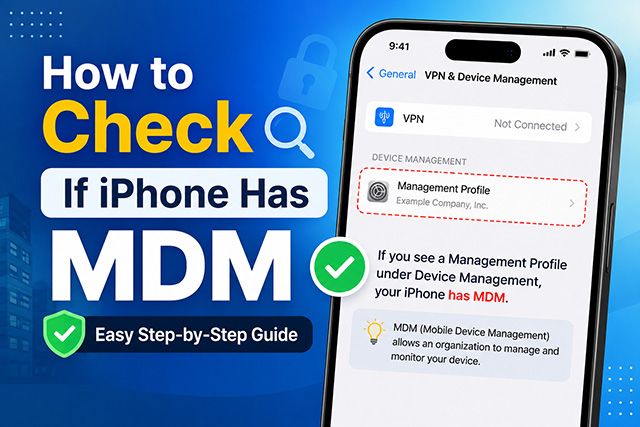
[2026 Guide] How to Check If iPhone Has MDM
If you are buying a used iPhone, checking the battery health and physical condition is only half the battle. One of the biggest hidden risks when buying a secondhand Apple device is discovering it is locked by Mobile Device Management (MDM).
MDM is a protocol used by corporations, schools, and organizations to securely monitor, manage, and restrict their Apple devices remotely. A managed device can be tracked, remotely erased, or severely restricted. To ensure you are buying a clean, fully usable device, this guide will walk you through exactly how to check if an iPhone has MDM, based on your current situation.
Scenario A: You Already Have the iPhone and It's Set Up
If you are holding the iPhone, it is currently activated, and you have access to the home screen, you can perform a quick verification in a matter of seconds.
Method 1: Check VPN & Device Management in iOS Settings
The most reliable way to check for a MDM profile on modern iOS versions is directly through the iPhone's settings.
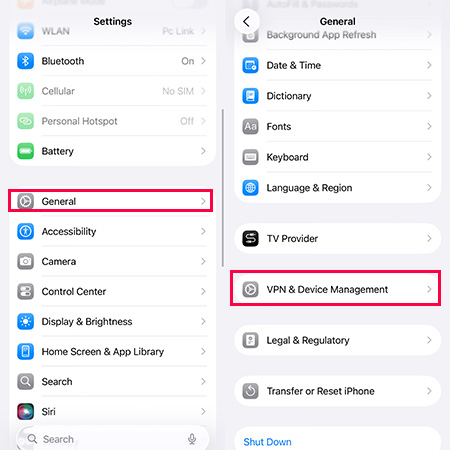
- Step 1. Open the Settings app on the iPhone.
- Step 2. Scroll down and tap on General.
- Step 3. Scroll down near the bottom and look for VPN & Device Management.
- Step 3. Check the Configuration Profiles or Mobile Device Management section.
How to read the results:
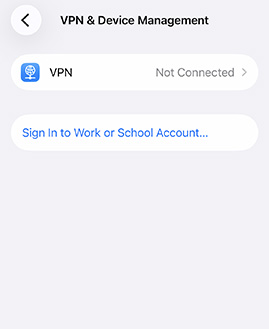
- Clean Status: If you only see your personal VPNs (or if the section is entirely empty/missing), the iPhone does not have a local MDM profile installed.
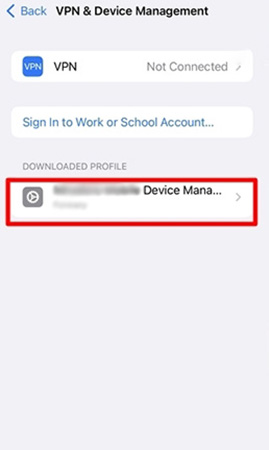
- Managed Status: If you see a profile listed under "Mobile Device Management," the phone is being managed. Tapping on the profile will reveal exactly what the organization has the power to restrict or control.
Method 2: Look for the "Supervised" Warning Message
Apple has made it incredibly easy to identify corporate-owned devices on modern operating systems (iOS 16 or later).
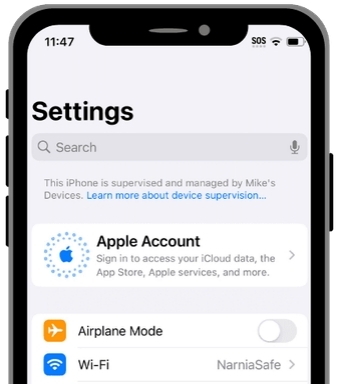
If a device is heavily restricted via Apple Business Manager or Apple School Manager, you do not even need to dig into the menus. Simply open the Settings app. Look at the very top of the screen, just under the Apple Account name.
If the phone is managed, you will see a prominent message stating: "This iPhone is supervised and managed by [Organization Name]." You may also see a similar warning message at the bottom of the Lock Screen.
Scenario B: You Are Setting Up a Factory-Reset iPhone
Sellers often factory reset iPhones before selling them. While this wipes personal data, a standard factory reset does not remove a hardcoded enterprise MDM lock. In this case, you can check if your iPhone has an MDM by following these steps:
- Step 1. If you are walking through the initial "Hello" setup process on a wiped iPhone, pay very close attention right after you connect the device to Wi-Fi.
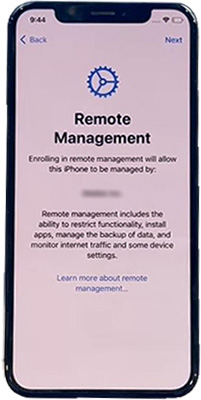
- Step 2. During the activation step, the iPhone pings Apple's servers. If the device's serial number is registered to an organization's MDM server, the setup process will suddenly halt and display a "Remote Management" screen.
- Step 3. This screen will state that an organization will automatically configure your iPhone, and it will require a specific corporate username and password to proceed. If you see this screen, stop immediately. Do not purchase the phone, as you will not be able to bypass this screen to use the device.
Scenario C: You Are Buying an iPhone Online (No Physical Access)
Buying a phone off eBay, Swappa, or Facebook Marketplace means you cannot physically check the iOS Settings yourself. In this case, you need to rely on the device's unique identifiers.
How to Check MDM Status via IMEI or Serial Number
- Step 1. Before exchanging any money, ask the seller to provide the iPhone's IMEI number or Serial Number. They can find it by one of these two ways:
- Dial *#06# on the phone app.
- Go to Settings > General > About.
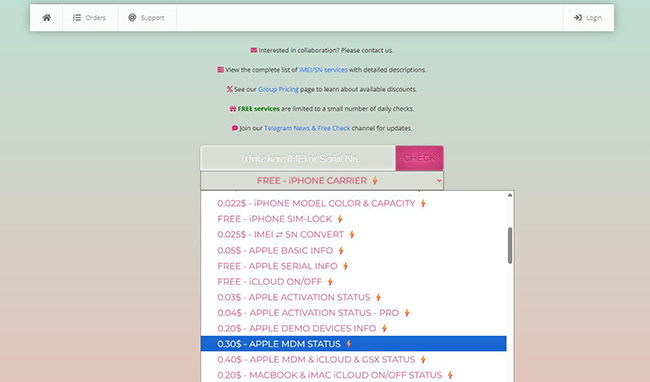
- Step 2. Once you have the IMEI or Serial Number, use a reputable online IMEI checker. Websites like SickW offer services (often for a small fee of $1 to $3) specifically designed to check a device's MDM status.
- Step 3. These tools query Apple's database directly and will tell you if the device is tied to an Apple Business/School Manager account, saving you from a costly mistake.
Bonus: How to Remove MDM from iPhone Without Data Loss
If you have discovered an MDM profile on your current iPhone and want to remove it without wiping your personal photos, contacts, and apps, your options depend heavily on how the profile was originally installed. Here are the three ways to remove an MDM profile without data loss.
Method 1: Remove a Manually Installed MDM Profile (The Official Way)
If the iPhone is a personal device that you brought to work or school (often called BYOD - Bring Your Own Device), the organization likely had you manually download a configuration profile. Because it is not hardcoded to the device by Apple, you can delete this MDM profile easily without losing any of your personal data.
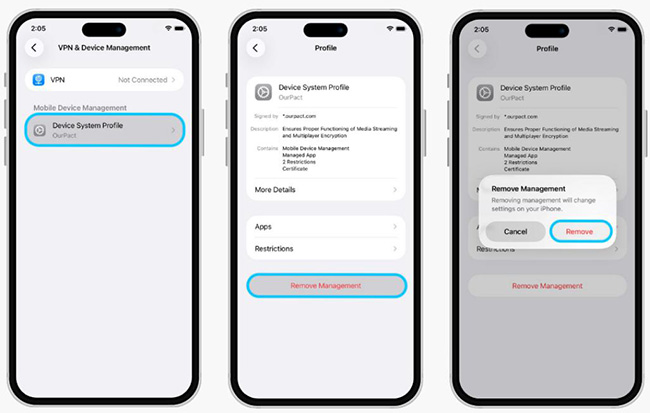
- Step 1. Go to Settings > General > VPN & Device Management.
- Step 2. Tap on the specific Mobile Device Management profile listed.
- Step 3. Tap the Remove Management button at the bottom of the screen. Tap Remove to confirm your selection.
- Step 4. Enter your iPhone's lock screen passcode to confirm.
Once removed, your personal data remains untouched, but you will instantly lose access to any corporate apps, enterprise networks, or internal school portals tied to that profile.
Method 2: Contact the Original IT Administrator
If the "Remove Management" button is missing or grayed out, the device is likely enrolled in Apple’s Automated Device Enrollment. In this case, the safest way to remove the MDM lock without a factory reset or data loss is to contact the organization's IT department.
If you purchased the phone legitimately and it was accidentally left in their system, the IT administrator can log into their Apple Business Manager portal and remotely "Release" or "Unmanage" the device. Once they do this, the profile will silently disappear from your iPhone when connected to Wi-Fi, leaving your data perfectly intact.
Method 3: Using Third-Party MDM Bypass Software - One-click Solution
If you cannot reach the original IT administrator or bought the phone from an unresponsive seller, your best alternative is to use specialized MDM bypass software. One of the most reliable and user-friendly tools for this specific problem is TunesKit iPhone Unlocker.
Unlike a factory reset which wipes everything, TunesKit iPhone Unlocker is specifically designed to remove or bypass the MDM restriction while keeping your personal data — photos, contacts, and apps — completely safe and intact.
Use TunesKit iPhone Unlocker to Remove MDM
Remove MDM restrictions from iPhone/iPad/iPod without password. Easy-to-use feature and user-friendly interface. Fully compatible with the latest iOS device and iOS versions.
 600,000+ Downloads
- Step 1. Download and Install: Download TunesKit iPhone Unlocker onto your comptuer, install it, and launch the program.
- Step 2. On the main welcome interface, click on the Remove MDM option.
- Step 3. Use a high-quality USB lightning cable to connect your iPhone to your computer. Make sure your iPhone screen is unlocked, and if a prompt appears on your phone, tap "Trust This Computer."
- Step 4. Click the Start button on your computer screen. The software will automatically begin bypassing the MDM profile on your device.

In just a few minutes, your iPhone will restart. The restrictive MDM profile and the annoying "Supervised" warnings will be gone, allowing you to use your device freely with all your original data still exactly where you left it.
Conclusion
Navigating the used iPhone market requires diligence. An MDM-locked device can severely compromise your privacy and limit your ability to use the phone you paid for. By knowing how to check if an iPhone has MDM, whether by navigating the iOS Settings, spotting the "Supervised" warning, verifying the initial setup screen, or running an IMEI check, you can confidently secure a clean, unlocked device.
If you want to remove the MDM restriction from your iPhone, TunesKit iPhone Unlocker is the most recommended solution for its convenience and data protection.


