


How to Use Multiple Apple IDs on iPhone 2026
You might have multiple Apple IDs for different usuages, like keeping personal and professional lives separate, accessing different regional App Stores, or sharing purchases among family members. However, switching between accounts and handling multiple Apple IDs can be tricky if you're unfamiliar with the process.
This guide will walk you through everything you need to know about using multiple Apple IDs on iPhone, from setting them up to removing them when needed. Explore useful tips and tricks with us now!

- Part 1. Can I Have Multiple Apple IDs on One iPhone?
- Part 2. How to Add Multiple Apple IDs on iPhone/iPad
- Part 3. More Tips for Using Multiple Apple IDs on iPhone/iPad Smoothly
- Part 4. Bonus – How to Remove Multiple Apple IDs on iPhone Without a PasswordHOT
- Part 5. FAQs on iPhone Multiple Apple IDs
- Part 6. Conclusion
Part 1. Can I Have Multiple Apple IDs on One iPhone?
Yes, you can use multiple Apple IDs on your iPhone, but there are some restrictions. Apple allows you to sign in with different Apple IDs for different services such as iCloud, the App Store, and iMessage. While you can use multiple accounts for purchases and subscriptions, you can only have one Apple ID signed into iCloud at a time. This means you can switch between accounts but not use them simultaneously for iCloud services.
Here's a summary of the benefits and drawbacks of using multiple Apple IDs on one iPhone for your reference:
 Pros:
Pros:- Separation of Work and Personal Data: Helps maintain distinct professional and personal accounts on one iPhone;
- Access to Different Regional App Stores: Allows downloading apps not available in your region;
- Purchase Management: Keeps subscriptions and purchases under different accounts;
- Family Sharing Benefits: Can be used alongside Family Sharing to access purchases without switching accounts again and again;
 Cons:
Cons:- iCloud Data Syncing Issues: Switching iCloud accounts may lead to lost or unsynced data;
- Frequent Logins Required: You need to log in and out repeatedly to access different Apple IDs;
- Inconvenience in App and Service Access: Some services may require reauthentication when switching IDs;
- Limited Account Merging Options: Apple does not support merging multiple Apple IDs into one;
- Easier to Confuse or Forgot Apple ID Password: If you set different password for your multiple apple ids, you may sometimes mistake them and can't figure out the correct one.
Part 2. How to Add Multiple Apple IDs on iPhone/iPad
In this part, we'll introduce how to use multiple Apple IDs on iPhone/iPad under 3 common senarios.
Case 1. Add a New Apple ID for iCloud Services
If you want to switch your Apple ID for iCloud storage, iMessage, FaceTime, and other communication service, you'll need to operate on the Apple ID profile settings:
 Note
Note
Once you sign out of an Apple account, all data on iPhone/iPad will be erased if you choose not to keep a copy of data, like Calendars, Contacts, Keychain, etc. Ensure you've backed up these data to iCloud before you signing out.
- Step 1. Open the Settings app on your iPhone.
- Step 2. Tap your name at the top to access Apple ID settings.
- Step 3. Scroll down and select Sign Out.
- Step 4. Enter your Apple ID password to confirm the sign-out process.
- Step 5. Once signed out, choose Sign in to your iPhone.
- Step 6. Enter the new Apple ID credentials and follow the on-screen instructions.


Case 2. Use Multiple Apple IDs for Purchases and Subscriptions
Want to download apps from other contry or seperate download and purchase records for personal and work Apple account? You can easily use multiple Apple IDs on iPhone for purchases and subscriptions without signing out and erasing iPhone data with the following steps:
- Step 1. Open Settings > [Your Profile] on your iPhone.
- Step 2. Scroll down and tap iTunes & App Store or Media & Purchases on newer iOS version.
- Step 3. Tap Sign Out at the pop-up window.
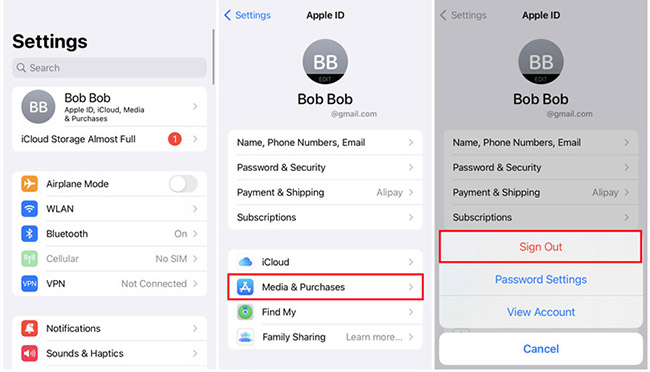
- Step 4. Uncheck Encrypt local backup and enter your password.
- Step 5. Tap Sign In > Not xxx and enter the credentials of the Apple ID you wish to use for purchases.
This way, you can manage App Store purchases, streaming music or video service, or other payment features separately while keeping your primary iCloud account intact.
Case 3. Use Multiple Apple IDs for Merging Contacts & Calendars
If your goal is strictly professional - for example, you want your work contacts and calendar events to show up on your personal iPhone - you do not need to mess with your App Store settings at all.
iOS allows you to add "Secondary" accounts purely for data syncing. This is the cleanest way to merge a work Apple ID with a personal device.
- Step 1. Go to Settings and scroll down to find Mail (or Calendar, depending on your iOS version).
- Step 2. Tap on Accounts. You will see a list of currently active accounts (like iCloud and Gmail).

- Step 3. Tap Add Account and select iCloud.
- Step 4. Enter the credentials for your second Apple ID.

- Step 5. Once verified, iOS will ask you what data you want to sync. Toggle ON the switches for Contacts, Calendars, and Reminders. Tap Save.
Now, open your Contacts app. You will see names from both your personal life and your work life blended together in one list (or viewable as separate groups). No sign-outs required, and zero risk of data loss.
Part 3. More Tips for Using Multiple Apple IDs on iPhone/iPad Smoothly
With the above simple steps, you should figure out how to use multiple Apple IDs on iPhone now. Here we've collected 3 useful tips to enhance the experience of adding two or more Apple IDs securely and smoothly.
Tip 1. Avoid Signing Into Others' Apple IDs on Your Profile [Important]
Sometimes you might want to download a paid app for free via someone else's Apple account. However, it's crutial to remember that, don't sign into other's Apple ID on iPhone Settings > Your Profile.
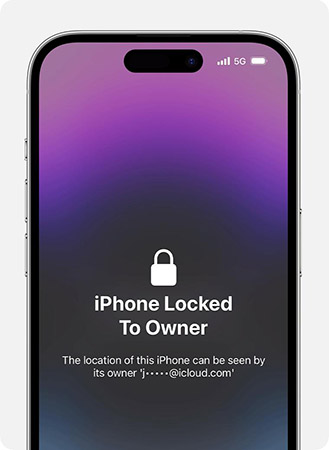
If you sign into stranger's Apple ID here, he/she may indimedialy turn on the Activation Lock and change their Apple ID password. Then, you iPhone/iPad belongs to the stranger's and you can't remove this Apple ID anymore. Most importantly, even if you erase your iPhone, it will show "iPhone Locked to Owner" warning after rebooting your iPhone. And your iPhone/iPad would become a brick which is unavailable to use anymore.
Therefore, always sign into your own Apple account on Settings to keep your iPhone and data safe.
Tip 2. Ensure a Complete Backup Before Switching Accounts
Switching accounts on the iPhone profile will automatically remove all data related to this Apple ID, so make sure you have a full iTunes iPhone backup to prevent data loss.
However, even choosing to keep a copy or ensuring all data is backed up to the same iCloud account, some user still encounter iCloud data error after switching accounts. Therefore, you'd better keep more copies of your data for insurance, like backup them to iTunes on PC or Mac aside from iCloud.

Tip 3. Share Purchases and Subscriptions via Family Sharing
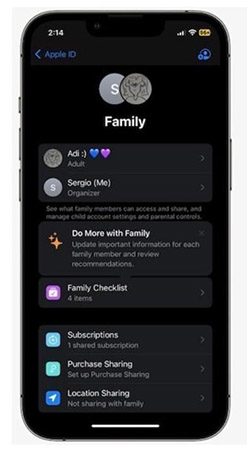
To avoid iOS bugs generated by frequently switching multiple Apple IDs on iPhone, Family Sharing is an effective feature. Once you create a Family Sharing group and invite other Apple IDs to your family, you can share purchases, Apple Music, movies, and iCloud storage among family members.
Simply go to Settings > [Your Profile] > Family Sharing, proceed with on-screen instructions to invite other Apple IDs, and turn on the share Subscriptions and Purchases Sharing feature.
This way, you can keep copies of purchased apps or other media resources from others on your iPhone/iPad without signing out any of your own account.
Part 4. Bonus – How to Remove Multiple Apple IDs on iPhone Without a Password
Sometimes, you may forget your Apple ID passwords and struggle to remove an old account when you use multiple Apple IDs on iPhone. Things can be even more tricky if you can't access to the old email or phone number for Apple ID registration. Thanfully, TunesKit iPhone Unlocker is here to help you! This professional tool allows you to remove an Apple ID from your locked iPhone without a password.
Why Choose TunesKit iPhone Unlocker?
Delete Apple ID on iPhone without password easily. Support iPhone models running iOS 7-26, as well as iPad and iPod. Bypass iPhone screen lock, Screen Time Limit, MDM restrictions, and iTunes backup encryption quickly.
 600,000+ Downloads
Here's how to remove all Apple IDs on iPhone via TunesKit iPhone Unlocker when you forgot password.
Step 1Connect iPhone to Mac/Windows Computer
Launch the software and connect your iPhone using a USB cable. On the main interface, select "Unlock Apple ID" feature.

Step 2Check Your iDevice Status
Click Start and wait for the tool to process the removal. Apple ID removal capabilities depend on your specific "Find My" settings and software version. Removal is supported in the following two scenarios:
- Find My is OFF: Supported on all devices and iOS versions.
- Find My is ON: Supported only if the device runs iOS 11.4 or later and has both a screen lock and Two-Factor Authentication enabled.

Step 3 Remove Multiple Apple IDs on iPhone Without Password
Click Unlock after the firmware package is downloaded and unziped. Then, TunesKit will proceed to remove Apple IDs on your iPhone within minutes.

Part 5. FAQs on iPhone Multiple Apple IDs
-
1. How Many Apple IDs Can Be Used on an iPhone?
You can use multiple Apple IDs on an iPhone for different services like iCloud, iMessage, and the App Store. However, only one Apple ID can be used per service at a time.
-
2. How Many Apple IDs Can I Create on One iPhone?
There is no strict limit, but Apple may prevent frequent creation of new Apple IDs to avoid abuse. According to our tests and some user feedback on Apple's forum, you're available to create three apple ids on one iphone. However, you may need different phone numbers to enable Apple ID 2FA protection for each account.
-
3. Can I Merge Two Apple IDs into One?
No, Apple does not provide a feature to merge two different Apple IDs. Purchases, subscriptions, and iCloud backups cannot be transferred from one account to another. However, you can merge synced data like Contacts and Calendars by saving them to your device storage and then syncing them to the new ID.
-
4. Will I Lose My Purchases If I Switch Apple IDs?
No, your purchases remain tied to the Apple ID used to buy them. However, you will need to sign back into the original account to update them.
Part 6. Conclusion
Using multiple Apple IDs on an iPhone can help separate work and personal data, access region-specific content, and manage purchases efficiently. By following the right steps, you can smoothly switch between Apple IDs without losing data. And if you ever need to remove an Apple ID without a password, TunesKit iPhone Unlocker is a powerful tool to help you regain access to your device effortlessly.


