


2026 How to Backup iPhone to iTunes on Computer
Backing up your iPhone is one of the most important things you can do to protect your data. Whether you're upgrading to a new iPhone, troubleshooting a software issue, or preparing for a factory reset, having a recent backup ensures that your photos, messages, contacts, and settings can be restored when needed.
While iCloud offers a convenient wireless backup solution, backing up your iPhone to a computer using iTunes (or Finder on newer Macs) provides a more secure method. So, in this guide, we will walk you through how to backup iPhone to iTunes on computer, helping you keep your data protected securely and restored smoothly.

Quick Answer: Can You Still Backup an iPhone with iTunes?
Yes. You can still back up an iPhone using iTunes on Windows computers. On Macs running macOS Catalina or later, Apple replaced iTunes with Finder. For some newer Windows devices, Apple also provides the Apple Devices app as an alternative to iTunes to backup iPhone.
| Device | Backup Tool |
|---|---|
| Windows 10/11 | iTunes or Apple Devices App |
| macOS Mojave or Earlier | iTunes |
| macOS Catalina or Later | Finder |
Regardless of which tool you use, the backup process is very similar and allows you to save your iPhone data locally on your Windows PC or Mac.
Before Backing Up Your iPhone to iTunes
Before starting the backup process, there are several things you should check to ensure the backup completes successfully.
- Update iTunes. Using an outdated version of iTunes may cause connection or backup issues. Make sure you install the latest version available for your computer.
- Check Available Storage Space. iPhone backups can be surprisingly large, especially if your device contains thousands of photos and videos. As a general rule, your computer should have at least the same amount of free storage as the used storage on your iPhone.
- Use a Reliable USB Cable. A faulty USB cable can interrupt the backup process and cause errors. Whenever possible, use an Apple-certified Lightning or USB-C cable.
- Trust the Computer. When connecting your iPhone, you may see a "Trust This Computer" prompt. Tap Trust and enter your passcode to establish a secure connection.
How to Backup iPhone with iTunes on Computer
Depending on your operating system, you can use iTunes, Finder, or Apple's newer Apple Devices app to create a complete backup of your iPhone. Follow the appropriate method below based on the computer you're using.
Method 1. Backup iPhone to iTunes on PC
If you're using a Windows PC, iTunes remains one of the most reliable tools for creating a full local backup of your iPhone. This method stores your data directly on your computer, allowing you to restore your device even without an internet connection. It's particularly useful before updating iOS, resetting your iPhone, or transferring data to a new device.
- Step 1. Download and install the latest version of iTunes on your Windows PC if it isn't already installed.
- Step 2. Connect your iPhone to the computer using a compatible USB cable.
- Step 3. Unlock your iPhone and tap Trust This Computer when prompted.
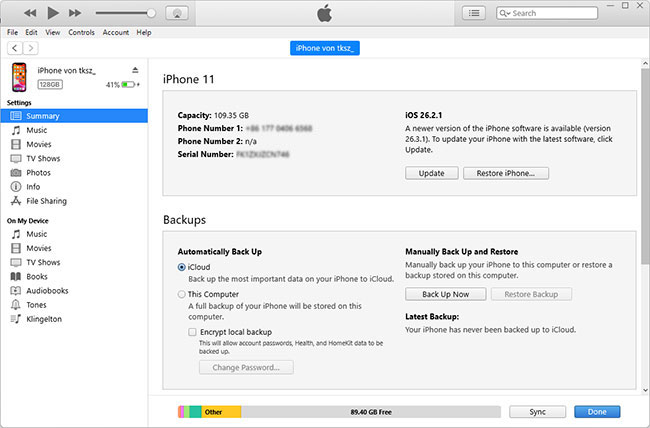
- Step 4. Launch iTunes and click the iPhone icon located near the top-left corner.
- Step 5. Under the Summary tab, navigate to the Backups section.
- Step 6. Select This Computer to create a local backup.
- Step 7. (Optional) Enable Encrypt Local Backup if you want to back up passwords, Health data, and Wi-Fi settings.
- Step 8. Click Back Up Now and wait for the process to finish. Verify the backup by checking the Latest Backup date and time displayed in iTunes.
 Pro-tip:
If your iPhone doesn't show up in iTunes, try uninstalling the Apple Music app from your PC first. Alternatively, use the Apple Devices app to manage your backup.
Method 2. Backup iPhone to iTunes on Mac
For Macs running macOS Mojave or earlier, iTunes functions similarly to the Windows version and provides a straightforward way to create local iPhone backups. If you're still using an older Mac, this method allows you to securely save your photos, messages, settings, and app data without relying on iCloud storage.
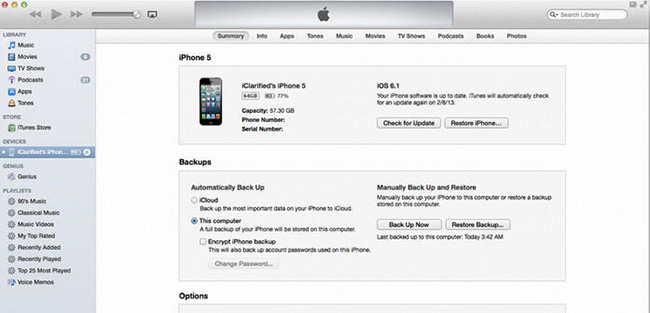
- Step 1. Open iTunes on your Mac. Connect your iPhone using a USB cable.
- Step 2. Unlock your iPhone and tap Trust if required.
- Step 3. Click the Device icon when your iPhone appears in iTunes.
- Step 4. Select This Computer under the Backups section.
- Step 5. Check Encrypt Local Backup if you want additional data such as saved passwords included. Click Back Up Now.
- Step 6. Wait for the backup to complete and confirm the latest backup timestamp appears successfully.
Method 3. Backup iPhone Using Finder
Starting with macOS Catalina, Apple removed iTunes and integrated iPhone management directly into Finder. Although the interface looks different, the backup process remains simple and offers the same benefits as traditional iTunes backups. Finder backups are often faster and more seamlessly integrated into newer macOS versions.
- Step 1. Connect your iPhone to your Mac using a USB cable.
- Step 2. Open Finder and your iPhone should appear in the Finder sidebar - just click on it.
- Step 3. Under the "General" tab, select "Back up all of the data on your iPhone to this Mac."
- Step 4. Click "Back Up Now" and wait for the process to finish. Wait for Finder to finish backing up your device. Confirm the backup date under Latest Backup.

Method 4. Backup iPhone Using Apple Devices App
Apple has gradually introduced the Apple Devices app as a modern replacement for certain iTunes functions on Windows. For users running newer versions of Windows 10 or Windows 11, the Apple Devices app offers a cleaner interface while still allowing full local backups of iPhones and iPads. It's a good alternative if you prefer using Apple's latest software ecosystem.
- Step 1. Download and install the Apple Devices app from the Microsoft Store. Connect your iPhone to the computer using a USB cable.
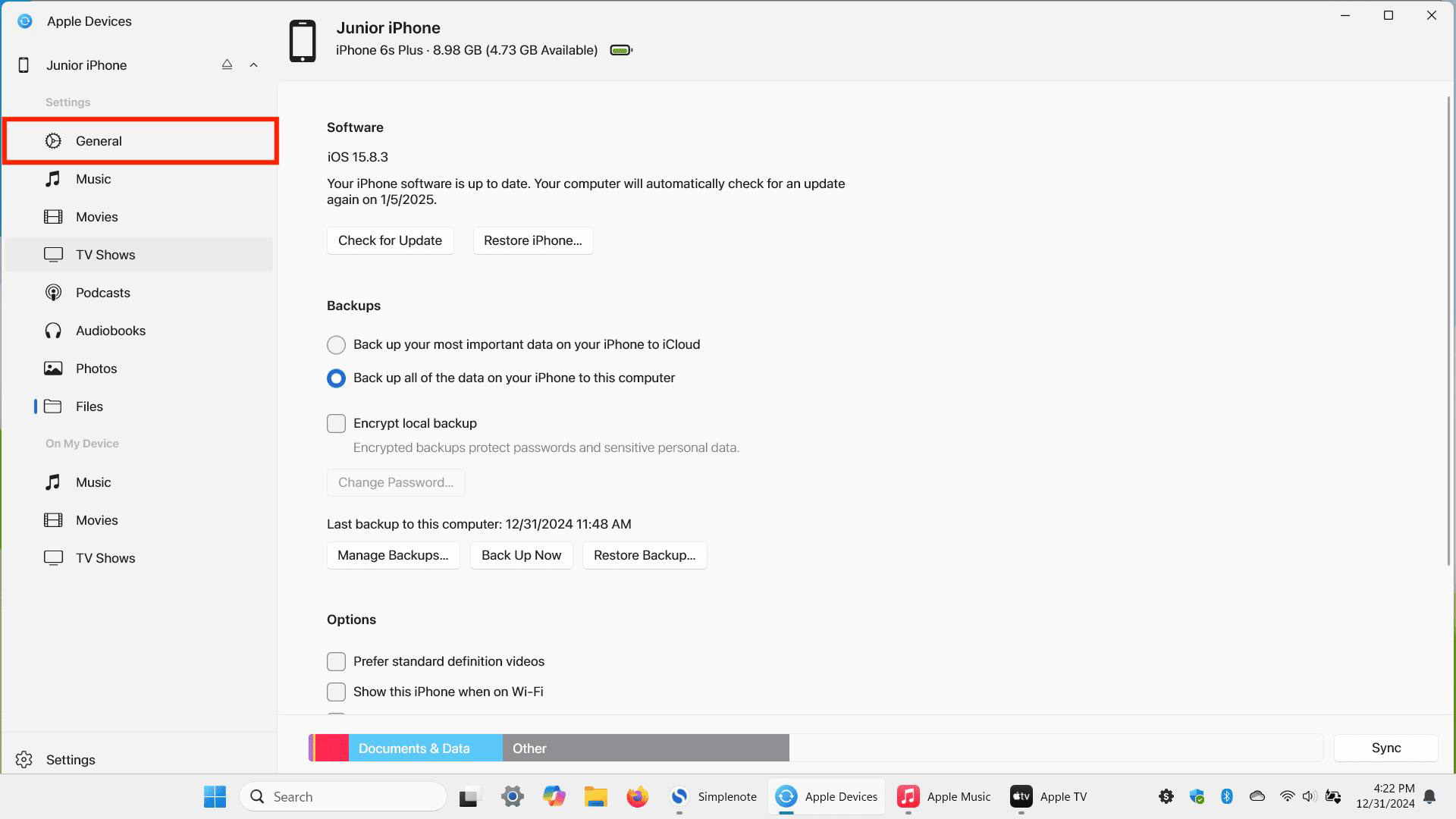
- Step 2. Launch the Apple Devices app and select your iPhone from the sidebar. Navigate to the General section.
- Step 3. Select Back up all of the data on your iPhone to this computer.
- Step 4. Optionally enable backup encryption for additional data protection. Click Back Up Now to begin the process.
- Step 5. Wait until the backup completes successfully before disconnecting your device. Verify the backup status within the Apple Devices app to ensure your data has been saved properly.
What Does an iPhone Backup Include?
Many users wonder exactly what information is saved during a local backup. Here are the details about that.
- App data and device settings;
- Home screen and app organization;
- iMessage, text (SMS), and MMS messages;
- Photos and videos;
- Purchase history from Apple services;
- Health data.
- DRM-protected content from Apple Music, iMovie, or Apple Books (like certain PDFs);
- Media synced manually from Finder or iTunes (e.g. MP3s, CDs);
- Apple Pay information and settings;
- Face ID or Touch ID data and your screen lock passcode.
Where Does iTunes Store iPhone Backup
If you backup iPhone using iTunes, your iTunes backup is saved locally on your computer. Below is where you can find it with default location of iTunes iPhone backup. If you have multiple Apple IDs on iPhone, you'll see multiple backup folder for different Apple IDs.
On Windows: C:\Users\[Your Name]\AppData\Roaming\Apple Computer\MobileSync\Backup\

On Mac: ~/Library/Application Support/MobileSync/Backup/
 Note
Note
Be careful when accessing these folders. Deleting or moving files can corrupt your backup and make it unusable during a restore.
iCloud Backup vs iTunes Backup
Choosing between iCloud and a local backup depends on your needs. For users with limited iCloud storage, local backups are often the better option.
| Feature | iTunes/Finder Backup | iCloud Backup |
|---|---|---|
| Requires Internet | No | Yes |
| Free Storage Limit | Depends on Computer | 5GB Free |
| Backup Speed | Usually Faster | Depends on Internet |
| Restore Without Internet | Yes | No |
| Full Local Control | Yes | No |
| Automatic Backups | No | Yes |
How to Restore from Encrypted iTunes Backup with/without Password
If you know your iTunes backup password or you don't set up a password when you back up your data, restoring data that you backup iPhone to computer with iTunes is simple:
- Step 1. Use a USB cable to connect your iPhone to your computer.
- Step 2. On Finder or iTunes, click on the device icon when it appears.
- Step 3. Click Restore Backup and you'll see a list of your previous backup files.
- Step 4. Choose the backup you want to restore, enter the encryption password if you've set one, and your iPhone will begin restoring the data.

Forgot Your Encrypted Backup Password?
If you forgot the iTunes backup password, Apple officially doesn't provide a channel to change or find out your iTunes backup password. You can reset all settings on your iPhone to create a new backup - but this would erase access to your previous encrypted backups.
The good news is that, some professional tools like TunesKit iPhone Unlocker now supports removing encryption on iTunes iPhone backup without lossing data. This way, you can restore your encrypted backup of iPhone on iTunes without the original password. You can download TunesKit iPhone Unlocker for free on your computer by clicking the below buttons.
Here's how to restore encrypted iPhone from iTunes backup without password via TunesKit iPhone Unlocker. Before you begin, make sure to turn off Find My iPhone in your iPhone's Settings.
Step 1Choose Remove iTunes Backup Encryption Mode
Connect your iPhone to Mac or Windows computer and launch TunesKit iPhone Unlocker. From the home screen, click "Remove iTunes Backup Encryption" mode at the bottom right.

Step 2Remove iTunes Backup Encryption
Simply click the Start button, and TunesKit iPhone Unlocker will begin the decryption process instantly - as long as you've disabled Find My iPhone previously. After a few minutes, you should see a "Removed Successfully" message on the screen.

Now, just open iTunes again on your computer. You'll be able to click "Restore Backup" and recover your iPhone from the previously encrypted iTunes backup - no password required and no data lost!
FAQs on iTunes iPhone Backup
-
Why Can't I Backup My iPhone on iTunes?
This issue may be caused by insufficient computer storage, outdated or corrupted iTunes software, or security software blocking the connection.
To fix it, try updating or reinstalling iTunes, restarting both your iPhone and computer, or freeing up disk space.
Alternatively, you can use Apple Devices on Windows as an alternative backup tool. -
How Do I Know If My iTunes iPhone Backup Was Successful?
In iTunes, navigate to Preferences > Devices. There, you'll see a list of your backups along with the date and time of each. If the backup appears with the correct timestamp, it was completed successfully.
-
Can I Backup My iPhone to a Computer without Using iTunes?
Yes, you can. On Windows, you can use Apple Devices (Apple's new standalone tool), or trusted third-party software. Just be sure to choose reliable solutions to keep your data secure. On macOS Catalina or later, iTunes has been replaced by Finder, which you can use to back up your iPhone.
-
Can I Backup iPhone to iTunes on Computer Over Wi-Fi?
No, you can't backup iPhone using iTunes over WiFi. Backing up iPhone to computer with iTunes requires a USB connection.
-
How Often Should I Backup iPhone to Computer with iTunes?
It's recommended to back up your iPhone regularly, like once a week, especially before installing updates, switching devices, or performing a factory reset.
Conclusion
Backing up your iPhone to a computer using iTunes is one of the most secure and comprehensive ways to protect your data. Whether you're preparing for a software update, replacing your device, or simply planning ahead, having a reliable backup gives you peace of mind.
If you ever run into issues like a forgotten password, tools like TunesKit iPhone Unlocker are here to help you restore access without losing your data.


