


How to Change Apple ID in App Store? Solved!
Your Apple ID is the key to accessing services like the App Store, iCloud, and iTunes. There may be times when you need to switch to a different Apple ID in the App Store, such as when managing multiple accounts, or downloading region-restricted apps. This guide explains how to change Apple ID in App Store on your iPhone, iPad, or Mac.

Part 1. Why Change the Apple ID in the App Store?
Here are some common reasons to change your Apple ID in the App Store:
- Using multiple accounts: If you maintain separate Apple IDs for personal and work use.
- Device sharing: For shared devices where different users need to log in with their own Apple IDs.
- Access to different content: Different regions may have varying content available, and switching Apple IDs may help access another region's App Store.
- Subscription management: Managing app subscriptions tied to a specific Apple ID.
Part 2. Things to Consider Before Changing Apple ID in App Store
- Purchased Apps and Subscriptions: Apps downloaded under a different Apple ID remain on your device but cannot be updated unless you switch back to the original Apple ID.
- Data Sync: Changing the Apple ID in the App Store doesn't affect data in iCloud, but ensure you have backups if signing out of the Apple ID entirely.
- Region Locking: Content availability varies by region. Switching to an Apple ID tied to a different country or region may require updating your billing information.
Part 3. 4 Ways to Change Apple ID in App Store
Ready to make the switch? Depending on your device and preference, there are several reliable ways to sign into a different account without affecting your iCloud data. We have detailed the four most effective methods below, covering everything from iPhone settings to macOS. Let’s start with the quickest route for mobile users—handling the switch directly inside the App Store application itself.
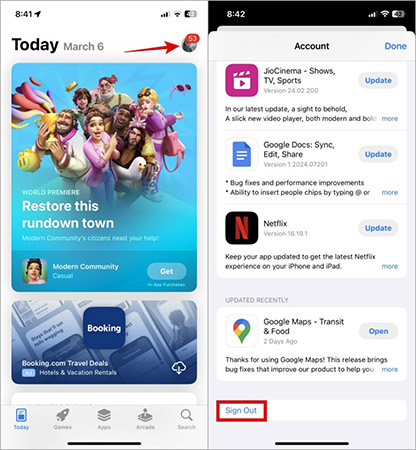
Way 1. How to Change Apple ID in App Store via The App Store App
You can perform the switch directly inside the App Store app. This will not affect the iCloud account on your device.
- Step 1. Open the App Store app.
- Step 2. Tap your Profile Icon (or avatar) in the top right corner.
- Step 3. Scroll all the way to the very bottom of the account page. It can be a long scroll if you have many pending updates.
- Step 4. Tap the Sign Out button.
- Step 5. Scroll back to the top of the screen. You will now see fields for Apple ID and Password. Enter the new account details and tap Sign In.
Way 2. How to Change Apple ID in App Store via Meida & Purchases
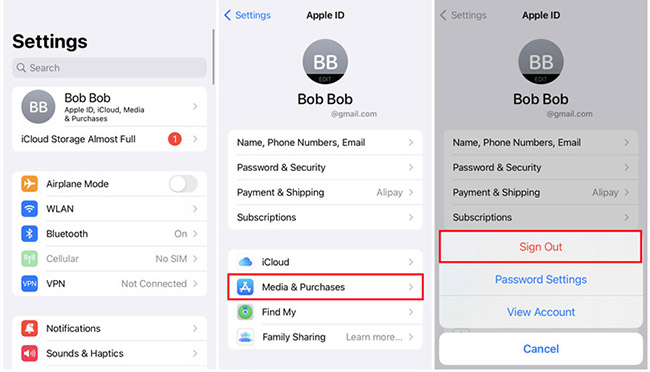
If you want to switch Apple IDs specifically for App Store use (without changing the iCloud account):
- Step 1. Open the Settings app.
- Step 2. Scroll down and tap Media & Purchases.
- Step 3. Tap Sign Out.
- Step 4. Sign in with a different Apple ID when prompted.
Way 3. How to Change the Apple ID in the App Store on iPhone
If you sign out of your Apple ID on your iPhone, the Apple ID in App Store on this iPhone will be also signed out.
Step 1. Sign Out of the Current Apple ID
- 1) Open the Settings app.
- 2) Tap on your name at the top of the screen to access your Apple ID settings.
- 3) Scroll down and tap Sign Out.
- 4) Follow the prompts to sign out of iCloud if needed (you may need to enter your password).


Step 2. Sign In with the New Apple ID
- 1) Go back to Settings.
- 2) Tap Sign In to Your iPhone (or iPad).
- 3) Enter the credentials for the new Apple ID.
- 4) Once signed in, this Apple ID will now be associated with the App Store.

Way 4. How to Change Apple ID in App Store On Mac
On Mac, there are different steps to change Apple Apple ID in App Store. Follow the steps here.
Step 1. Open System Preferences
- 1) Click on the Apple menu and choose System Preferences.
- 2) Select Apple ID.

Step 2. Sign Out
- 1) Under your current Apple ID, select Overview and then click Sign Out.
- 2) Follow the prompts to sign out, including deciding whether to keep a copy of iCloud data on your Mac.

Step 3. Sign In with the New Apple ID
- 1) Return to System Preferences > Apple ID.
- 2) Sign in using the credentials for the new Apple ID.
- 3) The App Store will now use this account for downloads and purchases.

Part 4. How to Remove Apple ID on App Store without Password
If you can't remember the correct passcode to remove the Apple ID, you can try using a third-party tool to remove the Apple ID from your iPhone. TunesKit iPhone Unlocker is a well established iOS unlocking tool that allows iOS users to remove Apple ID from iPhone/iPad/iPod touch without knowing the correct passcode. Besides unlocking Apple ID, TunesKit iPhone Unlocker also supports unlocking iOS screen, removing MDM restrictions, and unlocking Screen Time.
Why Choose TunesKit iPhone Unlocker?
Remove Apple ID without password in few clicks. Unlock all kinds of screen lock and regain access to your iPhone, including Touch ID, Face ID, digits, etc.
 600,000+ Downloads
The following steps will show you how to remove Apple ID on App Store without knowing the passcode by using TunesKit iPhone Unlocker.
Step 1 Connect iPhone to Computer
To begin with, users need to download and install TunesKit iPhone Unlocker on computer. When the program is downloaded, select the Unlock Apple ID feature on the main interface.

Step 2Check Device Status
Before removing Apple ID on your iOS device, you should check your device status.
- If the Find My feature is turned off on your device with any iOS version—Apple ID removal is supported.
- If the Find My feature is turned on with iOS 11.4 or later, and the screen lock password and two-factor authentication are enabled—Apple ID removal is supported.
- If the Find My feature is turned on, and iOS version is below 11.4—Apple ID removal is not supported..

Step 3Download Firmware
Then, you will need to download the firmware package to remove the Apple ID from your iPhone. Before downloading the firmware package, please check your device status. If there is anything wrong, please correct it manually. Click on the Download button to start downloading the firmware package.

Step 4Remove Apple ID on iPhone
After downloading the firmware package, click the Unlock button. TunesKit iPhone Unlocker will start to remove Apple ID from your iPhone. You can log into a new Apple ID when your Apple ID is removed from your iPhone.

Part 5. FAQs About Apple ID in App Store
-
Q1: Will I lose my iCloud Photos if I sign out of the App Store?
No. As long as you use the Media & Purchases menu or App Store (as described in Way 1 and Way 2) and do not sign out of the main Apple ID banner, your iCloud Photos, Contacts, and Messages remain untouched.
-
Q2: Can I use a different Apple ID for subscriptions?
Yes. Many people use a personal ID for iCloud and a shared "Family ID" for the App Store to share subscriptions like Apple Arcade or TV+.
Part 6: Conclusion
Changing your Apple ID in the App Store is straightforward and allows you to manage multiple accounts efficiently. By following the steps outlined above, you can switch accounts on your iPhone, iPad, or Mac without losing access to your favorite apps and content. If you forgot your Apple ID passcode but need to change Apple ID in App Store, you can download and try using TunesKit iPhone Unlocker to make it.


