


How to Change Apple Account Name on iPhone/iPad/Mac in 2026
"How to change my Apple Account name? Can I change my Apple Account email name and device name?"
If you also wonder how to change Apple Account name or other name on your account, you're in the right place. Whether you need to update your account name, email, or device name, this guide has you covered. In just a few steps, you'll learn how to update your Apple Account details effortlessly.

- Part 1. Can You Change Your Apple Account Name
- Part 2. How to Change Apple Account Name on Different Devices
- Part 3. How to Change Apple Account Email Name
- Part 4. How to Change Apple Account Name on Billing Information
- Part 5. How to Change Name of Device on Apple Account
- Part 6. How to Switch to New Apple Account Without Password
- Part 7. Conclusion
Part 1. Can You Change Your Apple Account Name
Yes, you can! Apple makes it easy to update your Apple Account name whenever needed. If you're concerned about the safety of your device data, changing your Apple Account name will not erase any data from your device or account.
However, if your Apple Account is disabled or locked, you won't be able to change your Apple Account name until the issue is resolved. So, make sure to address any account-related problems first before attempting to make changes. Alternatively, you can switch to a New Apple Account directly.
Part 2. How to Change Apple Account Name on Different Devices
Your Apple Account name is displayed in your device's Settings, as well as on Apple services like Apple Music, FaceTime, and iMessage. In this section, you'll learn how to change Apple Account name on iPhone, iPad, or Mac.
How to Change Apple Account Name on iPhone/iPad
- Step 1. Go to Settings on your iPhone/iPad.
- Step 2. Tap [Your Name] at the top of the screen.
- Step 3. Tap Personal Information > Name.
- Step 4. Enter your new name in the First, Middle, and Last Name fields, then tap Done.

How to Change Apple Account Name on Mac
- Step 1. Click on the Apple menu in the top-left corner and select System Settings.
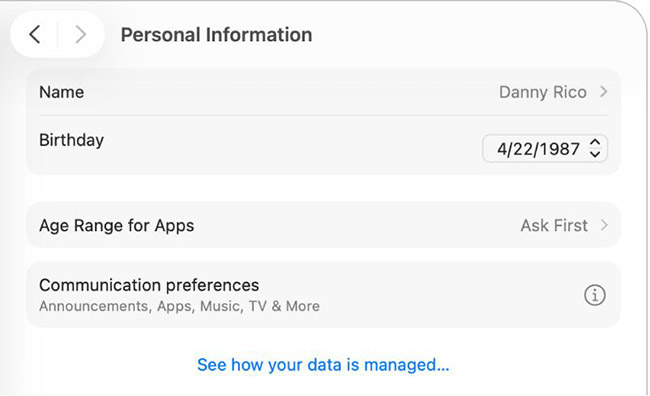
- Step 2. Click Personal Information.
- Step 3. Click the current name, type your first and last name, then click Save.
Part 3. How to Change Apple Account Email Name
Your Apple Account email name is the email address you use to log into your Apple account. If you no longer use your current email address, you can update it to a new one, whether it's from a third-party domain (like Gmail or Yahoo) or an Apple-owned domain with the @icloud.com suffix. Rest assured, this change will not affect your contacts, purchases, or other account data.
How to Change Apple Account Email Name on a Trusted iPhone, iPad, or Mac
- Step 1. Go to Settings > [Your Name] > Sign-In & Security.
- Step 2. Tap Add Email or Phone Number, then enter your new email address.
- Step 3. Check your email inbox for the verification code Apple sends to your new email address. Enter the code to verify.
- Step 4. Once verified, tap the new email address and set it as your Primary Email by selecting Make Primary.

- Step 5. Enter your device passcode to confirm the update.
- Step 6. After completing these steps, restart your iPhone or iPad. Once the device reboots, your Apple Account email name will be updated.
How to Change Apple Account Email Name via Browser on Any Device
If you don't have access to a trusted Apple device, you can change Apple Account email name from any browser. Here's the detailed steps on how to do:
 Note
Note
If your primary email is an @icloud.com address, you can only change it on a device running iOS/iPad OS 18.1 or later systems.
- Step 1. Go to the Apple Account page and sign into your Apple account.
- Step 2. Navigate to Sign-In and Security > Email & Phone Numbers.
- Step 3. Click the Remove button next to your current primary email.
- Step 4. Enter your new email address, click Change Primary Email, and verify your new email address by entering the verification code sent to your inbox.

Part 4. How to Change Apple Account Name on Billing Information
If you need to update the name associated with your billing information for purchases from the Apple Store online, follow the steps below for your device:
On iPhone/iPad:
- Step 1. Go to Settings > [Your Name] > Payment & Shipping.
- Step 2. Tap Edit or Add a shipping address to update the name.

On Mac:
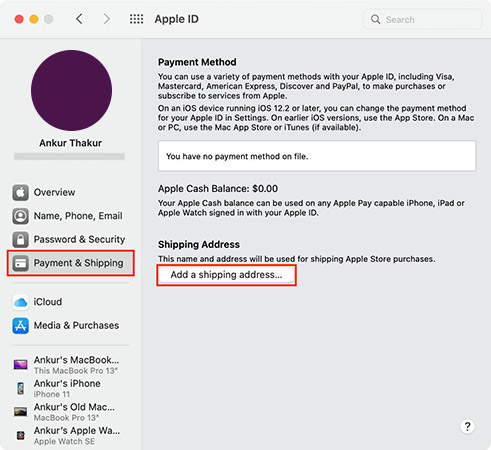
- Step 1. Click Apple Menu > System Settings > [Your Name] > Payment & Shipping.
- Step 2. Navigate to the Shipping Address/Payment Methods section, and click Edit or Add a shipping address to make the changes.
Part 5. How to Change Name of Device on Apple Account
The name of a device linked to your Apple Account will appear when you use features like AirDrop, Bluetooth, or when viewing your device list under the same Apple Account account. If you want to change Apple Account device name, follow these steps:
Note
You can only change the name of the device on the specific device itself. You cannot change the name of a device in the Apple Account device list remotely.
How to Change iPhone/iPad Name on Apple Account
- Step 1. Settings on your iPhone/iPad.
- Step 2. Tap General > About > Name.
- Step 3. Enter a new name of your device.

If the device name doesn't update immediately after making the change, try shutting down your iPhone or iPad twice. After rebooting, wait about 5 minutes for the new name to sync. Delays might occur due to syncing latency or minor bugs on Apple's end.
How to Change Mac Name on Apple Account
- Step 1. Click the top-left Apple Menu icon and choose System Settings.
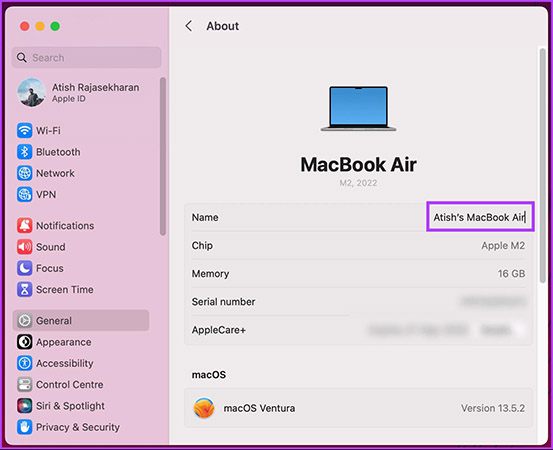
- Step 2. Scroll down and click General > About.
- Step 3. Select your current name of your Mac device and enter a new name.
Note
Changing the device name on your Mac does not affect the User Name on your computer. If you need to change the User Name, refer to Apple Support's detailed guide.
Part 6. How to Switch to New Apple Account Without Password
The methods mentioned above allow you to change your Apple Account name without affecting the data on your current account. However, if you prefer to create a completely new Apple account with a fresh name, email, and billing information, that's also an option.
But what if you forgot your Apple Account password and can't sign out of the old account? Don't worry, TunesKit iPhone Unlocker can help. This powerful tool enables you to remove your old Apple Account without password, making it easy to switch to a new account and start fresh.
Key Features of TunesKit iPhone Unlocker
Bypass screen lock on unavailable iPhone/iPad. Remove Apple Account different if forgot Apple Account password.
 600,000+ Downloads
Here is how to remove Apple Account frpm iPhone using TunesKit iPhone Unlocker.
Step 1 Connect your phone to computer
Download and install the TunesKit iPhone Unlocker on your computer from buttons above. Launch the program and connect your iPhone/iPad to the computer using a USB cable.
In the program interface, select the Unlock Apple ID option, and click Start to begin.

Step 2 Check your iDevice status
The ability to remove an Apple ID depends on your Find My status and the device’s iOS version. Removal is supported in the following situations:
- Find My is turned OFF: Supported on all devices and iOS versions.
- Find My is turned ON: Supported only when the device is running iOS 11.4 or later, with both a screen lock and Two-Factor Authentication enabled.

Step 3 Download firmware package to remove Apple Account
If prompted the firmware package window, ensure the device details (e.g., model, iOS version) displayed on the screen are correct. Click the Download button to download the required firmware package. Once the download is complete, click the Unlock button. TunesKit will begin removing the Apple Account from your device.

Part 7. Conclusion
We've introduced how to change Apple Account name across various devices and platforms. Whether you want to change your Apple Account profile name, login email address, billing information, or device name, this guide has you covered!
For those who want to switch to a completely new Apple account but have forgotten the Apple Account password, TunesKit iPhone Unlocker is the perfect solution. With just a few clicks, you can remove your old Apple Account.


