


Top 5 Ways to Create Apple Account Without Phone Number
Apple ID is essential to accessing the whole Apple ecosystem. Whether downloading apps or syncing files, creating an Apple ID is the first step in unlocking Apple services. During the setup process, Apple typically requires you to provide some basic information, including a phone number for identity verification and two-factor authentication.
However, some users may have privacy concerns, face regional limitations, or simply prefer not to link a phone number to their Apple account. So, how do you create an Apple ID without a phone number? In this guide, we'll offer 5 possible ways for you!

Can You Create Apple Account Without Phone Number?
Many people wonder, can I create an Apple ID without a phone number? The short answer is YES! While Apple typically asks for a phone number during the Apple ID creation process for two reasons:
- Recover Apple ID when it's locked or you forget password
- Receive verification codes when logging into your Apple ID on new device or new IP address due to Apple ID two factor authentication mechanism
It's still possible to bypass the phone number requirement, if you don't need such protection.
 Note
Note
But your Apple ID might be disabled in the future if you don't set up a trusted phone number in the future. If you encounter this issue, you can try TunesKit iPhone Unlocker to unlock it immediately.
How to Create an Apple ID Without a Phone Number
Now, let's dive into the different methods available for creating an Apple ID without a phone number. Each method has its pros and cons, you can try them all.
| Method | Best For... | Success Rate |
|---|---|---|
| 1. Apple Music (Android) | Users with no Apple device yet | ⭐⭐⭐⭐⭐ (High) |
| 2. Family Sharing | Parents/Secondary Accounts | ⭐⭐⭐⭐⭐ (Official) |
| 3. Old iOS Device | Users with iPhone 5/6/SE | ⭐⭐⭐⭐ (Good) |
| 4. Virtual Number | Privacy Seekers (Risky) | ⭐⭐ (Low) |
| 5. Friend/Family Member's Number | Temporary Accounts | ⭐⭐⭐ (Risky) |
Method 1. Create Apple ID via Apple Music App on Android
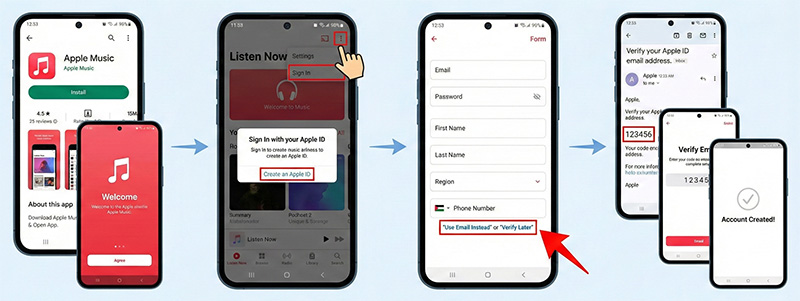
If you don't own an Apple device, you can create an Apple ID without a phone number through the Apple Music app on Android. This is currently the #1 working loophole for 2026.
Apple's verification system on Android is different from the strict protocols built into iOS. Because the Apple Music app on Android is designed to onboard users who don't own Apple devices yet, the security checks are often less aggressive. You do not need to own an Android phone. You just need to borrow one (or use an emulator like BlueStacks on PC) for 5 minutes.
- Step 1. Open the Google Play Store on any Android device and install the Apple Music app. It is free to install.
- Step 2. Open the app and agree to the terms. Tap the profile icon (three dots) in the corner and select Sign In > Create an Apple ID.
- Step 3. Enter your email, password, and date of birth. Set your region to your actual location (using a VPN here often triggers a block).
- Step 4. On many Android devices, you will see a text link at the bottom that says "Use Email Instead" or "Verify Later". Tap this to skip the number requirement entirely.
- Step 5. Check your email for the verification code. Once verified, the account is live! You can now log in to your iPhone or Mac with this new Apple ID, and it will work without demanding a phone number immediately.
Note
If it still asks for a number, the Android app is much more likely to accept VoIP numbers (like Google Voice) than an iPhone is.
Method 2. Create Apple Account via Family Sharing Loophole
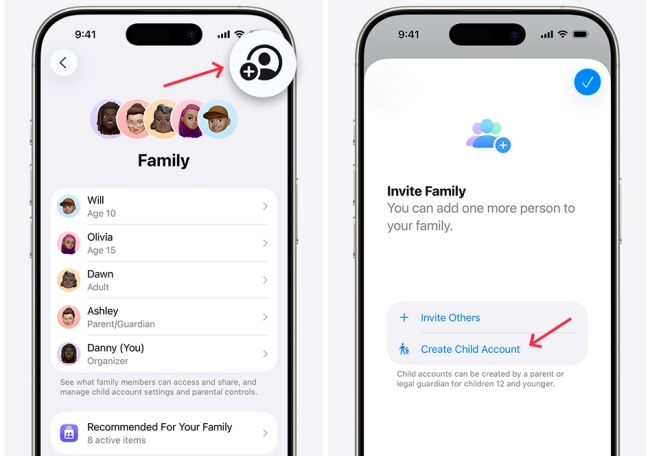
This is the only "official" way to create an Apple ID without a unique phone number. It is designed for children, but it works perfectly for adults who need a secondary account for a specific app or region.
By creating a Child Account, Apple waives the phone number requirement because the account is verified via the Parent's payment method instead.
- Step 1. On your primary iPhone (the one with a working Apple ID), go to Settings > Family.
- Step 2. Tap the Add Member button in the top right corner.
- Step 3. Select "Create Child Account". You must enter a birthdate that makes the user under 13 years old.
- Step 4. Instead of asking for a phone number, Apple will ask for the CVV (security code) of the credit card linked to your main Apple ID, or verify you via Face ID.
- Step 5. The account is created instantly with an @icloud.com email. You can now use this login on another device.
Method 3. Create New Apple ID Without Phone Number for Old Devices
One of the simplest ways to create an Apple ID without a phone number is by registering through your third-party email address, such as Gmail. But it's only available for older versions of iOS (specifically iOS 15 and earlier) These models use a legacy setup process that still contains the "Skip" option which was removed from modern software.
- Step 1. Wipe the old device so you are at the "Hello" screen.
- Step 2. Connect to Wi-Fi. When asked to sign in, choose "Forgot password or don't have an Apple ID?".
- Step 3. Select "Create a Free Apple ID".
- Step 4. When asked for a phone number, scroll down. On these older iOS versions, you will often see a blue text link: "Verify Later".
- Step 5. Once created, you can log in to your new iPhone 17 with these credentials.
Note
If the Skip button isn't available, input random digits that match the country's phone number format, then tap Continue. Then, select Did not get a verification code > Verify later > Continue.

 Pro Tip: Is your old device locked?
If you found an old iPhone in a drawer but it is still signed in to an ancient Apple ID you forgot the password for, you cannot use it to create a new account yet.
In this case, use TunesKit iPhone Unlocker to remove the old Apple ID without needing the password or phone number. Once the old account is wiped, the device will be reset to factory settings, allowing you to proceed with the "Create Free Apple ID" steps above.
Method 4. Use a Virtual Number to Create Apple ID
Another way to create new Apple ID without phone number is to use a virtual phone number. Virtual numbers are often provided by various online services and apps. These numbers can receive SMS verification messages, which can be used for verification during the Apple ID setup. However, Apple's security system may flag certain virtual numbers as invalid, so choose a reliable and trusted service.
- Step 1. Obtain a virtual number through a service like Google Voice or any similar app.
- Step 2. Enter the virtual number in the phone number field during the Apple ID creation process.
- Step 3. Open your Google Voice to copy the 6-digit verification code Apple sent you, and enter it in the Apple ID registration page.
- Step 4. Complete the rest of the process and verify your account.

Pro Tip:Using a fake number can get your Apple ID permanently locked. If you are already locked out of an old account, do not try to hack it. You can use TunesKit iPhone Unlocker to reset it safely.
Method 5. Use a Friend or Family Member's Number
If you cannot use your own number, Apple does allow you to use a number that is already associated with another Apple ID. A single phone number can verify up to 5 different accounts per year.
This is often the fastest workaround, but it comes with a "social cost" — you will need this person's help every time you log in to a new device. Only use this method for temporary accounts or with a spouse/parent.
- Step 1. Ask a trusted family member or friend if you can use their phone number for the registration.
- Step 2. Enter their number in the required field during the Apple ID creation process.
- Step 3. Get the 6-digit code from them and enter it to finish creation.
- Step 4. Once the account is live, go to Settings > Sign-In & Security and add a second verification method (like another email or a landline) as soon as possible so you don't annoy them forever.

 Warning: While your friend cannot see your photos or messages just by having their number linked, they do control your account security. If you forget your password, the reset code goes to them. If they change their phone number, you could be permanently locked out.
Stuck with an Old Account? Unlock It Now
Many users try to create a new Apple ID simply because they are permanently locked out of their existing one due to a lost phone number or forgotten password. Creating a new ID means losing all your old photos, apps, and purchases. Before you start over from scratch, consider removing the lock from your current device.
Tools like TunesKit iPhone Unlocker can bypass the Apple ID lock on activated devices. It removes the existing iCloud account from your iPhone or iPad without requiring the password or the trusted phone number. You get a fully reset device that is ready to be linked to a fresh Apple ID (created using the methods above) or your own new credentials.
Why Choose TunesKit iPhone Unlocker?
Remove Apple ID without phone number if forgot Apple ID password. Support all iPhone/iPad/iPod Touch models and versions.
 600,000+ Downloads
Here's detailed steps to remove Apple ID without password via TunesKit iPhone Unlocker:
Step 1 Launch TunesKit iPhone Unlocker
Install and open the program on your Mac or Windows computer. Then, connect your iPhone or iPad to your computer via a USB cable. Click Trust if it prompts the Trust This Computer on your phone.

Step 2 Choose Unlock Apple ID
Click the Unlock Apple ID option at the left of main interface. Then, click Start to proceed. If the Find My feature is disabled, TunesKit will remove your Apple ID in few minutes. Otherwise, you need to turn on the 2FA and screen lock.

Step 3 Remove Apple ID via TunesKit
Once the Apple ID has been removed, your device will restart and display the Hello screen. You can now set up your iPhone as new and log in with a different Apple ID.

FAQs About Creating Apple ID No Phone Number
-
Why is the Skip button missing on my iPhone?
Apple removed the Verify Later button in updates following iOS 16 to enforce Two-Factor Authentication (2FA). This reduces spam accounts and improves security.
-
Can I use a fake number generator?
No. Apple's servers check the carrier validity in real-time. Fake numbers are rejected as invalid immediately.
-
Does the "Remove SIM Card" trick work in 2026?
No. This glitch was patched years ago. Even without a SIM, the operating system will demand a phone number via Wi-Fi.
-
Can I delete the phone number after creating the Apple ID?
You can remove a phone number from your Apple ID settings, but you must replace it with another valid number or email address that supports 2FA. You generally cannot have an Apple ID with zero contact methods for security recovery.
Conclusion
In conclusion, you can create Apple Account without phone number in several ways currently. However, as Apple continues to update its security protocols, these methods might become limited in the future.
If you are reading this because you are locked out of an Apple ID and cannot verify your phone number, do not try to create a new one just yet. You may be able to remove the lock using TunesKit iPhone Unlocker, which can bypass Apple ID locks without a password or phone number.


