


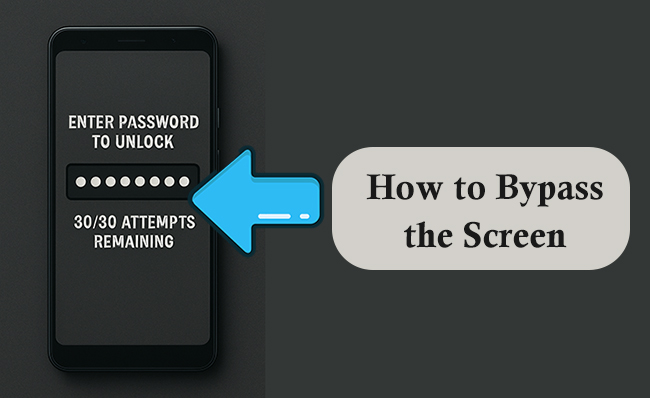
Fixed: Enter Password to Unlock 30/30 Attempts Remaining
If your Android device is showing "Enter password to unlock 30/30 attempts remaining," it usually means the system has detected repeated failed unlock attempts, an incorrect lock-screen password, or a software glitch. Once the counter reaches 0/30 attempts, the device may lock you out completely, requiring additional verification or even a full factory reset.
This guide explains why this issue happens, how to fix it safely, and what to do if you can't remember your password, with clear step-by-step instructions and visuals.
Part 1. Why Does Your Android Show "30/30 Attempts Remaining"?
Before fixing the issue, it helps to understand why it appears. Android devices activate a security limit to prevent unauthorized access. When the system detects too many failed attempts or a password mismatch after reboot, the attempt counter appears.
In some cases, it isn't even caused by incorrect passwords—system updates, encryption errors, or physical button glitches can also trigger this message. This section explains the common causes in detail so you can determine the safest fix.
Possible Causes:
- Wrong password entered too many times
- Recently changed password not recognized after reboot
- System encryption verification failure
- Touchscreen misreads causing false password entries
- Software glitches after updates
- Children or others accidentally triggering attempts
- Malware or unusual system behavior
Part 2. How to Fix "Enter Password to Unlock 30/30 Attempts Remaining"
Each method below is designed to help you regain access quickly and safely. Before trying any method, take a moment to understand how it works, when it's best used, and whether it will affect your data. The detailed introductions help you choose the safest path depending on whether you remember your password, have backup options, or can use remote tools.
Method 1: Restart Your Android Device
A device restart may sound simple, but it's one of the most effective first steps. That's because the "30/30 attempts" issue can be triggered by temporary system glitches, touchscreen bugs, or incorrect password detection loops. Restarting clears these short-term errors and lets the system reattempt password authentication cleanly.
This method is safe and does not erase any data.
Step 1. Press and hold the Power button.
Step 2. Tap Restart (or Power Off > turn on manually).
Step 3. Try entering your password again.

Method 2: Wait for the Attempt Timer to Reset
When Android detects potential unauthorized access, it may temporarily limit password attempts. If your attempts are still available (e.g., 30/30, 28/30), the safest step may be to stop entering passwords and let the system reset the attempt limit automatically. This preserves your data and avoids triggering more severe lockouts.
Step 1. Put the phone aside for 30–60 minutes.
Step 2. When the system cools down, try entering the correct password once.
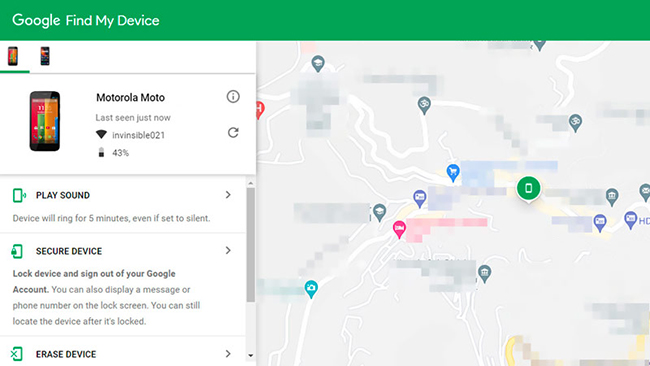
Method 3: Unlock Android via Google Find My Device
If you remember your Google account password, Google's remote tool can help unlock or reset the device. While this may erase data if you choose a full reset, it is one of the most reliable ways to regain access to a locked device.
Step 1. Visit Find My Device on another device.
Step 2. Sign in with the same Google account used on the phone.
Step 3. Select your locked device.
Step 4. Choose Secure Device (or Erase Device if needed).
Step 5. Follow the on-screen steps.
Method 4: Unlock Android with ADB Commands (For Users with USB Debugging On)
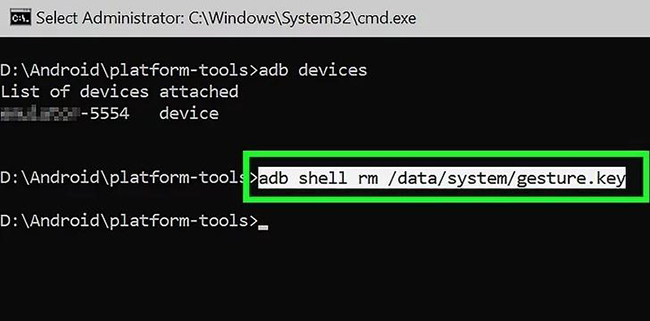
ADB (Android Debug Bridge) is a developer tool that lets you issue commands to your phone from a computer. This method only works if USB debugging was enabled before the lockout. It is a technical solution but extremely powerful—allowing you to remove or reset the lock screen without wiping everything.
Step 1. Connect your phone to a computer using USB.
Step 2. Open Command Prompt or Terminal.
Step 3. Enter: adb shell rm /data/system/gesture.key
Step 4. Restart your device.
Step 5. Enter a new password after reboot.
Method 5: Factory Reset Your Android Device
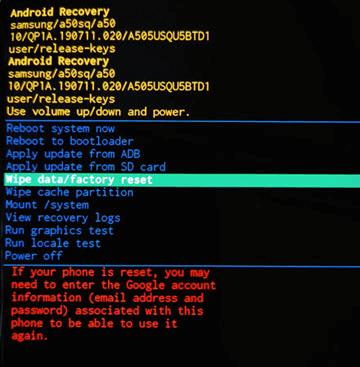
If none of the above methods work—or you do not remember the password—then a factory reset is the ultimate solution. This completely wipes the device and removes the password, returning it to default settings. A reset also removes malware, corrupted system files, or anything else that may be causing the repeated unlock message.
Step 1. Power off the device.
Step 2. Hold Power + Volume Up to enter Recovery Mode.
Step 3. Select Wipe data/factory reset.
Step 4. Confirm.
Step 5. Reboot once completed.
Part 3. Bonus Tip: Use a Professional Android Unlock Tool
If none of the standard methods work, a professional unlock tool can help regain access safely.
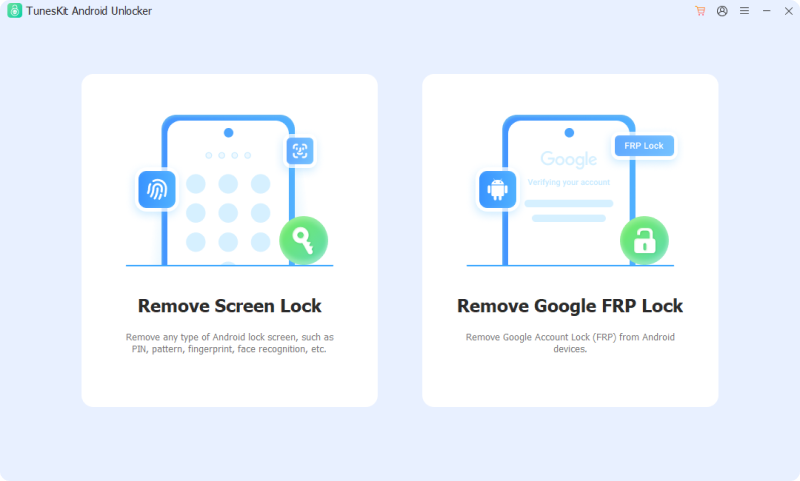
TunesKit Android Unlocker is one such solution that can address the exact issue of being locked out with the "30/30 attempts remaining" message. It can remove Android screen locks including PIN, pattern, fingerprint, and face recognition, allowing you to bypass the locked screen. Apart from it, it also can remove Google FRP lock from Android devices, which is useful if a factory reset is required but the device is tied to a Google account.
Key Features of TunesKit Android Unlocker
Unlock Android screen without passcode with ease. Supports All Android versions. Available on Windows and Mac.
 600,000+ Downloads
Let's learn how to use TunesKit Android Unlocker to unlock your Android phone step by step.
Step 1 Connect device to computer
Download and install TunesKit Android Unlocker on your computer and open it. Connect your device to the computer via a USB cable. The software will automatically recognize your device's brand.
Step 2 Enter recovery mode
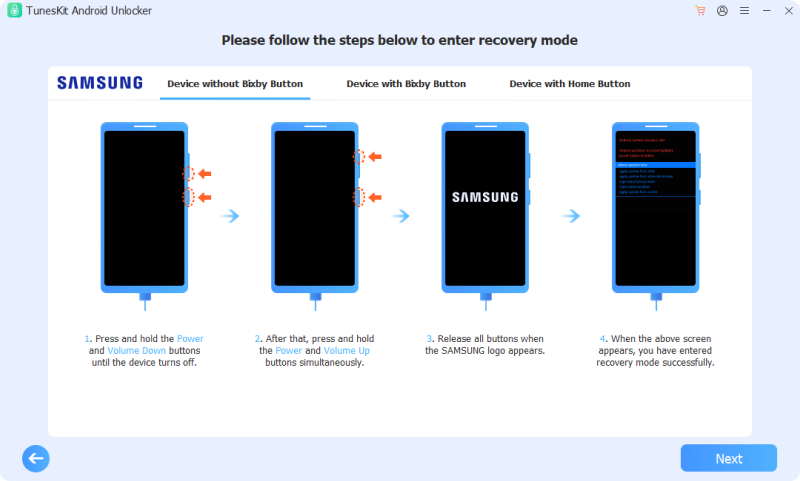
Open the tool and select the Remove Screen Lock option. Select phone brand for your phone. Then, You will see an instruction about how to put your phone into recovery mode. Follow it and then click the Next button.
Step 3 Remove screen lock
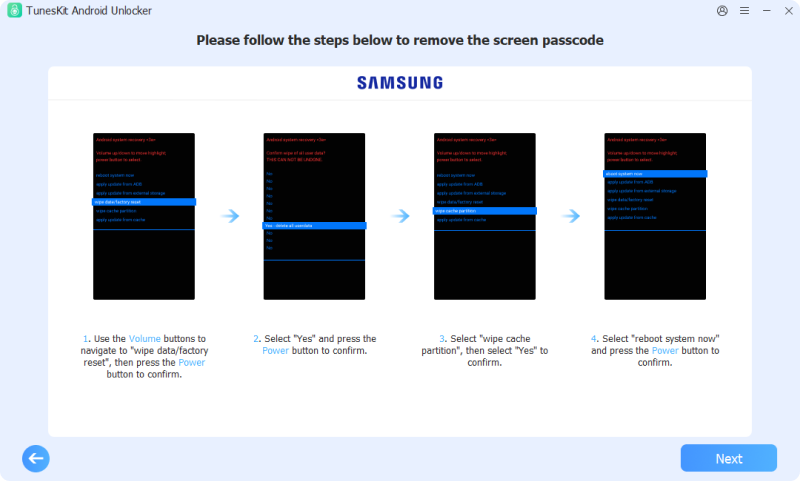
Follow the steps shown on the computer to remove screen lock on your phone. After that, click the Next button.
Part 4. FAQs about "Enter Password to Unlock 30/30 Attempts Remaining"
-
1. Can I back up my photos before the 30 attempts run out?
Unfortunately, the answer is no. This is the most painful part of the Secure Startup error. Because the phone is currently in a pre-boot state (encrypted), the USB port is only active for charging. It will not recognize a connection to a PC or Mac for data transfer.
-
2. Why doesn't my Fingerprint or Face Unlock work?
Biometric security (fingerprints, face scans, iris scanners) requires the Android operating system to be fully running to function. Since Secure Startup pauses the phone before Android boots up, the software that powers your fingerprint sensor is not yet active.
Part 5. Conclusion
Seeing the "Enter password to unlock 30/30 attempts remaining" message on your Android device can be stressful, but it is primarily a security feature designed to protect your data. In most cases, the issue can be resolved by carefully entering your password, leveraging Google account, or following safe device reset procedures.
For users who are completely locked out, professional tools like TunesKit Android Unlocker provide a practical, step-by-step solution for removing screen locks.


