


How to Remove Previously Synced Google Account from Android
If you are preparing to sell, trade in, or simply hand down your Android device, removing the previously synced Google account is the most critical step you can take. Failing to do this correctly can trigger a security feature known as Factory Reset Protection (FRP), effectively locking the next owner out of the device.
This guide covers the complete lifecycle of account removal: how to remove previously synced Google account from Android correctly before or after factory reset.
- Part 1. Why You Must Remove Your Account Before Resetting
- Part 2. How to Remove Previously Synced Google Account from Android Before Factory Reset
- Part 3. How to Remove Previously Synced Google Account from Android After Factory ResetHOT
- Part 4. FAQs about Removing Google Account from Android
- Part 5. Conclusion
Part 1. Why You Must Remove Your Account Before Resetting
Before diving into the steps, it is vital to understand why this process matters. Android devices running Android 5.1 (Lollipop) and later utilize a security system called Factory Reset Protection (FRP).
If you perform a factory reset (especially via the recovery menu) without first removing the Google account from the settings menu, the phone assumes it was stolen. It will lock itself and demand the username and password of the account that was last synced. By manually removing the account first, you disable this lock and leave the phone "clean" for the next user.
Part 2. How to Remove Previously Synced Google Account from Android Before Factory Reset
If you haven’t factory reset your phone, the process of removing Google account would be easy. You can remove the account via Settings on your phone or disconnect the sync remotely.
Method 1. Remove Google Account via Settings
The process for removing a synced account via Settings varies slightly depending on your device manufacturer. Below are the specific steps for the most common Android interfaces.
For Samsung Galaxy Devices
Samsung buries the account settings slightly deeper than stock Android. Follow these steps to ensure the account is fully unlinked.
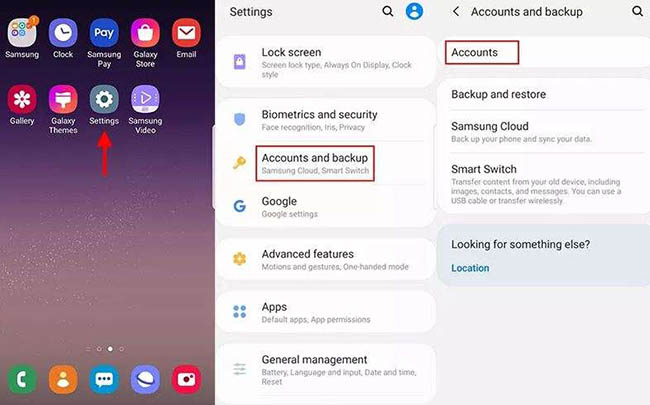
Step 1. Open the Settings app on your Samsung device.
Step 2. Scroll down and tap on Accounts and backup.
Step 3. Select Accounts at the top of the list. You will see a list of all signed-in accounts (Google, Samsung, WhatsApp, etc.).
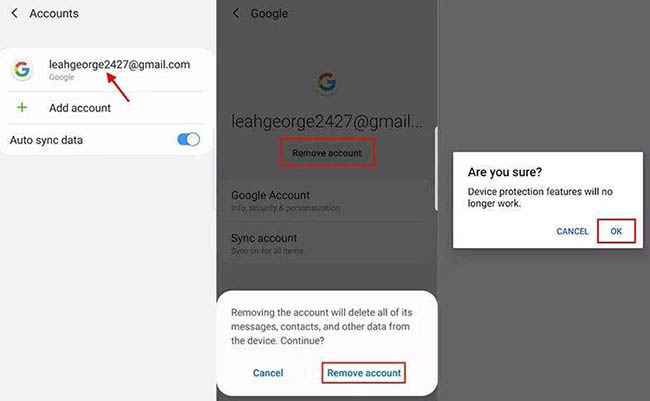
Step 4. Tap on the Google account you wish to remove.
Step 5. Tap the Remove account button. A confirmation pop-up will appear, warning you that messages and contacts will be deleted from the device; confirm by tapping Remove account again.
Once a Google account is added, FRP is live.
For Xiaomi, Redmi, and POCO
Xiaomi’s interface separates Google settings from other sync accounts.
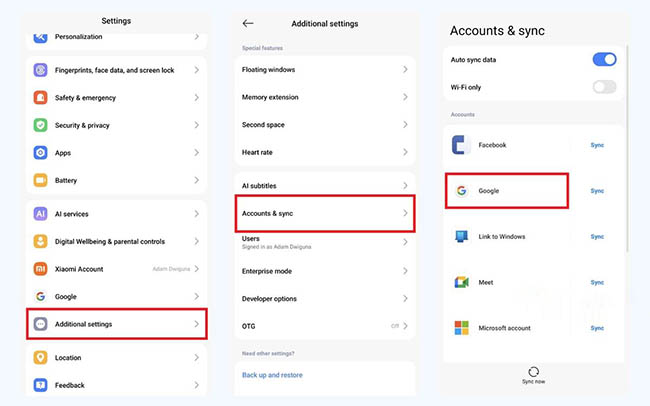
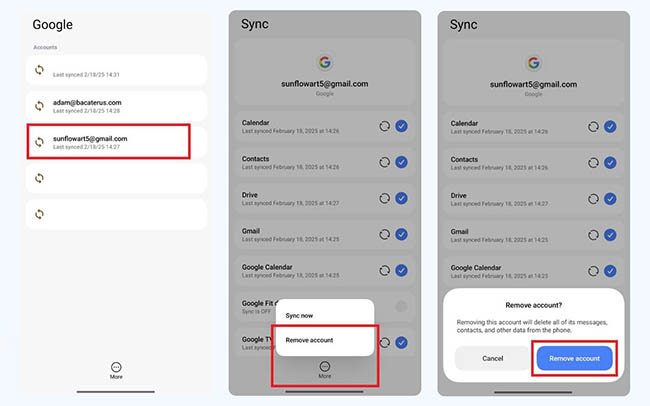
Step 1. Open Settings and scroll down to select Accounts & sync.
Step 2. Look for the Google option and tap it.
Step 3. Select the specific email address you want to unlink.
Step 4. Tap the More icon (three dots usually at the bottom or top corner) and select Remove account.
For Pixel, Motorola, and Stock Android
This method applies to most devices running a clean version of Android (Android 14/15).
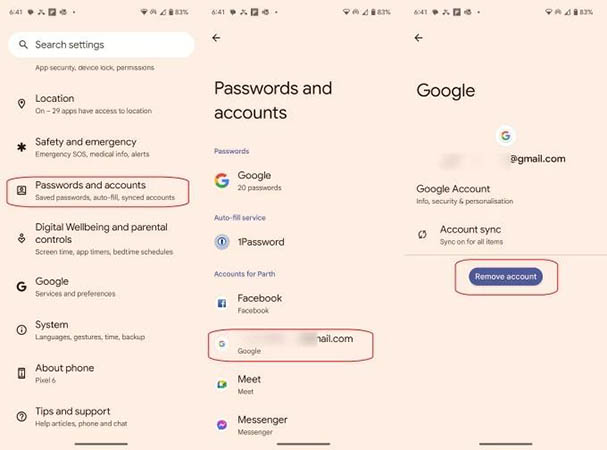
Step 1. Open the Settings app.
Step 2. Tap on Passwords & accounts (sometimes labeled just Accounts).
Step 3. Under the "Accounts for" section, tap the Google account you need to remove.
Step 4. Tap the large Remove account button. You may be asked to enter your device PIN or pattern to confirm this action.
Method 2. Remove Google Account Remotely (Lost or Broken Device)
If your device has a broken screen or is no longer in your possession, you cannot use the Settings menu. In this case, you must unlink the account via a web browser.
 Note
Note
This removes the device's access to your Google data, but if the device is already offline, it may not instantly disable the FRP lock until the device reconnects to the internet.
Step 1. On a computer or different phone, open a browser and go to your Google Account Dashboard.
Step 2. Navigate to the Security tab on the left-hand sidebar.
Step 3. Scroll down to the panel labeled Your devices and click on Manage all devices.
Step 4. Locate the specific Android device you want to remove and click on it.
Step 4. Click the Sign out button. Google will ask for confirmation; click Sign out again.
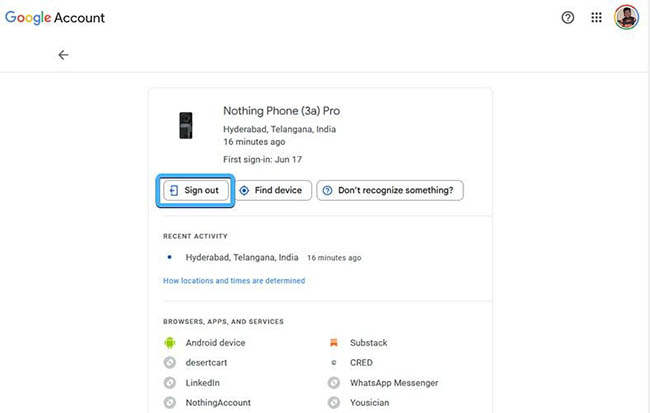
This ensures that if someone repairs the screen and turns the device on, they will be forced to sign in again and cannot access your emails or photos.
Part 3. How to Remove Previously Synced Google Account from Android After Factory Reset
If you have already reset your device and are seeing the message: "This device was reset. To continue, sign in with a Google Account that was previously synced on this device," you have triggered the FRP lock.
In these situations, using a dedicated tool like TunesKit Android Unlocker is a practical solution. It is designed to handle various Android lock scenarios, including the removal of Google account verification (FRP) on supported devices.
Why Choose TunesKit Android Unlocker?
- Bypass FRP Lock: It can assist in removing the "previously synced account" barrier, allowing you to regain access to the device and sign in with a new account.
- High Success Rate: It simplifies the complex technical steps often required to bypass these locks manually.
- User-Friendly: The interface is designed for non-technical users, guiding you through the connection and unlocking process step-by-step.
Key Features of TunesKit Android Unlocker
Bypass FRP lock without passcode with ease. No Technical Skills Needed. High Success Rate. Support lots of Android version incuding 16.
 600,000+ Downloads
Let's learn how to use TunesKit Android Unlocker to bypass Google FRP lock step by step.
Step 1 Connect phone to computer
Download and install TunesKit Android Unlocker on your computer (Windows or Mac). Connect your locked Android device via USB.
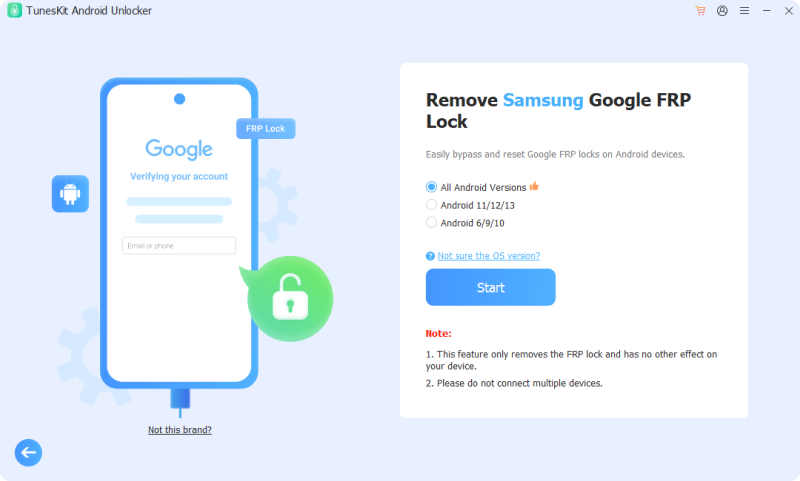
Step 2 Select removal feature
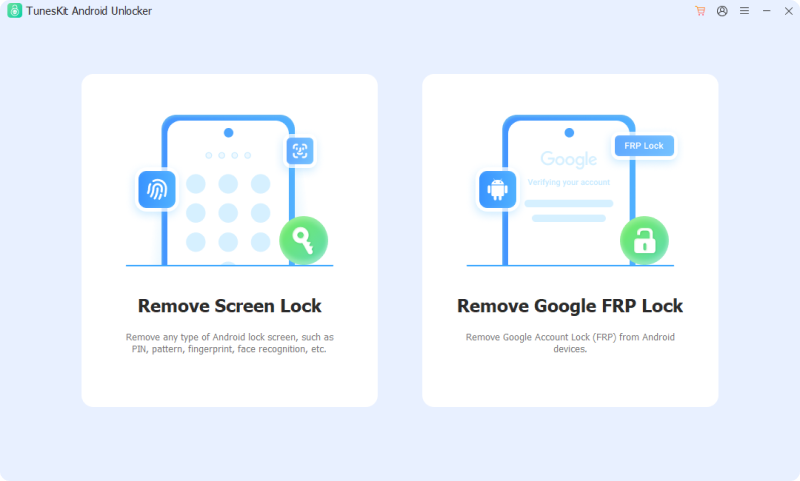
Open the software and then select the Remove Google FRP Lock function. The tool will prompt you to choose the brand of your phone. Select the Start button after that.
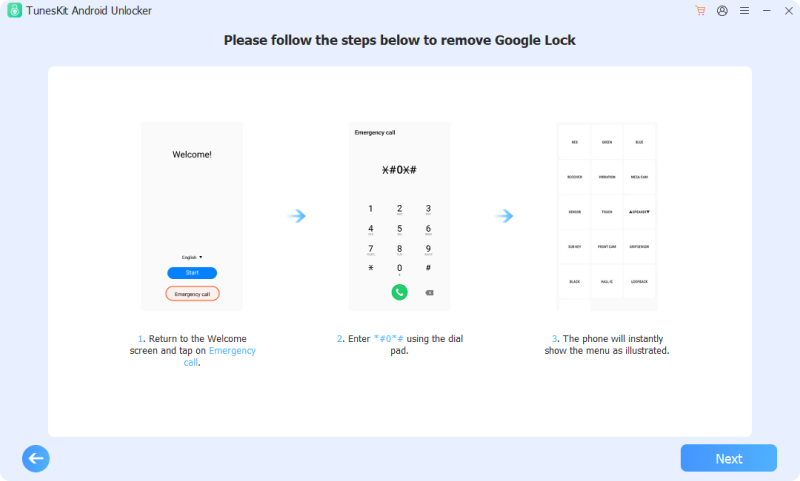
Step 3 Remove Google account from the phone
Follow the instruction showing on the computer to set your phone. After that, click the Next button to start the removal process. Tap Allow on the prompt on your phone screen.
Part 4. FAQs about Removing Google Account from Android
-
1. Does removing my Google account delete my photos and emails?
Removing the account deletes the data from the device, but it does not delete it from Google's servers. Your contacts, emails, and synced photos will disappear from the phone's gallery and address book. If you sign in to a new device or a computer with the same email and password, all your data will be there (provided you had backup enabled).
-
2. Will "Sign out" on the web remove the FRP lock on my broken phone?
Not immediately. If you sign out via the Google Security Dashboard on a computer, the phone must be connected to the internet to receive that command. If the phone is offline (broken wifi/no data), it will remain locked until it reconnects.
Part 5. Conclusion
Removing your Google account before a factory reset is the single most effective way to prevent the frustration of Factory Reset Protection (FRP) locks. If you have already reset the device and are currently locked out, don't panic. Reliable third-party tools like TunesKit Android Unlocker can serve as a powerful backup solution to bypass the lock and get your device working again.


