


iPhone Stuck on Checking for Update? Fix It in iOS 27

If your iPhone is stuck on Checking for Update, retry on a stable network and restart the device. If it still does not finish, update with Finder or Apple Devices.
Seeing Checking for Update stay on the screen without showing an available iOS version can be frustrating. This guide explains what Checking for Update means, how to tell whether it is really stuck, and what to try next. If your iPhone is stuck at another stage, see our iOS 27 update guide for the right troubleshooting steps.

- What Does "Checking for Update" Mean?
- Is Your iPhone Really Stuck on Checking for Update?
- Checking for Update vs Other iOS Update Stages
- Before You Start: Make Sure Your iPhone Supports iOS 27
- Why Is My iPhone Stuck on Checking for Update?
-
How to Fix iPhone Stuck on Checking for Update
- Fix 1: Refresh the Software Update Screen
- Fix 2: Check Your Internet Connection
- Fix 3: Check Apple Services and Try Again Later
- Fix 4: Restart or Force Restart the iPhone
- Fix 5: Check Beta Updates If You Previously Used an iOS Beta
- Fix 6: Check Storage and Remove an Existing Update File
- Fix 7: Update with Finder or Apple Devices
- Fix 8: Repair Persistent iOS Issues with TunesKit HOT
- FAQs About iPhone Stuck on Checking for Update
- Conclusion
What Does "Checking for Update" Mean?
Checking for Update appears when your iPhone contacts Apple's update services to look for an iOS version available for your device. This happens before the update is downloaded and installed. When the check finishes normally, your iPhone should either show an available update or tell you that iOS is up to date.
If the spinner keeps running without showing either result, the checking process may not be completing normally.
Is Your iPhone Really Stuck on Checking for Update?
Checking for Update often finishes within seconds on a stable connection, but it can take longer when Apple's update services are busy, especially around a major iOS release.
As a practical reference, if the screen keeps spinning for more than about 5 minutes on a stable network without showing an update or an error, it is reasonable to start troubleshooting. This is not an official Apple time limit. Actual checking time can vary depending on the network and Apple service conditions.
Checking for Update vs Other iOS Update Stages
Before troubleshooting, make sure you are dealing with the right update stage.
| What You See | What It Means | What to Do |
|---|---|---|
| Checking for Update keeps spinning | The iPhone has not finished looking for an available update | Continue with this guide |
| Unable to Check for Update | The update check has failed and returned an error | See our Unable to Check for Update guide |
| Update Requested | The update has been requested but has not started downloading | See our Update Requested guide |
| Preparing Update | The downloaded update is being prepared | See our Preparing Update guide |
| Verifying Update | The downloaded update is being checked before installation | See our Verifying Update guide |
Before You Start: Make Sure Your iPhone Supports iOS 27
Before troubleshooting, make sure your iPhone supports iOS 27. Compatible models include:
- iPhone 11 and later supported models
- iPhone Air
- iPhone SE (2nd and 3rd generation)
You can check the full and latest model list on Apple's official iOS 27 compatibility page.
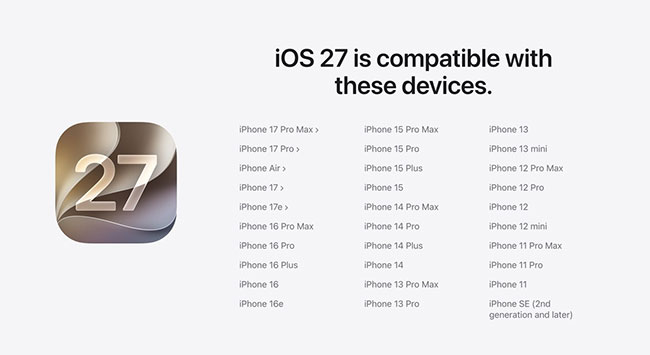
If the device is not compatible with iOS 27, changing networks, restarting the iPhone, or refreshing Software Update will not make the update appear. If your iPhone is supported but Checking for Update still does not finish, continue with the fixes below.
Why Is My iPhone Stuck on Checking for Update?
Several issues can prevent the update check from finishing normally:
- Network connection problem: A weak, unstable, or restricted connection may prevent the iPhone from communicating properly with Apple's update services.
- Temporary Apple service or availability issue: Apple's update services may be busy or temporarily unavailable, especially around a major software release.
- Temporary iOS or update-channel issue: The Software Update process may stop responding, particularly after changing Beta Updates or switching between beta channels.
- Very low storage: Although storage is more important during downloading and installation, critically low free space may still affect the overall update process.
How to Fix iPhone Stuck on Checking for Update
Start with the simplest checks first, then move to network, computer-based, and system-level troubleshooting only if needed.
Fix 1: Refresh the Software Update Screen
Sometimes the Software Update page simply stops responding while checking for a new iOS version. Reopening it gives the process a fresh start.
- Step 1. Leave Settings > General > Software Update. Close the Settings app.
- Step 2. Reopen Settings > General > Software Update. Wait for the iPhone to check again.
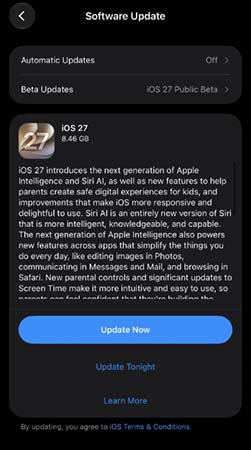
If the screen keeps spinning for several minutes, continue with the network checks below.
Fix 2: Check Your Internet Connection
A weak or restricted connection can prevent your iPhone from reaching Apple's update services. Start with these basic checks:

- Reconnect to Wi-Fi or try another reliable network.
- Temporarily disable any VPN or proxy.
- Go to Settings > General > Date & Time and turn on Set Automatically.
Try a Different DNS
If the problem only happens on one Wi-Fi network, go to Settings > Wi-Fi > ⓘ > Configure DNS > Manual and try 8.8.8.8 (Google DNS) or 1.1.1.1 (Cloudflare DNS). If it does not help, switch DNS back to Automatic.

Reset Network Settings
If the issue continues, go to Settings > General > Transfer or Reset iPhone > Reset > Reset Network Settings. This removes saved Wi-Fi networks, so you will need to reconnect afterward.

Fix 3: Check Apple Services and Try Again Later
If your internet connection works normally but Checking for Update still does not finish, the problem may be temporary on Apple's side. Check Apple's System Status page for any reported service disruptions.
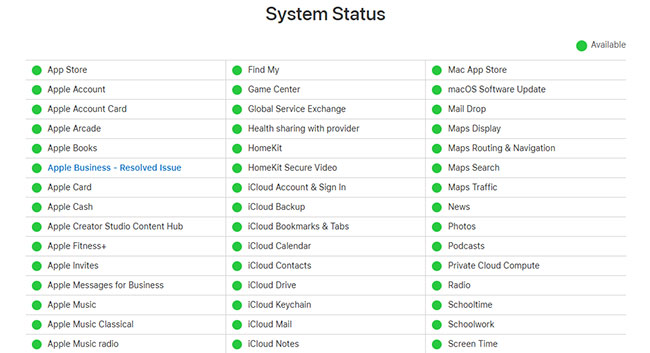
If multiple devices are having the same problem, or the issue appears around a major iOS release, waiting and retrying later may be more useful than changing additional settings. If no relevant issue is reported, continue with the next method.
Fix 4: Restart or Force Restart the iPhone
A temporary Settings or iOS process may prevent Software Update from responding correctly. If your iPhone is still responsive, restart it normally:
- Step 1. Go to Settings > General > Shut Down.
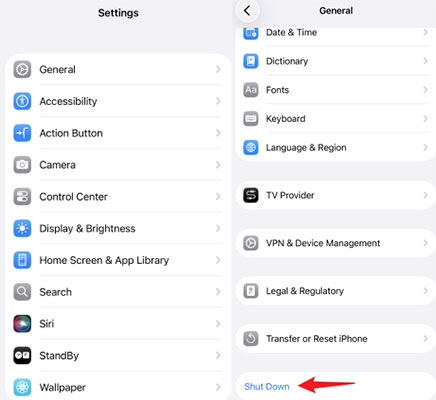
- Step 2. Drag the slider to turn off the iPhone.
- Step 3. Press and hold the Side button until the Apple logo appears.
- Step 4. Go back to Settings > General > Software Update.
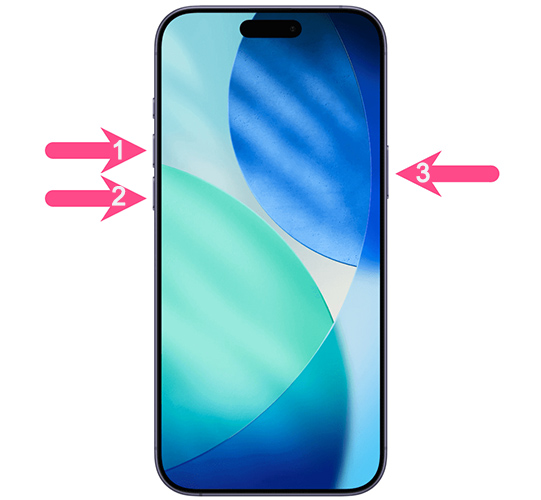
If the iPhone itself becomes unresponsive, use a force restart instead. For most modern iPhones:
- Quickly press and release Volume Up.
- Quickly press and release Volume Down.
- Press and hold the Side button until the Apple logo appears.
Fix 5: Check Beta Updates If You Previously Used an iOS Beta
If your iPhone was previously enrolled in Apple's beta program, check the selected update channel. Go to Settings > General > Software Update > Beta Updates.
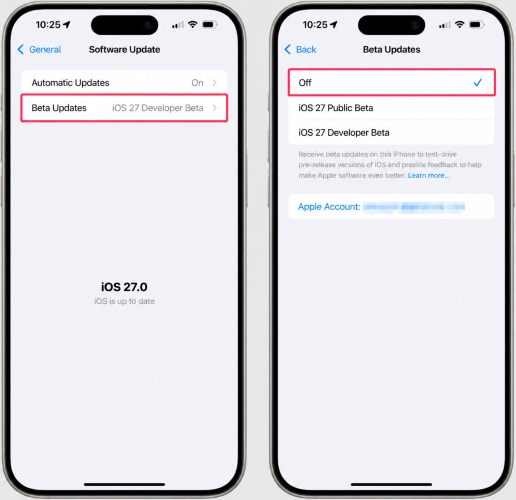
If you no longer want beta updates, set Beta Updates to Off, then return to Software Update and check again. If you are intentionally installing a beta, make sure the correct beta channel is selected.
 Note
Note
Turning Beta Updates off stops future beta updates. It does not downgrade an iPhone that is already running a newer beta version.
Fix 6: Check Storage and Remove an Existing Update File
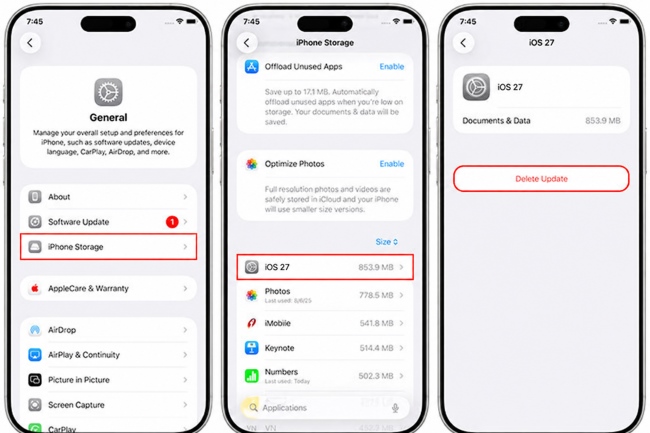
Storage becomes more important when iOS starts downloading and installing, but it is still worth checking before retrying the update. Go to Settings > General > iPhone Storage. If storage is low, remove unnecessary apps, downloads, videos, or other large files.

Then check whether an existing iOS update file already appears in the storage list. If it does, tap the iOS update > Delete Update. Finally, return to Settings > General > Software Update to check for the update again.
 Tip:
Tip:There is no single free-space requirement for every iOS update. However, keeping around 15 GB of free space can provide useful working room for a major iOS upgrade, although the actual requirement varies by device and update.
Fix 7: Update with Finder or Apple Devices
If the iPhone keeps getting stuck on Checking for Update, try checking for and installing the update from a computer. This uses a different update path and may work when the on-device Software Update screen does not.
- Step 1. Connect the iPhone to your computer with a USB cable.
- Step 2. Open Finder on Mac or Apple Devices on Windows. Use iTunes on an older system if needed.
- Step 3. Select your iPhone. Click Check for Update.
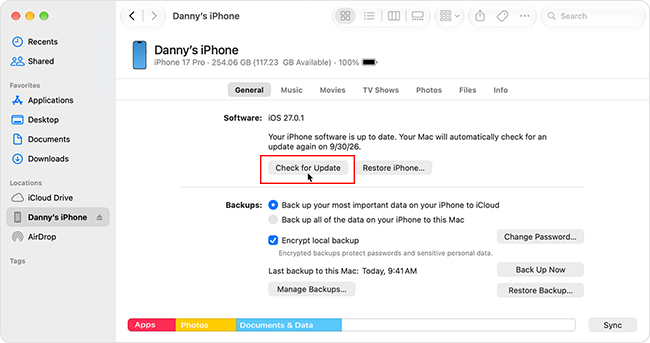
- Step 4. Choose Download and Update if an update is available. Keep the iPhone connected until the update process finishes.
There is no need to restore the iPhone just because Checking for Update is stuck. Try a normal computer-based update first.
Fix 8: Repair Persistent iOS Issues with TunesKit
If Checking for Update remains stuck after trying different methods above, the problem may involve a deeper iOS system issue. TunesKit iOS System Recovery is a desktop repair tool for common iOS system and update problems. Its Standard Repair mode is designed to fix common system issues without erasing existing data.
- Step 1. Launch TunesKit iOS System Recovery and connect your iPhone to the computer.
- Step 2. Choose iOS System Repair > Start > Standard Repair.

- Step 3. Confirm the device information and click Download to get the recommended firmware package.
- Step 4. Click Repair and keep the iPhone connected until the process finishes. If the repair succeeds, the iPhone should restart normally.
FAQs About iPhone Stuck on Checking for Update
-
How long should Checking for Update take?
It often finishes within seconds. If it keeps spinning for about 5 minutes without showing a result, it is reasonable to start troubleshooting.
-
Why is Checking for Update stuck even though Wi-Fi works?
A working Wi-Fi connection does not always mean the iPhone can reach Apple's update services correctly. The issue may involve Apple services, VPN or proxy settings, DNS, incorrect date and time, beta update settings, or a temporary iOS process.
-
What is the difference between Checking for Update and Unable to Check for Update?
Checking for Update means the iPhone is still trying to find an available update. Unable to Check for Update means the check has already failed and iOS has returned an error.
-
Can I update my iPhone with a computer instead?
Yes. Use Finder on Mac or Apple Devices on Windows to check for and install the update if Software Update on the iPhone keeps getting stuck.
Conclusion
An iPhone stuck on Checking for Update usually means the update check has not completed normally. Start with the basic network and device checks, then move to a computer-based update if the problem continues. If standard update methods still do not work, TunesKit iOS System Recovery offers another option for addressing possible iOS system issues.
For problems at other update stages, visit our iOS update troubleshooting center for the right solution.



