


8 Ways to Fix iPhone Screen Bleeding
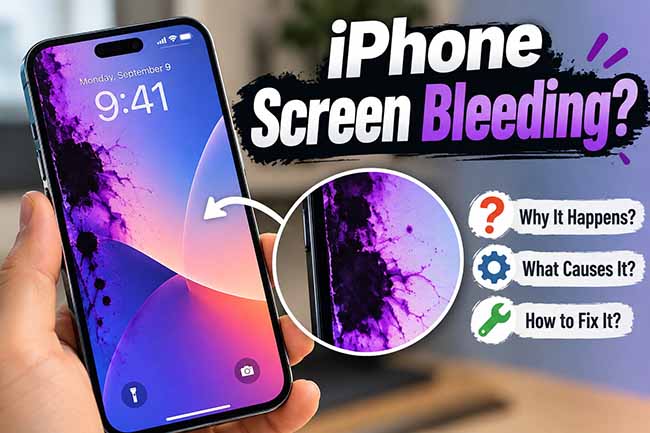
Noticing black, purple, or ink-like patches spreading across your iPhone display can be alarming. This issue is known as iPhone screen bleeding, and it usually appears after a drop, strong pressure, water damage, or an internal display failure. In some cases, the affected area may gradually expand and make the screen harder to use. If your iPhone screen is bleeding, this guide explains the possible causes, how serious the problem is, and the practical methods you can take to fix it.
What Is A Bleeding iPhone Screen?
iPhone screen bleeding usually refers to black, purple, blue, or ink-like patches appearing underneath the display. These areas may start around the edge of the screen and gradually spread toward the center.
Common Symptoms Include:
- Black or purple spots on the screen
- Ink-like areas spreading across the display
- Colored vertical or horizontal lines
- iPhone screen flickering
- Part of the display turning completely black
- Touch controls becoming unresponsive
In many cases, true screen bleeding is related to physical OLED or LCD damage rather than an iOS problem.

Why Is My iPhone Screen Bleeding?
Several issues can cause an iPhone screen to develop black or purple bleeding-like areas.
- 01 Physical Impact: Dropping your iPhone is one of the most common causes. The outer glass may remain intact while the OLED or LCD panel underneath becomes damaged. Once the internal display layers are damaged, black or purple areas may appear and spread over time.
- 02 Excessive Pressure: Strong pressure on the display can damage internal screen components. This may happen when you sit on the phone, place heavy objects on it, or keep it inside an overloaded bag.
- 03 Water Damage: Liquid entering the iPhone can affect the screen, display connectors, and other internal components. You may notice dark patches, colored lines, flickering, or unusual brightness after water exposure.
- 04 Damaged OLED or LCD Panel: A broken OLED or LCD panel can create black, blue, or purple areas that look like ink spreading underneath the screen. There is not actually ink inside the display. The effect is caused by damaged pixels or display layers.
- 05 Display Connector Problems: If your iPhone has been dropped, repaired, or opened before, the display cable may become loose or damaged. This can cause black areas, flickering, distorted colors, or lines across the screen.
- 06 iOS or Software Glitches: Software problems normally do not cause true physical screen bleeding. However, an iOS glitch can sometimes cause similar symptoms, including flickering, color distortion, or a temporary black screen. If there is no obvious physical damage, it is worth troubleshooting possible software causes before replacing the display.
How to Fix iPhone Screen Bleeding
Before replacing the screen, you can first determine whether the problem is caused by iOS or actual display damage. The following methods start with simple troubleshooting and gradually move toward hardware repair.
Fix 1. Restart Your iPhone
If the abnormal screen appeared suddenly and your iPhone has not recently been dropped, squeezed, or exposed to water, the problem may be a temporary display or system glitch. Restarting reloads iOS and clears temporary processes without deleting your data.
- Step 1. Press and hold the Side button and either Volume button until the power-off slider appears.
- Step 2. Drag the slide to the right to power off.
- Step 3. Wait about 30 seconds after the iPhone turns off.
- Step 4. Press and hold the Side button until the Apple logo appears.

Fix 2. Force Restart Your iPhone
A normal restart may not work when your iPhone is frozen, flickering, showing unusual colors, or partly unresponsive. A force restart makes the device reload iOS without deleting your data, so it is worth trying when the apparent screen bleeding may actually be caused by a temporary system or display glitch. The button combination varies by iPhone model.
- For iPhone 8 and later: Quickly press and release the Volume Up button. Quickly press and release the Volume Down button. Press and hold the Side button. Release the Side button when the Apple logo appears.
- For iPhone 7 and iPhone 7 Plus: Press and hold the Side button and Volume Down button at the same time. Keep holding both buttons when the screen turns black. Release both buttons when the Apple logo appears.
- For iPhone 6s and earlier models: Press and hold the Home button together with the Side button or Top button, depending on your iPhone model. Continue holding both buttons even after the screen turns black. Release the buttons when the Apple logo appears.

A force restart does not erase your photos, apps, messages, or other personal data. Once the iPhone restarts, check whether the abnormal screen area disappears.
Fix 3. Remove the Case and Screen Protector
A tight case, damaged screen protector, or warped accessory can place pressure on the iPhone display. If the screen is already slightly damaged, continued pressure may make the black or purple area larger.
- Step 1. Remove the iPhone case carefully.
- Step 2. Take off the screen protector if it is cracked, bent, or pressing against the display.
- Step 3. Inspect the sides of the iPhone for bending, gaps, or a lifted screen.
- Step 4. Leave the phone without the case temporarily and check whether the display condition changes.

Do not press, rub, or massage the bleeding area. Extra pressure can worsen damaged OLED or LCD pixels.
Fix 4. Update iOS to the Latest Version
If the screen shows flickering, unusual colors, flashing, or temporary black areas without obvious physical damage, the issue may be related to iOS. Updating the system can fix display bugs and compatibility problems introduced by an earlier software version.
- Step 1. Connect your iPhone to a stable Wi-Fi network.
- Step 2. Open Settings on your iPhone.
- Step 3. Tap General > Software Update.
- Step 4. If an update is available, tap the Update Now button. Follow the on-screen instructions to complete the update.
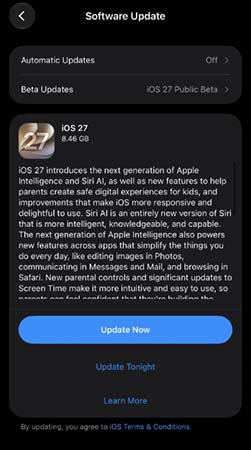
An iOS update can fix software-related display errors, but it cannot repair a physically damaged OLED or LCD panel.
Fix 5. Reset All Settings
Incorrect display or system settings can occasionally cause unusual screen behavior. Resetting all settings restores system preferences to their defaults without deleting your personal files, making it safer than performing a factory reset.
- Step 1. Open Settings on your iPhone.
- Step 2. Go to General > Transfer or Reset iPhone.
- Step 3. Tap Reset option, and select Reset All Settings.
- Step 4. Enter your iPhone passcode and confirm the reset.

Your photos, videos, apps, and documents remain on the device, but settings such as Wi-Fi networks, keyboard preferences, and system configurations are reset.
Fix 6. Repair iOS with TunesKit iOS System Recovery
If your iPhone has no obvious physical screen damage, the bleeding-like display issue may actually be caused by an iOS glitch. In this case, TunesKit iOS System Recovery can help repair more than 150 software-related iOS problems without data loss in Standard Repair mode. It is especially useful when the problem appears together with symptoms such as iPhone screen flickering, an iPhone blank screen, or an unresponsive iPhone touch screen.
TunesKit iOS System Recovery supports both Standard Repair and Deep Repair. For screen-related software glitches, Standard Repair should be tried first because it is designed to keep existing data intact. Deep Repair is intended for more serious system problems and erases device data, so a backup is recommended before using it.
Fix iPhone Screen Issues with TunesKit
TunesKit iOS System Recovery helps fix software-related screen problems like flickering, black screen, and display glitches without data loss.
 600,000+ Downloads
Here's a step-by-step guide to fix a bleeding screen on iPhone using TunesKit iOS System Recovery.
Step 1. Connect iPhone to PC
Download and install TunesKit iOS System Recovery on your Windows or Mac computer. Launch the program and connect your iPhone using a USB cable. After TunesKit recognizes your device, click iOS System Repair and choose the Start button.

Step 2. Choose A Mode
To fix a bleeding screen on iPhone without data loss, simple choose the Standard Repair to begin.

Step 3. Download Firmware Package
Confirm the detected iPhone model and device information. Select the available firmware package and click Download. Wait until TunesKit finishes downloading and verifying the firmware.

Step 4. Start to Repair
Click the Start Standard Repair button to begin repairing the iOS system. Keep the iPhone connected until the repair is complete and the device restarts.

Fix 7. Back Up Your iPhone
If the bleeding area is getting larger, the screen could eventually become difficult or impossible to use. Creating a backup now protects important photos, messages, contacts, and other data before the display fails completely.
- Step 1. Connect your iPhone to Wi-Fi.
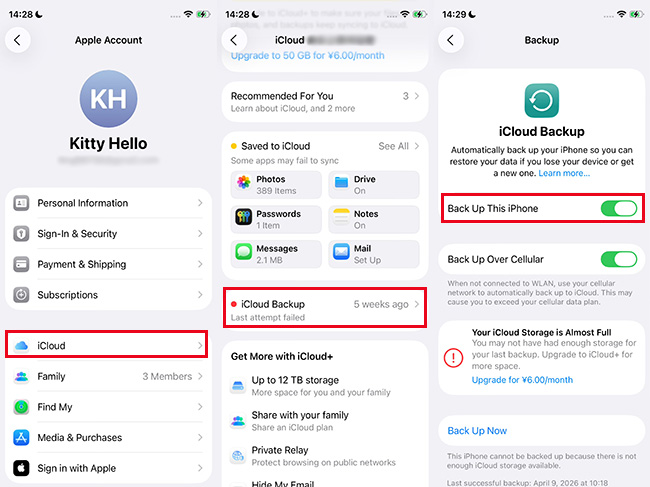
- Step 2. Open Settings and tap your name.
- Step 3. Tap iCloud > iCloud Backup.
- Step 4. Turn on Back Up This iPhone if it is disabled.
- Step 5. Tap Back Up Now and keep the iPhone connected to Wi-Fi until the backup finishes.
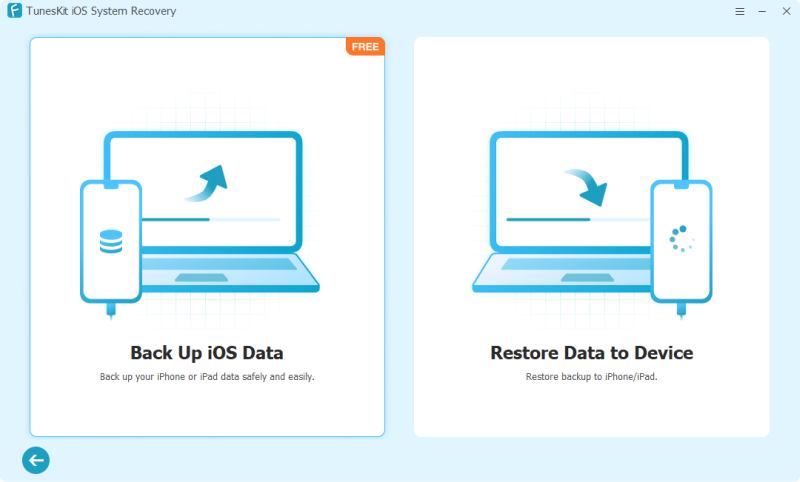
You can also connect your iPhone to a Mac or Windows computer and create a local backup using TunesKit iOS System Recovery's Backup & Restore feature.
Fix 8. Replace the Damaged Screen
If the black, purple, or ink-like area appeared after a drop, heavy pressure, or water damage, the internal display is probably physically damaged. In this case, restarting, updating iOS, resetting settings, or using repair software cannot restore broken OLED or LCD pixels.
- Step 1. Back up your iPhone before arranging a repair whenever possible.
- Step 2. Inspect whether the frame, glass, and screen are also cracked, bent, or separated.
- Step 3. Contact Apple Support, an Apple Authorized Service Provider, or a qualified repair center.
- Step 4. Ask the technician to inspect the display and determine whether the entire screen assembly needs replacement.
- Step 5. After the repair, test the screen brightness, touch response, Face ID, and display colors.

For genuine hardware screen bleeding, replacing the damaged display is usually the permanent solution.
FAQs About iPhone Screen Bleeding
-
Can you fix iPhone screen bleeding without replacing the screen?
If the issue is caused by software, restarting the iPhone, updating iOS, or repairing the operating system may solve it. However, true screen bleeding caused by physical OLED or LCD damage normally cannot be fixed without replacing the damaged screen.
-
Will iPhone screen bleeding get worse?
It can. A small black or purple spot may stay the same size for a while, but internal display damage can also continue spreading due to pressure, heat, normal use, or additional impacts.
Signs of worsening damage include the black area becoming larger, purple spots spreading toward the center, new vertical or horizontal lines appearing, touch response failing in certain areas, the display flickering, or large portions of the screen turning black.
If you notice these symptoms, back up the iPhone and arrange a repair before the display becomes unusable.
-
How can I prevent iPhone screen bleeding?
To reduce the risk of iPhone screen bleeding, use a protective case with raised edges and a good-quality screen protector, avoid carrying your iPhone in a back pocket or placing heavy objects on it, and keep the device away from excessive heat and moisture. If the screen is already cracked, have it repaired before the damage worsens, and never press, rub, or massage an existing black or purple spot because extra pressure may further damage the display.
Conclusion
iPhone screen bleeding is often a sign of internal OLED or LCD damage, particularly when black or purple areas appear after a drop, pressure, or water exposure. If there is no obvious physical damage, start with restarting, updating iOS, resetting settings, or using TunesKit iOS System Recovery to rule out software-related problems.
However, if the ink-like patch remains fixed or continues spreading, a damaged display is the more likely cause, and replacing the screen is usually the permanent solution.



