


iPhone Screen Is Blank? 7 Ways to Fix It
If your iPhone screen is blank even though the device is still on, the problem may be caused by a temporary iOS glitch, a display issue, or a hardware fault. You may see a completely white or empty screen and be unable to access your apps or controls. In this guide, we'll explain why the iPhone blank screen happens and walk you through practical ways to get the display working normally again.

Why Is My iPhone Screen Blank?
A blank iPhone screen can be caused by either a temporary software problem or a hardware issue. Common causes include:
- 01 iOS glitches or crashes that prevent the screen from displaying normally.
- 02 A frozen app or system process that leaves the display blank.
- 03 Low or completely drained battery, especially if the iPhone does not respond.
- 04 Failed or interrupted iOS updates that affect startup.
- 05 Display or internal hardware damage after a drop, impact, or water exposure.
- 06 Loose or damaged screen components, particularly if the iPhone still vibrates, rings, or makes sounds while the screen remains blank.
If your iPhone is still powered on but shows nothing, start with software troubleshooting before considering screen repair.
7 Methods to Fix iPhone Screen Blank
If your iPhone screen suddenly goes blank, start with the simplest fixes before moving to system repair or a full restore. The methods below are arranged from the easiest and safest options to more advanced solutions that may affect your data.
Way 1. Force Restart Your iPhone
A temporary iOS crash can make the screen go blank even when the iPhone is still powered on. In this case, a force restart is usually the first thing to try. It does not erase your data.
- For iPhone 8 or later: Quickly press and release the Volume Up button. Quickly press and release the Volume Down button. Press and hold the Side button until the Apple logo appears.
- For iPhone 7 or iPhone 7 Plus: Press and hold the Side button and Volume Down button at the same time until the Apple logo appears.
- For iPhone 6s or earlier: Press and hold the Home button and Side/Top button together until you see the Apple logo.

If the screen turns on normally afterward, continue using the iPhone and check whether the problem happens again.
Way 2. Charge Your iPhone and Check the Power Source
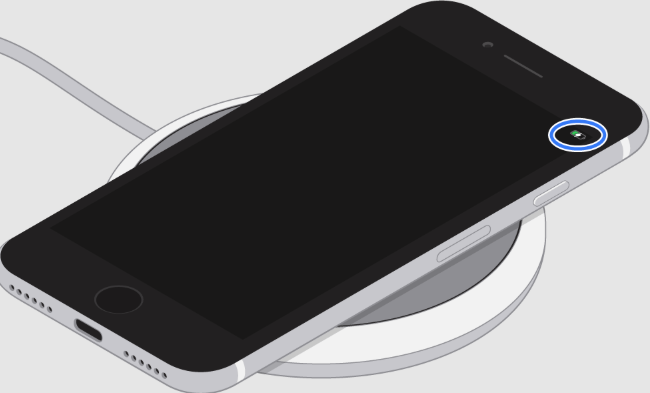
A completely drained battery can also make an iPhone appear to have a blank or black screen. If the device does not respond to a force restart, charge it before trying more advanced fixes.
- Step 1. Connect your iPhone to a working charger and power source.
- Step 2. Check that the charging cable, adapter, and charging port are not damaged or blocked by debris.
- Step 3. Leave the iPhone charging for up to an hour, then try the force restart again.
If your iPhone became unusually hot before the screen went blank, allow it to cool down before using or charging it again.
Way 3. Close or Update the Problematic App
If your iPhone works normally most of the time but the screen turns blank only when you open a particular app, that app may be frozen or malfunctioning.
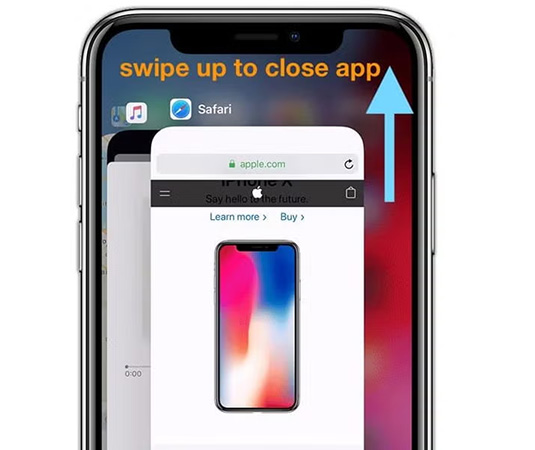
- Step 1. Open the App Switcher. On an iPhone with Face ID, swipe up from the bottom of the screen and pause in the middle. On an iPhone with a Home button, double-click the Home button.
- Step 2. Swipe left or right to find the problematic app.
- Step 3. Swipe up on the app preview to close it.
- Step 4. Reopen the app and check whether the blank-screen problem continues.
You should also open the App Store and install any available update for the affected app.
 Note
Note
This method only applies when the screen becomes usable again or when the problem happens inside a specific app. If the screen remains completely blank, move on to the next solutions.
Way 4. Update iOS
If your iPhone becomes responsive after restarting but the blank screen keeps returning, an iOS bug may be responsible. Updating to the latest compatible version can install bug fixes and improve system stability.
- Step 1. Open Settings on your iPhone.
- Step 2. Go to General > Software Update.
- Step 3. If an update is available, tap Update Now. Keep the iPhone connected to power and Wi-Fi until the update finishes.

If the screen is completely blank and you cannot access Settings, skip this method and try a computer-based repair instead.
Way 5. Fix iPhone Blank Screen with TunesKit iOS System Recovery
If restarting, charging, and updating do not help, it may indicate that the iPhone falls into system glitches causing the iPhone blank screen issue. In this case, an iOS system recovery program delivers good results in repairing any screen issue, if it is not badly broken.
TunesKit iOS System Recovery works here. It is a professional desktop program which fixes over 150 iPhone/iPad/iPod touch issues such as iPhone stuck in recovery mode, frozen screen, yellow screen, etc. Without erasing any data, TunesKit will present a roughly new iPhone turning normal again. Not just a repair tool, it can also downgrade iOS or enter/exit recovery mode with one click. It promises high repairing rate and a high speed of repairing.
Fix Your iPhone Blank Screen
Repair software-related blank screen issues with Standard Repair while keeping your iPhone data intact.
 600,000+ Downloads
Here are the detailed steps to use TunesKit to fix the blank screen issue.
Step 1. Connect iPhone to PC
Download and install TunesKit iOS System Recovery on your Windows PC or Mac. Connect your iPhone to the computer with a USB cable. Launch TunesKit and choose iOS System Repair. On the next page, click the Start button.

Step 2. Choose A Mode
On the pop-up window, it is better for you to choose the Standard Repair for keeping the data intact.

Step 3. Download Firmware Package
To fix the iPhone, the firmware package is needed. After checking the device info, you can click the Download to start the downloading process.

Step 4. Fix iPhone Blank Screen Without Data Loss
After the firmware is ready, click Start Standard Repair and keep your iPhone connected until the process finishes. Once the repair is complete, your iPhone should restart automatically. Check whether the screen now displays normally.

Way 6. Update or Restore iPhone in Recovery Mode
On the premise that you do not need to go outside, another resort is iTunes on your computer. With its help, you can restore your iPhone. For more effective results, you can put the iPhone into recovery mode, and then use iTunes to fix the iPhone blank screen issue. But make sure you do a recent backup for your iPhone.
Depending on your computer, use:
- Finder on a Mac running macOS Catalina or later
- Apple Devices on a Windows PC
- iTunes on older Windows PCs or Macs running macOS Mojave or earlier
- Step 1. Connect your iPhone to the computer with a USB cable and open Finder, Apple Devices, or iTunes.
- Step 2. Put the iPhone into Recovery Mode.
- Step 3. When your computer detects the iPhone in Recovery Mode, you may see Update and Restore options. Try Update first when available. It attempts to reinstall iOS without erasing your personal data. If Update fails or the problem remains, choose Restore.
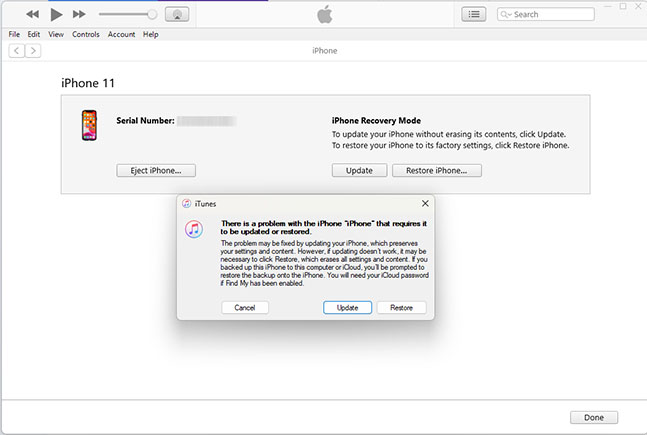
 Warning: Restoring an iPhone erases its content and settings. Make sure you have a backup whenever possible.
Way 7. Contact Apple Support
If none of the software solutions work, the blank screen may be caused by a hardware problem.
Hardware damage is more likely if:
- The iPhone still rings, vibrates, or receives notifications while the screen stays blank.
- The device is detected by a computer but shows no display.
- The problem started after a drop or strong impact.
- The iPhone was exposed to liquid.
- You see flashing, lines, discoloration, or other display abnormalities before the screen goes blank.
In these cases, contact Apple Support or visit an Apple Store or authorized service provider for a hardware inspection. The display, internal connectors, battery, or other components may need professional repair.
FAQs About iPhone Screen Blank
-
Why is my iPhone screen blank but the phone is still on?
Your iPhone may have a temporary iOS crash, a frozen app, or a display-related issue. If the phone still rings, vibrates, or receives notifications, the device may be running even though the screen is not displaying properly.
-
Does a blank iPhone screen mean the screen is broken?
Not necessarily. A blank screen can result from a software crash even when the display hardware is working normally. However, if the iPhone still rings or vibrates but never shows an image, especially after a drop, the display may be damaged.
-
Can low storage cause an iPhone blank screen?
Extremely low storage can affect iOS performance and may contribute to freezing, app crashes, or startup problems. If you can access your iPhone again, go to Settings > General > iPhone Storage and free up unnecessary space.
Final Words
Whenever the iPhone screen becomes blank, it is always disturbing. Well, with the 7 ways described, the iPhone blank screen can be avoided and fixed for good. In any event, TunesKit iOS System Recovery provides a one-stop solution at any time.



