


How to Fix iPhone Screen Goes Black During Call?
"Sometimes while I am talking on a call, the iPhone screen goes black. I can't hang up or change anything on the screen. Tapping the screen, or the button is ineffective. I have to wait until it returns to normal by itself, which can take 5 minutes. What should I do to fix it?"
Making and receiving calls is a basic function of any iPhone, especially in urgent situations. However, many users encounter a frustrating issue where the iPhone screen goes black during call, preventing them from hanging up or accessing other features. This problem can seem serious, but in most cases it is caused by simple settings or sensor issues that are easy to fix. If your iPhone screen goes black during call and becomes unresponsive, this guide has comprehensive solutions.

- Part 1. Why Does iPhone Screen Goes Black During a Call?
- Part 2. How to Fix iPhone Screen Goes Black during Call?
- Method 1. Clean the Screen and the Sensor
- Method 2. Uncover the Sensor to Fix iPhone Goes Black During Calls
- Method 3. Disable the Reduce Motion
- Method 4. Reboot iPhone
- Method 5. Fix iPhone Screen Goes Black during Call with TunesKit iOS System Recovery HOT
- Method 6. Uninstall the Compass App
- Method 7. Reset All Settings
- Method 8. Update iOS to the Latest Version
- Part 3. FAQs About iPhone Screen Goes Black During Call
- Part 4. Conclusion
Part 1. Why Does iPhone Screen Goes Black During a Call?
If you notice the iPhone screen goes black during call, it is often related to the built-in Proximity Sensor. This sensor automatically turns off the display when the phone is near your ear to prevent accidental touches. Normally, the screen lights up again once you move the iPhone away. If it stays black, there may be an issue with the sensor, hardware, or iOS system.
- Proximity Sensor malfunction — The Proximity Sensor detects nearby objects and turns off the screen to avoid unintended actions. Although this feature cannot be disabled, restarting your iPhone may resolve sensor glitches.
- Hardware damage — If the sensor or screen is physically damaged (for example, after a drop or water exposure), the iPhone may keep the screen off during calls. In this case, professional inspection at an Apple Store is recommended.
- Software issues — Incorrect settings or iOS bugs can also cause the iPhone screen to go black during calls. Updating to the latest iOS version often fixes these problems.
Part 2. How to Fix iPhone Screen Goes Black during Call
The following are 8 solutions we find for you to fix the black screen issue. You can try them one by one.
Method 1. Clean the Screen and the Sensor
When you use your iPhone, gust, sweat and other things may stay on the screen and sensor leading to iPhone goes black during call. So, you need to clean the trash on them. Some of you have the screen protector to protect your screen which may block the screen and the sensor and hold dust. You should remove the protector and use a clean cloth to eliminate trash and have a call to find if that works.

Method 2. Uncover the Sensor to Fix iPhone Goes Black During Calls
Do not cover the proximity sensor of your iPhone will be helpful when you meet the issue that iPhone goes black during calls. If the proximity is covered, your iPhone will lock itself automatically. When you are making a call, you can turn the speaker on to keep your face away from the sensor. If you are now using an iPhone protector, you can take it off and see if the problem still exists.

Method 3. Disable the Reduce Motion
Motion effects of iOS can create the perception of depth on the Home screen and also within apps. But it will bring more burden to your iPhone, causing problems like iPhone going black during calls. You can use Reduce Motion to turn off these effects and save your iPhone. Follow the steps below.
- Step 1. First of all, click the Settings of your iPhone.
- Step 2. Click the General button and Accessibility button.
- Step 3. Find out the Reduce Motion switch and turn it off.

Method 4. Reboot iPhone
When you face minor glitches like iPhone going black during calls on your iPhone, you can try rebooting it. Rebooting an iPhone means a soft reset, which will refresh all the cache and process to make your iPhone works smoother. Meanwhile, it will do any harm to your iPhone. If you don't know how to reboot your iPhone, look at the following steps:
- For iPhone X or later models: Press and hold the volume down and power button until the top slider appears. Slide the slider to turn your iPhone off. After 30 seconds, long press the side button to turn your iPhone on.
- For iPhone 6/7/8: Long press the side/top button untile the silde appears. Turn off your iPhone by dragging the slider. Wait 30 seconds and keep holding the side button to turn on your iPhone.

Method 5. Fix iPhone Screen Goes Black during Call with TunesKit
If the above solutions do not work on your iPhone, your iPhone may have some iOS system problems. But there is still a method to fix it. you need to use some iOS system repairing tools. TunesKit iOS System Recovery is a good choice. TunesKit has a strong function of fixing 150+ iOS system issues, including iPhone stuck in Apple logo, white screen, recovery mode, iPhone cannot make or receive calls, etc. iPhone, iPad, and iPod touch can be fixed by this tool, if there are some system problems on them.
Also, it can downgrade iOS, fix iTunes errors and enable you to use one - click to enter or exit the Recovery Mode. It is loaded with two modes: Standard Repair (to solve common issues) and Deep Repair (to solve serious issues). You can use the Standard Mode to fix some common issues like iPhone going black during calls.
You can use only 4 steps to fix your problem easily. First of all, download and install TunesKit.
Key Features of TunesKit iOS System Recovery
Fix more than 150 iOS issuses including iPhone stuck in boot loop, iPhone green screen, iPhone stuck on white Apple, etc., without causing any data loss.
 600,000+ Downloads
Step 1Launch TunesKit
Connect the iPhone with your computer with a USB cable. Start this software. Select iOS System Repair on the main screen, and click the Start button on the next page.

Step 2Choose the Standard Repair
Choose Standard Repair to fix the issue where the iPhone screen goes black during calls without data loss. If Standard Repair fails, you can try Deep Repair instead, which will erase all data on your device.

Step 3 Download Firmware Package
Check and edit the information of your iPhone on this page and tap the Download button.

Step 4 Fix iPhone Screen Goes Black without Data Loss
Click Repair to start fixing the iOS problem. After completion, your iPhone will restart and return to normal.

Method 6. Uninstall the Compass App
It seems the Compass app has nothing to do with the iPhone goes black during call problem. But many users solve this problem by uninstalling and deleting it. The actual reason is not clear but it is still worth to trying. Anyway, deleting an app is very easy and this app is not often used.
- Step 1. Go to the Home Screen and find the Compass app.
- Step 2. Tap and hold the Compass icon until a menu appears.
- Step 3. Select Remove App, then tap Delete App to uninstall it from your iPhone.
- Step 4. Reboot your device to refresh the system and check if the issue is resolved.

Method 7. Reset All Settings
There is another chance that your iPhone screen going black due to some misconfigured settings. Incorrect system settings may be causing conflicts with the proximity sensor, display, or accessibility features. Resetting all settings can restore default configurations without deleting your data, often resolving call-related screen issues.
- Step 1. Open Settings on your iPhone.
- Step 2. Tap General.
- Step 3. Scroll down and select Transfer or Reset iPhone.
- Step 4. Tap Reset → Reset All Settings, and enter your passcode and confirm.

Method 8. Update iOS to the Latest Version
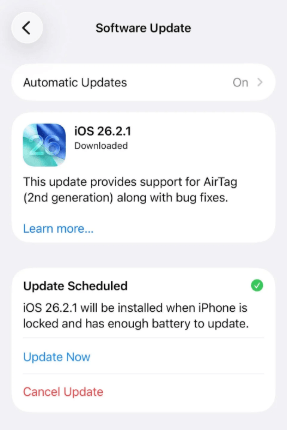
If the iPhone screen goes black during calls, an outdated system may be the cause. Updating to the latest version of iOS can fix software bugs, improve sensor performance, and resolve call-related glitches.
- Step 1. Connect your iPhone to Wi-Fi and ensure the battery is above 50% (or plug it in).
- Step 2. Open Settings → General → Software Update.
- Step 3. Tap Update Now button if an update is available.
- Step 4. Enter your passcode and wait for the update to complete. Your iPhone will restart automatically after installation.
Part 3. FAQs About iPhone Screen Goes Black During Call
-
1. Is it normal for the iPhone screen to turn off during calls?
Yes. It is a normal feature designed to save battery and prevent accidental taps. The screen should turn back on when you move the iPhone away from your ear.
-
2. Can "Raise to Wake" or other settings affect this?
While not directly tied to the proximity sensor, "Raise to Wake" can sometimes cause display confusion during active transitions. You can try toggling this off in Settings > Display & Brightness. Additionally, ensuring your iOS is updated can fix known bugs related to sensor performance.

-
3. When should I contact Apple Support?
If the screen stays black even after a factory reset and without any screen protector, the proximity sensor might be physically damaged. This often happens after a hard drop or a screen replacement using non-genuine parts.
Part 4. Conclusion
In order to solve your problem that iPhone screen goes black during call, we collect some useful methods. What you need to do is to find one or two that you think suits your situation. If you are not sure, just try them one by one or use TunesKit iOS System Recovery to fix this problem directly. This software is designed for solving iOS system issues like the black iPhone screen problem. You can fix your iPhone easily and without data loss.


