


iPhone Screen Flickering After iOS 27 Update? How to Fix It
Is your iPhone screen flickering after the iOS 27 update? The problem may appear as flashing, screen brightness changes, display glitches, or intermittent flickering after an update. It can be caused by temporary iOS bugs, incorrect display settings, incompatible apps, or, in some cases, a hardware issue. Whether the problem started after updating to iOS 27, iOS 26, iOS 18 or another version, the troubleshooting methods below can help you identify the cause and get your iPhone screen working normally again.
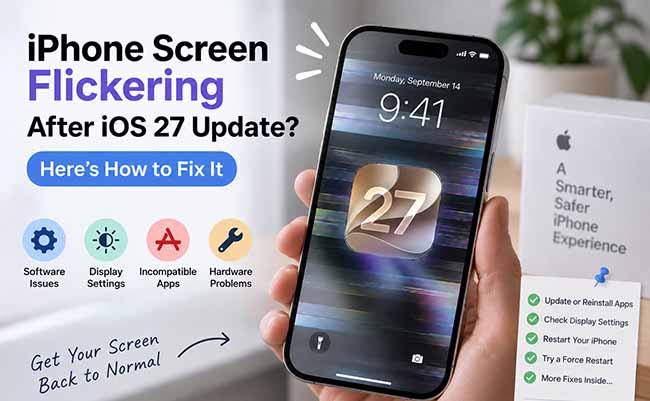
- Why Is My iPhone Screen Flickering After iOS 27 Update?
- Video Tutorial: How to Fix iPhone Screen Flickering?
-
How to Fix iPhone Screen Flickering After iOS 27 Update
- Fix 1. Restart Your iPhone
- Fix 2. Force Restart Your iPhone
- Fix 3. Adjust Display Settings
- Fix 4. Update iOS and Problematic Apps
- Fix 5. Reset All Settings
- Fix 6. Repair iPhone Screen Flickering with TunesKit iOS System Recovery HOT
- Fix 7. Factory Reset Your iPhone
- Fix 8. Check for a Hardware Problem
- Conclusion
Why Is My iPhone Screen Flickering After iOS 27 Update?
If your iPhone screen is flickering after the iOS 27 update, the issue may be related to software glitches, display settings, apps, or hardware. Here are the most common causes:
- 01 iOS Bugs: A new iOS update may introduce temporary display glitches that cause flickering on some devices.
- 02 Display Settings: Features such as Auto-Brightness, True Tone, Night Shift, or Reduce White Point may affect screen brightness and display behavior after an update.
- 03 App Compatibility: If flickering occurs only in certain apps, those apps may not yet be fully optimized for iOS 27.
- 04 Background System Activity: After updating, iPhone may run indexing, app optimization, and other background tasks that temporarily affect performance.
- 05 Low-Brightness OLED Flicker: On OLED iPhones, flickering may be more noticeable at low brightness because of PWM dimming feature.
- 06 Hardware Issues: A damaged display, previous drop, liquid exposure, or aging screen components can also cause persistent flickering.
 Further Reading: [Top 11] How to Fix iPad Screen Flickering?
Video Tutorial: How to Fix iPhone Screen Flickering?
If you prefer a visual walkthrough, watch the video tutorial below. It shows practical ways to fix iPhone screen flickering after an iOS update and helps you follow each troubleshooting step more easily.
How to Fix iPhone Screen Flickering After iOS 27 Update
If your iPhone screen keeps flickering after the iOS 27 update, start with simple troubleshooting before moving to system repair or a factory reset. Try the following fixes in order until the display returns to normal.
Fix 1. Restart Your iPhone
A temporary system glitch after an iOS update may cause the screen to flicker. Restarting your iPhone is the quickest way to refresh iOS without affecting your data.
- Step 1. Press and hold the Side button and either Volume button until the power-off slider appears.
- Step 2. Drag the slider and wait about 30 seconds.
- Step 3. Press and hold the Side button until the Apple logo appears.

Fix 2. Force Restart Your iPhone
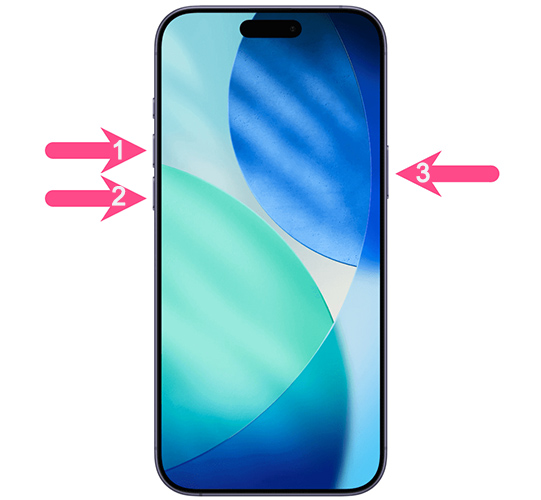
If the screen continues flickering or the iPhone becomes unresponsive, try a force restart. This does not erase your data.
- Step 1. Quickly press and release the Volume Up button.
- Step 2. Quickly press and release the Volume Down button.
- Step 3. Press and hold the Side button until the Apple logo appears.
Fix 3. Adjust Display Settings
If flickering happens when the brightness changes, temporarily adjusting display features can help identify the cause.
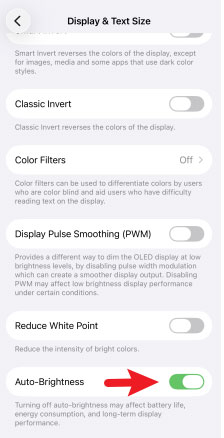
Step 1: Go to Settings > Accessibility > Display & Text Size and temporarily turn off Auto-Brightness.
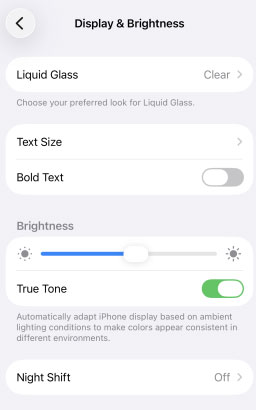
Step 2: Go to Settings > Display & Brightness and temporarily disable True Tone and Night Shift. Apple confirms that these features automatically adjust screen brightness or color.
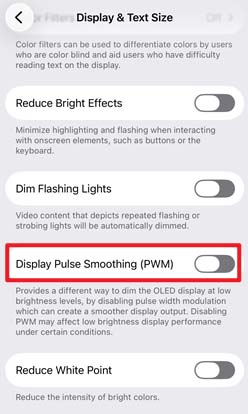
Step 3: On supported models, go to Settings > Accessibility > Display & Text Size and turn on Display Pulse Smoothing if flickering is especially noticeable at low brightness.
Fix 4. Update iOS and Problematic Apps
If your iPhone started flickering after an iOS 27 update, installing the latest iOS version may help fix display-related bugs. If the flickering happens only in one app, update or reinstall that app as well.
Update iOS
- Step 1. Connect your iPhone to a stable Wi-Fi network and make sure it has enough battery power.
- Step 2. Open Settings and tap General.
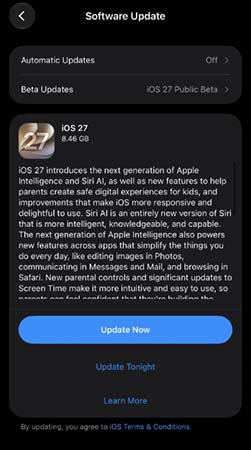
- Step 3. Tap Software Update and wait for your iPhone to check for available updates.
- Step 4. If a newer iOS version is available, tap the Update Now button. Enter your passcode if prompted, then keep your iPhone connected to Wi-Fi and power until the update is complete.
Update the Problematic App
If the screen flickers only when using a specific app, update it first.
- Step 1. Open the App Store on your iPhone.
- Step 2. Tap your profile icon in the upper-right corner.
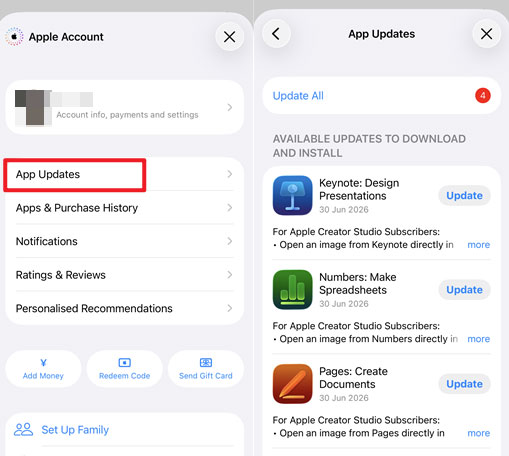
- Step 3. Scroll down to find the app and tap App Updates > Update next to it. You can also tap Update All to install all available app updates.
- Step 4. Reopen the app and check whether the flickering has stopped.
If updating the app does not help, delete and reinstall it:
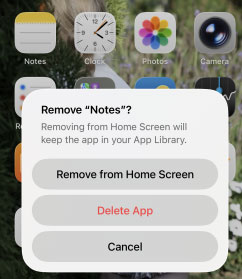
- Step 1. Touch and hold the app icon, then tap Remove App > Delete App.
- Step 2. Open the App Store, search for the app, and reinstall it.
- Step 3. Launch the app again and check the screen.
Fix 5. Reset All Settings
Incorrect or conflicting system settings can sometimes cause display problems after an update.
Go to: Settings > General > Transfer or Reset iPhone > Reset > Reset All Settings

This resets Wi-Fi networks, display preferences, privacy settings, and other system settings, but it does not delete your photos, messages, apps, or documents.
Fix 6. Repair iPhone Screen Flickering with TunesKit iOS System Recovery
When you encounter screen flickering issue on your iPhone, and if the above methods don't work, you can try TunesKit iOS System Recovery to fix it in one click. This software can efficiently fix various iPhone system issues, saving you the trouble of trying multiple solutions one by one.
It is designed to repair common iOS system issues without erasing existing data, including the iPhone stuck on preparing update, iPhone green screen of death, and iPhone apps glitches, etc. Compatible with both Windows and macOS, it is the top-class choice for you to fix all kinds of iOS issues without data loss.
Fix iOS 27 Screen Flickering with TunesKit
Repair iPhone screen flickering and other iOS 27 system issues efficiently with TunesKit iOS System Recovery, with Standard Repair designed to keep your data intact.
 600,000+ Downloads
Here's how to fix iPhone screen flickering issue after update to iOS 27 via TunesKit iOS System Recovery.
Step 1. Connect iPhone to PC
As a desktop software, TunesKit iOS System Recovery should be downloaded and installed on your computer first before you use it. After installation, open it and connect your screen flickering iPhone to your computer. Click the Start button after selecting the iOS System Repair option from the homepage.

Step 2. Enter Repair Mode
Between the two mode options, the Standard Repair is the first recommended one because it will not delete any data from your iPhone. However, the Deep Repair mode will clear your iPhone data.

Step 3. Download iOS Firmware
In this package download window, you can check your iPhone information. If there is no problem, you can click the Download button to start downloading firmware.

Step 4. Start Fixing iOS 27 iPhone Screen Flickering
Click the Start Standard Repair button to enter the final step of this repair process. You should make sure the connection between your iPhone and PC is always stable until the task is completed.

Fix 7. Factory Reset Your iPhone
If none of the software fixes work, a factory reset can help determine whether the problem is caused by iOS configuration or software corruption.
Back up your important data first, then go to:
Settings > General > Transfer or Reset iPhone > Erase All Content and Settings
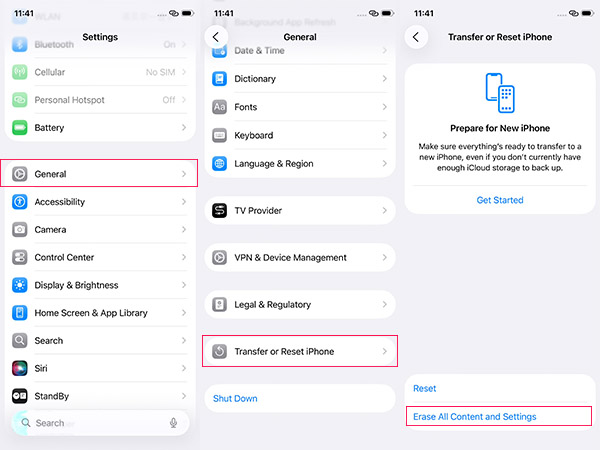
Unlike Reset All Settings, this option removes your personal content and settings, so use it only as a last software troubleshooting step.
Fix 8. Check for a Hardware Problem
If your iPhone still flickers after a factory reset, or if the problem started after a drop, liquid exposure, or screen replacement, the issue may be hardware-related.
At this point, contact Apple Support or an authorized repair provider to have the display and internal connections inspected.

Conclusion
Screen flickering after the iOS 27 update may seem like a daunting issue, but it's usually manageable with a few troubleshooting steps. Staying patient and following these methods should get your device back on track. TunesKit iOS System Recovery would be the fastest solution among them. If the flickering persists, don't hesitate to explore additional support options from Apple to ensure your phone is operating at its best.



