


How to Fix iPhone Screen Black and White
If your iPhone screen black and white issue appears suddenly, the most common cause is a display setting such as Grayscale or Color Filters. In some cases, an iOS glitch or system error may also make the screen lose its normal colors. Although your iPhone may still work, photos, videos, apps, and other content can become difficult to view. In this guide, we'll explain the common causes and show you how to restore your iPhone screen to full color.

- Why Is My iPhone Screen Black And White?
-
Top 8 Methods to Fix iPhone Black And White Screen
- Method 1. Turn Off Grayscale Color Filters
- Method 2. Turn Off the Grayscale Zoom Filter
- Method 3. Check the Accessibility Shortcut
- Method 4. Force Restart Your iPhone
- Method 5. Update iOS to the Latest Version
- Method 6. Fix iPhone Black and White Screen with TunesKit iOS System Recovery HOT
- Method 7. Reset All Settings or Factory Reset iPhone
- Method 8. Contact Apple Support
- Video Tutorial: Top 5 Ways to Fix iPhone Black and White Screen
- Summary
Why Is My iPhone Screen Black And White?
If your iPhone screen is black and white, the most common cause is that Grayscale or another accessibility setting has been turned on accidentally. Other possible causes include:
- 1. Grayscale Color Filter is enabled.
- 2. Zoom Filter is set to Grayscale.
- 3. Accessibility Shortcut was triggered accidentally.
- 4. A temporary iOS glitch is affecting the display.
- 5. The screen has hardware damage after a drop or liquid exposure.
In most cases, the issue is caused by display settings rather than hardware damage.
Top 8 Methods to Fix iPhone Black And White Screen
In most cases, the problem is caused by Grayscale or another accessibility setting rather than a damaged display. Start with the simplest solutions below and move to the more advanced ones only if the colors do not return.
Method 1. Turn Off Grayscale Color Filters
The first thing to check is Color Filters. Apple provides a Grayscale filter that removes all colors from the display. If it was enabled accidentally, turning it off should immediately bring the colors back.
- Step 1. Open Settings on your iPhone.
- Step 2. Go to Accessibility > Display & Text Size.
- Step 3. Tap Color Filters.
- Step 4. Turn off Color Filters. If you want to keep Color Filters enabled, make sure Grayscale is not selected.

Method 2. Turn Off the Grayscale Zoom Filter
Color Filters are not the only accessibility setting that can make an iPhone appear black and white. The Zoom feature also includes a Grayscale filter.
- Step 1. Go to Settings > Accessibility.
- Step 2. Tap Zoom.
- Step 3. Tap Zoom Filter.
- Step 4. Choose None instead of Grayscale.
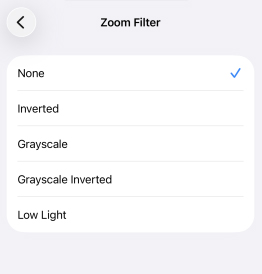
You can also turn off Zoom completely if you do not use this accessibility feature.
Method 3. Check the Accessibility Shortcut
If your iPhone screen suddenly turns black and white after you triple-click the Side or Home button, an Accessibility Shortcut may have triggered a display feature.
Apple allows accessibility features to be assigned to a triple-click of the Side button on Face ID models or the Home button on older iPhones.
- Step 1. Open Settings > Accessibility.
- Step 2. Scroll down and tap Accessibility Shortcut.
- Step 3. Check which accessibility features are selected.
- Step 4. Deselect any feature you do not want to activate accidentally.
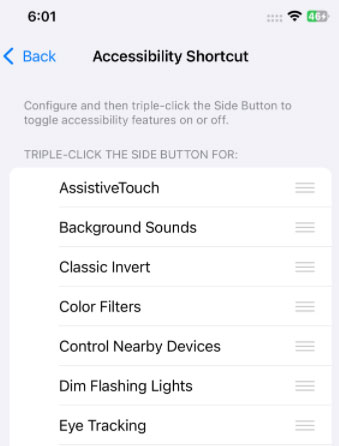
Then check whether your iPhone screen has returned to normal color.
Method 4. Force Restart Your iPhone
If all grayscale-related settings are already disabled, a temporary iOS glitch may be causing the unusual display. A force restart refreshes the system without deleting your data.
- For iPhone 8 or Later: Quickly press and release the Volume Up button. Quickly press and release the Volume Down button. Press and hold the Side button. Release the Side button when the Apple logo appears.
- For iPhone 7 and iPhone 7 Plus: Press and hold the Side and Volume Down buttons together. Release them when the Apple logo appears.
- For iPhone 6s, iPhone SE (1st Generation), or Earlier: Press and hold the Home and Side/Top buttons at the same time. Release both buttons when the Apple logo appears.

Once your iPhone restarts, check whether the display shows colors normally.
Method 5. Update iOS to the Latest Version
If the iPhone screen black and white problem is related to an iOS software glitch, installing the latest available iOS update is another useful troubleshooting step.
- Step 1. Connect your iPhone to Wi-Fi and power.
- Step 2. Open Settings > General.
- Step 3. Tap Software Update.
- Step 4. If an update is available, tap Update Now button and follow the onscreen instructions.
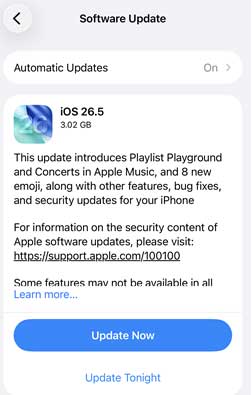
It is a good idea to back up important data before installing a major iOS update.
Method 6. Fix iPhone Black and White Screen with TunesKit iOS System Recovery
If you are finding the best way that can perfectly meet your need in fixing this problem, I think TunesKit iOS System Recovery is the ideal choice for you. Though you cannot prevent your iPhone from suffering various issues, you can use an iOS fixing tool to fix your iPhone by yourself. TunesKit iOS System Recovery is professional and dedicated enough to help you overcome 150+ iOS/iPados problems, such as iPhone being stuck on black screen, iPhone vibration not working, or iPhone not receiving messages, and so on, which have troubled you for a long time.
Fix iPhone Black and White Screen Without Data Loss
Use TunesKit iOS System Recovery to repair software-related black-and-white screen issues in Standard Repair mode without erasing your iPhone data.
 600,000+ Downloads
Let's see the detailed tutorial about iPhone screen black and white.
Step 1. Connect Your iPhone
Connect your iPhone to TunesKit iOS System Recovery using a working lightning cable. And TunesKit will start to detect your iOS device. Select the iOS System Repair option. Hit the Start button to the next step.

Step 2. Select A Mode
There are two modes you can use to fix iPhone black and white screen. Aim at this problem, the Standard Repair is powerful enough. The Deep Repair is another choice for you if the Standard Repair not working. However, the Deep Repair will erase all your iPhone data. Don't forget to back up your iPhone if you are going to use it.

Step 3. Download the Firmware Package
Check the detected iPhone information and make sure the device model is correct. Choose the appropriate firmware package and click Download.

Step 4. Fix Your iPhone Black And White Screen
After the firmware has been downloaded and verified, click Start Standard Repair. Keep the iPhone connected until the repair finishes. Then check whether the display has returned to its normal colors.

Finally, TunesKit iOS System Recovery will start to fix your iPhone black and white screen, and your iPhone will back to its normal state soon.
Method 7. Reset All Settings or Factory Reset iPhone
If the problem remains, try resetting iPhone settings before erasing the entire device.
Option 1. Reset All Settings
Reset All Settings restores system preferences without removing your personal content.
- Step 1. Open Settings > General.
- Step 2. Tap Transfer or Reset iPhone.
- Step 3. Tap Reset > Reset All Settings.
- Step 4. Enter your passcode and confirm. Check the display after your iPhone restarts.

Option 2. Erase All Content and Settings
If resetting settings does not work, a factory reset can be used as a last software troubleshooting option.
 Warning: This process erases your apps, photos, settings, and other content. Back up your iPhone first.
- Step 1. Go to Settings > General.
- Step 2. Tap Transfer or Reset iPhone.
- Step 3. Select Erase All Content and Settings.
- Step 4. Follow the onscreen instructions to confirm the erase.

Method 8. Contact Apple Support
If your iPhone remains black and white even after checking all display settings and repairing or reinstalling iOS, hardware damage should be considered.
This is more likely if the problem started after:
- Dropping the iPhone
- Liquid exposure
- Physical screen damage
- A screen replacement
- Other impact or internal damage
At this point, contact Apple Support, an Apple Store, or an Apple Authorized Service Provider for a hardware inspection.
Do not continue performing factory resets if the issue clearly began after physical damage, because erasing the software will not repair a damaged display.

Video Tutorial: Top Ways to Fix iPhone Black and White Screen
In this video, we'll walk you through the most effective ways to restore your iPhone display to full color, from checking Grayscale settings to fixing possible iOS system issues.
Summary
Though iPhone always runs and works stably, it will meet accidental glitches. The above 8 methods are recommended and workable for iPhone black and white screen. I think TunesKit iOS System Recovery is a wonderful choice for you to overcome your iPhone problems easily and quickly.



