How to Save and Download iOS 27 Beta SHSH Blobs
If you are searching for iOS 27 beta SHSH blobs download, you are likely interested in how Apple's SHSH system works for preserving firmware restore options. SHSH blobs are unique digital signatures that Apple uses to verify and authorize iOS installations on specific devices.
For iOS 27 beta SHSH blobs download, these blobs can only be saved while Apple is still signing the beta firmware, making timing very important. Once signing stops, the opportunity to save or use those blobs is usually lost. This process is often used by users who want more control over restoring or managing beta iOS versions.
What Is a SHSH Blob File on iPhone?
An SHSH blob file on an iPhone is a small digital signature issued by Apple that is used to verify and authorize the installation or restoration of a specific version of iOS on a specific device.
When you restore or update iOS, Apple checks this signature to confirm that the firmware is allowed to be installed. Without a valid SHSH blob (or a currently signed iOS version), the restore is typically blocked.
Each SHSH blob is:
- Device-specific (tied to your iPhone's hardware identifiers)
- iOS-version-specific (only valid for a particular firmware build)
- Time-limited (only generated while Apple is still signing that iOS version)
In modern iOS versions, SHSH blobs are often used by advanced users for saving downgrade options or experimenting with firmware restores, but they don't guarantee a downgrade will work due to additional security systems like SEP and system integrity checks.
How to Save iOS 27 Beta SHSH Blobs for Free
If you are looking for how to save iOS 27 beta SHSH blobs for free, you first need to know that SHSH blobs are Apple's digital signatures used to authorize iOS restores. They can only be saved while a beta version is still being signed. Below are the main free methods you can use to save them step by step.
Method 1: Saving Blobs with Blobsaver
Blobsaver is an effective way for modern devices. It automates the complex extraction of data required by newer iPhones.
- Step 1. Download the latest version of blobsaver from its official GitHub repository and install it on your Mac or PC.
- Step 2. Connect your unlocked iPhone to your computer via a USB cable, then launch the blobsaver application.
- Step 3. Click the "Read from connected device" button. Blobsaver will briefly place your phone into recovery mode to automatically fetch your device's unique ECID, ApNonce, and Generator values.
- Step 4. Select the specific iOS beta or public releases you want to save blobs for, choose a folder on your computer, and click "Save."
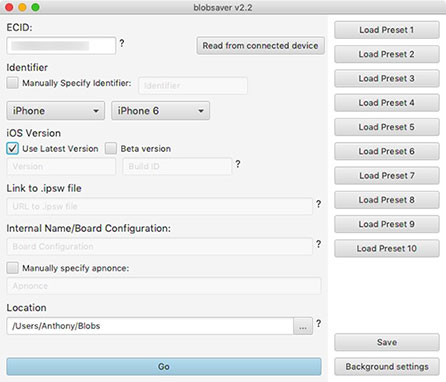
Your files will be stored securely on your hard drive as .shsh2 files.
Method 2: Using TSS Saver (Web Portal)
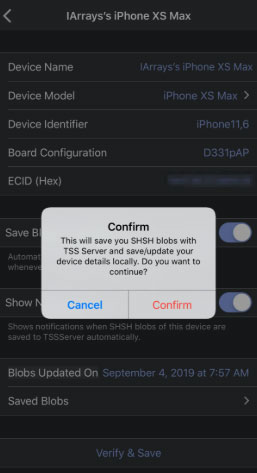
If you prefer not to install dedicated desktop software, cloud-based options are available for older hardware. TSS Saver provides a simple web interface where you can manually submit your device information. This approach is highly convenient but requires more manual effort to gather the initial hardware identifiers.
- Step 1. Locate your device's unique ECID and model identifier using Finder on a Mac or iTunes on Windows.
- Step 2. Navigate to the TSS Saver website and carefully enter these hardware details into the provided form fields.
- Step 3. Submit the request and download the resulting archive containing your signatures.
How to Use SHSH Blobs for iOS Downgrade?
Downgrading iOS using SHSH blobs is a technical process that relies on a command-line tool called FutureRestore or wrapper scripts like Legacy iOS Kit. Before you begin, it is critical to understand that Apple has drastically changed its security architecture in recent years. Apple uses these strict checks to prevent users from installing older, potentially vulnerable software.
If you are using an older device susceptible to the checkm8 exploit (iPhone X and older), the downgrade process remains viable. You will need your saved .shsh2 blob file and a computer to execute the terminal commands.
For modern devices equipped with A12 bionic chips or newer, downgrading with blobs is effectively dead on recent iOS versions due to strict SEP and Cryptex1 incompatibilities.
The Downgrade Procedure
- Step 1. Connect your iPhone to your computer via USB and put the iPhone into DFU (Device Firmware Update) mode.
- Step 2. Set your device's APNonce to match the generator string located inside your saved .shsh2 file. This crucial action ensures the device will accept the signature during the restore process. Accomplishing this typically requires the device to be jailbroken or placed into a "pwned DFU" state using an exploit tool.
- Step 3. Open your computer's terminal or command prompt and execute the FutureRestore command. You must point the tool to your specific blob and the target IPSW file on your hard drive. Most users utilize flags like --latest-sep and --latest-baseband so the tool automatically fetches the required signed components from Apple's servers.

- Step 4. Leave your device securely connected and wait patiently while the terminal flashes the firmware. Your iPhone will reboot multiple times during this automated process before finally starting up on the downgraded iOS version.
Key Considerations
When dealing with downgrades, one wrong move can force you to restore to the latest signed iOS version.
- SEP and Baseband Matching: Your target iOS version must be compatible with the currently signed SEP and Baseband, otherwise features like Touch ID, Face ID, or cellular connectivity will break.
- Data Wipe: FutureRestore completely erases your device's filesystem, and backups created on a newer iOS version cannot be directly restored to an older version.
- Blob Validity: You must use blobs that were specifically saved for your device's unique ECID while that exact target firmware was still being signed by Apple.
Always double-check your terminal commands before hitting enter.
How to Downgrade iOS 27 without SHSH Blobs
Downgrading an iPhone to a previous iOS version without SHSH blobs is entirely possible as long as Apple is still actively signing that older firmware. When a new major update like iOS 27 Beta is released, Apple typically continues to sign the previous version, such as iOS 26, for a short transition period. During this window, you can freely roll back your software without needing any saved signature files or complex terminal commands. If you find the new update buggy or incompatible with your apps, acting quickly while the signing window remains open is your best strategy.
While you can use iTunes or Finder for this process, third-party software often provides a much smoother and more reliable experience. One of the most effective tools for this job is TunesKit iOS System Recovery, which bypasses the complex errors often associated with traditional Apple methods. It automates the firmware selection and installation process, making it incredibly straightforward even for beginners.

Downgrade iOS 27 Without SHSH Blobs
Easily revert from iOS 27 to an earlier stable version without jailbreak, while fixing common iOS issues during the downgrade process.
 600,000+ Downloads
600,000+ Downloads
600,000+ Downloads
Essential Preparation
Before beginning any firmware installation, you must secure your personal data. Downgrading the operating system will completely wipe your device, so preparation is essential.
- Create a Backup: Use iCloud, Finder, or iTunes to create a full backup of your device. Be aware that an iOS 27 backup cannot be directly restored to a device running iOS 26, but it keeps your data safe for extraction later.
- Disable Find My: Navigate to Settings > [Your Name] > Find My and turn off Find My iPhone. This security feature will block the downgrade process if left active.

Here is how you can use this dedicated repair tool to safely downgrade iOS 27 to iOS 26.
Step 1. Connect Your iPhone to PC
Download and install TunesKit iOS System Recovery on your Mac or Windows PC. Connect your iPhone to the computer using a reliable USB cable and launch the application. Select the "Upgrade/Downgrade iOS" option on the main interface

Step 2. Start to Downgrade iOS 27
Click on "iOS Downgrade" to proceed. The software will automatically detect your device model and present the available iOS 26 firmware packages that are currently signed. Click the "Download" button to fetch the correct firmware package.
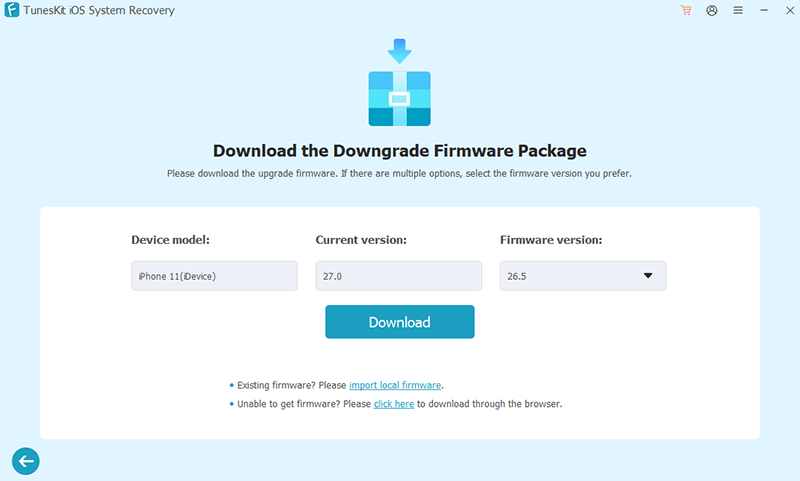
Step 3. Complete the Downgrade Process
Once the download is successfully verified, click "Start Downgrade" to initiate the installation process. Keep your device securely connected to the computer until the procedure finishes. Your iPhone will reboot multiple times during the flash, eventually greeting you with the standard iOS 26 setup screen.

FAQs About iOS 27 SHSH Blobs
-
Do SHSH blobs still work on modern iPhones?
Downgrading with blobs is highly restricted on modern devices with A12 chips and newer.
Even if you have perfectly saved blobs, the older iOS version must still be compatible with Apple's currently signed Secure Enclave Processor (SEP) and Baseband firmware. Because Apple updates these low-level security components frequently, successfully downgrading modern iPhones is rarely possible today.
-
Why should you save SHSH blobs?
Saving your blobs acts as a digital insurance policy. Once Apple stops signing an older iOS version, having your saved blobs is the only way to potentially install it later. Users typically save them to downgrade to a more stable or preferred firmware, or stay on an iOS version that supports jailbreaking.
Conclusion
In conclusion, iOS 27 Beta SHSH blobs download can help advanced users preserve potential restore or downgrade options while Apple is still signing the beta firmware. However, saving SHSH blobs alone does not always guarantee a successful downgrade due to modern iOS security restrictions. If you need a simpler solution, TunesKit iOS System Recovery offers an efficient way to downgrade iOS, fix system issues such as boot loops, recovery mode, and stuck updates, and restore your iPhone safely without requiring complex technical steps.