


How to Factory Reset iPad Without Passcode [2026 Guide]
Forgot your iPad passcode or got locked out after too many incorrect attempts? You can still factory reset an iPad without the screen passcode, using the built-in Forgot Passcode option, Find My, recovery mode, or an iPad unlocking tool.
Keep in mind that a factory reset erases the data and settings on your iPad, including the forgotten screen passcode. Before erasing the device, however, there is one option worth trying if you recently changed your passcode and still remember the old one. This guide covers every practical way to reset a locked iPad in 2026, with or without a computer.

- Quick Answer: Can You Factory Reset an iPad Without the Passcode?
- Before Factory Resetting Your iPad: Try Your Previous Passcode
- 4 Ways to Factory Reset iPad Without Passcode
- Which Way Should You Use to Reset an iPad Without Passcode?
- What Happens After You Factory Reset a Locked iPad?
- Can You Factory Reset iPad Without Passcode and Without Losing Data?
- FAQs About Factory Resetting iPad Without Passcode
- Conclusion
Quick Answer: Can You Factory Reset an iPad Without the Passcode?
Yes. You do not need to know the current screen passcode to factory reset a locked iPad. The best method depends on whether you have a computer, know your Apple Account password, and previously enabled Find My.
| Method | Computer Needed | Apple Account Password | Erases Data | Best For |
|---|---|---|---|---|
| Previous Passcode | No | No | No | Passcode changed within the last 72 hours |
| Forgot Passcode? | No | Yes | Yes | iPadOS 17 or later |
| Find My | No | Yes | Yes | Find My was already enabled |
| Recovery Mode | Yes | May be required during activation | Yes | Completely locked or unavailable iPad |
| TunesKit iPhone Unlocker | Yes | Screen passcode not required | Yes | Guided desktop reset |
 Warning: Factory resetting an iPad removes the screen passcode by erasing the device. It does not automatically remove Activation Lock. If Find My was enabled, you may still need the associated Apple Account or another valid Activation Lock removal method when setting up the iPad again. Activation Lock can remain active even after an iPad is erased.
Before Factory Resetting Your iPad: Try Your Previous Passcode
If you recently changed your iPad passcode and simply forgot the new one, you may be able to regain access without factory resetting the iPad or losing data. On iPadOS 17 and later, Apple's Passcode Reset feature lets you use your previous passcode for up to 72 hours after changing it.
How to Use Your Previous iPad Passcode
- Step 1. Enter the wrong passcode several times until iPad Unavailable appears.
- Step 2. Tap Forgot Passcode? at the bottom of the screen.
- Step 3. Choose the option to enter your previous passcode.
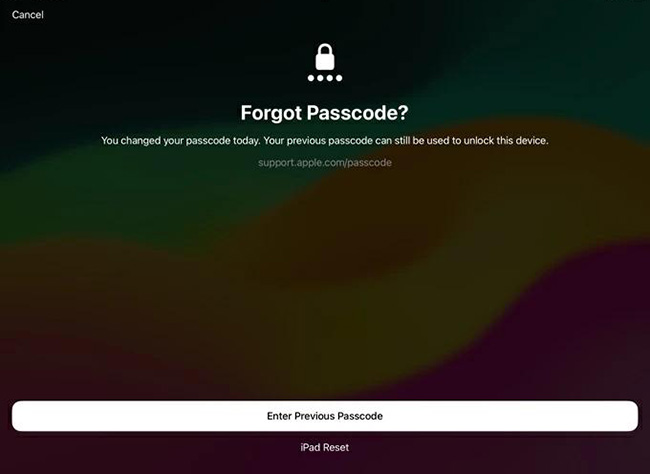
- Step 4. Enter the passcode you used before the recent change.
- Step 5. Create a new screen passcode when prompted.
If this works, you can continue using your iPad without erasing anything.
When This Method Works
Use this option if:
- Your iPad runs iPadOS 17 or later.
- You changed the passcode within the last 72 hours.
- You still remember the previous passcode.
If the 72-hour period has expired, continue with one of the factory reset methods below.
4 Ways to Factory Reset iPad Without Passcode
If you forgot your iPad passcode, there are still several ways to factory reset your iPad. Below, we cover four practical methods, including no-computer options, recovery mode, Find My, and a guided desktop unlocking solution.
Method 1. Factory Reset iPad with Forgot Passcode? [No Computer]
The easiest official method is to erase the locked iPad directly from its iPad Unavailable or Security Lockout screen.
Apple currently supports on-device resetting on iPadOS 15.2 and later. On iPadOS 17 or later, you will normally see Forgot Passcode?; on iPadOS 15.2 through iPadOS 16, the option is shown as Erase iPad. The iPad must have Find My enabled, an internet connection, and access to the Apple Account password associated with it.
- Step 1. Enter an incorrect passcode until you reach the iPad Unavailable screen.
- Step 2. Tap Forgot Passcode?
- Step 3. Tap Start iPad Reset to continue.
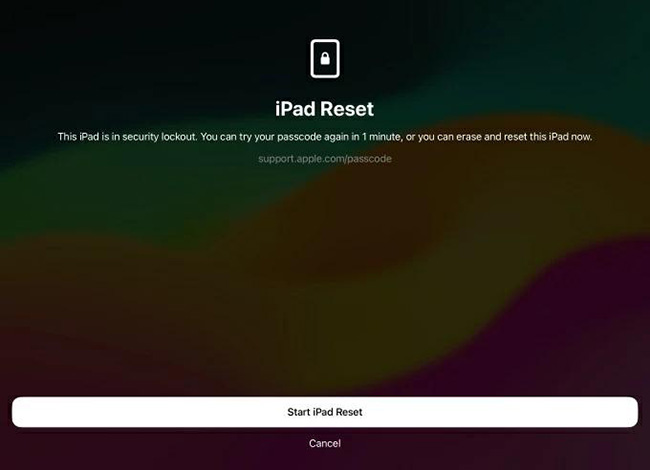
- Step 4. Enter the password for the Apple Account currently signed in on the iPad.
- Step 5. Tap Erase iPad. The iPad will delete its content and settings, including the forgotten screen passcode.
- Step 6. When the iPad restarts, follow the setup instructions. If you have an iCloud or computer backup, you can restore your data during setup.
What If You Don't See Forgot Passcode?
 Further Reading: iPad Unavailable But No Forgot Passcode Option?
Check whether:
- The iPad is connected to Wi-Fi or cellular data.
- Find My was previously enabled.
- It runs iPadOS 15.2 or later.
If you cannot use the on-device reset feature, try Find My or recovery mode instead.
Method 2. Factory Reset iPad Without Passcode Using Find My
If Find My was turned on before you became locked out, you can remotely erase the iPad through Find My. This works even when you cannot enter the screen passcode.
Option 1. Erase the iPad at iCloud.com
- Step 1. Open Find Devices on iCloud from another phone, tablet, or computer.
- Step 2. Sign in with the same Apple Account used on the locked iPad.
- Step 3. Select All Devices and choose the locked iPad.
- Step 4. Select Erase.
- Step 5. Confirm the request and follow the onscreen instructions.
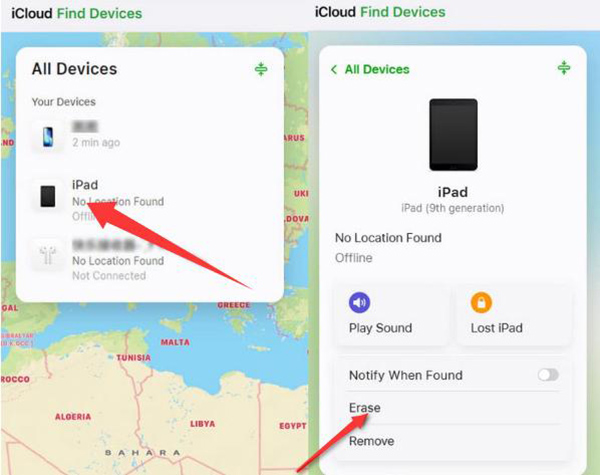
If the iPad is online, the erase starts after confirmation. If it is offline, the erase request begins the next time it connects to the internet.
Option 2. Use the Find My App
If you have another Apple device signed in to the same Apple Account:
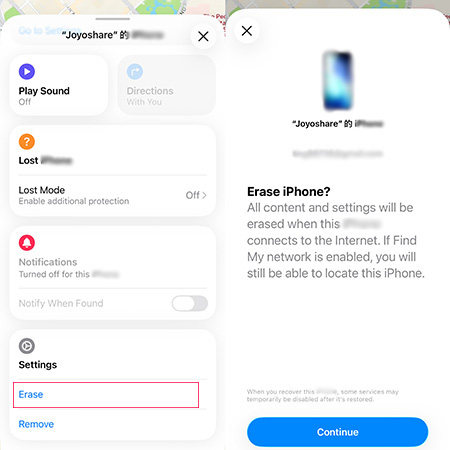
- Step 1. Open Find My.
- Step 2. Tap Devices.
- Step 3. Select your locked iPad.
- Step 4. Scroll down and choose Erase.
- Step 5. Follow the instructions to confirm.
Method 3. Factory Reset a Locked iPad with Recovery Mode
If Forgot Passcode and Find My are unavailable, Apple's next official option is to put the iPad into recovery mode and restore it from a computer.
In 2026, use:
- Apple Devices on Windows.
- Finder on a Mac.
- iTunes mainly on older supported computer environments.
Apple's current recovery instructions state that restoring an iPad this way deletes its data, settings, and passcode.
- Step 1. Turn Off the Locked iPad.
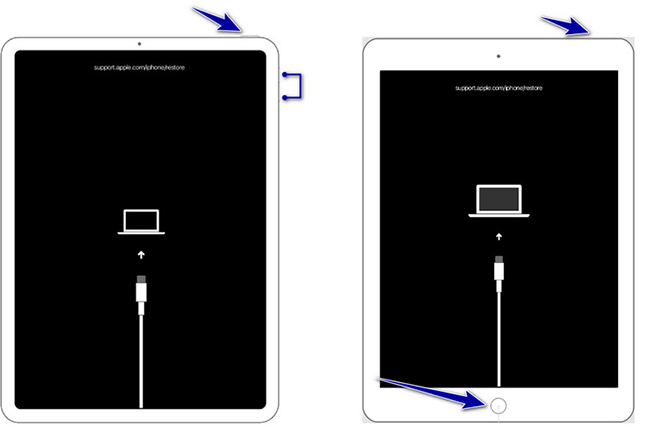
- Step 2. Connect the iPad to your computer with a USB cable. Put the iPad into Recovery Mode.
- For an iPad Without a Home Button: Quickly press and release the Volume button closest to the Top button. Quickly press and release the other Volume button. Press and hold the Top button. Keep holding it even after the Apple logo appears. Release it only when the recovery-mode screen with a computer and cable appears.
- For an iPad with a Home Button: Press and hold the Home button and Top/Side button together while the iPad is connected. Continue holding them until the recovery-mode screen appears.
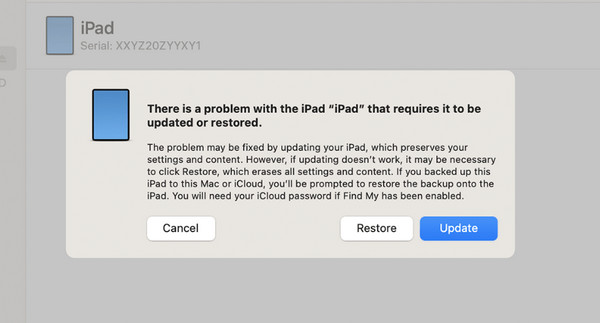
- Step 3. Open the Apple Devices app (Windows) and select the connected iPad. If you use an Mac, open Finder and select the iPad under Locations.
- Step 4. choose Restore when there is a prompt. The computer will download the required software and reinstall iPadOS. Apple currently specifically instructs Windows users to use Apple Devices for this process.
Method 4. Factory Reset iPad Without Passcode Using TunesKit iPhone Unlocker
Recovery mode is free, but manually entering the correct recovery or DFU mode can be difficult for some users. If you prefer a program that guides you through the process, TunesKit iPhone Unlocker provides an Unlock iOS Screen mode for resetting a locked iPad without entering its screen passcode.
It supports 4-digit and 6-digit passcodes, custom passcodes, Touch ID, Face ID, iPad Unavailable, and other locked-screen situations. Its current technical specifications list support for all iPad product families and iOS/iPadOS versions through iOS 27 for its standard unlocking features.
Key Features of TunesKit iPhone Unlocker
Allow users to factory reset their iPad without passwords. Unlock iPhone/iPad/iPod without passowrds. Supports the latest iOS version.
 600,000+ Downloads
How to Factory Reset iPad Without Passcode Using TunesKit
Step 1. Connect the Locked iPad
Download and install TunesKit iPhone Unlocker on your Windows PC or Mac. Launch the program and connect the locked iPad with a USB cable. Select Unlock iOS Screen and click Start.

Step 2. Put iPad into Required Mode
Follow the onscreen guide to put the iPad into Recovery Mode or DFU Mode.

Step 3. Download the Firmware Package
Check the displayed iPad model and system information. Choose the available firmware version and click Download. Wait for the firmware package to finish downloading.

Step 4. Factory Reset and Remove the Passcode
After the firmware is ready, click Unlock. TunesKit will erase the iPad and remove the forgotten screen passcode. Keep the iPad connected until the process is complete.

Which Way Should You Use to Reset an iPad Without Passcode?
There is no need to try every method. Use the option that matches your situation.
| Your Situation | Recommended Method |
|---|---|
| Changed your passcode less than 72 hours ago | Previous Passcode |
| See Forgot Passcode? and know Apple Account password | Forgot Passcode? |
| Find My is enabled and you have another device | Find My |
| iPad is completely unavailable and you have a computer | Recovery Mode |
| Prefer a guided desktop process | TunesKit iPhone Unlocker |
| Forgot Apple Account password too | Reset your Apple Account password before activation when possible |
For most users, the built-in Forgot Passcode? method is the simplest place to start. Apple's own current support flow recommends trying Passcode Reset first, then resetting on the iPad itself, and finally using a computer if neither option is available for your iPad.
What Happens After You Factory Reset a Locked iPad?
A successful factory reset removes:
- The existing screen passcode.
- Apps and local app data.
- Photos and videos stored only on the device.
- Settings and preferences.
- Other locally stored content.
Afterward, the iPad returns to the setup process. If you previously backed up the device, you may be able to restore your information from iCloud or a computer backup.
Will Factory Reset Remove Activation Lock?
No. Activation Lock is a separate security feature linked to Find My and your Apple Account. Apple states that Activation Lock can remain enabled even after the device is erased.
If the iPad asks for the previously linked Apple Account during setup, enter that account and password.
If it is a second-hand iPad linked to someone else's account, contact the previous owner or follow Apple's official Activation Lock support options rather than repeatedly factory resetting it. Apple provides a support-request process for eligible owners who have proof of purchase.
Can You Factory Reset iPad Without Passcode and Without Losing Data?
A true factory reset always erases the iPad.
If you forgot the passcode but want to preserve the existing content, the main exception is Apple's 72-hour Previous Passcode feature. If you recently changed your passcode and still know the old one, use it to regain access instead of resetting the device. If that option is unavailable, data that was never backed up is normally lost during a passcode-removal factory reset.
FAQs About Factory Resetting iPad Without Passcode
-
Can I factory reset a locked iPad with buttons only?
The buttons can put the iPad into recovery mode, but they do not complete the factory reset by themselves. After entering recovery mode, connect the iPad to a Mac or PC and choose Restore in Finder or Apple Devices.
-
What if I forgot both my iPad passcode and Apple Account password?
You can still use recovery mode or a screen-unlocking tool to erase the iPad and remove its screen passcode, but you may need the associated Apple Account afterward if Activation Lock is enabled. If it is your Apple Account, reset its password through Apple's account-recovery options before or after erasing the iPad.
-
Can I reset an iPad if the screen says iPad Unavailable?
Yes. If Forgot Passcode? appears, you can erase it directly from the iPad when the required Apple Account and Find My conditions are met. Otherwise, put the iPad into recovery mode and restore it from a computer.
Conclusion
You can factory reset an iPad without the screen passcode, but the right method depends on what access you still have.
If you changed the passcode recently, try your previous passcode within 72 hours first to avoid data loss. Otherwise, use Forgot Passcode? for the easiest no-computer reset, Find My for remote erasing, or recovery mode with Apple Devices/Finder when the iPad is fully locked. If you prefer a guided desktop process, TunesKit iPhone Unlocker can erase a locked iPad and remove its screen passcode without requiring the original passcode.



