


How to Unlock a Disabled iPhone Without iTunes: 4 Ways
Getting locked out of an iPhone can feel overwhelming, especially when traditional instructions constantly tell you to connect to iTunes. iTunes often triggers cryptic error codes, fails to detect devices in recovery mode, or is simply unavailable on modern computers.
Fortunately, relying on iTunes is no longer mandatory. This practical guide explains how to fix a disabled screen quickly using on-screen recovery options, lightweight desktop alternatives, and cloud-based reset methods.
- Quick Answer: Can You Unlock a Disabled iPhone Without iTunes?
- iPhone Disabled vs. iPhone Unavailable vs. Security Lockout
- Method 1: Unlock Directly from the Lock Screen
- Method 2: Unlock with TunesKit iPhone Unlocker Without iTunes HOT
- Method 3: Erase the Disabled iPhone with Find My
- Method 4: Restore with Finder or Apple Devices
- Will Unlocking a Disabled iPhone Without iTunes Erase Your Data?
- FAQs About Unlocking a Disabled iPhone Without iTunes
- Conclusion
Quick Answer: Can You Unlock a Disabled iPhone Without iTunes?
Yes, you can unlock a disabled or unavailable iPhone without iTunes. Depending on your situation, you can use the Lock Screen, Find My, dedicated unlock software like TunesKit iPhone Unlocker, Finder, or Apple Devices.
| Solution | Computer Required? | Wi-Fi / Cellular Needed? | iOS Compatibility |
|---|---|---|---|
| 1️⃣ Lock Screen Reset | No | Yes | iOS 15.2 or later |
| 2️⃣ TunesKit iPhone Unlocker | Yes (Mac / Windows) | No (Device offline is OK) | All iOS versions |
| 3️⃣ iCloud Find My | Any device with a browser | Yes | All iOS versions with Find My active |
| 4️⃣ Finder / Apple Devices | Yes (Mac / Windows PC) | No (Computer needs internet) | macOS Catalina+ / Windows 10+ |
For a complete overview of the lockout and all available recovery options, see our iPhone Disabled guide.
iPhone Disabled vs. iPhone Unavailable vs. Security Lockout
Before troubleshooting, confirm the exact terminology displayed on your screen. Apple altered lock screen states across recent updates:
- "iPhone is Disabled": Older wording commonly associated with a lockout after repeated incorrect passcode attempts.
- "iPhone Unavailable": A newer lockout message that may appear after repeated incorrect passcode attempts, sometimes with a Try Again timer.
- "Security Lockout": Another lockout message used on newer iOS versions. It may appear with a timer and, when the required conditions are met, provide recovery options such as Forgot Passcode?
The exact message and available recovery options can vary by iOS version and lockout state. For a comprehensive breakdown of terminology changes, read our comparison on iPhone Disabled vs Unavailable vs Security Lockout.
Method 1: Unlock Directly from the Lock Screen
If your iPhone runs iOS 15.2 or later, is connected to an active Wi-Fi or cellular network, and has Find My enabled, you can resolve the lockout straight from the screen itself.
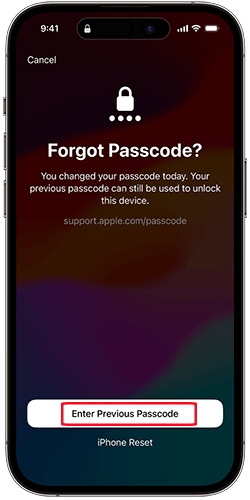
Option A. Previous Passcode (iOS 17+ Only)
Apple's Passcode Reset feature allows access without erasing stored information, provided you changed your passcode within the last 72 hours and recall the previous code.
- Step 1. After repeated incorrect passcode attempts, the screen may display iPhone Unavailable or Security Lockout.
- Step 2. Tap Forgot Passcode? in the bottom-right corner.
- Step 3. Select Enter Previous Passcode, type your old passcode, and set a replacement code immediately.
Option B. Forgot Passcode? / Erase iPhone (iOS 15.2 - iOS 16 & iOS 17+)
If you do not remember previous passcodes, you can reset the phone directly on the lock screen.
- Step 1. Tap Erase iPhone (on iOS 15.2 to iOS 16) or Forgot Passcode? (on iOS 17 and later) on the lockout screen.
- Step 2. Tap Start iPhone Reset to confirm the action.
- Step 3. Enter your Apple ID password to sign out of your Apple Account and initiate the factory wipe. The phone restarts to factory settings, allowing you to reload an existing iCloud backup.

Method 2: Unlock with TunesKit iPhone Unlocker Without iTunes
If the Lock Screen recovery options are unavailable, TunesKit iPhone Unlocker is another computer-based option. It provides a guided way to remove the screen passcode without using the iTunes interface, such as devices showing iPhone Disabled, iPhone Unavailable, Security Lockout, or other supported screen-lock situations.
Why Choose TunesKit iPhone Unlocker?
It's easy to use, with clear instructions for unlocking a disabled iPhone.
 600,000+ Downloads
- Step 1. Download, install, and open TunesKit iPhone Unlocker on your Mac or Windows PC. Choose Unlock iOS Screen and connect your locked device via USB.
- Step 2. Follow the visual prompts to place your device into Recovery Mode or DFU Mode.
- Step 3. Confirm your detected iPhone details, select the appropriate firmware package, and click Download.
- Step 4. Click Unlock once verification completes. The program removes the screen lock and restores the device to default condition, enabling normal setup and backup restoration.

Method 3: Erase the Disabled iPhone with Find My
If you lack access to a computer and cannot use on-screen options, iCloud Find My lets you wipe the locked device remotely. Find My must have been enabled beforehand. If the iPhone is offline, the erase request remains pending until it comes online.
You can perform these steps from any mobile browser, including an Android phone.
- Step 1. Visit icloud.com/find on any phone, tablet, or computer web browser.
- Step 2. Sign in with the Apple ID credentials tied to the locked iPhone, choose All Devices, and select the disabled iPhone.
- Step 3. Tap Erase iPhone (or Erase This Device) and confirm the prompt. Once the erase is complete, set up the iPhone again. If you have an existing iCloud backup, you can restore it during setup.

Method 4: Restore with Finder or Apple Devices
If you want an official computer restore without dealing with legacy iTunes, Apple offers native replacement applications. On macOS Catalina or later, device management is integrated directly into Finder. On Windows 10 and 11, Apple provides the dedicated Apple Devices application via the Microsoft Store.
Step 1. Power off your iPhone and put it into Recovery Mode:
- iPhone 8 and newer: Press and release Volume Up, press and release Volume Down, then hold the Side button until the recovery screen appears.
- iPhone 7 series: Hold Volume Down and the Side button simultaneously until the computer icon shows.
- iPhone 6s and earlier: Hold the Home button and Top/Side button together until the prompt shows.

Step 2. Connect the device to your computer and launch Finder (Mac) or Apple Devices (Windows).
Step 3. When prompted that there is a problem with the device, select Restore. The software reinstalls the operating system clean. If the computer drops the connection unexpectedly, see our troubleshooting guide for iPhone disabled won't connect to iTunes or computer.

If you are using an older computer where iTunes is still available, you can also restore the locked device with iTunes. See our guide on how to unlock an iPhone with iTunes for the complete steps.
Will Unlocking a Disabled iPhone Without iTunes Erase Your Data?
It depends on the method.
If you use an eligible previous passcode through Passcode Reset, you can regain access without erasing the iPhone. However, methods that reset, restore, or remove a forgotten screen passcode—including Lock Screen reset, Find My, TunesKit iPhone Unlocker, Finder, and Apple Devices—erase the current device data.
An existing backup can restore data that was saved before the erase, but that is different from preserving all data currently stored on the locked iPhone. If keeping your data is your main concern, see our guide on how to unlock a disabled iPhone without losing data before erasing the device.
FAQs About Unlocking a Disabled iPhone Without iTunes
-
Can I unlock a disabled iPhone without iTunes or a computer?
Yes. You can use Passcode Reset, reset the iPhone from the Lock Screen, or erase it remotely with Find My, depending on your iOS version, network connection, and account access.
-
Can I unlock a disabled iPhone without Wi-Fi?
Yes. You can use cellular data for supported on-device recovery options or use a computer-based method that does not require the iPhone itself to connect to Wi-Fi. For more options and requirements, see how to unlock a disabled iPhone without Wi-Fi.
-
Does resetting an iPhone remove Activation Lock?
No. Screen passcode unlocking and iCloud Activation Lock are distinct security layers. If Activation Lock remains enabled, the Apple Account previously linked to the device may be required during setup.
Conclusion
Restoring access to a disabled iPhone does not require cumbersome iTunes troubleshooting. If you run modern iOS with an active network connection, on-screen resets and iCloud Find My offer rapid fixes. When network issues or older software barriers arise, dedicated utilities like TunesKit iPhone Unlocker deliver a reliable path forward without the headaches of iTunes errors.



