


iPad Unavailable but No Forgot Passcode Option? Here's What to Do
- If your unavailable iPad has no Forgot Passcode option, check whether it shows Erase iPad instead, especially on iPadOS 15.2 or 16.
- Make sure the iPad is online, signed in to your Apple Account, and has Find My enabled.
- If the option still does not appear, reset the iPad with Recovery Mode, Find My, or a third-party unlocking tool.
- Most reset methods erase the device.
Your iPad says iPad Unavailable, but there is no Forgot Passcode? option at the bottom of the screen. This usually happens because the iPadOS version, network connection, or Find My settings do not meet Apple's requirements.
The missing button does not mean your iPad is permanently locked. You may still be able to reset it with the effective methods introduced in this guide. Let's dive in.
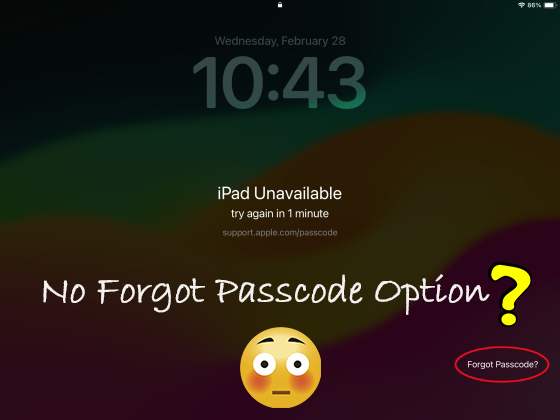
Why Is There No Forgot Passcode Option on My iPad?
The Forgot Passcode? option appears only when your iPad meets Apple's reset requirements. If it is missing, one of the following reasons is usually responsible.
1. Your iPadOS Version Does Not Support It
The Forgot Passcode? option is available on iPadOS 17 and later. On iPadOS 15.2 or 16, look for Erase iPad instead. If your iPad runs iPadOS 15.1 or earlier, no lock-screen reset option is available. Use Find My if it was enabled, or restore the iPad with a computer.
| iPadOS version | Available option |
|---|---|
| iPadOS 15.1 or earlier | No reset option |
| iPadOS 15.2–16 | Erase iPad |
| iPadOS 17 or later | Forgot Passcode? |
 For a complete overview of the lockout state and recovery options, see our guide to iPad Unavailable.
2. The iPad Is Offline
Your iPad needs an active Wi-Fi or cellular connection to verify your Apple Account and start the reset process. If it cannot reconnect to a previously used network, the reset option may not appear. In that case, use Recovery Mode on a Mac or Windows PC.
3. The iPad Is Not Signed In to an Apple Account
Forgot Passcode? requires the iPad to be signed in to an Apple Account before the device becomes locked. The account is used to verify ownership during the on-device reset process. If the device is not signed in, the lock-screen reset option will not be available.
4. Find My Was Not Enabled
Find My must have been turned on before the iPad became unavailable. If it was disabled, you cannot reset the device directly from the lock screen, even when the iPad is online and running a supported iPadOS version.
 Note:
Note:
Previous Passcode is accessed through Forgot Passcode? on iPadOS 17 or later. If this option is missing, you cannot start the Previous Passcode flow from the Lock Screen. If it becomes available and you changed your passcode within 72 hours, try the previous passcode before resetting the iPad.
How to Fix iPad Unavailable Without the Forgot Passcode Option
If Forgot Passcode? is missing, start with the simplest solution. Some methods only require the iPad itself, while others need a computer. Except for using the correct or previous passcode, most methods will erase the iPad.
| Method | Computer needed | Erases data |
|---|---|---|
| Wait and Enter Correct Passcode | No | No |
| Erase iPad | No | Yes |
| TunesKit iPhone Unlocker | Yes | Yes |
| Recovery Mode | Yes | Yes |
| Find My | No | Yes |
Method 1. Wait for the Lockout Timer
If your iPad shows iPad Unavailable, try again in..., wait until the countdown ends. This may give you another chance to enter the correct passcode.
- Step 1. Keep the iPad powered on and near a Wi-Fi network it has used before.
- Step 2. Wait for the timer to finish without entering more passcodes.
- Step 3. Enter the correct passcode carefully to access the device.
Waiting does not remove a forgotten passcode. Move to another method if you still cannot unlock the iPad.

Method 2. Use Erase iPad Instead
If your iPad runs iPadOS 15.2 or iPadOS 16, seeing Erase iPad instead of Forgot Passcode? is normal. The two versions use different lock-screen recovery interfaces. Follow the Erase iPad prompts if you need to reset the device.
- Step 1. Tap Erase iPad at the bottom of the lock screen.
- Step 2. Choose Erase iPad, then enter the Apple Account password linked to the device.
- Step 3. Confirm the reset and wait for the iPad to erase and restart.
You can then set up the iPad again and restore an available backup. This process removes the screen passcode but also deletes the current data.

 If Erase iPad is also missing, see iPad Unavailable No Erase iPad Option.
Method 3. Use TunesKit iPhone Unlocker
When no reset option appears, TunesKit iPhone Unlocker offers a guided way to remove the screen passcode from a supported iPad. It may be helpful for users who are unfamiliar with manually restoring an iPad through Finder, Apple Devices, or iTunes. Compared with other reset methods, using TunesKit iPhone Unlocker can easily unlock your unavailable iPad in a few clicks only, with no technical skills required.
Why Try TunesKit iPhone Unlocker?
Fix iPad Unavailable no forgot passcode option issue with TunesKit quickly. Easy to operate for anyone.
 600,000+ Downloads
- Step 1. Install TunesKit iPhone Unlocker on a Mac or Windows PC, open it, and connect your unavailable iPad to the computer with a USB cable.

- Step 2. Select the Unlock iOS Screen feature and follow the instructions to place your iPad in Recovery Mode or DFU Mode.
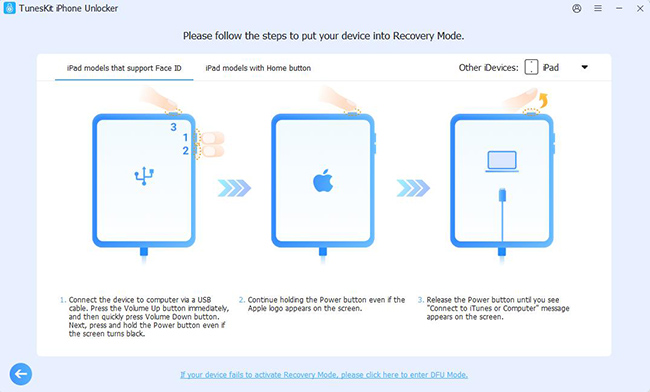
- Step 3. Confirm the device information, download the matching firmware, and click Unlock. Keep the iPad connected until the process finishes.

Method 4. Restore the iPad in Recovery Mode
Recovery Mode is Apple's official computer-based solution when the lock-screen reset option is unavailable. You need a Mac or Windows PC, a USB cable, and Finder, Apple Devices, or iTunes.
Step 1. Turn Off the iPad
- Without a Home button: Hold the Top button and either Volume button, then drag the power-off slider.
- With a Home button: Hold the Top button, then drag the power-off slider.
Wait until the iPad turns off completely.
Step 2. Enter Recovery Mode
- For an iPad without a Home button, connect it to the computer, quickly press and release Volume Up button, then Volume Down button, and then hold the Top button until the Recovery Mode screen appears.
- For an iPad with a Home button, connect it to the computer and hold the Home and Top or Side buttons together until the Recovery Mode screen appears.
Do not release the button at the Apple logo. Keep holding it until you see a computer and cable image.
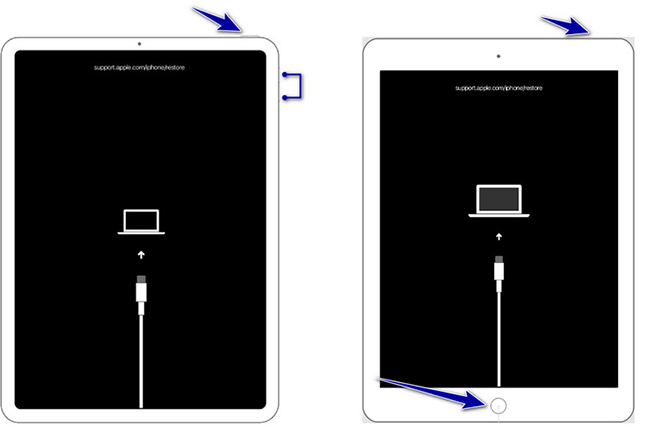
Step 3. Restore the iPad
Open Finder on Mac or Apple Devices or iTunes on Windows. Select the iPad and choose Restore when asked to Restore or Update. Wait for iPadOS to reinstall, then set up the device again.
Restoring removes the passcode and all current data. If the iPad exits Recovery Mode during the firmware download, let the download finish and repeat the steps.

Method 5. Erase the iPad Through Find My
You can remotely erase the unavailable iPad through Find My if the feature was enabled before the lockout and the device is linked to your Apple Account.
- Step 1. Open the Find My app on another Apple device, or open Find Devices on iCloud.com website.
- Step 2. Sign in with the Apple Account linked to the iPad and select the unavailable device.
- Step 3. Choose Erase This Device or Erase iPad, then confirm the request.
If the iPad is offline, the erase will begin when it reconnects to the internet. Afterward, use the original Apple Account to activate and set up the device.

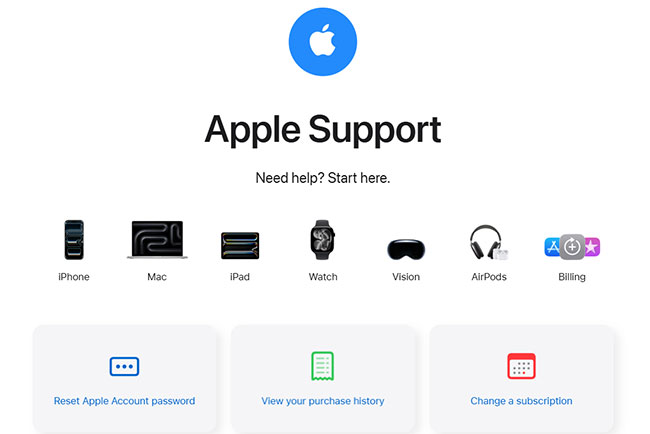
Need More Help? Contact Apple Support
Apple Support is the final option if the iPad cannot enter Recovery Mode, the buttons do not work, or the computer does not recognize the device. It is also recommended for school-owned, company-managed, or second-hand iPads.
- Step 1. Contact Apple Support or make an appointment at an Apple Store or Apple Authorized Service Provider.
- Step 2. Bring the iPad and proof of purchase if ownership verification may be required.
- Step 3. Ask for help restoring the iPad or fixing any hardware issue that prevents Recovery Mode from working.
Apple cannot recover or reveal a forgotten screen passcode. Support can help erase and restore the device, but locally stored data may be lost if no backup is available.
FAQs About iPad Unavailable with No Forgot Passcode Option
-
Why doesn't my iPad show Forgot Passcode?
Your iPad may be running an unsupported iPadOS version, be offline, or have Find My turned off. On iPadOS 15.2 or 16, look for Erase iPad instead. The Forgot Passcode? option is available on iPadOS 17 and later.
-
Why does my iPad show Erase iPad instead of Forgot Passcode?
In iPadOS 17 and later, Apple changed the lock-screen recovery interface to Forgot Passcode?. On iPadOS 15.2–16, the recovery option is Erase iPad. Both options can erase the iPad and remove the forgotten passcode.
-
Can I reset an unavailable iPad without a computer?
Yes, if Erase iPad is available on iPadOS 15.2–16 or you can erase the device through Find My. If Forgot Passcode? is missing on iPadOS 17 or later, you may need another recovery method.
-
Will resetting an unavailable iPad erase its data?
In most cases, yes. Recovery Mode, Find My, the lock-screen reset option, and screen unlock tools like TunesKit iPhone Unlocker normally erase the iPad together with the passcode. You can restore your data afterward if you have an iCloud or computer backup.
-
Can I fix iPad Unavailable without losing data?
You may avoid erasing the iPad if you remember the correct passcode. On iPadOS 17 or later, you can also use the previous passcode within 72 hours after changing it. Otherwise, removing a forgotten passcode usually requires a full reset.
Conclusion
If your iPad says iPad Unavailable but does not show the Forgot Passcode? option, first check the iPadOS version, internet connection, and Find My status. On iPadOS 15.2 or iPadOS 16, the same feature may appear as Erase iPad instead.
When no reset option is available, you can still erase and unlock the iPad with TunesKit iPhone Unlocker, Recovery Mode, or Find My. However, most passcode removal methods delete the current data on the device. After the reset, restore an available backup and use the original Apple Account password if Activation Lock appears.



