


Samsung FRP Lock: How to Bypass It (2026 Guide)
Stuck on the Google verification screen after resetting your Samsung phone? This happens because of Samsung FRP lock, a security feature that prevents unauthorized access after a factory reset. Whether you've forgotten your Google account credentials or purchased a second-hand Galaxy phone, there are several ways to regain access.
This guide explains how to bypass Samsung FRP lock using account recovery, Samsung Support, and tools like TunesKit Android Unlocker, helping you find a suitable solution for your device.
- What Is Samsung FRP Lock?
-
How to Bypass Samsung FRP Lock - 5 Methods
- Method 1. Unlock Samsung FRP with a Previously Synced Google Account
- Method 2. Recover Your Google Account to Unlock Samsung FRP
- Method 3. Ask the Previous Owner to Help Remove Samsung FRP
- Method 4. Contact Samsung Support for FRP Unlock Assistance
- Method 5. Use TunesKit Android Unlocker to Remove Samsung FRP Lock HOT
- How to Prevent Samsung FRP Lock
- FAQs About Samsung FRP Bypass
- Conclusion
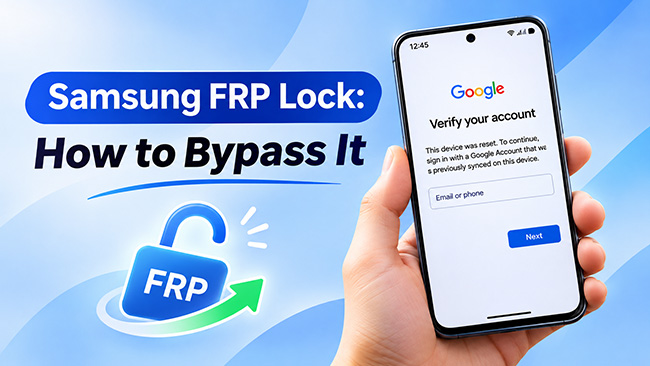
What Is Samsung FRP Lock?
Samsung FRP (Factory Reset Protection) is an Android security feature introduced by Google in Android 5.1. It helps protect your phone and personal information if someone resets the device without authorization.
When Google device protection is enabled, a factory reset performed through an untrusted method, such as Android Recovery mode, may trigger Google account verification during the initial setup. You might encounter a message similar to: "This device was reset. To continue, sign in with a Google Account that was previously synced on this device."
FRP is different from a regular screen lock. A PIN, password, or fingerprint protects access to your phone during normal use, while FRP helps prevent unauthorized setup after certain factory resets.
Why Does Samsung FRP Lock Appear?
Samsung FRP becomes relevant when your device has Google account protection enabled and is reset through Recovery mode or another method that doesn't complete the normal authentication process. It can also become a problem when you buy a second-hand Samsung phone that was reset without properly removing the previous owner's Google account.
FRP can affect various Samsung Galaxy devices, including the Galaxy S, A, Note, M, and Z series. However, verification options may differ depending on the Android version, One UI version, and device configuration.
 Warning: Performing another factory reset generally won't remove FRP. You'll still need to complete the required account or device verification or use an applicable authorized recovery solution.
How to Bypass Samsung FRP Lock - 5 Methods
If you're trying to unlock a Samsung phone after a factory reset, the best solution depends on whether you remember your Google account credentials, have access to the previous owner, or can provide proof of ownership. Different Samsung FRP unlock methods have different requirements. The table below compares the main options to help you choose a solution.
| Method | Google Account Needed? | PC Required? | Cost | Best For |
|---|---|---|---|---|
| Previously synced Google account | Yes | No | Free | Users who know their credentials |
| Google Account Recovery | Account ownership must be verified | No | Free | Forgotten passwords or usernames |
| Previous owner assistance | Previous owner's cooperation | No | Usually free | Second-hand phones |
| Samsung Support | Ownership proof may be required | No | Varies | Owners unable to recover access |
| TunesKit Android Unlocker | Advertised FRP removal without previous credentials on supported devices | Yes | Free trial; paid features | Owners evaluating a guided software solution |
Method 1. Unlock Samsung FRP with a Previously Synced Google Account
 Best for: Users who remember the Google account previously associated with their Samsung phone.
This is the simplest official way to complete Samsung FRP verification. You'll need your Samsung phone, an internet connection, and the credentials of an eligible Google account previously synced with the device.
- Step 1. Turn on your Samsung phone and begin the initial setup process.
- Step 2. Connect your device to a stable Wi-Fi network when prompted. Continue until the Google account verification screen appears.
- Step 3. Enter the email address of a Google account previously synced with the phone.
- Step 4. Enter the corresponding password and complete any additional verification requested by Google.
- Step 5. Once verification succeeds, follow the on-screen instructions to finish setting up your Samsung phone.

This method is free, requires no computer, and doesn't involve third-party software. However, you must know the correct credentials or have another supported verification option available.
On some devices, Google may also offer verification using a previously configured screen lock. If you've recently changed your Google password, you may need to wait before the new password can be used for FRP verification.
Method 2. Recover Your Google Account to Unlock Samsung FRP
Best for: Users who own the device but have forgotten Google account email address or password.If you can't remember your Google credentials, Google Account Recovery should be your next option. You can complete the recovery process using another smartphone, tablet, or computer.
- Step 1. Open a browser on another device and visit Google Account Recovery.
- Step 2. Enter the email address or phone number associated with your Google account. If you've forgotten your email address, use Google's username recovery option.

- Step 3. Follow the on-screen instructions to verify your identity. Google may ask for a previous password, recovery email, phone number, or confirmation from a trusted device.
- Step 4. Once Google verifies your identity, create a new password if prompted.
- Step 5. Return to your Samsung phone and enter your recovered Google account credentials on the FRP verification screen.
Google recommends attempting account recovery from a familiar device and location when possible. If you recently reset your password, Samsung documents a possible 24-hour security waiting period before the new password can be used for FRP verification.
This method is free and doesn't require specialized software, but account recovery isn't guaranteed. Its success depends on whether Google can verify that you own the account.
Method 3. Ask the Previous Owner to Help Remove Samsung FRP
Best for: Users who purchased a second-hand Samsung Galaxy phone with FRP lock.If your used Samsung phone is FRP-locked, the previous owner may need to complete verification before you can use it. Rather than asking the seller to share their password, have them enter their credentials directly on the device.
- Step 1. Contact the previous owner and explain that the phone is asking for a Google account previously associated with it.
- Step 2. Ask the seller to complete the required Google account verification on the phone.
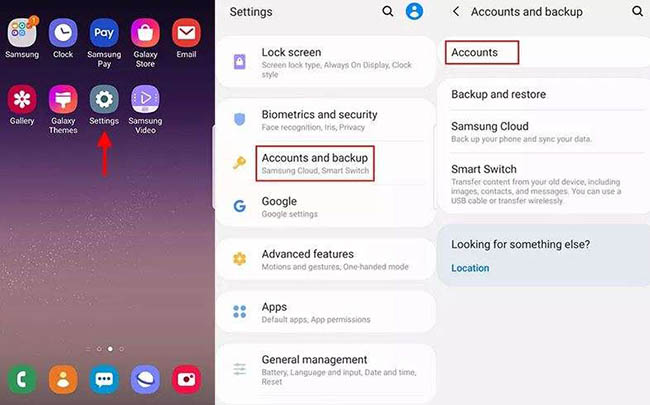
- Step 3. Once the phone is accessible, open Settings > Accounts and backup > Accounts.
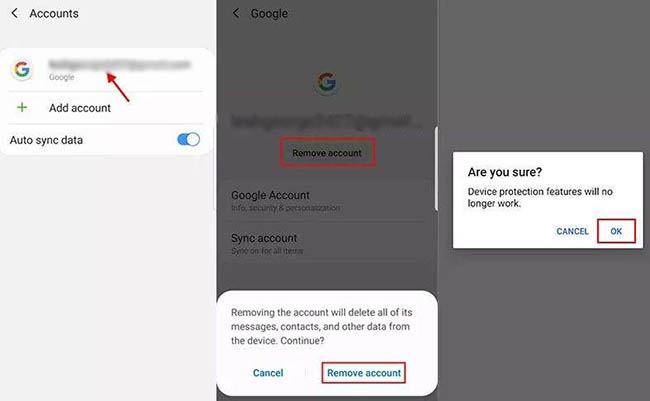
- Step 4. Select the previous owner's Google account, tap Remove account, and complete any required authentication.
- Step 5. After removing the account, go to Settings > General management > Reset > Factory data reset and follow the instructions to reset the device properly.
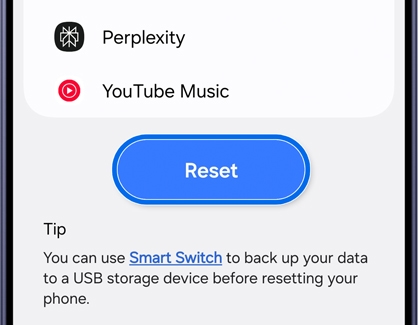
After the reset, confirm that the device can proceed through setup without requesting the previous owner's Google account. If the seller is unavailable or refuses to help, contact Samsung Support with valid purchase documentation. You may also consider requesting a refund through the seller or marketplace.
Method 4. Contact Samsung Support for FRP Unlock Assistance
Best for: Users who can provide proof that they legally own the device.Samsung may be able to assist with an FRP-locked phone through its authorized service channels. However, service availability and ownership verification requirements vary by region.
- Step 1. Prepare your Samsung phone's model number, IMEI or serial number, and valid proof of purchase.
- Step 2. Visit the official Samsung Support website and select your country or region.
- Step 3. Contact Samsung Support or locate an authorized service center.
- Step 4. Explain that your phone is stuck on the Google verification screen after a factory reset.
- Step 5. Provide the requested ownership documentation and follow Samsung's instructions.
This is an official option for legitimate owners who cannot complete account recovery. However, Samsung may require additional documentation, and assistance or unlocking isn't guaranteed.
Method 5. Use TunesKit Android Unlocker to Remove Samsung FRP Lock
Best for: Users who want to evaluate a computer-based unlocking solution.If the official recovery methods aren't available, TunesKit Android Unlocker is another option worth considering. It is a Windows and Mac utility designed to remove Google Factory Reset Protection on supported devices.
Unlike regular screen-lock removal software, TunesKit Android Unlocker includes a dedicated Remove Google FRP Lock feature for phones stuck on Google account verification after a factory reset. According to its official technical specifications, the software supports FRP removal for Samsung devices running Android 6 through Android 16.
Key Features of TunesKit Android Unlocker
Bypass FRP lock without Google account. Unlock Android screen without passcode. No Technical Skills Needed. Support lots of Android version.
 600,000+ Downloads
To check whether TunesKit Android Unlocker is suitable for your Samsung phone, follow the general workflow below.
- Step 1. Download and install TunesKit Android Unlocker from its official website on a Windows or Mac computer. Launch the program and connect your Samsung Galaxy phone to the computer using a USB cable.
- Step 2. Choose Remove Google FRP Lock from the main interface, then select Samsung as the device brand. Select the appropriate Android version or device option displayed by the program. Check the compatibility information.
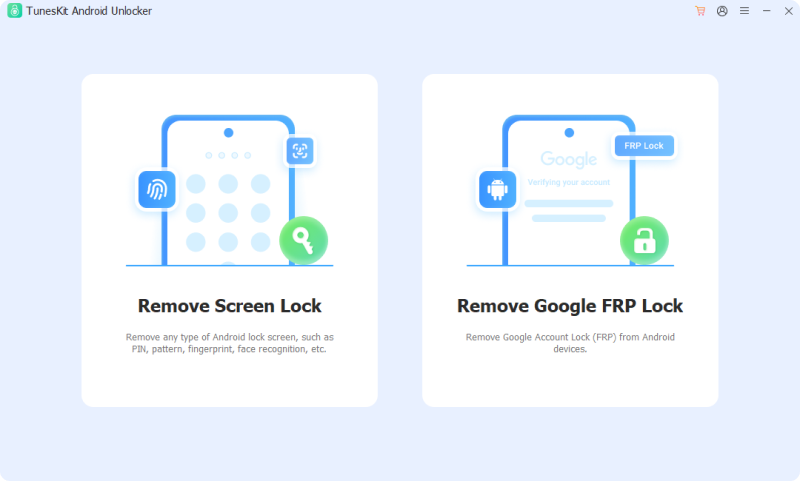
- Step 3. Follow the software's on-screen instructions to prepare your phone and complete the applicable recovery process. The required actions may differ by device and software version.
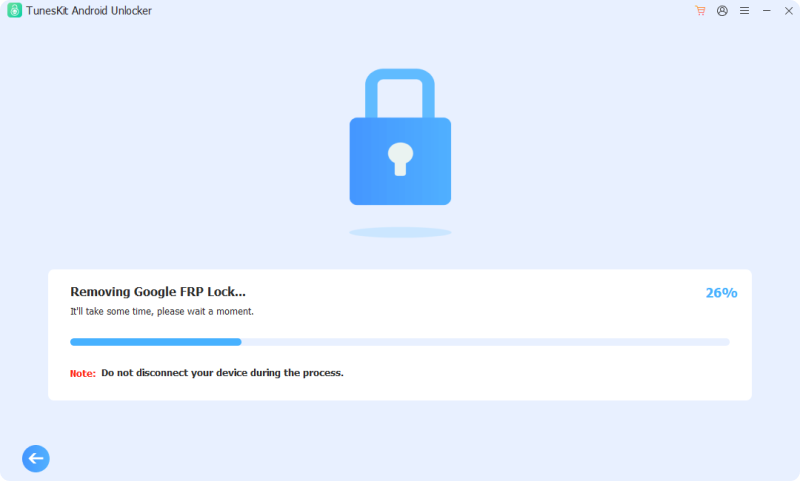
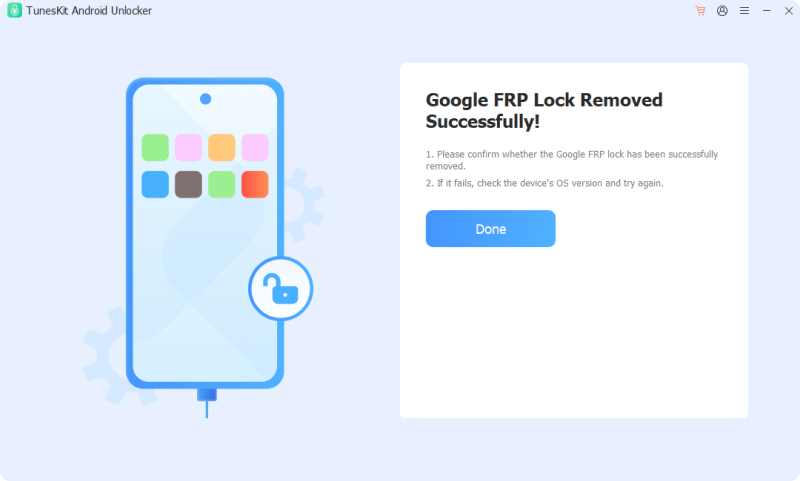
- Step 4. If the process completes successfully, follow the program's instructions and check whether your phone can proceed through setup.
How to Prevent Samsung FRP Lock
Preventing an unexpected FRP lock is easier than resolving one after a factory reset. If you plan to sell, give away, or reset your Samsung phone, follow these precautions.
1. Back Up Your Important Data
Before resetting your phone, back up important photos, contacts, messages, and files using a suitable backup service. A factory reset deletes local data, and completing FRP verification afterward won't automatically restore erased information.
2. Remove Your Google Account
Removing your Google account through the authenticated Settings interface turns off the associated Google device protection. You can turn off it by following steps below.
- Step 1. Open Settings on your Samsung phone.
- Step 2. Tap Accounts and backup > Manage accounts.
- Step 3. Select the Google account you want to remove.
- Step 4. Tap Remove account and complete any required verification.
- Step 5. Repeat the process for any other Google accounts you want to remove before transferring the device.
 Further Reading: How to Remove Google Account from Android Phone
3. Remove Other Personal Accounts
If you're selling or giving away the phone, sign out of your Samsung account and other personal services as appropriate. Samsung account-related locks and Google FRP are separate security mechanisms, so removing one account doesn't necessarily remove restrictions associated with another.
4. Factory Reset Through Settings
After removing your accounts, perform the factory reset through the phone's Settings menu.
- Step 1. Open Settings.
- Step 2. Select General management.
- Step 3. Tap Reset > Factory data reset.
- Step 4. Review the information and follow the prompts to complete the reset.
5. Confirm the Phone Is Ready for a New Owner
After resetting the device, check that the initial setup process no longer requests your previous Google account. If you're transferring the phone, confirm that the new owner can proceed with setup before completing the handover.
FAQs About Samsung FRP Bypass
-
Is Samsung FRP bypass free?
Yes. Official methods such as signing in with a previously synced Google account and using Google Account Recovery are free. Third-party tools, including TunesKit Android Unlocker, may require payment for the FRP unlocking features.
-
Does factory resetting a Samsung phone remove FRP?
No. Performing another factory reset generally won't remove the Google account verification requirement. FRP is designed to remain effective after certain unauthorized resets.
-
Will bypassing Samsung FRP erase my data?
A factory reset usually erases local data before the FRP verification screen appears. Successfully verifying your account doesn't restore that data unless a suitable backup is available. Some third-party unlocking operations may also cause data loss.
-
How long should I wait after changing my Google password?
Samsung documents a possible 24-hour security waiting period after changing a Google password. The actual requirements may vary, so follow the instructions displayed on your device.
Conclusion
Samsung FRP lock can prevent legitimate owners from accessing their Galaxy phones after a factory reset. Start with a previously synced Google account or Google's recovery service. For second-hand devices, contact the previous owner or Samsung Support.
If these options aren't available, TunesKit Android Unlocker offers an alternative FRP removal feature for supported Samsung devices, although compatibility and results vary. To prevent future lockouts, remove your Google accounts properly before resetting or transferring your phone.