


MSM Download Tool Latest Review: Risks and Best Alternative
If you are currently searching for the MSM Download Tool, you are likely in a stressful situation. Perhaps your device is stuck in a boot loop, locked, or unresponsive, and you have heard that this tool is a useful assistant in fixing it.
As a professional in software, I want to be direct with you: the landscape for smartphone repair has changed drastically. While the MSM Download Tool was once a useful utility for unbricking devices, relying on it in 2026 poses significant risks to your data and hardware. This review covers everything about MSM Download Tool and offers the best, safest alternative to restore your smartphone effectively.
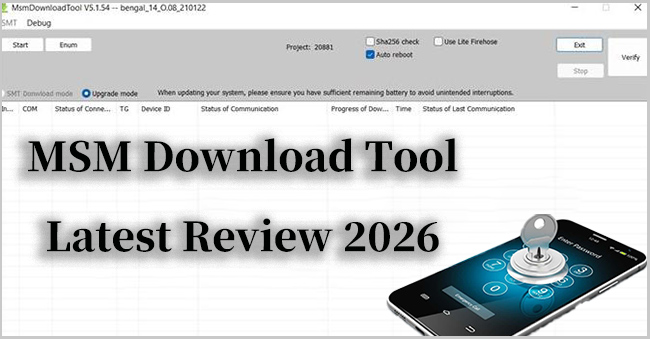
What Is the MSM Download Tool?
The MSM Download Tool is a low-level flashing utility designed for Qualcomm Snapdragon-based smartphones. It communicates with the device while it is in Emergency Download (EDL) Mode—a state where the device’s main OS is bypassed, allowing the computer to write data directly to the storage partitions.
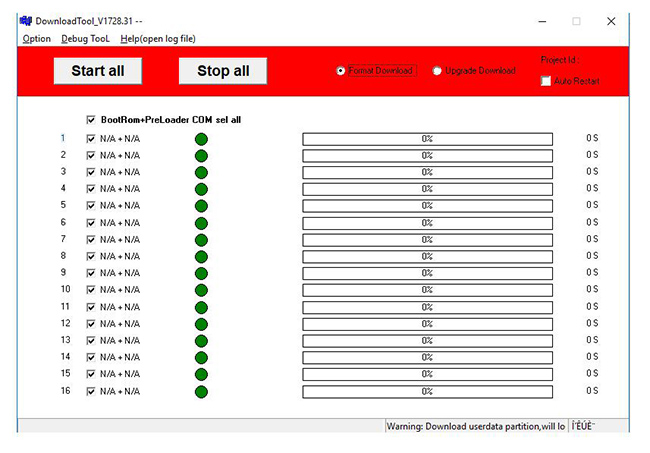
What It Can Do:
- Flash Stock Firmware: It writes system images directly to the device's storage partitions. This is a "clean install" process that completely overwrites the device’s OS.
- Restore "Hard-Bricked" Devices: Because it works in EDL mode, it can revive devices that are stuck in a black-screen state or a permanent boot loop where standard recovery tools (like Fastboot or stock recovery) fail.
- Factory Wipe: It acts as a total reset, erasing all partitions, including system, user data, and sometimes even custom configuration data.
Pros vs. Cons of MSM Download Tool
| Feature | Pros (Historical Context) | Cons (Modern Context) |
|---|---|---|
| Recovery | Excellent for reviving "hard-bricked" devices. | Frequently fails on modern devices due to server-side authentication. |
| Ease of Use | Simple, GUI-based (point-and-click) interface. | Requires specific, device-matched firmware, which is hard to verify. |
| Performance | Bypasses standard recovery limits. | Risk of installing outdated, incompatible software versions. |
| Accessibility | No ADB/Fastboot commands required. | Leaked versions are often modified; "clean" versions are rare. |
Critical Risks & Security Warnings
If you are considering using this tool, you must be aware of the following, which go beyond standard "repair risks":
The "Authentication Wall": For newer phones (specifically the OnePlus 9/10 series and later), the MSM Download Tool doesn't work the way it used to. Manufacturers now require a special "login token" from their private servers to use the tool. If you don't have official technician credentials from the manufacturer, the software simply will not run.
Risk of "Hard Bricking": Using the wrong version of the software—or even experiencing a tiny connection hiccup while flashing—can permanently break your phone. This is called a "hard brick." Once this happens, the phone usually won't turn on or respond, making it impossible to fix at home.
Loss of Important Features: Using the tool incorrectly can wipe out critical security data from your phone. This can cause you to lose the ability to stream high-quality video (like Netflix in HD) or, even worse, destroy your phone's ability to make calls or connect to mobile networks (damage to your IMEI).
How to Download and Use MSM Download Tool for OnePlus?
If you have decided to use MSM Download Tool to unlock your phone, you can follow the steps below to download and use the tool.
- Step 1. Download a proper version of MSM Download Tool from a safe website on a computer. Follow the instructions provided in the download folder to install the tool.
- Step 2. Connect your phone to the computer via a USB cable.
- Step 3. Launch the tool and log in with your details. Select Other from User Type.
- Step 4. Power off your phone and put it into EDL mode. How to put a OnePlus phone into EDL mode:
- Press and hold the Volume Up and Volume Down buttons at the same time.
- Keep holding until the screen below appears on your phone screen:
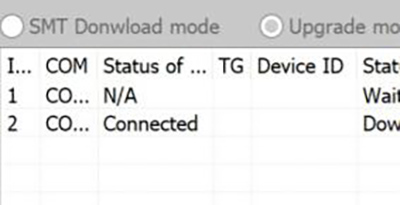
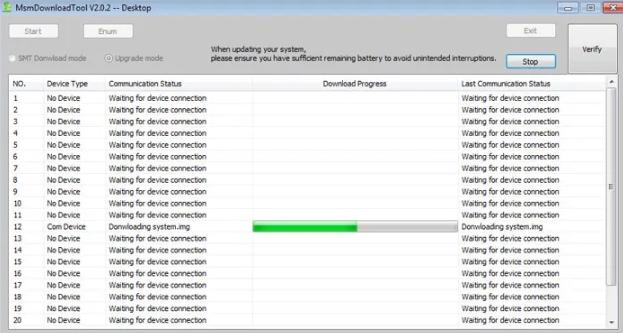
- Step 5. Wait for the tool to flash the stock firmware of your phone. After that, your phone will enter the factory setup screen. Now you can use your phone as a new one.
Best MSM Download Tool Alternative: TunesKit Android Unlocker
Unlike the MSM tool, which attempts to overwrite system firmware, TunesKit Android Unlocker is specifically designed to handle common access barriers like PINs, patterns, passwords, and Factory Reset Protection (FRP) without needing deep-level system access. It provides a guided, user-friendly interface that removes the lock safely, making it a highly practical solution for users who have simply forgotten their credentials.
 Pros:
Pros:- Screen Lock Removal: Bypasses PINs, passwords, patterns, and fingerprint/face locks.
- FRP Bypass: Effectively removes Google Factory Reset Protection (FRP) locks, which is ideal if you've purchased a second-hand device.
- Broad Compatibility: Supports a wide range of Android brands, including OnePlus, Samsung, Xiaomi, and more.
- Guided Interface: Simplifies complex recovery processes by providing visual, step-by-step instructions tailored to your specific device model.
- Step 1. Download and install the official TunesKit Android Unlocker software from the official website. Open it and connect your locked Android device to your computer using your USB cable.
- Step 2. Select the Remove Screen Lock option to unlock your Screen lock on your phone. TunesKit Android Unlocker supports 20+ brands and 2000+ Android devices. Click the Start button.
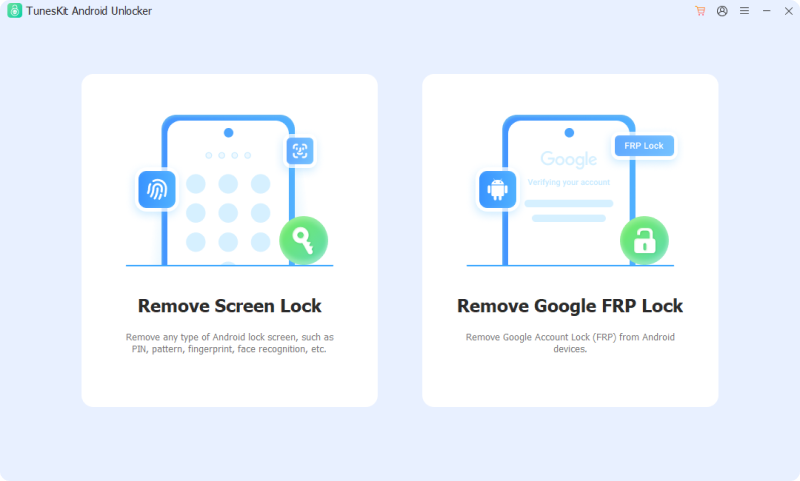
- Step 3. Put your phone into Recovery Mode by following the instructions on the screen.
- Step 4. Click the Next button to start removing screen lock.
Conclusion
The MSM Download Tool is now obsolete and risky. Due to modern security protocols, attempting to use leaked versions exposes you to malware and permanent device damage. If you are locked out, choose reliable, specialized software like TunesKit Android Unlocker to safely bypass PINs and account locks.


