


SamFlash Tool Review 2026: Features, Compatibility, and FRP Secrets
As we navigate the mobile landscape of 2026, Samsung's ecosystem has become more secure than ever. With the release of the Galaxy S26 series and the rollout of Android 16, traditional methods for firmware flashing and device recovery have fundamentally changed. For power users, the SamFlash Tool has emerged as a vital successor to the aging Odin utility.
In this comprehensive 2026 review, we analyze whether SamFlash Tool remains the gold standard for Samsung optimization or if it's falling behind the new security protocols of One UI 8.5.
- What Is SamFlash Tool?
- What's New in the SamFlash Tool 2026 Edition?
- What Models Are SamFlash Tool Supported 2026?
- Step-by-Step: How to Use SamFlash Tool on Android 16?
- Best Alternative for Specific Use Cases: TunesKit Android Unlocker HOT
- SamFlash Tool vs. The Competition: 2026 Comparison
- Final Verdict
What Is SamFlash Tool?
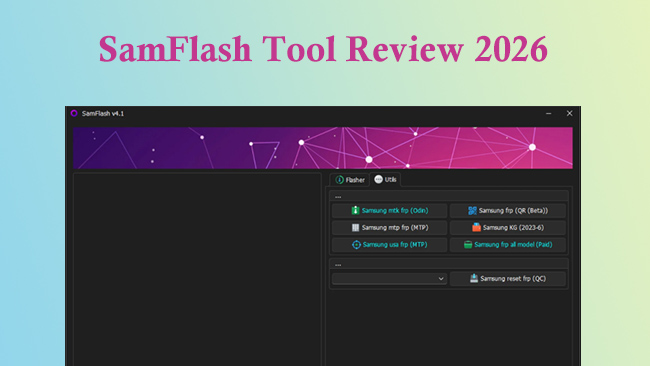
The SamFlash Tool is a lightweight, professional utility designed primarily for Samsung devices. It has become a popular choice for both technicians and enthusiasts because it offers a free, all-in-one solution for software-related repairs that typically require expensive professional hardware.
As of 2026, its role has become even more critical due to major shifts in Samsung's security architecture (such as the removal of traditional "Download Mode" in the Galaxy S26 series).
Core Functions and Capabilities
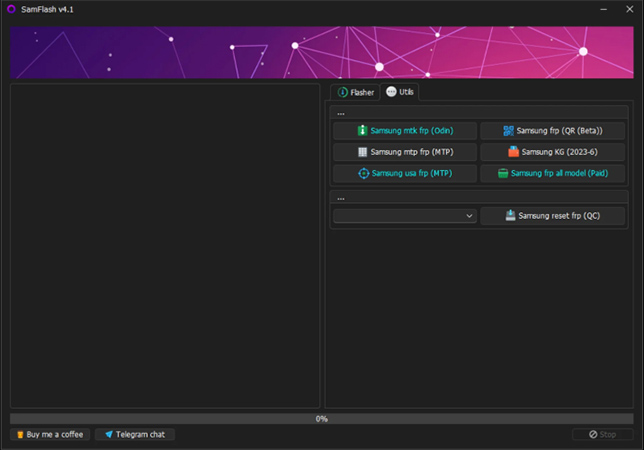
- FRP Bypass (Google Account Lock): This is its most famous feature. It allows users to bypass the Factory Reset Protection lock after a device has been reset without the original Google credentials. It supports multiple methods, including MTP mode, EDL mode (for Qualcomm chipsets), and QR code methods.
- Firmware Flashing: Much like the classic Odin tool, SamFlash Tool allows you to manually update, downgrade, or reinstall the Samsung firmware (ROM). It supports "4-file flashing" (BL, AP, CP, and CSC) and is optimized for the newer .tar.lz4 file formats.
- Device Optimization & Repair: It can be used to change CSC codes (to enable regional features like native call recording), fix system "bricks," and perform factory resets when the physical buttons are unresponsive.
What's New in the SamFlash Tool 2026 Edition?
The 2026 iteration of SamFlash Tool isn't just a minor update; it is a complete rebuild designed to handle the post-Download Mode era. Since Samsung transitioned the S26 series to a new "Maintenance Mode" boot structure, SamFlash Tool has pivoted its architecture to ensure users can still repair software without official service center visits.
Support for S26 Ultra and Z Fold 7
The tool now features full driver integration for the Snapdragon 8 Gen 5 and Exynos 2600 chipsets. Whether you are working on the flagship S26 Ultra or the latest Z Fold 7, SamFlash Tool recognizes the new partition tables that often cause older tools to crash.
Android 16 and One UI 8.5 Optimization
Android 16 introduced "Virtual Partitioning," which complicates traditional flashing. SamFlash Tool 2026 includes a Smart-Mapping engine that automatically identifies the correct slots for firmware files, preventing the "SetupConnection" errors that haunted users in previous years.
What Models Are SamFlash Tool Supported 2026?
The SamFlash Tool v4.1 (and newer 2026 builds) provides extensive coverage across the Samsung ecosystem. Below is a comprehensive table detailing the supported models, categorized by their series and regional variants.
| Series | Supported Models (Global & USA) | Notable 2026 Features |
|---|---|---|
| Galaxy S Series | S26, S26+, S26 Ultra, S26 FE, S25, S25+, S25 Ultra, S24, S23, S22, S21 series | Maintenance Mode Bridge for S26; Android 16 support. |
| Galaxy Z (Foldables) | Z Fold 7, Z Flip 7, Z Fold 6, Z Flip 6, Z Fold 5, Z Flip 5, Z Fold 4, Z Flip 4 | Support for pre-installed One UI 8.0/8.5 security. |
| Galaxy Note Series | Note 20 Ultra, Note 20, Note 10+, Note 10, Note 9 | Legacy support for traditional Download Mode flashing. |
| Galaxy A Series | A57, A56, A36, A26, A17, A16, A55, A54, A35, A15, A05 | Full support for new 2026 mid-range hardware. |
| Galaxy M & F Series | M56, M36, M16, M55, M15, F56, F36, F15, F54 | Optimized for both MediaTek and Exynos variants. |
| Galaxy Tab Series | Tab S11, S11 Ultra, S10+, S10 Ultra, S9, S8, Tab A9, A11 | FRP bypass for both Wi-Fi and 5G cellular models. |
Step-by-Step: How to Use SamFlash Tool on Android 16?
You can follow the steps here to bypass the FRP lock or use other features in SamFlash Tool.
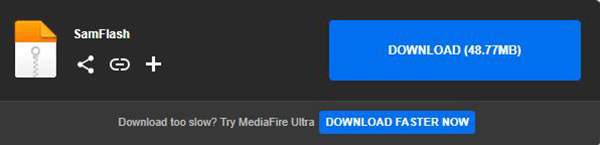
- Step 1. You must download and install the SamFlash Tool software. Windows 12 users may need to temporarily disable driver signature enforcement.
- Step 2. Connect your S26 to your PC while the phone is running normally. In SamFlash Tool, reboot your phone. Once the phone reboots, the status indicator must change to "Connected (Bridge)".
- Step 3. Select the feature you need and then follow the instructions to remove the FRP lock from your phone.
Best Alternative for Specific Use Cases: TunesKit Android Unlocker
While SamFlash Tool is an excellent choice for firmware flashing and general maintenance, some users may find its technical interface a bit daunting, especially when the goal is simply to regain access to a locked device.
For those who are specifically dealing with screen lock issues rather than firmware corruption, TunesKit Android Unlocker serves as a reliable alternative. It is particularly useful if you are struggling with forgotten PINs, patterns, or fingerprints on a Galaxy S26 or older A-series models.
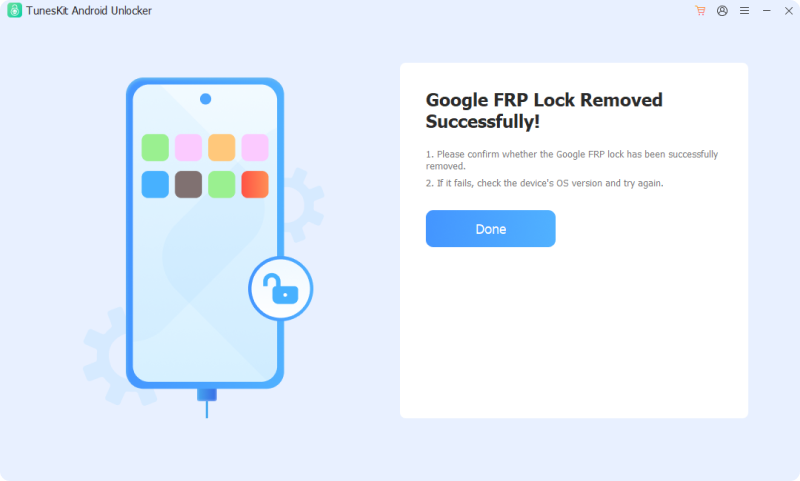
Unlike SamFlash Tool, which focuses on the "flashing" aspect, TunesKit is designed to handle lock screen removal with a more guided, user-friendly process. It also provides a streamlined path for bypassing FRP if the SamFlash Tool ADB method fails due to specific driver conflicts on Windows 12.
Key Features of TunesKit Android Unlocker
No complex tools, no risk - just connect, follow clear instructions, and bypass FRP lock on your Android device.
 600,000+ Downloads
- Step 1. Open TunesKit Android Unlocker on your computer. From the main dashboard, select the "Remove Google FRP Lock" option. Connect your locked Samsung device to the PC.
- Step 2. Click the "Start" button. The software will ask you to confirm your device brand (Samsung) and, in most 2026 versions, your Android OS version. If you are on a Galaxy S26 or newer mid-range device, select "All Android Versions" to ensure the latest exploit is used.
- Step 3. Follow the on-screen instructions to set up your phone. After that, click Next > Start to bypass FRP.
SamFlash Tool vs. The Competition: 2026 Comparison
How does SamFlash Tool stack up against the other big names in the repair industry this year?
| SamFlash Tool | TunesKit Android Unlocker | SamFw Tool | |
|---|---|---|---|
| Primary Goal | Firmware/Flashing | Unlocking/FRP | CSC/Maintenance |
| Price | Free/Community | Commercial | Free/Ads |
| Ease of Use | High (Technical) | Very High (Guided) | Medium |
| S26 Support | Full | Full (Unlocking) | Partial |
| Recovery Mode | Fastboot-D | Automated | Traditional |
Final Verdict
In 2026, the SamFlash Tool is no longer just an alternative; for many, it is a necessity. While professional shops may still prefer the granular control of paid suites, or a specialized tool like TunesKit Android Unlocker for simple screen unlocking, SamFlash Tool provides the most valuable services for the average enthusiast.


