


How to Use Android Utility Tool 2026 [Detailed Review]
Getting stuck with a bricked Android phone or a Google Account verification screen after a factory reset? When standard fixes don't work, many technicians and advanced users turn to tools like the Android Utility Tool.
In this guide, we'll cover the detailed review of Android Utility Tool, explain how to use Android Utility Tool, and discuss potential risks. We'll also introduce a safer, easier alternative for users who want reliable results without dealing with complex developer tools.
- Part 1. What Is Android Utility Tool
- Part 2. Device Compatibility of Android Utility Tool
- Part 3. Pros and Cons of Android Utility Tool
- Part 4. How to Use Android Utility Tool to Bypass FRP
- Part 5. Is It Safe to Use Android Utility Tool
- Part 6. A Safer and Easier Tool to Bypass FRP [Beginner-Friendly] HOT
- Part 7. FAQs About UnlockTool
- Part 8. Conclusion
Part 1. What Is Android Utility Tool
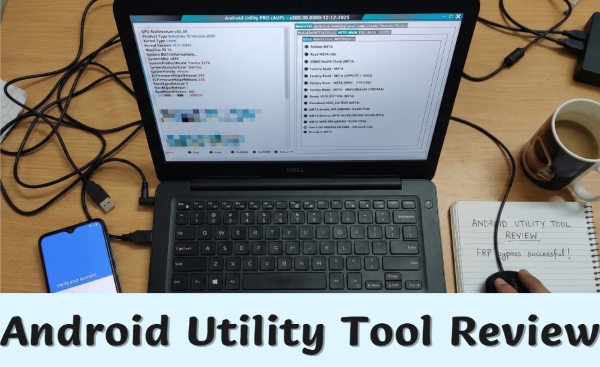
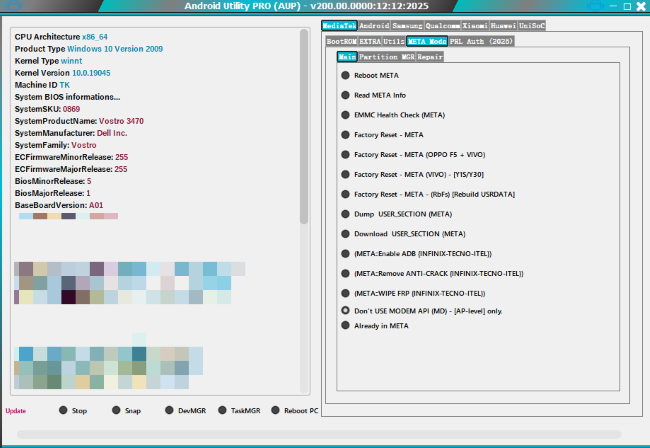
The Android Utility Tool is a Windows-based maintenance and repair program meant for Android smartphones. Unlike regular apps you install from the Google Play Store, this android utility tool runs on a computer and is mainly used by mobile technicians and advanced users to perform deep system-level operations.
It's commonly described as a service tool because it can bypass certain security restrictions on popular chipsets such as MediaTek (MTK), Qualcomm, and UniSoC. The tool is especially useful for recovering Android devices that are:
- Locked by FRP: Stuck on the "Verify your account" screen after a factory reset.
- Bricked: Stuck in a boot loop or completely unresponsive (dead boot).
- Locked by User: Protected by a forgotten PIN, password, or pattern (on some older models).
By accessing advanced modes like BROM (Boot Read-Only Memory) or EDL (Emergency Download), the Android Utility Tool can perform actions that official manufacturer software often restricts. This level of access is powerful - but it also means the tool should be used with care.
Part 2. Device Compatibility of Android Utility Tool
One major reason behind the popularity of the Android Utility Tool latest version is its wide device compatibility. Instead of being limited to a single brand, this android utility tool works based on the chipset used inside the device, making it flexible for many Android models.
Supported Operating System: The Android Utility Tool can only run on Windows-based systems, including Windows 7, 8, 8.1, 10, and 11.
Supported Brands:
The Android Utility Tool supports a variety of well-known Android brands, including:
- Samsung: Galaxy A, M, and S series, with specific methods for FRP bypass
- Xiaomi / Redmi: Strong support for bootloader unlocking and device unbricking
- OPPO & Vivo: Capable of removing Demo Mode and performing factory resets without a password
- Huawei: Supports functions like loading firmware packages, firmware updates, and auto reboot
Supported Chipsets:
Compatibility largely depends on the device's processor. The tool currently supports:
- MediaTek (MTK): This is where the tool performs best, offering features like Disable Auth to flash secured MTK devices
- Qualcomm Snapdragon: Supports reading device information and flashing loaders through EDL mode
- UniSoC (SPD): Allows bootloader unlocking and factory resets on many entry-level devices
Part 3. Pros and Cons of Android Utility Tool
Before you rush to get how to use android utility tool guides, it is critical to weigh the benefits against the significant drawbacks. While this android utility tool is powerful, it's not the right fit for everyone.
 Pros:
Pros:- Strong MTK Support: One of the few free tools capable of handling Crash Preloader operations, making it effective for unbricking dead MediaTek devices;
- Cost-Effective: Many versions available online are free, which appeals to budget-conscious technicians;
- All-in-One Solution: Combines FRP bypass, firmware flashing, and partition management in a single interface.
 Cons:
Cons:- High Complexity: Requires advanced setup steps, making it unfriendly for beginners;
- Windows Only: No official support for macOS or Linux systems;
- High Bricking Risk: Using an incorrect generic loader can permanently damage the device's motherboard.
Part 4. How to Use Android Utility Tool to Bypass FRP
If you have some technical experience and decide to move forward, below is the general process for using the Android Utility Tool to bypass a Google FRP lock on a Samsung device.
Step 1. Temporarily Disable Antivirus on Your Windows PC
Before you begin, temporarily turn off your antivirus software. Many security programs mistakenly flag advanced repair tools as false positives, which can block key files and cause the installation or launch to fail.
Step 2. Install and Launch Android Utility Tool
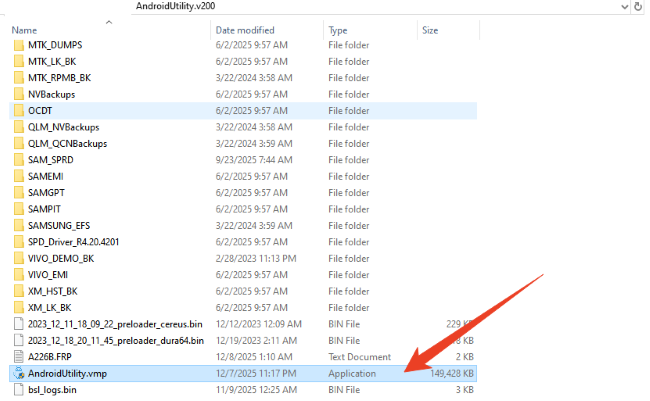
Visit the mfdl.io website and download the Android Utility Tool latest version as a ZIP file. Next, unzip the file using the password mfdl, then double-click the AndroidUtility.vmp file to launch the program.
 Note
Note
If the tool doesn't open on the first try, don't panic. Simply click the file a few times until the main interface appears.
Step 3. Connect the Device
Use a USB cable to connect your Samsung phone to the computer. Make sure the device is in the required mode, such as Download Mode (for Samsung) or EDL Mode (for Qualcomm-based devices). Once connected, select the appropriate chipset tab in the tool.
Step 4. Choose the right option on Android Utility tool
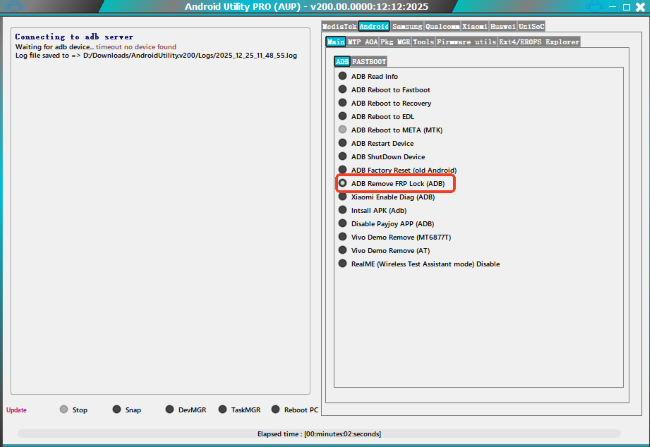
To bypass FRP on Samsung devices, navigate to: Android > Main > ADB > ADB Remove FRP Lock (ADB). Do not disconnect your phone during the process. Wait until the device reboots automatically and the FRP bypass operation is completed.
Part 5. Is It Safe to Use Android Utility Tool
This is the most important question to ask before using any advanced repair software. The short and honest answer is: not entirely.
1. Malware & Virus Risks
The Android Utility Tool is usually shared through forums and file-hosting websites instead of an official company homepage. Many available downloads are modified or "cracked" versions, which increases the risk of malware such as Trojans or keyloggers that could compromise your personal data.
2. Warranty Void
Using unofficial tools to modify system partitions, unlock bootloaders, or bypass built-in security protections violates most manufacturers' terms and conditions. As a result, your device warranty will be voided immediately.
3. Risk of Data Loss
Many functions in this android utility tool, such as Format Userdata or Unlock Bootloader, permanently erase all data on your device. If you don't have a backup, photos, contacts, and files may be lost for good.
Part 6. A Safer and Easier Tool to Bypass FRP
If the steps above feel too complicated, or if you're concerned about installing risky software on your computer, there's a much safer and more reliable alternative: TunesKit Android Unlocker.
Unlike complex android utility tools designed mainly for technicians, TunesKit Android Unlocker is built for regular users who want a secure, easy, guaranteed solution - without technical jargon or dangerous system operations.
Why Choose TunesKit Android Unlocker:- High Success Rate: Regularly updated to bypass FRP on Samsung, Xiaomi, Redmi, Vivo, and OPPO devices, including those running the latest Android versions
- User-Friendly Interface: No confusing dashboards or technical menus; clear, step-by-step on-screen guidance makes the process easy for anyone
- 100% Safe: Official, virus-free software that prioritizes data privacy and system safety
- Wide Compatibility: Works on both Windows and macOS
Bypass Google FRP Lock Hassle-Free with TunesKit Android Unlocker
No complex tools, no risk - just connect, follow clear instructions, and unlock your Android device safely and smoothly.
 600,000+ Downloads
How to bypass FRP with TunesKit Android Unlocker
Step 1 Connect Your Phone to the Computer
Download and install TunesKit Android Unlocker on your computer. Launch the program and connect your Android device using a USB cable.
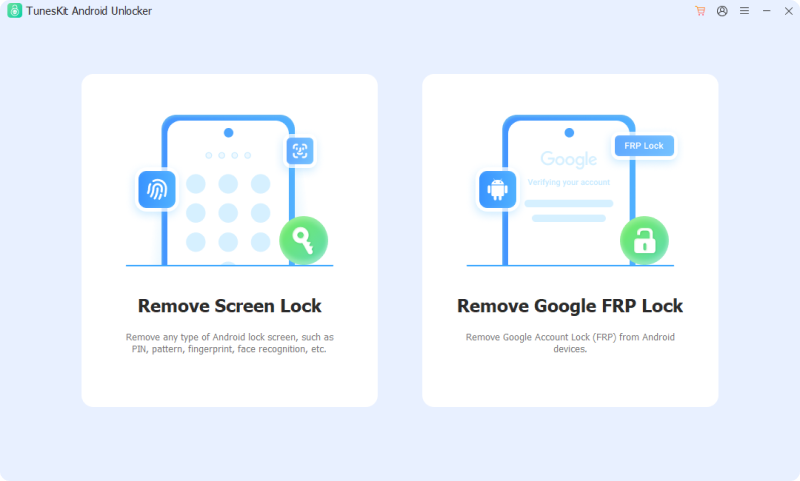
Step 2 Select Remove Google FRP Lock
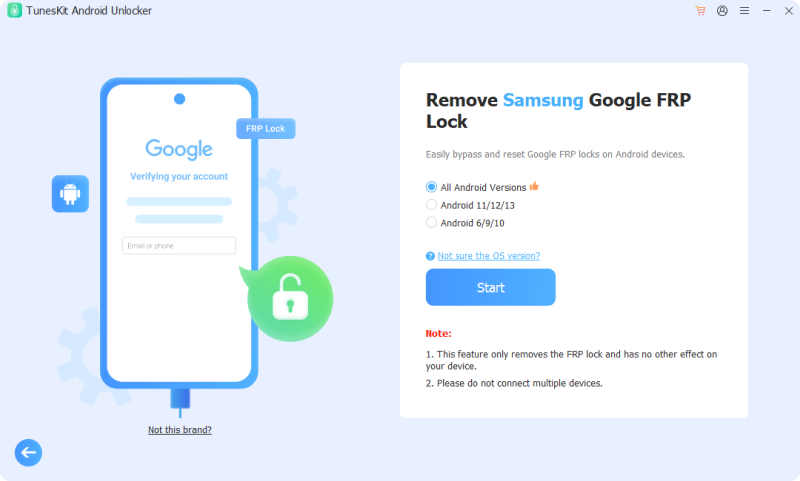
On the main screen, choose Remove Google FRP Lock, then select your device brand. Click the Start button to continue.
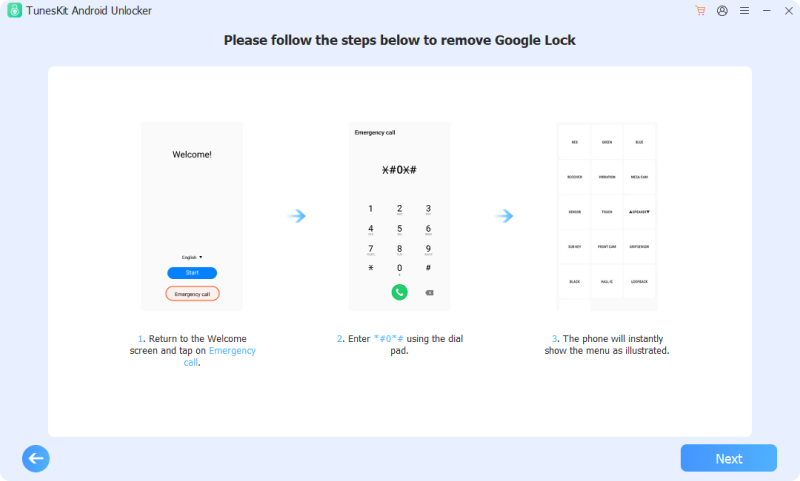
Step 3 Start the FRP Bypass Process
Follow the on-screen instructions to set up your phone. Click Next to begin the FRP bypass. When a prompt appears on your device, tap Allow. The process will complete automatically in just a few seconds.
Part 7. More FAQs on Android Utility Tool
-
1. Is the Android Utility Tool Free?
Yes. Most versions of the Android Utility Tool available online are free to download.
-
2. Does Android Utility Tool work on Mac or Linux?
No. The Android Utility Tool is designed exclusively for the Windows operating system. If you're using macOS, you'll need an alternative such as TunesKit Android Unlocker, which offers a Mac-compatible version, or official ADB-based solutions.
-
3. Where to Download Android Utility Tool Latest Version?
You can find the Android Utility Tool latest version on the mfdl.io website. As of December 2025, the newest releases are Android Utility Pro v200 and Android Utility Lite v202.
Part 8. Conclusion
To sum up, the Android Utility Tool is powerful for technicians handling tough repairs like dead boots or FRP locks on MTK devices.
However, for most users, its complexity and risks - like malware and bricking - make it less ideal. If you just want to unlock your phone safely and easily, TunesKit Android Unlocker is the smarter, safer choice.


