


How to Put an iPad in Recovery Mode
Enter iPad Recovery Mode in One Click
TunesKit iOS System Recovery lets you put your iPad into Recovery Mode with one click—no manual button operation required, and it's free to use.
 600,000+ Downloads
If your iPad is stuck on the Apple logo, won't update, or has other system issues, Recovery Mode can help you restore or update the device. In this guide, we'll show you how to put iPad in recovery mode on all iPad models, including iPad Pro, iPad Air, iPad mini, and iPads with a Home button.

What Is Recovery Mode for iPad
Recovery Mode is a built-in troubleshooting feature that allows your iPad to connect to a computer for an update or restore when the device cannot start or work normally. It is commonly used when an iPad is stuck on the Apple logo, fails to update, or becomes unresponsive.
How to Put iPad in Recovery Mode
There are two main ways to put an iPad in Recovery Mode: using the physical buttons on your iPad or using a tool like TunesKit iOS System Recovery. If you want to avoid complicated button combinations, TunesKit provides a simpler and quicker one-click option.
Method 1. Put an iPad Without a Home Button in Recovery Mode
For newer iPad models without a Home button, follow these steps:
- Step 1. Connect your iPad to a Mac or Windows PC with a USB cable.
- Step 2. Quickly press and release the Volume Up button.
- Step 3. Quickly press and release the Volume Down button.
- Step 4. Press and hold the Top button.
- Step 5. Keep holding the Top button even after the Apple logo appears.
- Step 6. Release the button when the Recovery Mode screen appears.

Once your iPad enters Recovery Mode, your computer will detect the device and give you the option to update or restore it.
Method 2. Put an iPad with a Home Button in Recovery Mode
If you have an older iPad with a physical Home button, the steps are slightly different:
- Step 1. Connect your iPad to your computer.
- Step 2. Press and hold the Home button and the Top or Side button at the same time.
- Step 3. Keep holding both buttons when the Apple logo appears.
- Step 4. Release them only when you see the Recovery Mode screen.

Your iPad is now in Recovery Mode and ready to be updated or restored through your computer.
Method 3. Put iPad in Recovery Mode with TunesKit iOS System Recovery
For users who want a faster and easier solution, TunesKit iOS System Recovery can put an iPad into Recovery Mode with just one click. You do not need to remember different button combinations for different iPad models, and the feature is free.
- Step 1. Download and launch TunesKit iOS System Recovery on your computer.
- Step 2. Connect your iPad to the computer with a USB cable.
- Step 3. Once the program detects your device, choose the Recovery Mode option on the main screen.
- Step 4. Click the Enter button and wait a few seconds. Your iPad will automatically enter Recovery Mode.
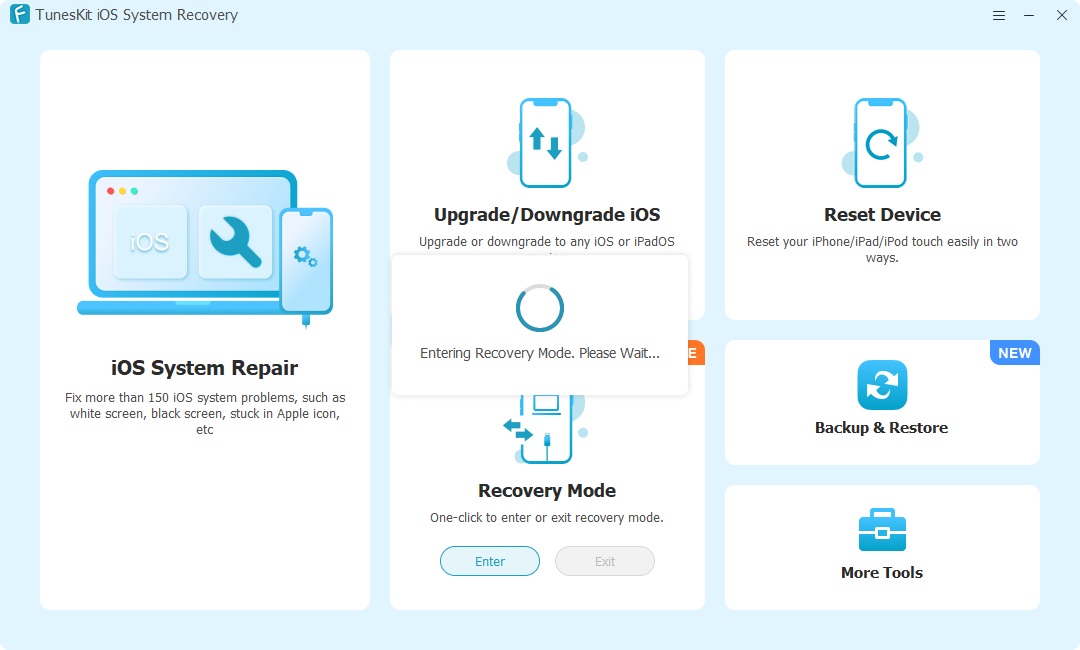
This method is especially useful if your iPad buttons are difficult to operate or if you simply want to enter Recovery Mode without performing the process manually.
Which Method Should You Use?
The manual method works well if your iPad buttons are functioning normally and you are familiar with the correct button sequence. However, the steps vary depending on the iPad model and can sometimes be difficult to perform correctly.
If you prefer a more straightforward approach, TunesKit iOS System Recovery lets you enter Recovery Mode with one click, making it a convenient option for users who want to skip the manual button operation.
How to Get iPad Out of Recovery Mode
If your iPad is stuck in Recovery Mode or you entered it by mistake, there are several ways to exit it. You can restart the device manually, use Finder or iTunes, or use TunesKit iOS System Recovery for a simpler one-click solution.
Method 1. Force Restart the iPad
You can get an iPad out of Recovery Mode by force restarting it.
For an iPad without a Home button:
- Step 1. Press and quickly release the Volume Up button.
- Step 2. Press and quickly release the Volume Down button.
- Step 3. Press and hold the Top button.
- Step 4. Release the button when the Apple logo appears.

For an iPad with a Home button:
- Step 1. Press and hold the Home button and the Top or Side button together.
- Step 2. Keep holding them until the Apple logo appears.
- Step 3. Release both buttons and wait for the iPad to restart.

Method 2. Use Finder or iTunes
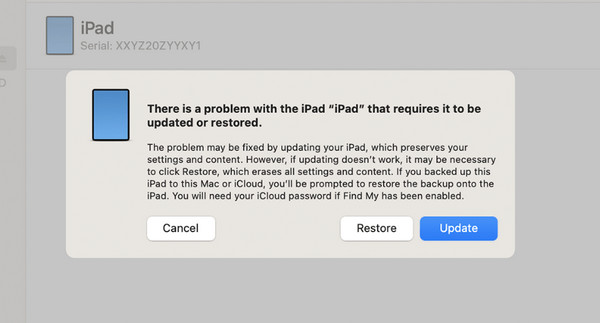
If your iPad remains in Recovery Mode, connect it to your computer and open Finder on a Mac or iTunes on a Windows PC or older Mac.
When your iPad is detected, you may see options to Update or Restore the device. Try Update first, as it attempts to reinstall the system without erasing your data. If updating does not work, restoring the iPad may be necessary.
Method 3. Exit iPad Recovery Mode with TunesKit iOS System Recovery
The easiest option is to use TunesKit iOS System Recovery. It allows you to exit Recovery Mode with one click, without using complicated button combinations.
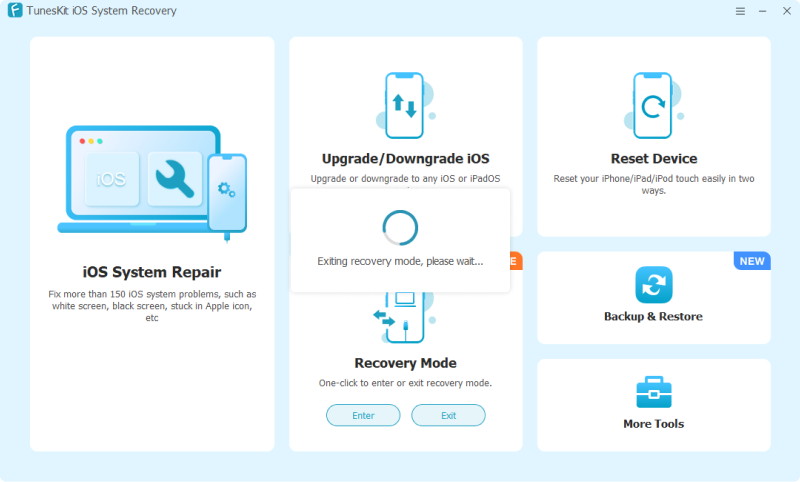
- Step 1. Launch TunesKit iOS System Recovery and connect your iPad to the computer.
- Step 2. Wait for the program to recognize the device. Move to the Recovery Mode section.
- Step 3. Click Exit button. Your iPad should restart and return to the normal screen within a short time. This feature is especially useful if the physical buttons are not responding properly.
FAQs About iPad Recovery Mode
-
Does putting an iPad in Recovery Mode erase data?
No. Simply entering Recovery Mode does not erase your data. However, choosing Restore in Finder or iTunes will erase the device. If possible, try Update first.
-
Why won't my iPad go into Recovery Mode?
The issue may be caused by incorrect button timing, a faulty cable, connection problems, or unresponsive physical buttons. If the manual method does not work, TunesKit iOS System Recovery provides an easier way to enter Recovery Mode without using button combinations.
-
How long can an iPad stay in Recovery Mode?
An iPad can remain in Recovery Mode until you restart it, update or restore it, or use a tool to exit Recovery Mode. In some cases, the device may leave Recovery Mode automatically after a period of inactivity.
-
What should I do if my iPad is stuck in Recovery Mode?
First, try a force restart. If the iPad keeps returning to the Recovery Mode screen, update it through Finder or iTunes. If the problem continues, an iOS system repair tool such as TunesKit iOS System Recovery may help fix the underlying system issue.
Conclusion
Knowing how to put iPad in recovery mode can help you fix update failures, startup problems, and other iPadOS issues. You can use the manual button method for your iPad model, but if you want a faster and easier option, TunesKit iOS System Recovery lets you enter or exit Recovery Mode with one click. It is especially useful when you want to avoid complicated button combinations and troubleshoot your iPad more efficiently.



