


6 Best Tips to Fix iPhone/iPad Recovery Mode Not Working

Q: "Some errors might occur to my iPad. I tried to connect it to iTunes and use recovery mode, the recovery mode not working! Can someone tell me how to fix this problem?" - Jenny from Apple Discussion
Recovery Mode is a built-in troubleshooting feature that can help fix various software-related issues on your iPhone, iPad, or iPod touch. By reinstalling or restoring iOS, it can resolve problems such as system crashes, update failures, and boot loops. However, the iPad or iPhone recovery mode not working happens from time to time. If you come across this issue while using the recovery mode, you can read this post to learn 6 solutions to resolve the problem.

Why Is Recovery Mode Not Working on Your iPhone or iPad
Before trying the fixes, it's helpful to understand what may cause Recovery Mode to stop working properly. In most cases, the issue is related to software conflicts, outdated tools, or connection problems rather than hardware damage.
- 01 iTunes or Finder Issues: If Recovery Mode isn't working properly, check iTunes (on Windows or older versions of macOS) or Finder (on newer versions of macOS). Corrupted program files, incorrect settings, or an outdated version of iTunes/Finder may prevent your device from entering or being detected in Recovery Mode.
- 02 Faulty USB Cable or Connection: A damaged, uncertified, or incompatible USB cable can interrupt communication between your device and computer. For the best results, use an Apple-certified MFi cable or the original USB cable that came with your device.
- 03 iOS System Bugs: Software bugs, failed updates, or system corruption can prevent Recovery Mode from functioning correctly. Updating your device to the latest available iOS version may help resolve these underlying software issues.
[Video Tutorial] Top 6 Ways to Fix iPhone/iPad Recovery Mode Not Working
First, a short video is prepared for you. From the video, you can learn how to fix the recovery mode issue. For more information, please read the following parts.
Tip 1. Update iTunes to the Latest
This can be a simple solution to iPhone/iPad recovery mode not working problem. Sometimes all iOS issues can be easily fixed by updating the iTunes program version. The following is the quick steps.
For Windows
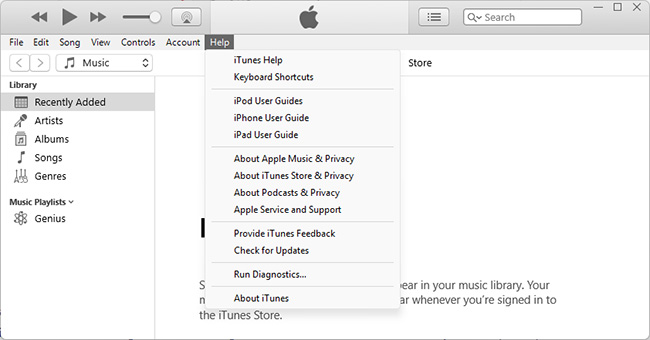
- Step 1. Open iTunes and go to the Help on the top menu bar > Check for Updates > Install.
- Step 2. If your iTunes program is downloaded from Microsoft store, it will be automatically updated.
For Mac
- Step 1. Launch iTunes app and navigate to Check for Updates.
- Step 2. If there is iTunes update available, just click on Update.

Tip 2. Force Restart iPhone/iPad
If the issue still exists after updating iTunes, you can then try to force reboot your device. This can resolve most minor problems with iPhone or iPad. Different models have different procedures, yet it is still simple to operate. Here it is:
- For iPad (with Home button), iPhone 6s and former, press and hold the Home and Power buttons simultaneously. Release both buttons until you see the Apple logo on the screen.
- For iPhone 7 and 7 Plus, press and hold the Volume Down and Power buttons. Release them when the Apple logo comes out.
- For iPad (without Home button), iPhone 8, X and newer series, press the Volume Up button and then quickly release it. Do the same for the Volume Down button. Then hold the Power button until the Apple logo is visible.

Tip 3. Check Apple Mobile Device USB Driver
To connect your iPhone to the computer, your computer should have an Apple Mobile Device USB Driver. If not, your computer will not be able to connect to your device and cause iPhone or iPad recovery mode not working. Therefore, how to check the Apple Mobile Device USB Driver on computer?
- Step 1. Press the Win and R buttons on your computer concurrently to open the Run command.
- Step 2. Enter devmgmt.msc in to Run and click on the OK.
- Step 3. Expand the Universal Serial Bus controllers and check if there is an Apple Mobile Device USB Driver.

Tip 4. Fix iPhone/iPad Recovery Mode Not Working Without Data Loss - TunesKit
As mentioned above, if you use DFU mode to fix iPhone, iPad recovery mode doesn't work, you're in a big risk of losing the data on your device. So if you don't want any data loss, you can try this iTunes alternative - TunesKit iOS System Recovery.
It is a professional iOS repair tool that is able to fix 150+ types of iOS problems, which covers almost all issues that recovery mode can resolve, including iPhone/iPad not entering recovery mode problem. Moreover, you can use this program to fix other iOS-related issues, such as iPhone stuck on recovery mode, frozen screen, black screen, etc. In addition, this program allows users to repair iOS problems without data loss in a few clicks only.
Key Features of TunesKit iOS System Recovery
TunesKit iOS System Recovery is a reliable solution for fixing iPhone/iPad Recovery Mode not working issues without data loss.
 600,000+ Downloads
Now follow the steps to effectively fix iPad/iPhone recovery mode not working issue with TunesKit iOS System Recovery.
Step 1 Connect device to computer and Launch TunesKit

Open TunesKit iOS System Recovery on your computer after finished installation. Connect your iPhone or iPad to the computer with a USB cable. Click the iOS System Repair button on the main interface once it's recognized by the software. Choose the Standard Repair.

Step 2 Download Firmware Package and Verify
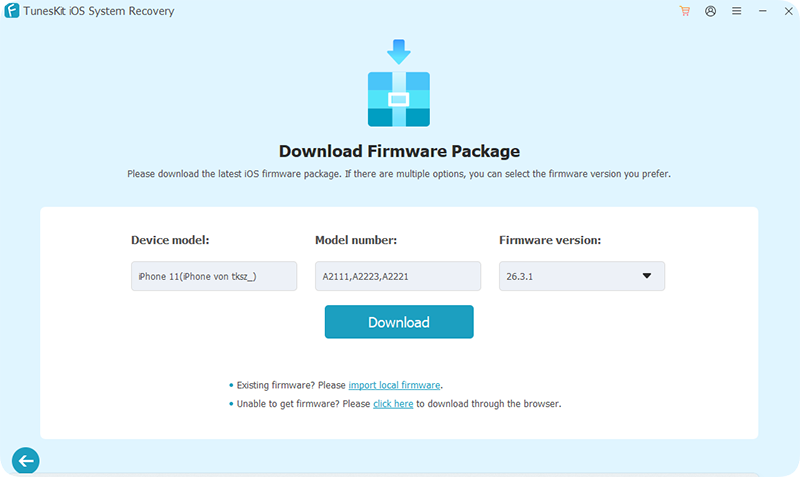
Check the device information and manually correct it if there is wrong info detected. Next press the Download button and ask TunesKit to download the related iOS firmware package and then verify it.
Step 3 Start to Fix iPhone/iPad Recovery Mode Not Working Issue
When the download is done, click on the Start Standard Repair button and the program will start fixing the recovery mode not working issue. Wait for the process to complete and you can then use your device as usual.

Tip 5. Try to Use DFU Mode
If Recovery Mode and third party tool fail to fix the issue, DFU Mode can be a useful alternative. It allows for a deeper system restore and may help resolve stubborn iOS problems.
- Step 1. Open the latest version of iTunes on your Windows PC or Mac (or Finder on macOS Catalina and later). Then connect your iPhone or iPad to the computer using a USB cable.
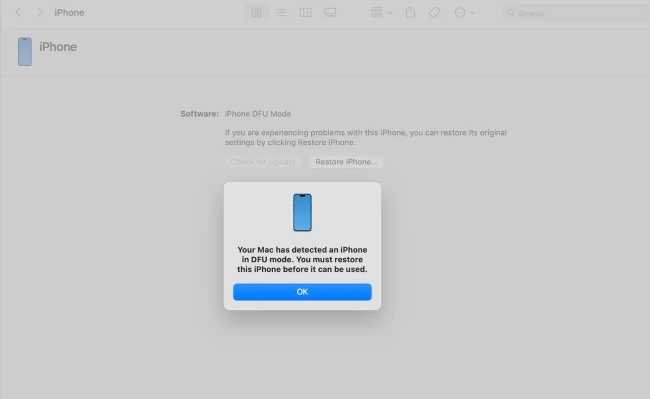
- Step 2. Follow the correct button combination for your device model to enter DFU Mode. Once successful, iTunes or Finder will display a message indicating that it has detected an iPhone or iPad in recovery mode.
- Step 3. Click OK, then select Restore iPhone (or Restore iPad) to begin the restoration process. Wait until the process is completed and your device restarts.
- For iPad, iPhone 6s and earlier, press and hold Home and Power buttons simultaneously for about 8 seconds. Release Power button but keep pressing the Home button until the screen turns black.
- For iPhone 7 and 7 Plus, press and hold the Volume Down and Power buttons at the same time for about 8 seconds. Release Power button but keep holding the Volume Down button until the screen is black.
- For iPad (without Home button), iPhone 8, X and later, press the Volume Up button and then release it quickly. Then press the Volume Down button and then release it quickly. Next hold the Power button until you see the screen is black.


Tip 6. Contact Apple Support for Help
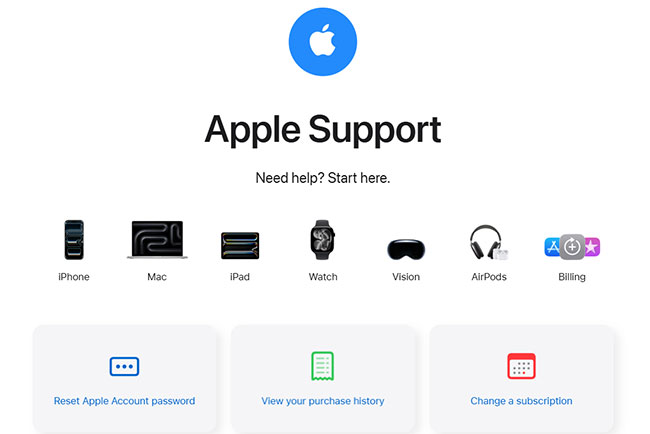
After trying all these methods, but the problem is still not resolved, you can then try getting in touch with Apple Support for help. It may be caused by a hardware issue that is difficult to deal with. Apple Support team will help you detect the reason and provide your professional assistance for you.
Final Words
Guided by the five ways in the tutorial, you can certainly fix the iPad/iPhone recovery mode not working issue. Again, we want to say that TunesKit iOS System Recovery has 100% success rate in resolving the recovery mode issue. If you trust it, you can directily use the tool.


