


How to Fix iOS 27 Mail Notifications Not Working
Are your iOS 27 Mail notifications not working after updating your iPhone? You may stop receiving alerts for new emails, get delayed notifications, or only see messages after opening the Mail app. This issue can be related to notification settings, Focus mode, network problems, or temporary iOS glitches. In this guide, we’ll show you the most effective ways to fix Mail notifications on iOS 27.
- Why Are My Mail Notifications Not Working on iOS 27
-
How to Fix iOS 27 Mail Notifications Not Working
- Fix 1. Turn On Mail Notifications
- Fix 2. Check Notification Settings for Each Mail Account
- Fix 3. Change the Mail Fetch Settings
- Fix 4. Turn Off Focus Mode
- Fix 5. Remove Mail from Scheduled Summary
- Fix 6. Check Your Internet Connection
- Fix 7. Restart Your iPhone
- Fix 8. Repair iOS 27 with TunesKit iOS System Recovery HOT
- Fix 8. Remove and Re-add the Email Account
- Fix 9. Update iOS 27
- Fix 10. Reset All Settings
- Conclusion
Why Are My Mail Notifications Not Working on iOS 27
Mail notifications may stop working on iOS 27 because of incorrect notification settings, delayed email fetching, Focus mode, Scheduled Summary, account sync problems, network issues, or temporary iOS glitches. Apple also notes that accounts without Push support rely on Fetch, which can delay new email alerts.
Common causes include:
- Mail notifications are disabled for the app or a specific account.
- Push is unavailable, so Mail checks for messages using Fetch.
- Fetch New Data is set to Automatically or Manually, causing delays.
- Focus mode is silencing or filtering Mail notifications.
- Scheduled Summary is holding notifications for later delivery.
- Mail account syncing has stopped or login information needs updating.
- Poor network connection prevents Mail from receiving new messages promptly.
- An iOS 27 software glitch may affect Mail or notification delivery.
How to Fix iOS 27 Mail Notifications Not Working
If Mail notifications stopped working after updating to iOS 27, start by checking notification and Mail settings before moving to account or system-level fixes.
Fix 1. Turn On Mail Notifications
The first thing to check is whether notifications for the Mail app are enabled. If alerts, sounds, or banners are turned off, new emails may arrive without notifying you.
- Step 1. Open Settings on your iPhone.
- Step 2. Tap Notifications > Mail.
- Step 3. Turn on Allow Notifications.
- Step 4. Enable Lock Screen, Notification Center, and Banners under Alerts.
- Step 5. Tap Sounds and select a notification tone.
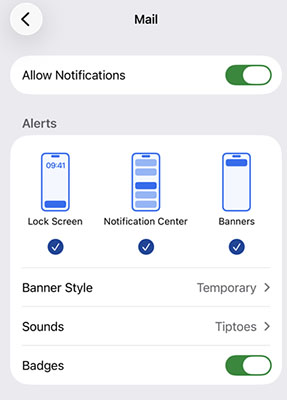
Apple recommends checking the Mail notification settings when email alerts are not appearing.
Fix 2. Check Notification Settings for Each Mail Account
If you use several email accounts, notification settings can differ between accounts. For example, Gmail notifications may work while iCloud Mail remains silent.
- Step 1. Go to Settings > Notifications > Mail.
- Step 2. Tap Customize Notifications.
- Step 3. Select the email account that is not sending notifications.
- Step 4. Turn on the available alert options, including Alerts and Badges.
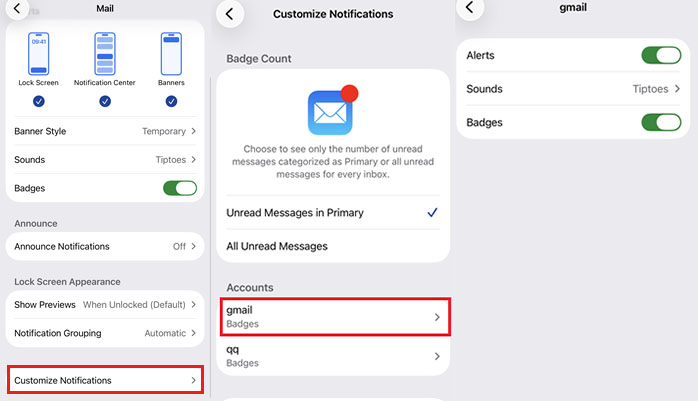
Repeat these steps for every account you want to receive notifications from.
Fix 3. Change the Mail Fetch Settings
Some email accounts do not support Push and instead rely on Fetch to check for new messages. If Fetch is set to Manually or Automatically, notifications can arrive later than expected. Apple notes that the default Automatic setting may fetch background data only while the iPhone is charging and connected to Wi-Fi.
- Step 1. Open Settings > Apps > Mail.
- Step 2. Tap Mail Accounts > Fetch New Data.
- Step 3. Enable Push if your email provider supports it.
- Step 4. For accounts using Fetch, choose a schedule such as Every 15 Minutes.
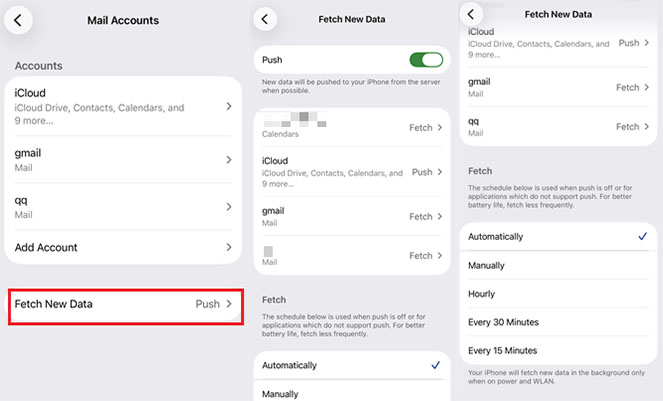
Avoid Manually if you want notifications to arrive without opening the Mail app.
Fix 4. Turn Off Focus Mode
Focus modes such as Do Not Disturb, Sleep, or Work can silence Mail notifications even when Mail itself is configured correctly.
Swipe down from the upper-right corner to open Control Center and check whether a Focus mode is active. Turn it off temporarily and send yourself a test email.
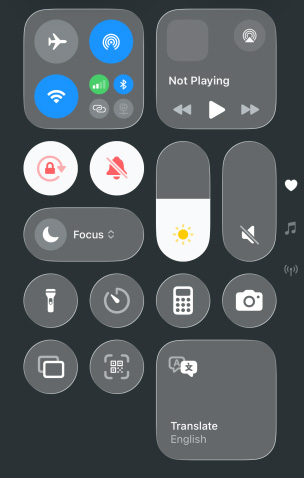
If you want to keep Focus enabled:
- Step 1. Go to Settings > Focus.
- Step 2. Select the Focus mode you normally use.
- Step 3. Tap Apps.
- Step 4. Choose Allow Notifications From and add Mail.
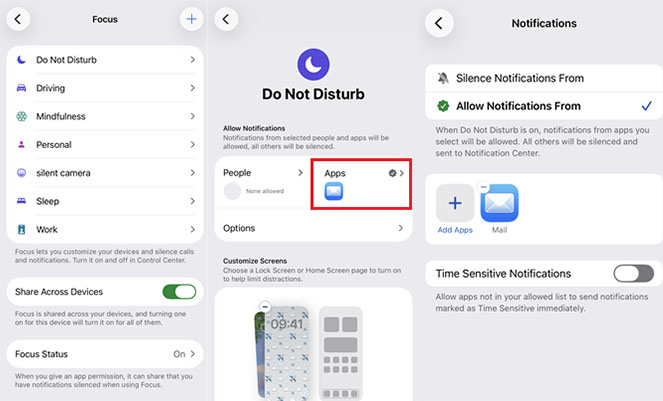
You should also check Share Across Devices, since a Focus enabled on another Apple device can affect notifications on your iPhone.
Fix 5. Remove Mail from Scheduled Summary
Scheduled Summary can group Mail alerts and deliver them later instead of immediately. This can make it seem as though Mail notifications are not working.
- Step 1. Open Settings > Notifications > Scheduled Summary.
- Step 2. Check whether Mail is included.
- Step 3. Remove Mail from the summary, or turn Scheduled Summary off temporarily.
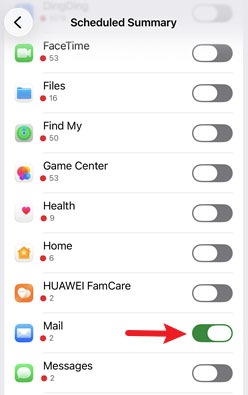
Then send another test email and check whether the notification appears immediately.
Fix 6. Check Your Internet Connection
Mail needs a working network connection to receive new messages. Switch between Wi-Fi and cellular data to rule out a connection problem.
You can also open Safari and load a webpage. If the connection is unstable, restart your router or turn Airplane Mode on for several seconds and then turn it off.

After reconnecting, open Mail and pull down on the inbox to refresh it.
Fix 7. Restart Your iPhone
A temporary iOS 27 process or notification-service glitch can sometimes prevent Mail alerts from appearing. Restarting the iPhone reloads these services without deleting your data.
Go to Settings > General > Shut Down, drag the slider, and wait for the iPhone to turn off. Then hold the Side button until the Apple logo appears.
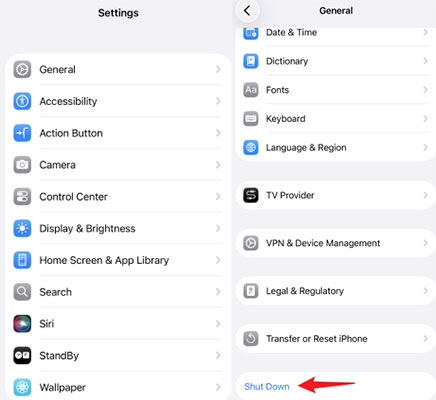
After restarting, send yourself another email to test the notification.
Fix 8. Repair iOS 27 with TunesKit iOS System Recovery
If Mail notifications stopped working after updating to iOS 27 and the settings above are correct, the problem may be related to an iOS system glitch rather than the Mail app itself. In this case, you can try TunesKit iOS System Recovery to repair the iOS system.
Its Standard Repair mode is designed to fix common iOS software problems without erasing existing data, including iPhone mail signature image not showing, iPhone blue screen of death, and iPhone keyboard bugs, etc. Apart from the powerful repair feature, it comes with features that upgrade your iPhone to the latest iOS Beta without enrolling in the beta program, repair iTunes error for free, and back up or restore iPhone data in 1-click.
Fix iOS 27 Mail Notification Issues
Repair iOS 27 system glitches causing Mail notification problems without losing your data.
 600,000+ Downloads
Now follow this step-by-step guide to fix iOS 27 Mail notifications not working using TunesKit iOS System Recovery.
Step 1. Connect Your iPhone
Download and install TunesKit iOS System Recovery on your Windows PC or Mac. Connect your iPhone to the computer with a USB cable. Launch the program and choose iOS System Repair > Start.

Step 2. Choose A Mode
Select Standard Repair to repair the system while keeping your data.

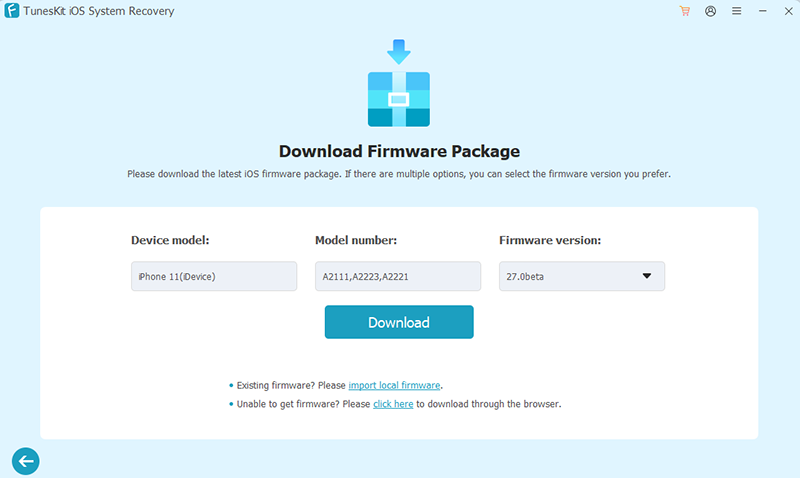
Step 3. Download Firmware Package
Confirm your iPhone information and click the Download button to download the matching firmware package.
Step 4. Repair iOS 27 without Data Loss
Click Start Standard Repair and keep your iPhone connected until the repair finishes. After your iPhone restarts, send yourself a test email and check whether Mail notifications appear normally.

 Tip
Tip
Use Standard Repair first. Deep Repair is intended for more serious system problems and erases device data.
Fix 8. Remove and Re-add the Email Account
If only one account has stopped sending notifications, its Mail synchronization settings or authentication data may need to be refreshed.
- Step 1. Go to Settings > Apps > Mail > Mail Accounts.
- Step 2. Select the affected account.
- Step 3. Tap Delete Account.
- Step 4. Restart your iPhone.
- Step 5. Return to Mail Accounts > Add Account and sign in again.
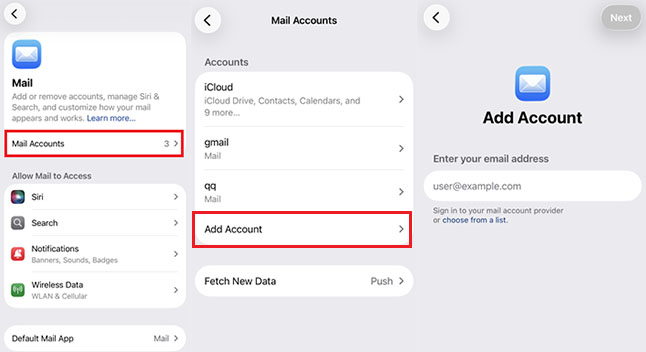
Before removing the account, make sure you know the account password and that important email is stored on the server.
Fix 9. Update iOS 27
If Mail notifications stopped working because of an iOS bug, a newer iOS 27 update may contain stability or notification-related fixes.
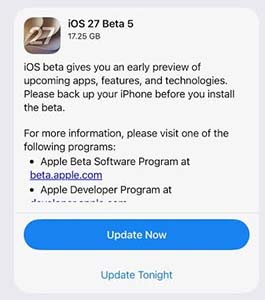
Go to: Settings > General > Software Update.
If an update is available, connect your iPhone to Wi-Fi and power, tap the Update Now button, then install it.
Fix 10. Reset All Settings
If notification, network, or system settings have become corrupted, resetting all settings can help without erasing your photos, apps, or other personal files.
- Step 1. Go to Settings > General > Transfer or Reset iPhone.
- Step 2. Tap Reset.
- Step 3. Choose Reset All Settings.
- Step 4. Enter your passcode and confirm.

Your Wi-Fi networks, notification preferences, privacy settings, and other system settings will need to be configured again afterward.
Conclusion
If Mail notifications are not working on iOS 27, start with notification settings, Focus, Fetch settings, and your network connection. If the issue continues and appears to be caused by an iOS system glitch, TunesKit iOS System Recovery is a practical option. Its Standard Repair mode can fix common iOS issues while keeping your existing data.



