


How to Fix iPhone Mail Signature Image Not Showing
Email signatures help add professionalism and personal branding to every message you send. However, some iPhone users have reported that their email signature images are not showing properly in the Mail app. In some cases, the image disappears completely, fails to load, or appears as a broken icon after sending emails.
If you are facing the iPhone Mail signature image not showing issue, don't worry. This guide will explain the possible causes behind the problem and provide effective solutions to restore your email signature image successfully.
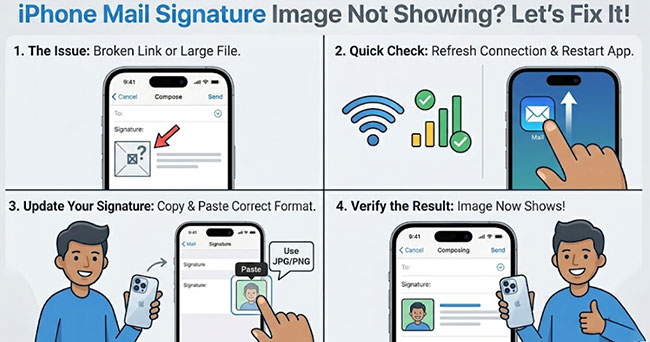
How to Add an Email Signature Image on iPhone?
Before troubleshooting the issue, make sure you have correctly added a signature image to your iPhone Mail app. If the image was not inserted properly, it may fail to appear in outgoing emails.
- Step 1. Launch the Photos app or a webpage containing the image you would like to use. Tap and hold the image, then select Copy.
- Step 2. Go to Settings > Apps > Mail on your iPhone.
- Step 3. Scroll down to the Composing section and tap Signature.
- Step 4. Tap and hold inside the signature box, then select Paste to insert the copied image.
- Step 5. Check whether the image is displayed correctly and adjust the spacing or text layout if necessary.
- Step 6. Tap Mail in the upper-left corner to save your signature settings.
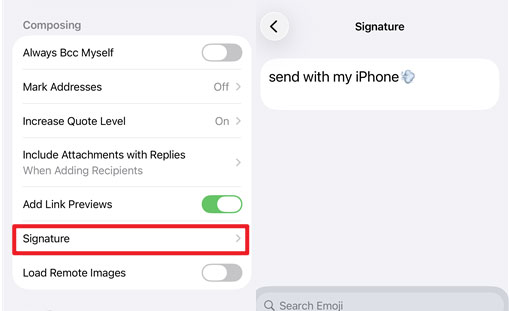
Once completed, the signature image should automatically appear in emails sent from the Mail app. You can return to the Signature settings anytime to edit or update your email signature.
Why Is My iPhone Mail Signature Image Not Showing?
There are several possible reasons why your email signature image is not showing in the iPhone Mail app. Understanding the causes can help you apply the right fix more quickly.
- 01 Incorrect Signature Settings: If the signature is not configured properly or assigned to the wrong email account, the image may fail to appear in outgoing emails.
- 02 Unsupported Image Formatting: Certain image formats, large image sizes, or unsupported HTML formatting may prevent the signature image from displaying correctly.
- 03 Mail App or iOS Glitches: Temporary software bugs or Mail app glitches can sometimes cause the iPhone mail signature image not showing issue.
- 04 Email Account Sync Problems: If your email account is not syncing correctly, the signature image may disappear or fail to load properly. Re-adding the email account can often help resolve the issue.
- 05 Remote Image Blocking: Some email providers or email clients automatically block images in signatures for security or privacy reasons, which may prevent recipients from seeing the image.
Top 5 | Fix iPhone Mail Signature Image Not Showing
Now that you understand the possible causes of the issue and how to correctly add an email signature image on iPhone, it's time to try some effective solutions. Below are several proven methods to fix the iPhone Mail signature image not showing issue and restore your signature image successfully.
Top 1. Optimize Image Format and Size
The Mail app often fails to render signature images if they are in a high-efficiency format (like HEIC) or if the file size is too heavy for mobile data syncing. Ensuring your image is "web-ready" is the best way to prevent broken icons.
- Step 1. Open the Photos app and select the image you want to use for your mail signature.
- Step 2. Tap the "i" (Info) icon at the bottom of the screen to view the file metadata.
- Step 3. Check the format and size. It should ideally be a JPG or PNG and stay under 500KB. If the image is an HEIC file or exceeds the size limit, use a mobile compressor app or an online conversion tool to downsize it.
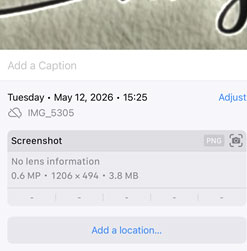
- Step 4. Aim for a width of 300–400 pixels. This ensures the image looks sharp on Retina displays without being so large that the Mail app treats it as a standard attachment.
Top 2. Re-embed the Image to Clear Caching Issues
Perhaps the iPhone email signature image not showing up is due to a caching issue, deleting and re-adding the image forces the system to create a fresh link. Here's what to do:
- Step 1. Go to Settings, tap on Apps > Mail, and select Signature.
- Step 2. Clear the existing text and images from the signature box to start fresh.
- Step 3. Tap and hold in the empty signature field to bring up the context menu, then tap the arrow to find and select Insert Photo or Video.
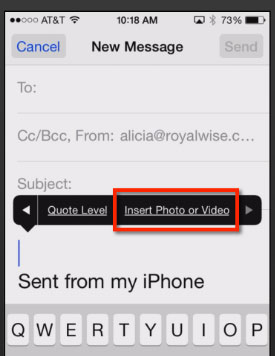
- Step 4. Select your optimized logo or headshot from your library. If you need to add text (like your name or phone number), type it around the image now.
- Step 5. Send a test email to a different email provider (such as Gmail or Outlook) to verify that the image renders correctly on both mobile and desktop screens.
 Pro-Tip for Dark Mode
If you want your signature to look seamless regardless of the recipient's screen settings, use a PNG with a transparent background. This prevents a white box from appearing around your logo when the recipient is viewing their emails in Dark Mode.
Top 3. Restart or Force Restart Your iPhone
Sometimes a simple reboot can fix a lot of minor system-related software glitches, including the iPhone mail signature image not showing up.
You can do this by pressing and holding the power button and either volume button at the same time and releasing it when the slider appears. Then drag the slider to the right and turn off the iPhone. wait for a few minutes, press and hold the power button until the Apple logo appears, after reboot, check to see if the signature logo appears in emails.

If a simple reboot doesn't fix this issue, follow these steps to force a reboot on different iPhone models.
- iPhone 8 or later: Press the Volume Up button briefly, then release it. Repeat the same action with the Volume Down button. Next, press and hold the Side button (also called the Power button) until the Apple logo appears on the screen.
- iPhone 7 and 7 Plus: Simultaneously hold down the Side button and the Volume Down button. Keep both buttons held down until the Apple logo appears on the screen. Release the buttons to allow the device to restart.
- iPhone 6s and earlier: Hold down both the Home button and the Sleep/Wake (Power) button at the same time. Keep holding both buttons until the Apple logo displays on the screen. Release the buttons to initiate the device restart.

Top 4. Remove and Re-add the Mail Account
Before proceeding with this way, it's essential to verify if the iPhone mail signature image not showing affects all mail accounts or just a specific one. If the problem persists only with a particular account, removing and then re-adding the mail account can be quite effective. Let's see how to do it.
- Step 1. Launch the Settings app on your iPhone, scroll down tap the Apps > Mail option, then select Accounts.
- Step 2. This directory will list all your email accounts, select and tap on one of the accounts that is unable to display a mail signature image, then select Delete Account. Confirm again from the pop-up box.
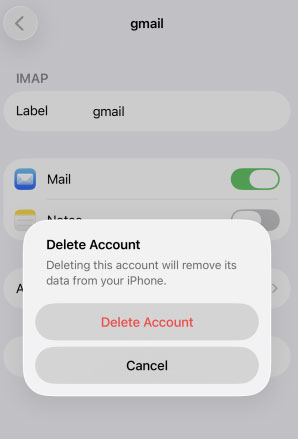
- Step 3. Wait for a while, open the Settings app again, then go to Apps > Mail > Accounts > Add Account. Select the email account you want to add from the list. Enter the email account information to complete the addition.

Top 5. Repair System Bugs to Fix iPhone Mail Signature Image Issue
If the email signature image still does not appear when sending emails from your iPhone or iPad, the problem may be caused by iOS system glitches or software bugs. In this case, you can use a professional repair tool like TunesKit iOS System Recovery to fix the issue. It is an all-in-one iOS repair tool designed to fix 150+ iOS issues on iPhone, iPad, and iPod touch devices, including iPhone stuck on the Apple logo, blue lines on the iPhone screen, photos not showing locations, and more.
The software can repair various iOS system problems caused by software glitches without data loss. In addition, it also supports one-click iOS upgrade or downgrade, free iTunes error repair, and entering or exiting Recovery Mode without using physical buttons.
Fix iPhone Mail Signature Image Issues Without Data Loss
Use TunesKit iOS System Recovery to repair iOS system glitches that may prevent your email signature image from displaying properly on iPhone or iPad.
 600,000+ Downloads
Let's see the full tutorials to fix the iPhone signature image not showing via TunesKit iOS System Recovery.
Step 1Connect your iPhone to computer
Launch this program and link your iPhone to your computer using a USB cable. Opt for the iOS System Repair mode to address the issue, then click on the Start button.

Step 2Select a repair mode
You can see two repair modes on the screen, Standard Repair can repair iOS while keeping your data, and Deep Repair can also repair iOS but will erase the data, it is recommended that you choose Standard Repair first and then Deep Repair if it doesn't solve your problem.

Step 3Download the fitting firmware package
If TunesKit iOS System Recovery can't detect your device, you need to follow the on-screen instructions to put your device in recovery mode. Once your device is recognized, select the appropriate firmware package from the drop-down menu. Hit the Download button to verify and download it to your PC.

Step 4Fix iPhone mail signature image not showing apace
In the end, click the Start Standard Repair button to initiate the repair process. TunesKit will swiftly address all system glitches or bugs on your iPhone.

Closing Thoughts
There you have it. Now you know why the iPhone Mail signature image is not showing and the complete solutions to fix it! Among these fixes, TunesKit iOS System Recovery is the most recommended method to fix this issue in minutes and without data loss. Simply download it to retrieve your mail signature image!


