


How to Fix iPhone Error 4013/4014? [2026 Solved]

Seeing iPhone Error 4013 or 4014 while restoring or updating your device can be frustrating. These errors usually appear when iTunes or Finder fails to complete communication with your iPhone, preventing the restore or update process from finishing successfully.
Fortunately, Error 4013 and Error 4014 are often fixable. Whether the issue is caused by a faulty USB connection, outdated software, or an iOS system glitch, there are several proven solutions you can try. In this article, we'll walk you through the possible causes and show you how to fix iPhone Error 4013/4014 step by step.

- What Is iPhone Error 4013/4014 and Why Does it Happen?
- What Things to Do Before Proceeding to Actual Troubleshooting?
- How to Fix iPhone Error 4013/4014?
- Solution 1. Check the USB Connection
- Solution 2. Force Restart Your iPhone
- Solution 3. Check Wi-Fi Network
- Solution 4. Fix iPhone Error 4013/4014 with TunesKit iOS System Recovery [100% Effective]
- Solution 5. Update iTunes to the Latest Version
- Solution 6. Free Up Storage Space
- Solution 7. Factory Reset Your iPhone
- Solution 8. Restore Your iPhone in DFU Mode
- Solution 9. Contact Apple Support
- Video Tutorial. How to Fix iPhone Error 4013/4014
- Conclusion
What Is iPhone Error 4013/4014 and Why Does it Happen?
iPhone Error 4013 and Error 4014 are common restore and update errors that occur when iTunes or Finder cannot successfully communicate with your iPhone during the update or restoration process. When this happens, you may see messages such as "The iPhone could not be restored. An unknown error occurred (4013)" or "(4014)."
These errors can prevent your device from updating to the latest iOS version or completing a restore, leaving your iPhone stuck in Recovery Mode or unable to boot normally.
In most cases, Error 4013/4014 is caused by connection issues between the iPhone and computer, outdated software, corrupted system files, or temporary iOS glitches. In some situations, faulty hardware components such as the USB port, Lightning cable, or internal device components may also contribute to the problem.
Fortunately, most Error 4013/4014 cases can be resolved with the right troubleshooting steps, which we'll cover below.

Things to Check Before Fixing iPhone Error 4013/4014
Before trying the solutions below, make sure the following conditions are met. These basic checks can sometimes resolve the issue on their own and help prevent interruptions during the repair process.
- Ensure your iPhone has sufficient battery power (preferably above 50%).
- Verify that your internet connection is stable.
- Make sure your device has enough available storage space.
- Check that the Lightning cable and USB port are working properly.
- Use an original Apple cable or a certified alternative whenever possible.
Once you've completed these checks, proceed with the troubleshooting methods below.
How to Fix iPhone Error 4013/4014?
Start with the basic troubleshooting methods below and work your way through the list. If the error persists, you can move on to more advanced solutions such as Recovery Mode or iOS system repair tools.
Solution 1. Check the USB Connection
A faulty USB connection is one of the most common causes of iPhone Error 4013/4014. If the connection between your iPhone and computer is interrupted during an update or restore, iTunes or Finder may fail and display the error message. Try the following:
- Step 1. Use an original Apple Lightning cable or a certified alternative.
- Step 2. Connect your iPhone directly to the computer instead of using a USB hub.
- Step 3. Switch to a different USB port.
- Step 4. Inspect the Lightning port for dust or debris and clean it carefully if necessary.
- Step 5. Test the cable with another device to rule out hardware issues.

After making these changes, reconnect your iPhone and try the restore or update process again.
Solution 2. Force Restart Your iPhone
A temporary iOS glitch may interrupt the restore process and trigger Error 4013/4014. Performing a force restart can refresh the system and clear minor software issues.
- For iPhone 8 and later: You can press and quickly release the Volume Up button. Then press and quickly release the Volume Down button. Finally, press and hold the Side button until the Apple logo appears.
- For iPhone 7 and 7 Plus: Press and hold both the Side button and Volume Down button until the Apple logo appears.
- For iPhone 6s and earlier: Press and hold both the Side button and Home button until the Apple logo appears.

Solution 3. Check Wi-Fi Network
If Wi-Fi isn't running well or is poor, the replacement system can be interrupted and you'll obtain a mistakes message. Therefore, to make sure you've got a proper Wi-Fi connection, try to reset network setting.
Reset your device's network settings can start the connectivity of iPhone with Wi-Fi all over again. This is a treatment for iTunes error 4013/4014, considering the fact that a terrible connection also can moreover disconnect the device. This will really impart you with that annoying error message. In this case, follow the below steps:
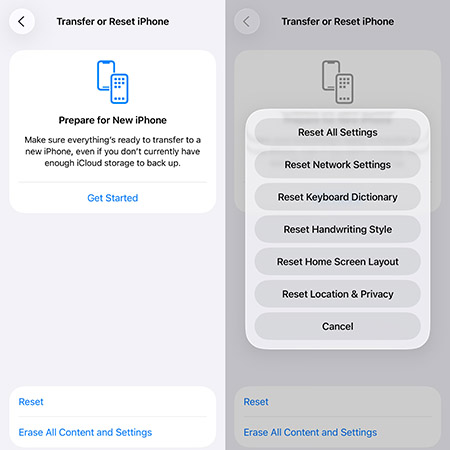
- Step 1. Unlock your iPhone first, and from the main screen, click on "Settings" → "General" → "Transfer or Reset iPhone" → "Reset" hit "Reset Network Settings" afterward.
- Step 2. If prompted, enter the lock screen and Screen Time passcodes and again tap "Reset Network Settings" to confirm.
When resetting is completed, the subsequent thing to do is to restart the Wi-Fi router. You simply require unplugging the power source. After a few minutes, connect it once again and attempt updating to the new iOS.
Solution 4. Fix iPhone Error 4013/4014 with TunesKit iOS System Recovery [100% Effective]
Should the previous solutions fail, then the cause could be that your iTunes is corrupted or glitches. This is a grim situation because fixing it may make your personal data be erased.
Fortunately, there is another option — TunesKit iOS System Recovery, an iOS system recovery tool. It can make your iTunes back to normal for free with its iTunes Repair feautre.
In addition, TunesKit iOS System Recovery is one of the best iOS system recovery software. It guarantees to solve 150+ iOS issues, including iPhone stuck in recovery mode, or stuck on Apple logo, etc. Most importantly, your data will remain intact after the recovery. And the problem you initially restore your phone to resolve might get fixed.
Fix iPhone Error 4013/4014 Easily
Restore your iPhone from update and restore errors without data loss in just a few clicks.
 600,000+ Downloads
Tutorial of using TunesKit iOS System Recovery to fix iPhone error 4013/4014:
Try to download the software and experience it. This tutorial will tell you how to use TunesKit iOS System Recovery exactly.
Step 1 Connect iPhone to your PC
Open TunesKit iOS System Recovery and press the iTunes Repair (Windows) or Repair Sync Errors (Mac) button.

Step 2 Detect iTunes errors
If there are something wrong on your iTunes, TunseKit iOS System Recovery will detect them and you can click the Repair button to repair your iTunes/iPhone error 4013/4014.

Step 3 Apply repair
When the repair process is end, click the Restart (Windows) or Done (Mac) button to apply the repair result.

Solution 5. Update iTunes to the Latest Version
An outdated version of iTunes may prevent your iPhone from restoring or updating properly, which can lead to iPhone error 4013 or 4014. Updating iTunes to the latest version may help resolve compatibility issues.
On a Windows PC:
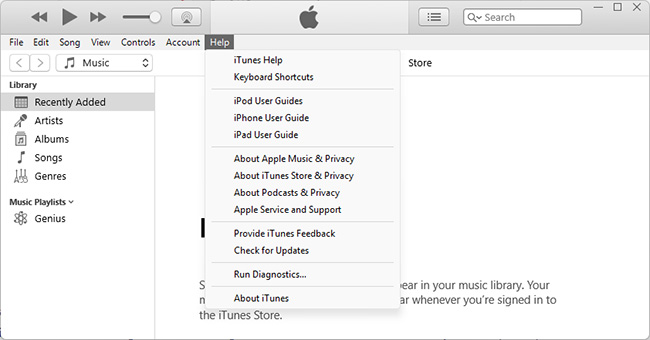
- Step 1. Open iTunes and click Help > Check for Updates.
- Step 2. If a newer version is available, follow the on-screen instructions to install it.
On a Mac:
- Step 1. Open the App Store.
- Step 2. Click Updates from the sidebar or toolbar.
- Step 3. Install any available macOS or iTunes-related updates.

After updating iTunes, reconnect your iPhone and try restoring or updating it again.
Solution 6. Free Up Storage Space
Free space is required for the operating system to function properly. The system allocates space on the device for this purpose, but each update installed on the device consumes more and more space. The error may appear due to a lack of storage on your iPhone to accommodate the update.
If your iPhone is running out of storage, here's the fastest way to free up space:
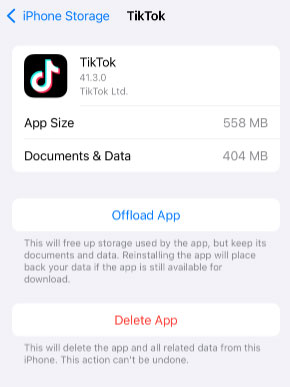
- Step 1. Go to Settings → General → iPhone Storage. You'll see a breakdown of what's taking up space (Apps, Photos, Messages, iOS, etc.) and recommendations from Apple.
- Step 2. In iPhone Storage, you can tap an app you rarely use. Choose Offload App (keeps your documents and data). Or choose Delete App (removes everything).
Solution 7. Factory Reset Your iPhone
If the error persists, performing a factory reset may help eliminate software conflicts that could be causing the issue. However, this method will erase all content and settings on your device.
 Important: Back up your iPhone using iCloud or iTunes before proceeding.
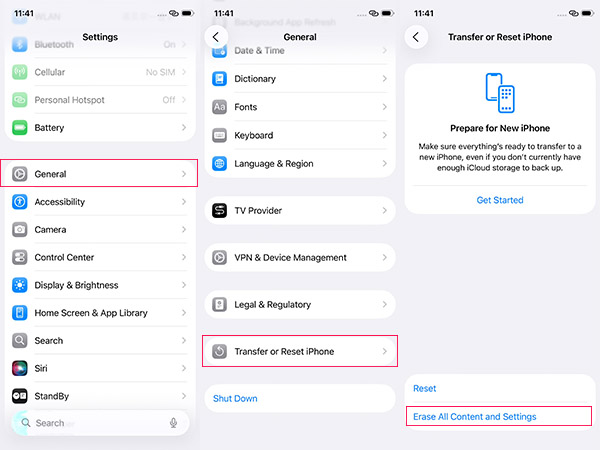
- Step 1. Go to Settings > General > Transfer or Reset iPhone.
- Step 2. Tap Erase All Content and Settings.
- Step 3. Enter your passcode and confirm the reset.
After the reset is complete, set up your iPhone again and check whether the error has been resolved.
Solution 8. Restore Your iPhone in DFU Mode
If standard troubleshooting methods fail, putting your iPhone into DFU (Device Firmware Update) mode can help resolve deeper system issues associated with error 4013 or 4014.
DFU mode performs a complete firmware restore and is often used to fix severe iOS corruption problems.
You can enter DFU mode by connecting your iPhone to your PC and following the steps listed below (applicable to iPhone 8, iPhone 8 Plus, and iPhone X or later):
- Step 1. Press the Volume Up button, followed by the Volume Down button.
- Step 2. Then press and keep holding the Side button until the iPhone screen goes black.
- Step 3. Simultaneously hold down both the Side button and Volume Down button.
- Step 4. Continue holding the Volume Down button but release the Side button.

- Step 5. If the device is in DFU mode, it will not display anything on the screen. The device will be detected in recovery mode/DFU mode if iTunes is open on your system.

- Step 6. Now restore your iPhone with iTunes. There should be no more iPhone error 4013 or 4014.
 Note
Note
Restart your iPhone/iPad if you need to exit DFU Mode anytime.
Solution 9. Contact Apple Support
If none of the solutions above work, the issue may be related to hardware components such as the logic board, NAND storage, or internal connectors. In this situation, contacting Apple Support is the safest option. Apple's technicians can perform a thorough diagnosis and determine whether a repair or replacement is necessary.
If your device is covered by Apple's Limited Warranty or AppleCare+, repair costs may be reduced or fully covered.

Video Tutorial: How to Fix iPhone Error 4013/4014
Let's see how to fix this iPhone error through a simple video. If you are still confused about the fixing methods, you can contact us by leaving a comment. We would be glad to help you.
Conclusion
You will certainly be able to resolve iPhone error 4013 or 4014 by following any of the above suggestions. If you try this method one by one to fix this error, it is still an exhausting and time-consuming experience. That is why I recommend you to use TunesKit iOS System Recovery to boost efficiency and to solve the very initial problem you encounter. At last, I sincerely hope that this article helps and your iPhone would back to normal.


