


iPhone Unavailable vs Security Lockout vs iPhone Disabled: Differences Explained
Seeing iPhone Unavailable, Security Lockout, or iPhone is Disabled on the Lock Screen can be confusing, especially when different guides use these terms as if they mean completely different things. This guide explains these three iPhone lockout messages, how they differ, and what you should do next.
iPhone Unavailable, Security Lockout, and iPhone Disabled all relate to repeated incorrect passcode attempts. iPhone Disabled is mainly older wording, while iPhone Unavailable and Security Lockout appear in current iOS lockout and recovery flows. None of these messages automatically means your iPhone is permanently locked.
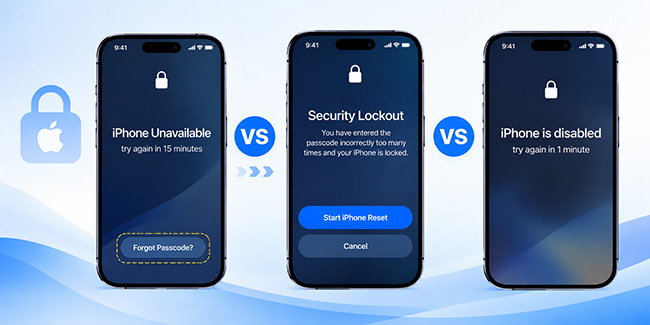
- iPhone Unavailable vs Security Lockout vs iPhone Disabled: Quick Comparison
- Is iPhone Unavailable and Security Lockout the Same?
- Is iPhone Disabled the Same as iPhone Unavailable?
- Why Is My iPhone Unavailable, Security Locked, or Disabled?
-
How to Unlock iPhone Unavailable, Security Lockout, or iPhone Disabled
- Which Recovery Option Should You Use?
- Method 1: Wait for the Lockout Timer
- Method 2: Use Your Previous Passcode Without Erasing the iPhone
- Method 3: Reset the iPhone from the Lock Screen
- Method 4: Erase the Locked iPhone With Find My
- Method 5: Restore the Locked iPhone With a Computer
- Method 6: Unlock iPhone Unavailable or Security Lockout With TunesKit iPhone Unlocker HOT
- FAQs About iPhone Unavailable vs Security Lockout vs iPhone Disabled
- Conclusion
iPhone Unavailable vs Security Lockout vs iPhone Disabled: Quick Comparison
The easiest way to understand iPhone Unavailable vs Security Lockout vs iPhone Disabled is to compare the wording, iOS context, and recovery options.
| Feature | iPhone Unavailable | Security Lockout | iPhone Disabled |
|---|---|---|---|
| What it means | Access has been restricted after repeated incorrect passcode attempts | A passcode lockout or recovery screen related to repeated incorrect passcodes. | Older on-device wording for passcode lockout; Apple still uses "disabled" as a general support term. |
| Means permanent lock? | No | No | No |
| Typical iOS context | Newer iOS versions | Newer iOS reset/lockout flows | Mainly older iOS interfaces and older recovery terminology |
| Underlying cause | Repeated incorrect device passcodes | Repeated incorrect device passcodes | Repeated incorrect device passcodes |
| Can a timer appear? | Yes | Yes. Some Security Lockout screens show a countdown, while others show reset options. | Yes on older lockout screens |
| Can you retry the passcode? | Yes after a temporary delay, if retry is still offered | Depends on the current stage | Yes during earlier temporary lockouts |
| On-device reset possible? | Yes on supported iOS versions when requirements are met | Yes in supported reset flows | Usually associated with computer recovery on older systems |
| Previous passcode recovery? | Available in qualifying cases on iOS 17 and later | May be reached through the same Forgot Passcode? flow | Not supported on older iOS versions |
| Does recovery erase data? | Not if you can wait and use the correct passcode or qualify for Passcode Reset; otherwise reset normally erases data | No if another passcode attempt or Previous Passcode is available; otherwise a reset erases data. | Usually yes if recovery mode restore is required |
| Computer always required? | No | No | More commonly required on older iOS |
The important takeaway is that these are not three unrelated types of iPhone locks. They are different messages or stages surrounding Apple's protection against repeated failed passcode attempts. Apple's current iOS 17+ on-device reset instructions, for example, show an iPhone Unavailable screen first. After the user taps Forgot Passcode?, Apple then refers to the next screen as Security Lockout, where the reset process can begin.
Is iPhone Unavailable and Security Lockout the Same?
iPhone Unavailable and Security Lockout are closely related, but the terms are not always used for exactly the same screen on your iPhone.
Both result from repeated incorrect iPhone passcode attempts. In one of Apple's current iOS 17+ reset flows, the screens may appear in this sequence:
Incorrect passcodes → iPhone Unavailable → Forgot Passcode? → Security Lockout → Start iPhone Reset
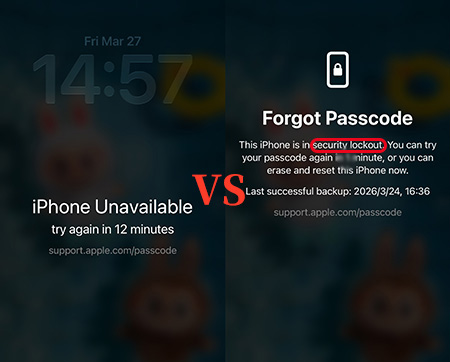
On the iPhone Unavailable screen, the phone is already restricting access. If Apple's on-device reset conditions are met, a Forgot Passcode? option can appear. After tapping it, Apple describes the next screen as Security Lockout, where you can confirm that you want to start resetting the iPhone.
This is why one website may say that Security Lockout and iPhone Unavailable are identical while another says they are different. The underlying security issue is essentially the same, but Apple's exact wording and screen sequence have changed across iOS versions.
If your screen specifically says iPhone Unavailable, see our complete guide to fix iPhone Unavailable. If it says Security Lockout, see our dedicated Security Lockout on iPhone guide.
Does Security Lockout Mean Your iPhone Is Permanently Locked?
Not necessarily.
If you are still in a temporary lockout period and the device later allows another passcode attempt, you can regain access by entering the correct passcode. If the iPhone has reached a stage where the passcode cannot be retried and Apple's reset options are presented instead, you will normally need to reset the device unless you qualify for Passcode Reset using your previous passcode.
Therefore, do not assume that seeing "Security Lockout" automatically means you should erase the phone immediately.
Is iPhone Disabled the Same as iPhone Unavailable?
For most practical purposes, iPhone Disabled and iPhone Unavailable describe the same underlying security problem: too many incorrect device-passcode attempts. The main difference is terminology and recovery interface. Older iPhones and older Apple instructions commonly used messages such as:
iPhone is disabled. Try again in 15 minute.
or:
iPhone is disabled. Connect to iTunes.
Newer iOS versions increasingly use iPhone Unavailable, along with options such as Forgot Passcode? and on-device reset.
 Further Reading: iPhone Is Disabled and Won't Connect to iTunes? 2026 Proven Fixes
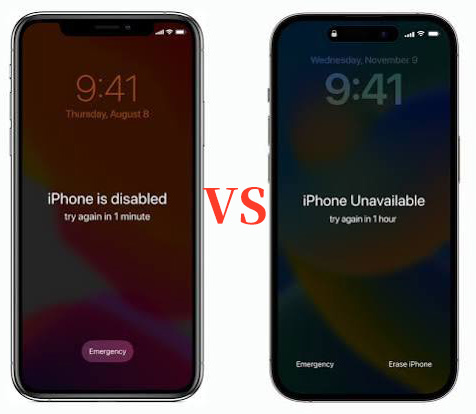
Apple still uses "disabled" in its current support materials as a general term for an iPhone that has been locked because the wrong passcode was entered too many times. So if you moved from an older iPhone to a newer one and are wondering why the wording changed, it usually does not mean Apple introduced a completely different type of passcode lock.
Why Is My iPhone Unavailable, Security Locked, or Disabled?
The immediate trigger is repeated incorrect attempts to enter the device passcode. Apple intentionally introduces delays after failed passcode attempts to make automated guessing and brute-force attacks more difficult. The delay becomes more restrictive as incorrect attempts continue. Apple's security documentation also supports an optional Erase Data setting that can erase the device after 10 consecutive failed attempts.
Further Reading: iPhone Erase Data After 10 Attempts: Must Know Security Tips
However, forgetting the passcode yourself is not the only way an iPhone can reach this state.
Too Many Incorrect Passcode Attempts
This is the most common cause. Someone repeatedly enters a passcode that does not match the one stored on the iPhone. Instead of continuing to guess, stop once you realize you are unsure of the code. More incorrect attempts can result in longer waiting periods or eventually force you into a reset process.
Further Reading: How Many Attempts to Unlock iPhone? 2026 Guide
Someone Else Entered the Wrong Passcode
A child, family member, coworker, or anyone handling the phone can accidentally trigger the lockout. If you still know the correct passcode and the iPhone displays a countdown, there is usually no reason to reset it. Wait until passcode entry becomes available again.
Accidental Touches or a Faulty Screen
A damaged touchscreen can sometimes register unintended taps. This is commonly called ghost touch.
If your iPhone suddenly becomes unavailable even though you did not deliberately enter several incorrect passcodes, examine the screen for cracks, moisture, display malfunction, or unintended touch input before you continue attempting the passcode. Repairing the screen will not automatically remove an existing lockout, but it can prevent more accidental attempts once passcode entry becomes available again.
How to Unlock iPhone Unavailable, Security Lockout, or iPhone Disabled
Choose the method that matches your situation. Start with the methods that preserve data before moving to those that erase the iPhone.
Which Recovery Option Should You Use?
| Situation | Best Next Step |
|---|---|
| Countdown + know passcode | Wait and enter correct passcode |
| Changed passcode within 72 hours | Previous Passcode |
| Forgot Passcode? available | Lock Screen reset |
| Find My enabled | Remote erase |
| No on-device option | Apple Devices/Finder |
| Prefer guided computer recovery | TunesKit iPhone Unlocker |
Method 1: Wait for the Lockout Timer
 Best For: A temporary lockout when you know the correct passcode.
If the device still gives you another attempt after a countdown, waiting is safer than resetting. Avoid entering random passcodes, as more incorrect attempts can trigger longer security delays or eventually require you to reset the iPhone. When the keypad returns, enter the correct current passcode carefully. If the iPhone unlocks, back up your data afterward.

Further Reading: iPhone Unavailable Timer Not Going Down? 7 Quick Fixes
Method 2: Use Your Previous Passcode Without Erasing the iPhone
Best For: iOS 17 or later when you changed the passcode within the last 72 hours.Apple specifically designed Passcode Reset for this scenario. This is one of the few legitimate ways to regain access after forgetting a new passcode without erasing the iPhone. This feature requires iOS 17 or later and Apple's Passcode Reset conditions, including network access, an Apple Account signed in, and Find My enabled.
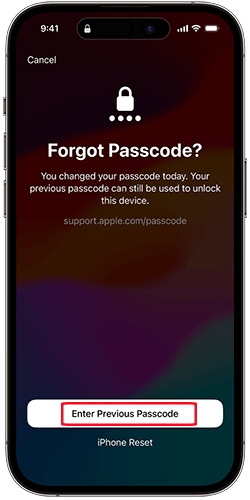
If you changed the passcode more than 72 hours ago, manually expired the old passcode, or do not remember either passcode, move to another recovery method.
Method 3: Reset the iPhone from the Lock Screen
Best For: You forgot the passcode and the on-device reset option is available.Apple's current on-device reset process works from the iPhone itself, so you do not necessarily need a Mac or PC. This method permanently erases the data and settings currently stored on the iPhone. After the reset, you can set up the iPhone again and restore an available backup.
On iOS 17 or later, you can tap Forgot Passcode? and continue through the Security Lockout reset flow to erase the iPhone using the linked Apple Account password. On iOS 15.2 to iOS 16, the Lock Screen may show Erase iPhone instead.

Further Reading: iPhone Unavailable No Forgot Passcode Option: 4 Ways to Unlock
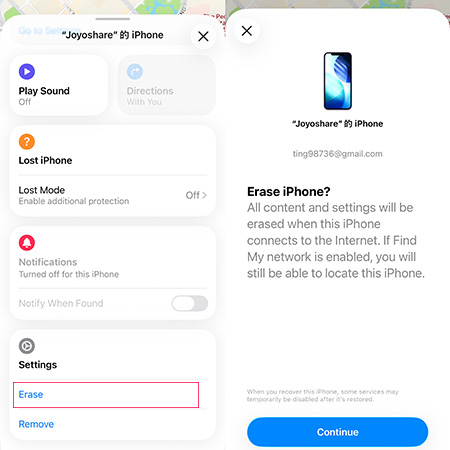
Method 4: Erase the Locked iPhone With Find My
Best For: Users who cannot access the normal Lock Screen reset workflow but have Find My enabled.You can remotely erase an iPhone through the Find My app on another Apple device or through Find Devices on iCloud.com. If the iPhone is offline, the erase starts the next time it connects to the internet. This removes the passcode and current data, and the erase cannot be undone once it begins.
Method 5: Restore the Locked iPhone With a Computer
Best For: An iPhone that cannot use the on-device reset option.Apple's current recovery instructions require putting the phone into recovery mode and restoring it through Finder on Mac or Apple Devices on Windows. The computer downloads the required iOS software and reinstalls the operating system. If the download takes long enough for the device to leave recovery mode, let the download complete and then enter recovery mode again.
The restore process erases the existing data on the device.

Further Reading: iTunes Not Recognizing iPhone in Recovery Mode? Fix It!
Method 6: Unlock iPhone Unavailable or Security Lockout With TunesKit iPhone Unlocker
Best For: Users who have forgotten the screen passcode and prefer a guided computer-based fix.If waiting for the timer, using your previous passcode, and Apple's on-device reset options are not available, TunesKit iPhone Unlocker provides another computer-based way to remove the iPhone screen lock.
Its Unlock iOS Screen mode is designed for situations including iPhone Unavailable, Security Lockout, disabled iPhone, forgotten 4-digit or 6-digit or alphanumeric screen passcodes.
Try TunesKit iPhone Unlocker
Need a guided way to remove a forgotten iPhone screen passcode? TunesKit iPhone Unlocker walks you through screen-lock removal on Windows and Mac.
 600,000+ Downloads
To remove a forgotten screen passcode, it takes a few steps only. Connect the unavailable iPhone to a Windows PC or Mac and open TunesKit iPhone Unlocker. Choose Unlock iOS Screen, follow the prompts to detect the device and download the matching firmware, then start the screen-lock removal process.

 Note:
Note:
Removing the forgotten screen passcode erases the current data on the iPhone. If Activation Lock appears afterward, the linked Apple Account may still be required.
For full instructions, see our complete iPhone Unavailable guide.
FAQs About iPhone Unavailable vs Security Lockout vs iPhone Disabled
-
Can you unlock these iPhone lockout screens without losing data?
Sometimes. If a timed passcode attempt is still available and you know the correct passcode, or you qualify for Apple's 72-hour Previous Passcode feature, you may regain access without erasing the iPhone. Most reset and recovery methods erase the current device data.
-
Is Security Lockout more serious than iPhone Unavailable?
Not necessarily. Apple does not define Security Lockout as a permanently more severe stage. Check whether the screen still offers a countdown or recovery option.
-
Do iPhone Unavailable, Security Lockout, or iPhone Disabled mean the iPhone is permanently locked?
No. Depending on the screen, you may still be able to wait and enter the correct passcode, use Previous Passcode, or reset the device.
Conclusion
iPhone Unavailable, Security Lockout, and iPhone Disabled are all related to repeated incorrect passcode attempts, but the wording and recovery options vary by iOS version and lockout state. If a timer appears, wait and enter the correct passcode. If reset is required, you can use Apple's recovery methods or TunesKit iPhone Unlocker as a computer-based alternative. Keep in mind that most reset methods erase the device, so restore from a backup afterward if available.



