


iPhone Unavailable No Forgot Passcode Option? Why & 4 Fixes
I have an unavailable iPhone XS but the "forgot passcode" option is not there. What should I do now? — Arshad Ali, YouTube Comment
Seeing the iPhone Unavailable screen without a Forgot Passcode option can leave you feeling completely locked out. This error typically triggers after too many incorrect passcode attempts, leaving users confused when the expected reset button fails to appear. Fortunately, you are not permanently stuck. We'll explain why Forgot Passcode? is missing and show you what to do next.
This guide focuses on cases where Forgot Passcode? is missing. If you want to compare all available recovery options, see our complete guide to fix iPhone Unavailable.
If Forgot Passcode? is missing, first check your iOS version, internet connection, Find My status, and Apple Account. On iOS 15.2–16, look for Erase iPhone instead. If no on-device reset option is available, use Find My, Recovery Mode, or TunesKit iPhone Unlocker on a computer.

Why the "Forgot Passcode?" Option Is Missing?
The Forgot Passcode? option only appears when certain requirements are met. If one of them is missing, the option may not be available.
- 01 Older iOS Version: On iOS 17 or later, the Lock Screen may show Forgot Passcode?. On iOS 15.2 to iOS 16, look for Erase iPhone instead. Older iOS versions may require a computer-based reset.
- 02 No Internet Connection: The reset option requires Wi-Fi or cellular data because Apple must verify your Apple ID. If the phone is offline, the button will not appear.
- 03 Find My iPhone Disabled: For security reasons, Apple requires "Find My" to be enabled before the device locks to authorize an on-device reset.
- 04 No Apple ID Signed In: If the device isn't linked to an Apple Account, the system can't verify ownership to allow a reset.
Now, watch the following short video to learn why is your iPhone saying unavailable but no Forgot Passcode option?
4 Ways to Fix iPhone Unavailable Without the Forgot Passcode Option
Even if the reset button is missing, you still have several reliable ways to unlock the device. Below are the most effective methods, ranging from quick hardware tricks to professional restoration tools.
Method 1: Check the Requirements for Forgot Passcode?
If Forgot Passcode? is missing from the iPhone Unavailable screen, you may not be able to check every requirement directly on the locked iPhone. Instead, use the Lock Screen and another trusted device to confirm what may be preventing the option from appearing.
- Step 1. Check which reset option appears on the Lock Screen. On iOS 17 or later, look for Forgot Passcode?. On iOS 15.2 to iOS 16, the equivalent option may appear as Erase iPhone instead.
- Step 2. Sign in to your Apple Account on another Apple device or on the web and confirm that the locked iPhone appears in your device list.
- Step 3. You can also open Find My or Find Devices on another Apple device to see whether the iPhone is linked to Find My.

Method 2: Erase iPhone Remotely via iCloud
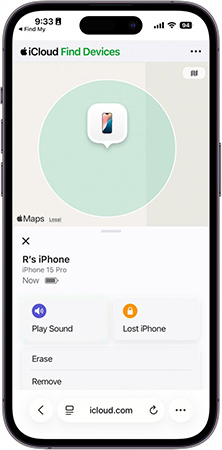
If Forgot Passcode? is unavailable but Find My was previously enabled, you can remotely erase the iPhone through Find Devices on iCloud.com. If the iPhone is offline, the erase begins the next time it comes online.
- Step 1. Grab a spare device or computer and navigate to the official iCloud website, then log in using the exact Apple ID associated with the locked iPhone.
- Step 2. Select your locked device from the "All Devices" dropdown menu located at the top of the interface.
- Step 3. Click the Erase" option and confirm your choice to immediately initiate the remote factory reset process.
Method 3: Unlock iPhone Unavailable via Recovery Mode
If the previous methods are not working, use Recovery Mode to restore the iPhone with a computer. The restore process erases the device, removes the forgotten passcode, and lets you set it up again.
- Step 1. Connect your locked iPhone to a computer using a compatible, high-quality USB cable.
- Step 2. Put your iPhone into Recovery Mode using the button combination for your model.
- Step 3. Open Apple Devices on Windows or Finder on Mac, locate your connected device, and click the "Restore" option when the system prompt appears on your screen.

Method 4: Use a Dedicated Third-Party Unlocking Tool
If Apple's on-device reset options are unavailable, TunesKit iPhone Unlocker provides another computer-based way to remove the forgotten screen passcode. It guides you through device detection, firmware download, and screen-lock removal without requiring the forgotten passcode.
Why Use TunesKit iPhone Unlocker?
Quickly unlock iPhone when the Forgot Passcode option is missing. The streamlined, user-friendly interface make it easy to use for you.
 600,000+ Downloads
Follow these instructions carefully to quickly regain access to your unavailable iPhone with TunesKit iPhone Unlocker.
Step 1 Launch TunesKit iPhone Unlocker on your computer and connect your device using a high-quality USB cable. Choose "Unlock iOS Screen" from the main interface, and then click "Start" to begin.

Step 2 Follow the clear on-screen instructions to manually put your connected iPhone into Recovery Mode or DFU Mode. Once the program detects that your device has successfully entered the correct mode, click "Next".

Step 3 The software will automatically detect your iPhone model and display the corresponding device information on the screen. Verify that these technical details are perfectly accurate, manually correct them if necessary, and then click "Download" to fetch the correct firmware package.

Step 4 Wait patiently for the firmware package to finish downloading to your local computer drive. Once the download is fully complete, click "Unlock" to initiate the final removal of the security lockout. The software will begin removing the screen lock immediately.

Please ensure your phone remains completely connected to the computer throughout this entire phase to prevent any system corruption. Within a few minutes, your iPhone will automatically restart and display the standard "Hello" setup screen, allowing you to configure it as a new device.
FAQs About the iPhone Unavailable No Forgot Passcode Error
-
Why is Forgot Passcode? missing on my unavailable iPhone?
It may be missing because your iPhone does not meet Apple's requirements for on-device reset. On iOS 17 or later, the option generally requires a network connection, Find My, and an Apple Account signed in on the device. On iOS 15.2 to iOS 16, you may see Erase iPhone instead.
-
Can I get Forgot Passcode? back?
Sometimes. If the iPhone reconnects to a previously available Wi-Fi or cellular network and the other requirements are met, Forgot Passcode? may appear. Otherwise, use another recovery method.
-
Can I unlock iPhone Unavailable without Forgot Passcode?
Yes. You can use Find My from another device, restore the iPhone in Recovery Mode with Finder or Apple Devices, or use a desktop unlocking tool such as TunesKit iPhone Unlocker.
-
Will I lose data if Forgot Passcode? is missing?
Not always. If another passcode attempt becomes available and you know the correct passcode, you can unlock the iPhone without erasing it. Otherwise, most reset or passcode-removal methods erase the current data on the device.
The Bottom Line
If Forgot Passcode? is missing, first check whether your iPhone meets Apple's on-device reset requirements. If the option remains unavailable, you can use Find My or Recovery Mode. TunesKit iPhone Unlocker is another computer-based option for removing the forgotten screen passcode.
While unlocking typically requires erasing the device, having a recent backup makes the recovery process much easier. If you frequently use your iPhone for important data, enabling Find My iPhone and regular backups is the best way to protect yourself from future lockouts.


