


How to Stop One More Minute on Screen Time for Kids [Pro Tips]
"I set up a Screen Time limitation on my child's iPad. However, I found a bug on it and my kid can using his iPad by keeping using the One More Minute feature on Screen Time. How to disable One More Minute feature on my child's iPad?"
The "One More Minute" feature on iPhone and iPad was originally designed as a grace period to let users save their work or finish a sentence before an app locks. However, for parents trying to enforce digital boundaries, this button often becomes a frustrating loophole that children use to bypass time limits indefinitely.
While Apple does not provide a single "off" switch to disable One More Minute on Screen Time, you can effectively neutralize it by configuring advanced restriction settings within the Screen Time menu.

- 4 Things You Should Do Before Turn Off One More Minute on Screen Time
- How to Disable One More Minute on Screen Time Correctly
- Alternative Ways to Block Unlimited Screen Time Tricks
- FAQs on Screen Time One More Minute Glitch
- Bonus Tips: How to Disable Screen Time If You Forgot the PasscodeHOT
- Conclusion
4 Things You Should Do Before Turn Off One More Minute on Screen Time
Before diving into the core settings, completing these four preliminary steps will ensure smoother experience to turn off One More Minute on Screen Time on your iPhone or iPad.
1. Set Child's Age Below 13
Apple applies stricter parental controls for users under 13, which can help disable One More Minute on Screen Time feature more effectively.
Here's the reason:
When a child's Apple ID is set to under 13, they're required to stay in a Family Sharing group and can't leave without parental approval - giving you stronger control. For accounts set to 13 or older, the child can leave the group on their own (if Screen Time isn't active) or request permission, making it easier to bypass restrictions.
To change the child's age below 13, ensure its account has been part of your Family Group. Then, follow steps below:
- Step 1. Go to Apple Account website and sign into the Child's Apple ID.
- Step 2. Select Personal Information.
- Step 3. Choose Birthday, and click Save to update.
- Step 4. After that, you'll need to approve the change on your own account to validate it.
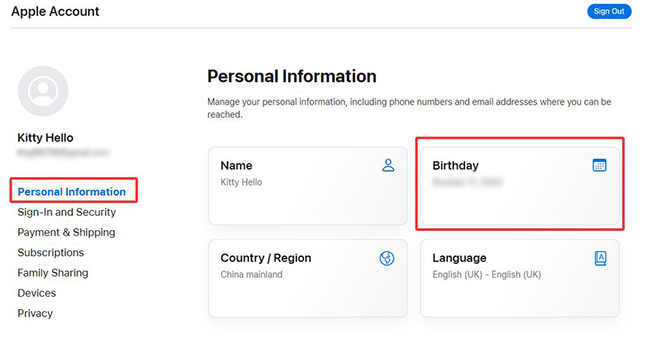
🌟 For more details, check for the official guide.
2. Turn Off Screen Time Entirely and Re-Turn On
Sometimes, despite multiple configuration attempts, Screen Time just doesn't seem to work properly. Based on personal testing and feedback from users on Apple Community and Reddit, the Screen Time One More Minute glitch can often be resolved by turning Screen Time off completely and then setting it up again from scratch.
Here's how to remove one more minute on screen time by turning off screen time entirely:
- Step 1. Go to Settings > Screen Time, scroll to the bottom.
- Step 2. Select "Turn Off Screen Time" or "Turn Off App & Website Activity" in some newer iOS.
- Step 3. Confirm the action, wait a moment, and then turn it back on.

This refresh can fix hidden bugs or configuration issues that may have slipped in during previous setups.
3. Turn On Screen Time Passcode
This is the most crucial step. Without a secure Screen Time passcode, your child (or even you, if you're trying to hold yourself accountable) can easily bypass restrictions.
How to set it up:
- Step 1. Go to Settings > Screen Time.
- Step 2. Tap "Lock Screen Time Settings."
- Step 3. Then, set a 4-digit code.
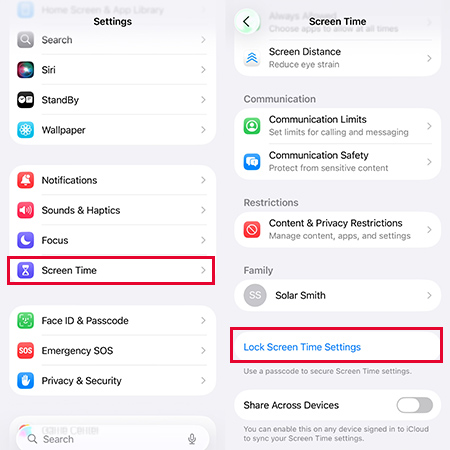
 Warning: Use a code your child doesn't know - and one you won't forget! For added protection, Apple allows you to link a second Apple ID (not your child's Apple ID) for Screen Time recovery in case you ever need to find Screen Time passcode.
4. Ensure You Use the Latest iOS
Apple frequently updates iOS to patch bugs and close loopholes, including issues with Screen Time. If you're running an outdated version, it may still contain the One More Minute bug or other glitches that affect your settings.
- Step 1. Go to Settings > General > Software Update.
- Step 2. If there is an available update, tap the Update Now button.
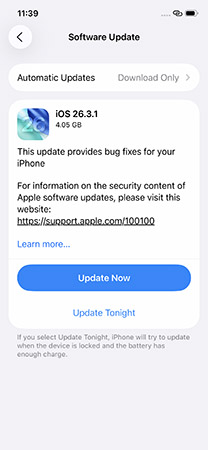
How to Disable One More Minute on Screen Time Corretly
Once you've completed the preliminary steps, use these four features in combination as a solution for how to stop One More Minute on Screen Time.
Way 1. Enable Downtime
Though setting up a Downtime on your iPhone cannot turn off the One More Minute feature, it can restrict device access to only the apps you specifically allow or basic functions like make calls, receive messages, etc.
You can follow the instructions below to set up a Downtime on your iPhone/iPad.
- Step 1. In the Screen Time menu, tap on Downtime and choose either Every Day or Customize Days.
- Step 2. Set your start and end times, then look for the toggle labeled Block at Downtime and make sure it is enabled.
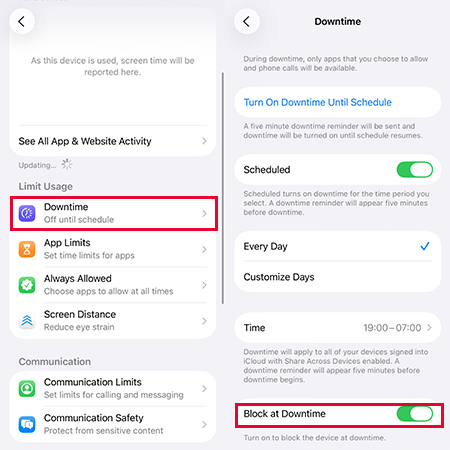
- Step 3. Tap on Always Allowed in the main menu to remove any apps (like TikTok or YouTube) that you do not want your child to access during these restricted hours.
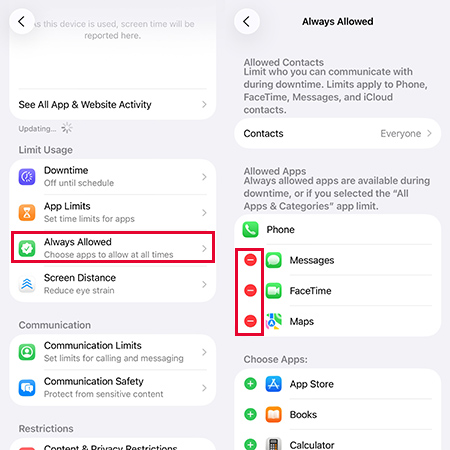
 Pro-tip:
Once the downtime begins, you're able to hit "Ask For More Time" and use the passcode to approve app on your child's phone for more time, like 15 minutes, an hour, or all day.
For your child, he can only click "One More Minute" once, or use "Ask For More Time" option to send this request to your account.
Way 2. Set App Limits on iPhone to Disable One More Minute on Screen Time
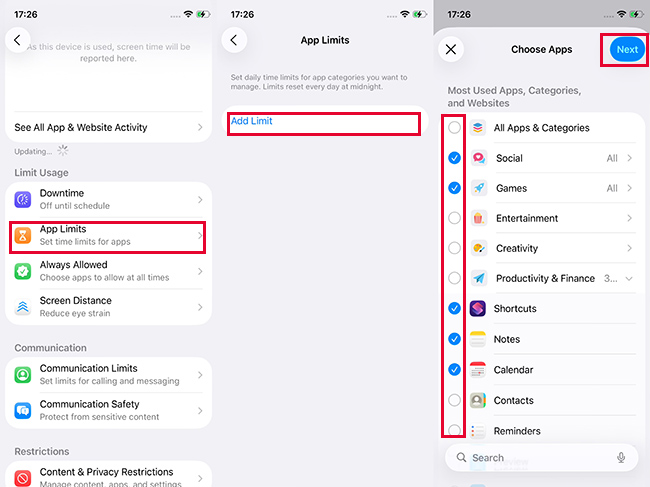
It's possible to set daily time limits for device apps for better management. You can assign specific time limits to some apps, categories, and websites on your iPhone. Just note that if a category is checked, any future app you install from App Store will be included in the corresponding category with time limit.
Once the App Limit feature is enabled on your iPhone, your iPhone will disable One More Minute on Screen Time automatically. You can follow the below steps.
- Step 1. Open the Settings app on your iPhone and navigate to the Screen Time feature.
- Step 2. Select the App Limits feature and tap on a App Category.
- Step 3. Select the certain app that you want to disable the One More Minute feature.
- Step 4. Tap on the Next button.
Way 3. Turn on Block at End of Limit
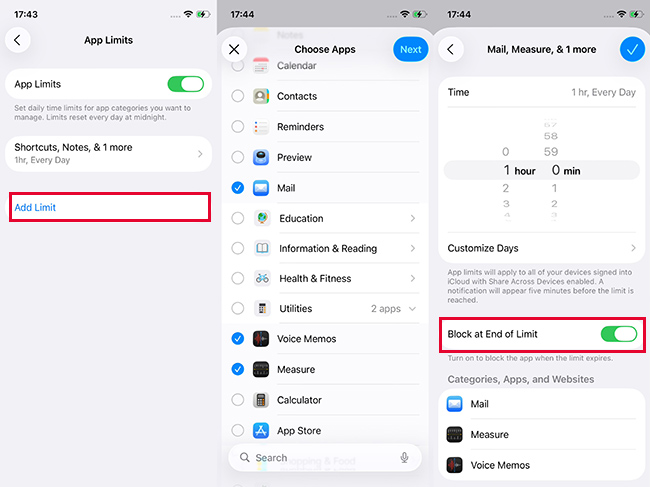
This is the key to disable One More Minute Screen Time glitch for app-specific limits. When you create or edit an App Limit, you will see a toggle for "Block at End of Limit." Turn this on.
When enabled, your child can still use their single "One More Minute," but only once. After that, they are completely blocked and must "Ask For More Time," which will require your passcode for approval.
- Step 1. Launch Settings on your iPhone and go to the Screen Time feature.
- Step 2. Select the App Limits.
- Step 3. Find app that you want to block.
- Step 4. Toggle on the Block at End of Limit feature.
Way 4. Set Up Content & Privacy Restrictions
Adding Content & Privacy Restrictions creates an extra layer of defense with disable One More Minute on Screen Time, preventing clever workarounds such as uninstalling apps, changing Apple ID settings, or disabling Screen Time altogether.
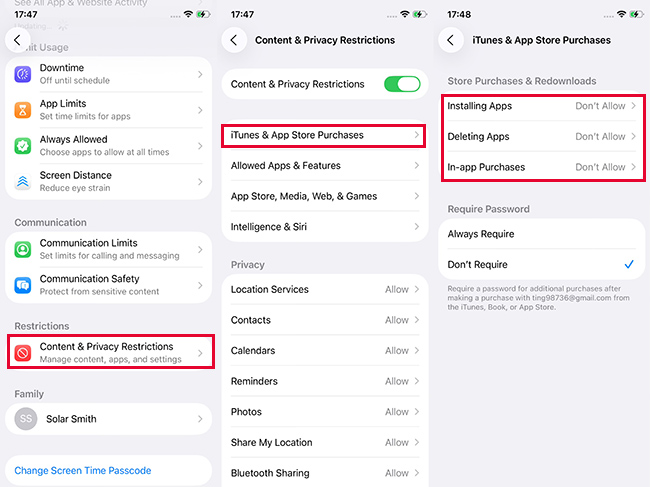
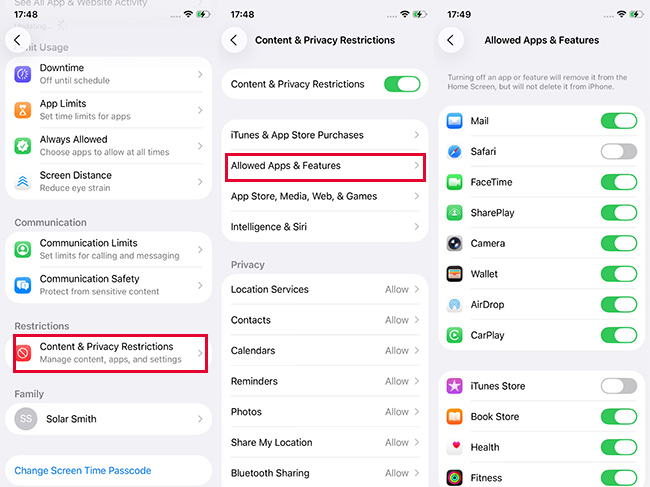
- Step 1. Go to Settings > Screen Time > Content & Privacy Restrictions.
- Step 2. Toggle on Content & Privacy Restrictions option.
- Step 3. Tap to enter "iTunes & App Store Purchases", and choose "Don't Allow" for "Installing Apps", "Deleting Apps", and "In-app Purchases".
- Step 4. Go back and tap "Allowed Apps & Feature", it's suggested to toggle off App Store, iTunes Store, and browsers like Safari.
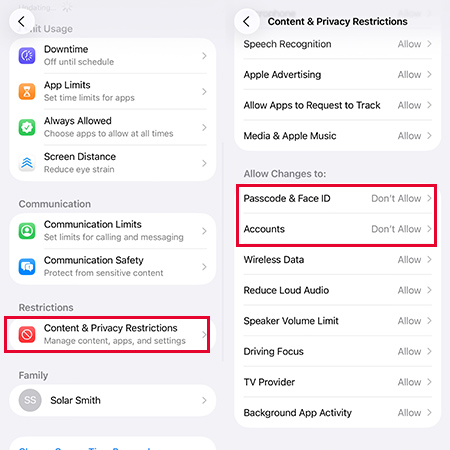
- Step 5. Go back, scroll down to the Allow Changes to: section, and choose "Don't Allow" for "Passcode & Face ID" and "Account".
 Note
Note
Enabling these restrictions may cause your Apple ID to be grayed out and the "Sign out is not avaialble due to restrictions" text. This is intentional - it prevents unauthorized attempts to bypass Screen Time by signing out or resetting the device.
This prevents a tech-savvy child from changing the device passcode or altering their Apple ID account settings in an attempt to gain control.
Alternative Ways to Block Unlimited Screen Time Tricks
If the above mthods to remove one more minute screen time still leave room for your child (or yourself) to sneak in extra screen time, don't worry - there are alternative solutions that offer more advanced control.
Way 1. Use Additional Apps to Limit Screen Time
Third-party time management apps like Forest, Bark, etc. offer a more robust set of features, including scheduled device lockouts, reward-based focus sessions, and more difficult-to-bypass restrictions.
These apps are great for both parents and adults who want to limit their own screen time. They work well in tandem with Screen Time, providing a stronger, more flexible solution.
 View Also: Best 6 Apps to Limit Screen Time
Way 2. Install Special MDM Profiles for Enhanced Parental Control
If you want serious, enterprise-level control, consider using Mobile Device Management (MDM). While MDM is usually reserved for corporate environments, some parental control apps (eg. Qustodio, OurPact, Jamf) now leverage this technology for home use.
With MDM, you can apple changes on the whole iOS devices remotely, which gives you more control over the child's device. Be aware, though: MDM setup can be more technical and may require using a trusted service or professional tool.
FAQs on Screen Time One More Minute Glitch
-
Why Can My Kid Use One More Minute Without Passcode?
This usually happens for one of two reasons:
1. "Block at End of Limit" isn't enabled for the app limit;
2. The passcode is still invalid because you don't refresh the Screen Time settings entirely.
Follow all the steps in Part 1 and Part 2 to ensure your settings are correct and your software is up-to-date. -
Why Don't I Receive Approval Requests When My Kid Asks for More Time?
This is typically a Family Sharing or notification issue. To fix it, first, ensure your device and your child's device are correctly set up in Family Sharing. Then, check your notification settings to ensure you have allowed notifications from Screen Time.
-
3. How Many Times Can My Kid Tap One More Minute on Screen Time?
When set up correctly, the "One More Minute" option is only available once per app after a time limit is reached. After that single extra minute, the app is blocked again, and the only option will be "Ask For More Time," which requires your passcode or permissions to grant access.
Bonus Tips: How to Disable Screen Time If You Forgot the Passcode
If you don't know the correct Screen Time passcode or Apple ID passcode, the above solutions will not be able to disable One More Minute on Screen Time, as you won't be able to change settings, remove limits, or turn off Screen Time manually. But don't worry - there's a reliable solution. You can take the assistance from a third-party tool like TunesKit iPhone Unlocker to turn off the Screen Time on your iOS device.
TunesKit iPhone Unlocker is a well-recommended iOS unlocking tool that can help iPhone, iPad, and iPod touch users to unlock disabled iPhone, remove Apple ID, bypass Screen Time restrictions, and turn off MDM restrictions. Even better, it features a clean and intuitive interface that makes the entire process simple - even if you're not tech-savvy.
Why Choose TunesKit iPhone Unlocker?
Remove Screen Time from iPhone/iPad. Unlock iPod Touch, iPad, and iPhone screen lock with ease.
 600,000+ Downloads
The following steps will show you how to remove Screen Time from your iPhone via TunesKit iPhone Unlcoker if you can't remember the correct passcode.
Step 1Connect Your iPhone to Computer
You should first download and install TunesKit iPhone Unlocker on your computer. Connect your iPhone to the computer and launch TunesKit iPhone Unlocker. Select the Unlock Screen Time Passdcode and hit on the Start button.

Step 2Disable Find My iPhone Option for Unlocking iPhone Screen Time
Then, TunesKit iPhone Unlocker will start to remove the Screen Time restrictions on your computer. It is worth noting that the Find My iPhone feature should be disabled on your iOS device.

Step 3Set Up Your iPhone Again
Then, you will need to set up your iPhone after unlocking the Screen Time. Please select Don't Transfer Apps & Data and Set Up Again while setting up your iOS device. Then, you will be able to use your iPhone without Screen Time limitations.

Conclusion
Though the One More Minute Screen Time glitch is annoying, there are still some solutions for you to disable it and fix the bug. With the right combination of iOS settings - and a few expert tips - you can effectively block screen time workarounds and enforce healthy digital habits.
If you don't know the correct Screen Time passcode or Apple ID passcode, simply download and use TunesKit iPhone Unlocker to remove the Screen Time restriction from your iPhone to disable One More Minute option on Screen Time!


