


How to Turn Off Ignore Limit on iPhone/iPad [2026 Updated]
In iOS 26, Apple introduced the Managed Screen Time framework and rebranded Apple ID to Apple Account. While these updates streamline parental controls, they have also moved the location of the critical "Block at End of Limit" toggle. If you don't enable this specific setting, your Screen Time limits are merely "suggestions" rather than rules.
In this 2026 guide, we provide the verified steps to turn off Ignore Limit on iPhone and iPad without losing data.

Why Can My Child Ignore Screen Time?
There are several common reasons that explain why your child can ignore screen time on their own iPhone/iPad.
| Reason | The Solution |
|---|---|
| No Passcode Set | Set a 4-digit Screen Time Passcode (Mandatory). |
| "Block at End of Limit" Disabled | Enable "Block at End of Limit" in App settings. |
| Missing "Block at Downtime" Setting | Enable "Block at Downtime". |
How to Turn Off Ignore Limit on iPhone?
In order to strictly enforce Screen Time restrictions, it's crucial to get rid of "Ignore Limit" option on Screen Time on your child's device. Read on and quickly learn how to remove Ignore Limit on iPhone and iPad!
Solution 1: Enable "Block at End of Limit" Option
"Block at End of Limit" can help to block a whole category or a certain app when the limit expires. Once the maximum threshold of allowable time is reached, your child can only request one more minute.
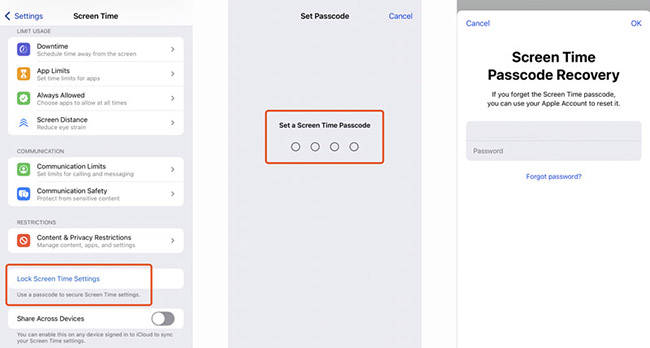
1. Set Up a Screen Time Passcode
It's necessary to set a Screen Time passcode first. Only when you successfully create a passcode can you see "Block at End of Limit" option on your iOS device.
- Step 1. Go to Settings > Screen Time > Lock Screen Time Settings.
- Step 2. Set a screen time passcode.
- Step 3. Follow the on-screen prompts to enter your Apple account and password so that you can recover the Screen Time passcode with ease.
2. Turn on Block at End of Limit on Child's Device
- Step 1. Open Settings on your device and scroll to Screen Time.
- Step 2. Head to App Limits option.
- Step 3. Choose an existing category or a specific app.
- Step 4. Enable "Block at End of Limit" option.

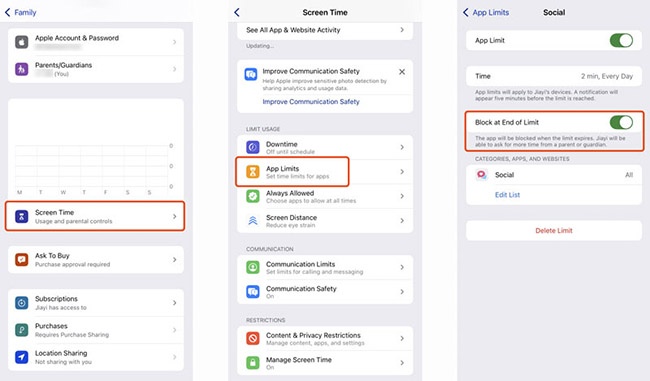
3. Turn on Block at End of Limit via Family Sharing
- Step 1. Open Settings app on your device.
- Step 2. Tap Family and choose your child's account.
- Step 3. Go to Screen Time → App Limits option.
- Step 4. Pick up an existing app or category. Turn on "Block at End of Limit" option. In iOS 26, you can also enable "Managed Screen Time Mode," which prevents the child from using "One More Minute" entirely.
 Note
Note
When a certain app or a category reaches the screen time limit, your child can ask for more time. In this case, you will receive a request on your device. You can choose "Don't Approve" to prevent your child from keeping using the app.
Solution 2: Enable "Block at Downtime" Option
If the "Ignore" option appears during scheduled away-time (Downtime), it’s because the downtime itself isn't locked. You can remove the option via enabling "Block at Downtime". Once done, you will successfully turn off Ignore Limit on Screen Time.
- Step 1. Head to Settings and then Screen Time.
- Step 2. Choose Downtime option.
- Step 3. Turn on Scheduled, set a time period and enable "Block at Downtime". This can block your device at downtime.

Expert Troubleshooting: "I Enabled the Toggle, But 'Ignore' Still Shows!"
If you've followed the steps and the button is still there, check these 2026-specific fixes:
- The iOS 26 "One More Minute" Change: In the latest update, Apple allows "One More Minute" once per day regardless of settings. This is a system-level safety feature and cannot be removed without third-party software.
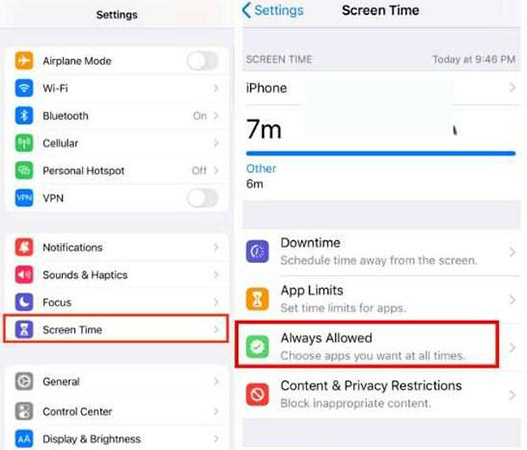
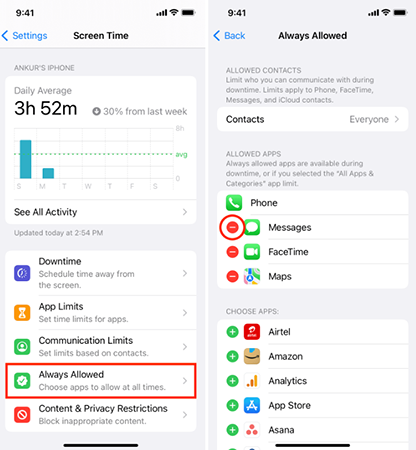
- Always Allowed Apps: Check Settings > Screen Time > Always Allowed. If an app is on this list, it will override all limits and the "Ignore" option will persist.
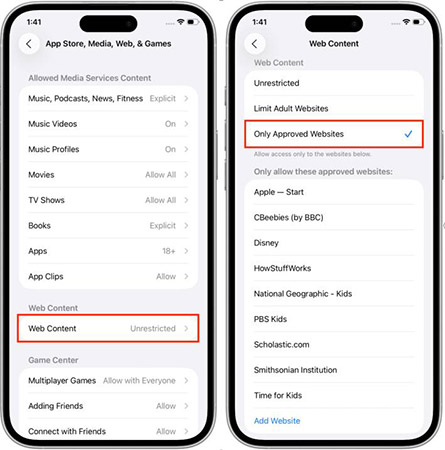
- Web-Link Loophole: If a child opens an app (like YouTube) through a link in iMessage, Screen Time sometimes fails to trigger. Go to Content & Privacy Restrictions and limit "Web Content" to "Only Approved Website" to close this gap.
Bonus: How to Remove Screen Time to Reset Your Screen Time Settings without Passcode?
Don't want to be restricted by screen time limit but forgot the Screen Time passcode? Here recommends TunesKit iPhone Unlocker to you. This decent Screen Time Passcode Remover can help you to turn off Screen Time without passcode, so you can use your device with no time limit and restrictions. It supports all models of iPhone, iPad, and iPod touch.
Aside from high compatibility, TunesKit iPhone Unlocker could help you bypass Screen Time without data loss. Moreover, it holds a high success rate of unlocking screen locks, removing Apple ID and bypassing device management.
Why Choose TunesKit iPhone Unlocker?
Remove Time Limit on iPhone, iPad, and iPod touch. Unlock screen locks, like digit passcode, Touch ID, etc. Compatible with nearly all iOS devices.
 600,000+ Downloads
Here is how to remove Screen Time on iPhone via TunesKit iPhone Unlcoker:
Step 1Select Unlock Screen Time Passcode and Connect Device
Install and open TunesKit iPhone Unlocker, on the main screen, choose Unlock Screen Time Passcode and connect your device to the computer. Then, click on Start.

Step 2Turn off Find My and Remove Screen Time
If the Find My feature on your device hasn't been turned off, you need to go to Settings to disable it in advance. This way, you'll not lose your device data after removing Ignore Limit option on iPhone/iPad. Then, click on Start to begin unlocking the Screen Time passcode and getting rid of Ignore Limit.

Step 3Follow On-screen Instructions to Set Up Device
Once the Screen Time is turned off, your device will automatically restart. Then, set up your device as the on-screen instructions shown.

FAQs about iOS Screen Time Limit
-
Can I get rid of the Ignore Limit option?
Yes. After using Screen Time passcode, the "Ignore Limit" option will be taken place by the "Ask for More Time" option when you open up the restricted app.
-
Why was the Messages app not affected by Downtime?
If you add the Messages app to the Always Allowed section, it won't affected by Downtime. Thus, if you want to restrict the usage of Messages, go to Screen Time, select Always Allowed, tap the red minus icon, and tap on Remove.
-
Will my child constantly tap One More Minute?
No, after testing, as long as you have set up a Screen Time passcode and enabled the Block at Downtime option, no matter whether you select "This Is My iPhone" or "This Is My Child's iPhone", there is only one chance to tap on One More Minute. After 1 minute, it only allows you to enter Screen Time passcode to ask for more time. Here are more ways to disable One More Minute on Screen Time if needed.
Conclusion
This article answers how to turn off Ignore Limit on iPhone/iPad with effective solutions and detailed steps. If you're no longer want to be bothered by the time limit but forgot Screen Time passcode for child, how to remove Ignore Limit on Screen Time? TunesKit iPhone Unlocker is a good helper to directly turn off Screen Time with no data loss.


