


Fix iPhone Won't Go into DFU Mode [No Data Loss]
DFU (Device Firmware Update) mode is a special state that helps your iOS device to interact with iTunes or Finder without bootloader, that is, without loading the operating system. This mode is always required when you need to downgrade your iOS software to the previous version, restore a bricked phone back to its normal condition, jailbreak device, or troubelshoot some software-related issues.
However, sometimes iPhone won't go into DFU mode, causing great inconvenience in device use. To fix this issue and help you successfully put iPhone into DFU mode, this article provides some practical workarounds and shows them in detail. Now try to operate them one by one.

Why Can't I Get My iPhone in DFU Mode
If your iPhone won't enter DFU mode, the problem is usually related to incorrect button timing, hardware buttons, or device recognition. Here are the most common reasons:
- 01 Incorrect Button Sequence or Timing: Entering DFU mode requires a precise button sequence. Holding or releasing a button too early or too late may restart the iPhone or send it into Recovery Mode instead.
- 02 iOS Software Glitches: The potential glitches in your iOS software can prevent your iPhone from entering DFU mode.
- 03 You Mistake the Black Screen for a Failed Attempt: A DFU mode screen is completely black. If you see an Apple logo, the button timing was likely incorrect. If you see a cable or computer icon, your iPhone is in Recovery Mode instead.
- 04 Damaged Volume, Side, or Home Button: DFU mode relies on physical button combinations. If one of the required buttons is damaged, stuck, or unresponsive, you may not be able to complete the sequence correctly.
- 05 USB or Computer Connection Issues: Your iPhone may enter DFU mode but fail to be recognized by Finder, Apple Devices, or iTunes because of a faulty USB cable, USB port, or computer connection.
- 06 Power or Charging Problems: If your iPhone is completely discharged or has a battery or charging problem, it may not respond properly when you try to enter DFU mode. Charge the device first and try again.
How to Put iPhone in DFU Mode Correctly
Entering DFU mode requires precise button timing, so an incorrect button sequence is one of the most common reasons an iPhone won't go into DFU mode. The steps also vary by iPhone model. Follow the instructions for your device carefully.
Before you begin, connect your iPhone to a Mac or Windows PC and open Finder, the Apple Devices app, or iTunes, depending on your computer.
For iPhone 8 and Later
This method applies to iPhone 8 and later models, including iPhone SE (2nd generation and later).

- Step 1. Connect your iPhone to the computer with a USB cable.
- Step 2. Quickly press and release the Volume Up button.
- Step 3. Quickly press and release the Volume Down button.
- Step 4. Press and hold the Side button until the screen turns black.
- Step 5. As soon as the screen turns black, hold both the Side and Volume Down buttons for about 5 seconds.
- Step 6. Release the Side button while continuing to hold the Volume Down button for about 10 seconds.
If the screen stays completely black and your computer detects the iPhone, it has successfully entered DFU mode.
 Note
Note
If the Apple logo appears, you held the Side button too long. If the Connect to Computer screen appears, your iPhone entered Recovery Mode instead of DFU Mode.
iPhone 7 and 7 Plus

- Step 1. Connect your iPhone to the computer.
- Step 2. Press and hold the Side and Volume Down buttons at the same time for about 8 seconds.
- Step 3. Release the Side button while continuing to hold the Volume Down button.
- Step 4. Keep holding the Volume Down button until your computer detects the iPhone.
The screen should remain completely black. If you see the Apple logo or Connect to Computer screen, repeat the steps.
For iPhone 6s and Earlier
This method also applies to the iPhone SE (1st generation).

- Step 1. Connect your iPhone to the computer.
- Step 2. Press and hold the Home and Side/Top buttons together for about 8 seconds.
- Step 3. Release the Side/Top button while continuing to hold the Home button.
- Step 4. Keep holding the Home button until your computer detects the iPhone.
If the iPhone screen remains completely black while Finder, Apple Devices, or iTunes detects it, the device is in DFU mode.
Note
A DFU mode screen is completely black. Seeing an Apple logo means the button timing was incorrect, while a cable or computer icon means you entered Recovery Mode instead.
How to Fix iPhone Won't Go into DFU Mode?
If you can be absolutely sure that your iPhone enters DFU mode without mis-operation, you can further try the following solutions to fix possible software-related issues on your device.
Solution 1. Force Restart Your iPhone and Try Again
If your iPhone is frozen or not responding correctly to button presses, force restart it first. Once the device starts normally, reconnect it to your computer and try entering DFU mode again.

- For iPhone 8 and later: Quickly press and release Volume Up, quickly press and release Volume Down, then press and hold the Side button until the Apple logo appears.
- For iPhone 7 and iPhone 7 Plus: Press and hold the Side and Volume Down buttons until the Apple logo appears.
- For iPhone 6s and earlier: Press and hold the Home and Side/Top buttons together until the Apple logo appears.
After your iPhone restarts, wait until it finishes booting, reconnect it to the computer, and repeat the correct DFU steps.
Solution 2. Check the USB Cable and Computer Connection
Sometimes the iPhone may enter DFU mode correctly, but the computer fails to detect it. Since the DFU screen stays completely black, this can easily look like a failed attempt.

- Step 1. Use a USB cable that supports both charging and data transfer.
- Step 2. Connect the iPhone directly to another USB port instead of through a USB hub.
- Step 3. Open Finder on Mac or the Apple Devices app on Windows. If you use an older system, open iTunes instead.
- Step 4. Make sure macOS, Apple Devices, or iTunes is up to date.
- Step 5. If the iPhone is still not detected, try another cable or computer.
Then repeat the DFU procedure. If the screen remains black and your computer detects the iPhone, DFU mode is working.
Solution 3. Update to the Latest iOS
There are some glitches in the outdated iOS system, which might trigger your iPhone failing to go into DFU mode. In this situation, you are suggested to update your iPhone to the latest iOS version and try to enter DFU mode again.
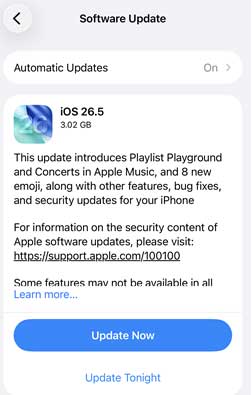
- Step 1. In the Settings app, tap General option.
- Step 2. Choose Software Update to see if there is any available update.
- Step 3. Tap on the Update Now button to get the newest iOS software.
- Step 4. When your iPhone restarts, follow the correct instructions to put your iPhone into DFU mode again.
Solution 4: Use iOS System Recovery to Fix iPhone Won't Go into DFU Mode
To deal with complex system errors that cause failure to enter DFU mode, TunesKit iOS System Recovery can be a good choice. It is a professional system recovery tool that is specifically designed for iOS devices. Not only iPhone won't go into DFU mode, TunesKit iOS System Recovery is able to fix over 150 kinds of iOS system issues, including iPhone won't turn off and other similar issues.
Besides, this program offers other powerful services, like resetting iOS devices, downgrading and upgrading iOS system, and one click to enter or exit recovery mode for free. All models of iPhone, iPad, and iPod touch are perfectly supported.
Fix iPhone Not Entering DFU Mode in 1-click
Fixing an iPhone that won't enter DFU mode without losing data is easy with TunesKit iOS System Recovery, a tool that safely repairs system glitches when manual DFU steps fail.
 600,000+ Downloads
How to Fix iPhone Won't Go into DFU Mode via TunesKit iOS System Recovery
Step 1. Enter iOS System Repair Section and Connect iPhone
Go to the official website and finish installing TunesKit iOS System Recovery. Connect your iPhone to the computer, choose the iOS System Repair section on the main interface and hit the Start button.

Step 2. Select Standard Repair Mode
Choose the Standard Repair mode. This mode can fix this issue without data loss.

Step 3. Download and Verify Firmware Package
Check your device info and click the Download button to get the matching firmware package downloaded and verified.

Step 4. Fix iPhone Won't Go into DFU Mode
When the firmware package is verified, click the Start Standard Repair button to unzip the firmware. Once the Done button appears, your iPhone will restart without any software problem.

What If iPhone Still Won't Enter DFU Mode? [Free Solution]
In most cases, recovery mode has the same function and effect as DFU mode. Hence, when your iPhone won't enter DFU mode, try to put it into recovery mode, which possesses the much easier steps. Do as follows.
4.1 Common Operations to Enter Recovery Mode:
- For iPhone 8 and later: Run iTunes and plug iPhone into computer. Press Volume Up and release it, press and release Volume Down, hold the Side button and release it until the recovery mode screen occurs.
- For iPhone 7 and 7 Plus: Open iTunes and connect iPhone to it. Hold the Sleep button and Volume Down button simultaneously, and release them when the recovery mode screen shows up.
- For iPhone 6 and former: Launch iTunes and use a USB cable to plug iPhone into computer. Long-press the Home and Sleep buttons, and undo them when you see the recovery mode screen.

4.2 Free And Effective Way to Enter Recovery Mode:
If you still feel it hard to enter recovery mode or your iPhone won't go into recovery mode, you could take full advantage of TunesKit iOS System Recovery to enter recovery mode with one simple click. This feature is completely free and any user can quickly master it.
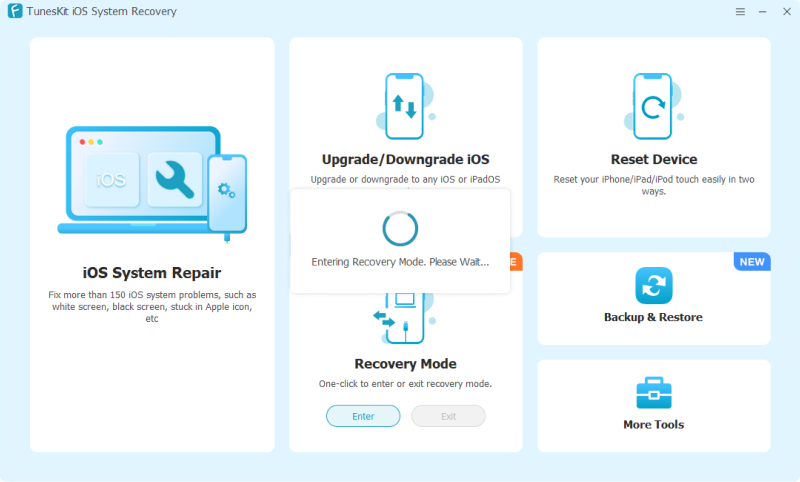
Just connect your iPhone to the computer, launch TunesKit iOS System Recovery, go to the Recovery Mode section, and click Enter. Your iPhone will automatically enter Recovery Mode without requiring you to press any buttons.
Final Words
If your iPhone won't go into DFU mode, the first thing you need to ensure is that you have used the correct method to put your iPhone into DFU mode. After ruling out the possibility of wrong operations, you may consider that the culprit is the system errors. This article gives you 5 ways to fix the system problems.
Among them, TunesKit iOS System Recovery is the most effective one, which will thoroughly unroot the iOS system issues without losing your data. Alternatively, you could put your iPhone into recovery mode instead of entering DFU mode. TunesKit iOS System Recovery offers a free channel helping you click once to achieve this.



