


How to Fix AirPods Enable Charging Case Sounds Greyed out
If you find Enable Charging Case Sounds greyed out on your AirPods, you may be unable to turn charging case alerts on or off. This issue can be caused by connection problems, outdated software or firmware, unsupported AirPods models, or temporary pairing glitches. Fortunately, it is usually easy to fix. In this guide, we'll explain why the setting becomes unavailable and show you several effective ways to restore the Enable Charging Case Sounds option on compatible AirPods.

- Why is My Enable Charging Case Sounds Greyed out
- How to Set Enable Charging Case Sounds Correctly
-
How to Fix Enable Charging Case Sounds Greyed out
- Fix 1. Check AirPods Model Compatibility
- Fix 2. Reconnect Your AirPods
- Fix 3. Charge Your AirPods and Case Fully
- Fix 4. Ensure iPhone and AirPods Are Running the Latest Software
- Fix 5. Restart Your iPhone and AirPods
- Fix 6. Reset Your AirPods
- Fix 7. Fix Enable Charging Case Sounds Greyed out in Minutes [System Issues] HOT
- FAQs About Enabling Charging Case Sounds Greyed Out
- Conclusion
Why is My Enable Charging Case Sounds Greyed out
The Enable Charging Case Sounds greyed out issue is usually related to compatibility, connection, or software problems.
- 01 Unsupported AirPods Model: This feature is only available on compatible AirPods and charging cases. Older models may not support it.
- 02 AirPods Not Connected: If your AirPods are not connected to your iPhone, iPad, or Mac, the option may be unavailable.
- 03 Outdated Software or Firmware: Older iOS, macOS, or AirPods firmware may cause certain settings to appear incorrectly or stop working.
- 04 Bluetooth or Pairing Issues: Temporary Bluetooth or pairing glitches can prevent your device from communicating properly with the AirPods case.
- 05 Charging Case Connection Issue: If the device detects the AirPods but not the charging case correctly, case-related settings may appear greyed out.
How to Set Enable Charging Case Sounds Correctly
Before troubleshooting, make sure you are accessing the setting correctly. Follow these steps to check Enable Charging Case Sounds on your iPhone.
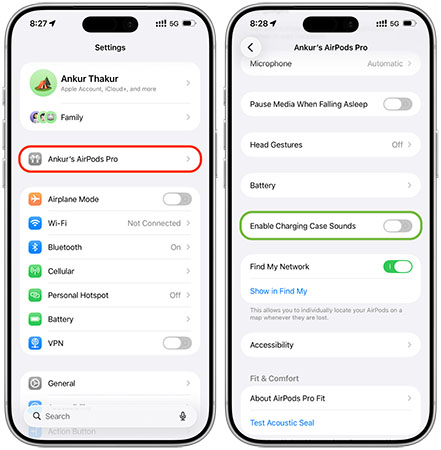
- Step 1. Wear your AirPods and make sure they are connected to your iPhone.
- Step 2. Open Settings and tap your AirPods near the top of the screen.
- Step 3. Find Enable Charging Case Sounds and turn it on or off. If you don't see the option, tap Audio & Routing first.
How to Fix Enable Charging Case Sounds Greyed out
If you use the correct way to set your Enable Charging Case Sounds feature but the problem is still on, the possible solutions here may help you solve it.
Fix 1. Check AirPods Model Compatibility
The "Enable Charging Case Sounds" feature is only supported on AirPods 4 (ANC), AirPods 5 with Wireless Charging Case, AirPods Pro 2 with MagSafe Charging Case, and AirPods Pro 3. Here is a tutorial on how to check your AirPods model.
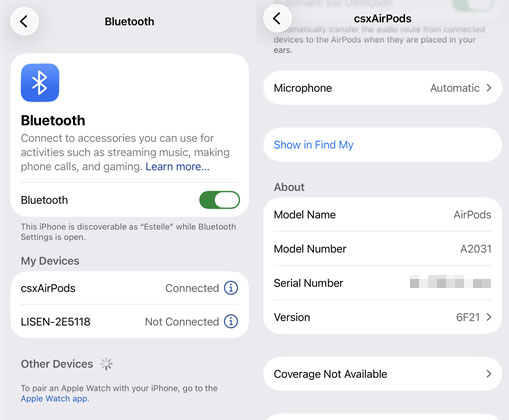
- Step 1. Connect your AirPods to your iPhone.
- Step 2. Go to Settings > Bluetooth.
- Step 3. Tap the i icon next to your AirPods' name.
- Step 4. Look for the Model Name or Model Number and compare it to Apple's compatibility list. If your model is incompatible, the option will remain greyed out.
Fix 2. Reconnect Your AirPods
The setting may be unavailable if your AirPods are not properly connected.
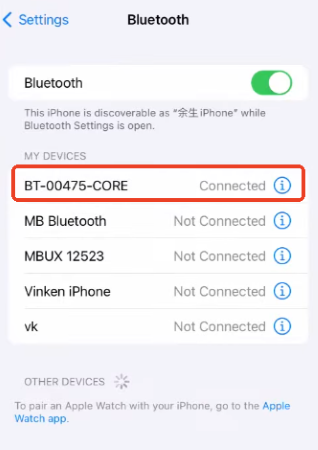
- Step 1. Wear your AirPods and make sure Bluetooth is enabled.
- Step 2. Go to Settings > Bluetooth and confirm your AirPods show as Connected.
- Step 3. If necessary, disconnect and reconnect them, then check the setting again.
Fix 3. Charge Your AirPods and Case Fully
If your AirPods or charging case battery is too low, certain sound-related features (like "Enable Charging Case Sounds") may be temporarily disabled. iOS limits these functions to conserve power.
- Step 1. Put both AirPods in the charging case.
- Step 2. Use a Lightning, USB-C, or MagSafe charger to connect the case to power.
- Step 3. Wait at least 20–30 minutes to allow both the AirPods and case to reach a healthy charge level.
- Step 4. Keep your iPhone unlocked and near the charging case during this time so it stays connected.
- Step 5. Once charged, open the case near your iPhone and go to: Settings → [Your AirPods Name] → Enable Charging Case Sounds. The toggle should now be active — try switching it on.

Fix 4. Ensure iPhone and AirPods Are Running the Latest Software
Outdated software may cause AirPods settings or connections to behave unexpectedly.
Update your iPhone
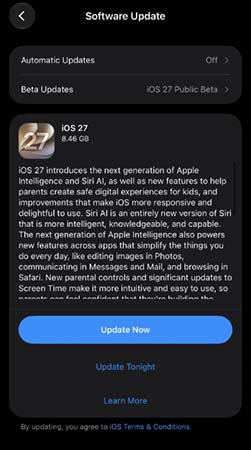
- Step 1. Go to Settings > General > Software Update on your iPhone.
- Step 2. Tap the Update Now button to download and install the latest iOS version on your iPhone (iOS 17 or later is required for this feature).
Update AirPods firmware
- Step 1. Connect your AirPods to your iPhone.
- Step 2. Place them in their charging case, connect the case to power, and leave them near your iPhone.
- Step 3. AirPods firmware updates automatically when conditions are met.
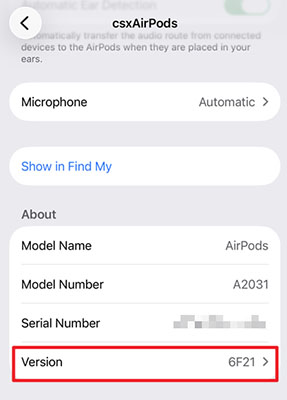
- Step 4. To check firmware: go to Settings > Bluetooth, tap the i icon next to your AirPods, move to the About section, and you can see the Version option. Compare it to the latest version on Apple's AirPods Firmware Updates page.
Fix 5. Restart Your iPhone and AirPods
Temporary glitches in the system or connectivity also can cause Enable Charging Case Sounds greyed out. Restarting your devices may be helpful for solving this issue.
Restart Your iPhone
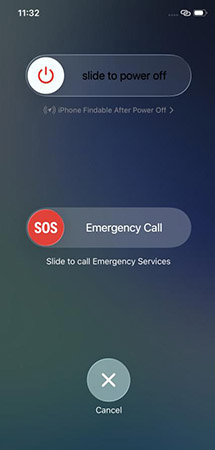
- Step 1. Press and hold the Volume Up or Down + Side button.
- Step 2. Slide to power off your iPhone.
- Step 3. Wait 30 seconds and press the Side button to turn the device back on.
Restart Your AirPods
- Step 1. Place your AirPods in the case and close the lid.
- Step 2. Wait 15 seconds and then reopen the lid.
Fix 6. Reset Your AirPods
Resetting your AirPods can solve most connectivity or firmware-related issues.
For AirPods Pro 2 and earlier models, put the AirPods in the case, close the lid for 30 seconds, forget them from Bluetooth settings, then open the lid and hold the setup button for about 15 seconds until the light flashes amber and then white.
For AirPods 4, AirPods 5, and AirPods Pro 3, forget the AirPods from Bluetooth settings, open the case, and follow Apple's front-case double-tap reset sequence until the status light flashes amber and then white.

After resetting, reconnect your AirPods and check whether Enable Charging Case Sounds is available.
Fix 7. Fix Enable Charging Case Sounds Greyed out in Minutes [System Issues]
If the issue cannot be fixed through the above methods, this issue may be caused by some system issues. At this time, an iOS system repair tool would be necessary. TunesKit iOS System Recovery is such a powerful and convenient tool that can fix more than 150 iOS system issues including the Enable Charging Case Sounds greyed out issue. In addition, if your iPhone keeps disconnecting from Bluetooth, this powerful tool also help resolve the underlying system issues.
Key Features of TunesKit iOS System Recovery
Easily resolve the greyed-out charging case aounds issue on your AirPods by repairing hidden iOS glitches safely and without data loss.
 600,000+ Downloads
How to Fix Enable Charging Case Sounds Greyed out Via iOS System Recovery
Step 1. Connect iPhone to PC
Download and install the software on your PC and then launch it to get the whole service. Prepare for a USB cable to connect your iPhone to your PC. On the homepage, select the iOS System Repair option and click the Start button to enter repair mode.

Step 2. Select Repair Mode
The Standard Repair mode should be your first choice because the repair process in this mode will not delete any data on your iPhone. If you want to choose the Deep Repair mode that can fix deeper system issues, don't forget to back up your iPhone before repairing due to the data deletion during the process.

Step 3. Get the Firmware Package
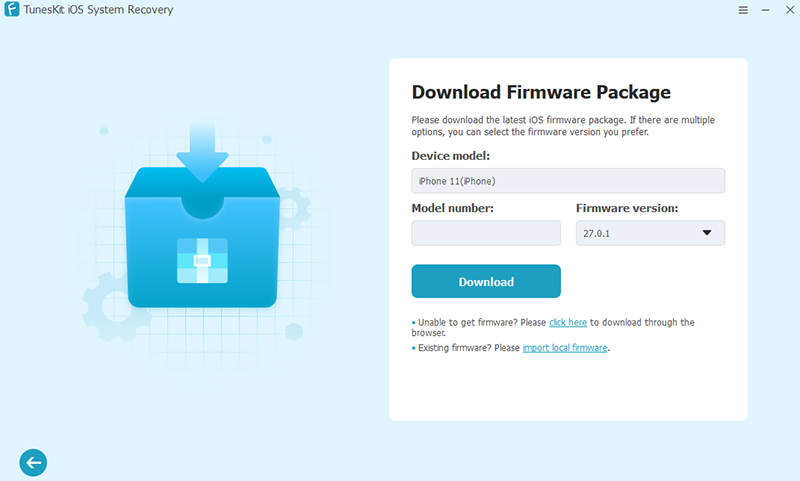
Confirm your iPhone information on this window. Click the Download button to download firmware package for your iPhone if everything is all right.
Step 4. Fix Enable Charging Case Sounds Greyed out
Click the Start Standard Repair button to start your repair process finally. It may take a few minutes, so being patient. Once done, your iPhone will restart. After it boots, reconnect your AirPods, go to the toggle again and check if it's now active.

FAQs About Enabling Charging Case Sounds Greyed Out
-
Which AirPods models support Charging Case Sounds?
The feature is available on AirPods 4 with ANC, AirPods 5 with Wireless Charging Case, AirPods Pro 2, and AirPods Pro 3. These charging cases have a built-in external speaker for charging, pairing, and battery alerts.
-
Can I change the volume of the charging case sounds?
No. Apple does not currently provide a separate volume control for the charging case speaker. The Enable Charging Case Sounds option only lets you turn supported case sounds on or off.
-
Can I enable Charging Case Sounds on a Mac or iPad?
mac-airpods-settings
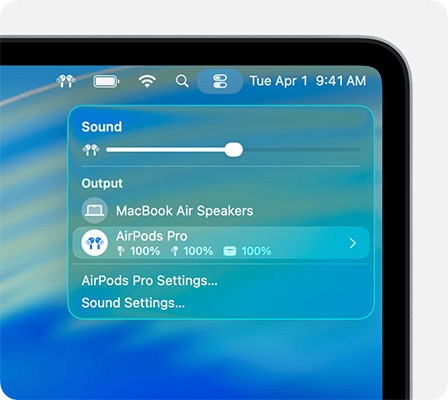
Yes. On an iPhone or iPad, go to Settings > [Your AirPods]. On a Mac, open System Settings and select your AirPods. If the option is not visible, check Audio & Routing first.
-
What sounds does the AirPods charging case make?
Compatible charging cases can play sounds when they begin charging, when the battery is low, when pairing, and during certain other AirPods functions. You can disable supported system sounds using Enable Charging Case Sounds.
Conclusion
You can try all of the methods above to fix the AirPods Enable Charging Case Sounds greyed out issue, especially the TunesKit iOS System Recovery software which is worth trying. If the issue persists, contacting Apple Support or visiting an Apple Store for further diagnostics may be necessary.



