


How to Fix iPhone Stuck in Sleep Mode
iPhone's Sleep Mode, a feature of the Focus tool, is designed to help users create healthy bedtime habits by minimizing distractions during sleep hours. It silences notifications, dims the lock screen, and integrates with health tracking to ensure a restful experience.
However, when an iPhone gets stuck in Sleep Mode, it can disrupt functionality, leaving users unable to access important notifications or features. To get your iPhone back to normal as soon as possible, we list almost all the possible causes of this iPhone stuck in Sleep Mode issue and provide step-by-step tutorials for each solution.

Why Is My iPhone Stuck in Sleep Mode?
What makes your iPhone stuck in Sleep Mode? There is no completely correct answer. However, you can guess from common causes according to your situation. Here are some possibilities for this stuck:
- 01 Automation Glitch: Sleep Mode often relies on automation activating during specific hours or when certain triggers occur. A glitch in the automation system could cause the mode to remain active even when it should have turned off.
- 02 Misconfigured Schedule: If the Sleep Focus schedule in the Health app or Focus settings is misconfigured, the mode may stay on longer than intended. You may have accidentally enabled the Until I turn it off option in Sleep Focus.
- 03 iOS Bug: Bugs in iOS can cause Focus settings including Sleep Mode to malfunction. This could lead to Sleep Mode not turning off even after the scheduled time or the "turn off" toggle being unresponsive or grayed out.
- 04 Unresponsive Buttons or Screen: If your iPhone's physical buttons (e.g., Side Button) or touchscreen become unresponsive, it may appear stuck in Sleep Mode because you can't interact with the interface to turn it off. It often happens when your iPhone has certain hardware issues.
- 05 Focus Sync Issue: When you use multiple Apple devices (iPad, Mac, or Apple Watch) with iCloud Focus Sync enabled, a sync error can occur.
- 06 Corrupt Settings: System or Focus-related settings can become corrupted after updates, migrations, or crashes.
How to Fix iPhone Stuck in Sleep Mode [Common Methods]
For the above possibilities, we list the solutions to fix this annoying issue so that you can use your iPhone normally.
Fix 1. Manually Turn Off Sleep Focus
If the iPhone is stuck in Sleep Mode, manually disabling the mode is the quickest way to resolve it. There are two ways that you can turn off the feature.
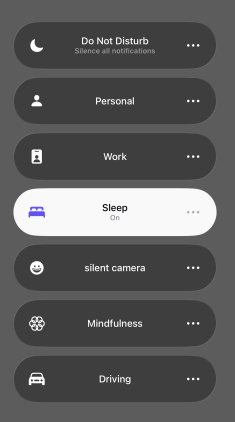
Via Control Center
- Step 1. Swipe down from the top-right corner to open the Control Center.
- Step 2. Hold on the Focus icon until you see the highlighted Sleep button.
- Step 3. Tap the Sleep button to disable it.
Via Settings
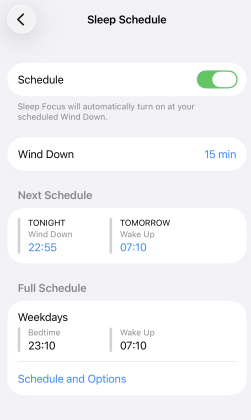
- Step 1. Open the Settings app.
- Step 2. Scroll down and tap Focus > Sleep.
- Step 3. Scroll down to the "Schedule" section.
- Step 4. Toggle off the switch next to your configured sleep schedule.
Fix 2. Adjust or Disable Sleep Schedule
The Sleep Mode might be stuck due to an improperly configured or overlapping schedule. You can adjust your schedule in the Health app or Settings app.
Via Health App
- Step 1. Open the Health app.
- Step 2. Tap the Browse icon at the screen bottom and then select Sleep > Full Schedule & Options from the screen.
- Step 3. Check your Sleep Schedule for overlapping or continuous entries that may cause conflicts. Adjust or remove any duplicates, then temporarily turn off Sleep Schedule. Wait a few seconds and turn it back on to refresh the settings.
- Step 4. Test if Sleep Mode turns off after these changes.

Via Settings
- Step 1. Open Settings > Focus > Sleep.
- Step 2. Check Schedule or Automation.
- Step 3. Delete unnecessary schedules by swiping left on them. Ensure the "Turn On Automatically" option isn't active if you don't need it.

Fix 3. Restart Your iPhone
Restarting the iPhone can resolve temporary glitches in Focus modes.
For iPhones with Face ID
- Step 1. Press and hold the Side Button and Volume Down button until the power slider appears.
- Step 2. Slide to power off. Wait a few seconds, then press and hold the Side Button to turn it back on.
For iPhones with a Home Button:
- Step 1. Hold down the Power Button to cause the power slider to show.
- Step 2. To restart, slide the Power Button to turn it off, then press and hold it again.

Fix 4. Turn Off iCloud Focus Sync
If Focus settings are syncing across devices, a conflict might keep Sleep Mode active. Turning off the sync could be helpful for fixing the stuck.
- Step 1. Open Settings > Focus.
- Step 2. Toggle the Share Across Devices option off.
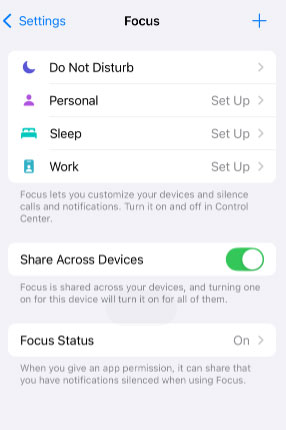
- Step 3. After disabling Focus sync, manually turn off Sleep Focus using Fix 1.
Fix 5. Update iOS
It is not news that iOS bugs lead to something wrong for iPhone. Updating to the latest version can fix these issues.
- Step 1. Open Settings > General > Software Update.
- Step 2. If an update is available, tap Update Now button.
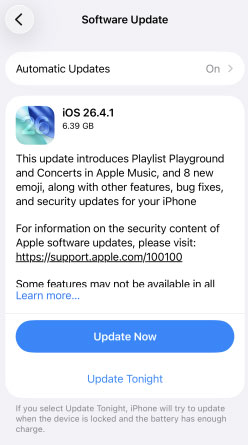
- Step 3. Once updated, check if Sleep Mode is functioning properly.
Fix 6. Reset Focus Settings
Corrupted Focus settings might cause Sleep Mode to get stuck. Resetting these settings can help.
- Step 1. Open Settings > Focus.
- Step 2. Tap Sleep, then scroll down and tap Delete Focus.
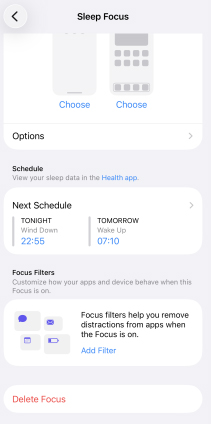
- Step 3. Recreate a new Sleep Focus profile if needed.
Fix 7. Restore iPhone Settings
If none of the above works, resetting all settings can help clear software glitches.
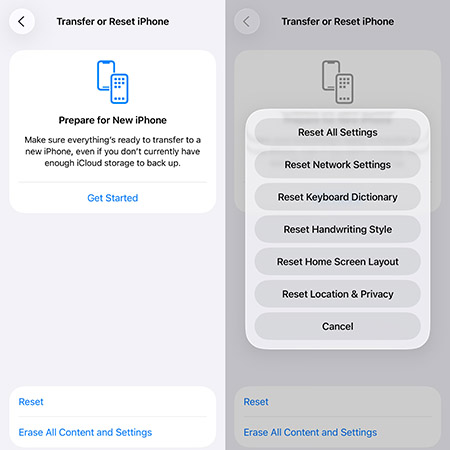
- Step 1. Open Settings > General > Transfer or Reset iPhone > Reset.
- Step 2. Select Reset All Settings. Enter your iPhone passcode to confirm the reset.
How to Solve iPhone Stuck in Sleep Mode in Minutes
If you are tired of trying different solutions, there is a direct way to fix the issue of iPhone stuck in Sleep Mode: using the iOS system repair tool, TunesKit iOS System Recovery. This software could help you fix the Sleep Mode stuck in minutes without complex steps. Actually, this tool works for more than 150 iOS system issues not only iPhone stuck issues.
For instance, it can fix iPhone stuck in boot loop, iPhone update failed, and iPhone green screen After iOS 26 update issues. It supports the latest iOS versions and works with most iPhone and iPad models, and it allows one-click entry and exit from Recovery Mode for quick troubleshooting. With a simple, user-friendly interface, it's suitable for all Apple users.
Fix iPhone Stuck in Sleep Mode with TunesKit iOS System Recovery
Quickly repair system glitches causing Sleep Mode issues and restore normal iPhone functionality without data loss.
 600,000+ Downloads
Here's how to fix iPhone Sleep Mode stuck via TunesKit iOS System Recovery
Step 1 Connect your iPhone to PC
Download and install this tool on your computer. Link your iPhone to your computer with a USB cable. After the connection, open the software and choose the iOS System Repair option and click the Start button to continue.

Step 2Choose repair mode
Enter a new page, you will meet two choices: Standard Repair and Deep Repair. The Standard Repair mode could be the first choice because it would not delete any data on your iPhone.

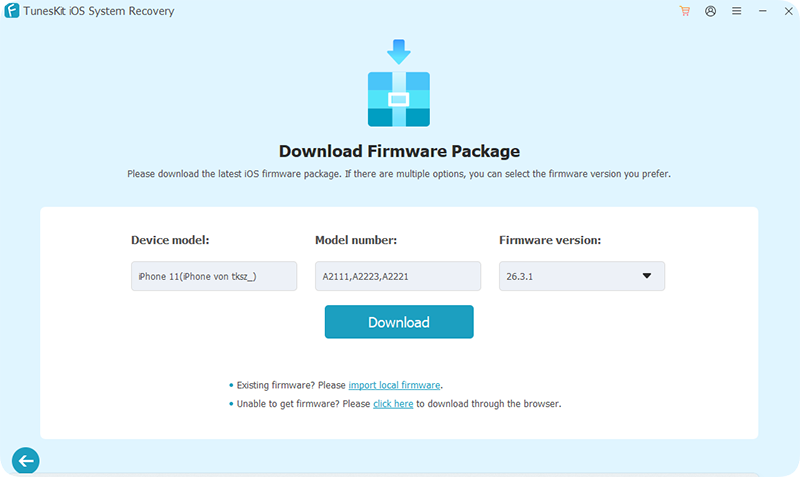
Step 3Download firmware package
Check your iPhone info and then click the Download button to download a firmware package for your iPhone.
Step 4 Start fixing iPhone
When you complete all the above preparations, you will enter the final repair page. Click the Start Standard Repair button to officially fix your iPhone.

FAQs About iPhone Stuck in Sleep Mode
-
Will my morning alarms still go off if my iPhone is stuck in Sleep Focus?
Yes, any alarms set through your Sleep schedule or the standard Clock app will still sound even if your phone is stuck in an active Sleep Focus state. Apple specifically engineered all Focus modes to allow crucial system alerts, like alarms and timers, to bypass the notification suppression filters.
-
Will I still receive emergency calls if my phone is stuck?
Yes, Apple designed Focus modes to ensure you never miss an urgent situation. By default, if someone calls you twice within three minutes, the second call will automatically bypass the Sleep Focus and ring out loud. You can also designate specific family members or friends to always break through the silence, regardless of the active mode.
Conclusion
By following the solutions outlined above, you can resolve the issue and regain full control of your device. Whether it's a simple adjustment to your Sleep Focus settings, a restart, or resort to the TunesKit iOS System Recovery tool to get a recovery, these steps ensure your iPhone operates as intended. Sleep Mode is a valuable tool for improving your sleep habits, so keeping it functioning properly enhances its benefits. If the problem persists, consider contacting Apple Support.


