


How to Fix iOS 26/27 Is Temporarily Unavailable
Seeing the message "iOS 26/27 is Temporarily Unavailable" while trying to update your iPhone can be frustrating, especially when you are ready to install the latest iOS version. This error usually appears due to temporary server issues, high update traffic, network problems, or software-related glitches. In this guide, we'll explain why you may encounter iOS 26/27 is Temporarily Unavailable and share practical solutions to help you complete the update successfully.

Why Do I Get the iOS 26/27 Is Temporarily Unavailable Error?
The "iOS 26/27 is Temporarily Unavailable. Try Again Later." error typically occurs due to a few common reasons:
- 01 Apple's servers are busy or temporarily unavailable – High traffic after a new iOS release or scheduled server maintenance can make the update temporarily inaccessible.
- 02 Network connection issues – A slow or unstable Wi-Fi connection, VPN, or network restrictions may prevent your iPhone from communicating with Apple's update servers.
- 03 Insufficient storage or low battery – Your iPhone needs enough free storage and sufficient battery power (or be connected to a charger) to download and install the update.
- 04 Software or system configuration problems – Temporary iOS glitches, incorrect date and time settings, or using a beta version of iOS can interfere with the update process.
- 05 The update has been temporarily paused by Apple – Apple may briefly withdraw or delay an update to address unexpected bugs or performance issues before making it available again.
7 Methods to Fix iOS 26/27 Is Temporarily Unavailable Issue
Dealing with a "Temporarily Unavailable" error when trying to update to the latest software can be incredibly frustrating. However, these issues are usually easily resolved with a few troubleshooting techniques. Here is a guide on how to fix the iOS 26/27 is Temporarily Unavailable.
Fix 1. Check Apple's System Status
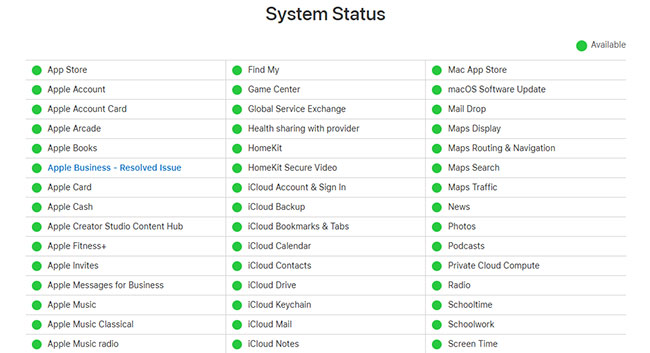
Sometimes the issue is on Apple's end rather than a problem with your device. When servers are overwhelmed by millions of users trying to download iOS 26 or 27 simultaneously, they can temporarily crash or experience severe slowdowns.
- Step 1. Open your web browser and navigate to the official Apple System Status page.
- Step 2. You can look for services like "Apple Account" to make sure they are marked with a green dot, which indicates they are fully operational.
If you see a yellow or red indicator next to the update servers, your only option is to be patient and wait a few hours until Apple resolves the traffic overload.
Fix 2. Troubleshoot Your Network Connection
A robust and stable internet connection is absolutely essential for verifying and downloading massive system updates. If your Wi-Fi is weak or fluctuating, the verification process will inevitably fail and trigger an error.
- Step 1. Try toggling Airplane Mode on for about ten seconds and then turning it off to quickly refresh your device's active network connections.
- Step 2. Temporarily disable any active VPNs, as these services can frequently block or interfere with the secure connection required by Apple's update servers.
- Step 3. If problems persist, navigate to Settings > General > Transfer or Reset iPhone > Reset, and select "Reset Network Settings."

 Note
Note
Keep in mind that resetting your network settings will erase all of your saved Wi-Fi passwords and Bluetooth pairings. Make sure you have your Wi-Fi password handy before proceeding.
Fix 3. Clear iPhone Storage Space
Major operating system upgrades require a significant amount of free storage space to download the installer and unpack the system files. If your iPhone is filled to the brim, the update simply cannot proceed and will stall out.
- Step 1. Navigate to the Settings app, tap on "General," and then select "iPhone Storage."
- Step 2. Review the detailed list of applications to identify which ones are consuming the most space, and offload or completely delete the ones you no longer use.
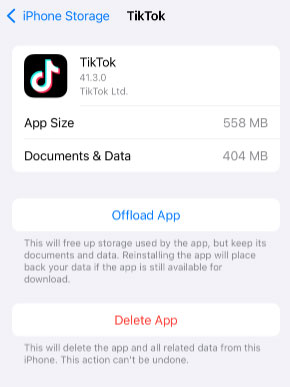
You can also quickly free up several gigabytes of space by permanently deleting old 4K videos, large photo attachments hidden in your Messages app, or downloaded streaming content.
Fix 4. Restart Your iPhone
A quick system reboot is a classic troubleshooting step for a very good reason. It flushes out temporary memory caches and can resolve minor software glitches that might be preventing the iOS 26 or 27 update from initializing properly.
- Step 1. Press and hold the side power button and either volume button simultaneously until the power-off slider appears on your screen.
- Step 2. Drag the slider to the right to power down the device, and wait about thirty seconds for it to shut off entirely.
- Step 3. Press and hold the side power button again until you see the Apple logo appear to turn the phone back on.

Fix 5. Force Restart Your iPhone
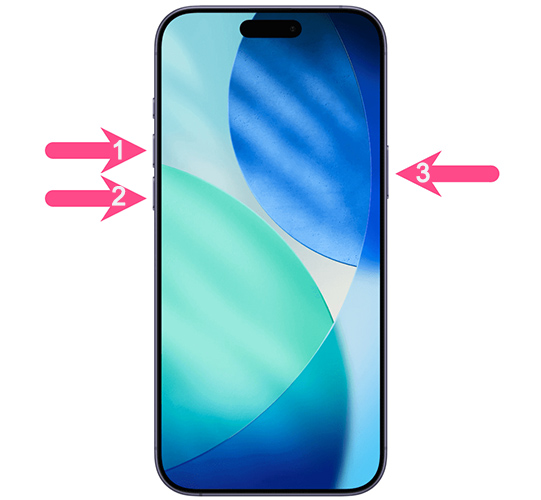
If a normal restart doesn't clear the temporary error, a force restart is your next best option to get things moving. This acts as a hardware-level reboot to clear deeper system hangs, and it will not delete any of your personal data or custom settings.
- Step 1. Quickly press and immediately release the volume up button.
- Step 2. Quickly press and immediately release the volume down button.
- Step 3. Press and hold the side power button, keeping it held down until the screen goes completely black and the Apple logo eventually appears.
Fix 6. Update via Finder or iTunes
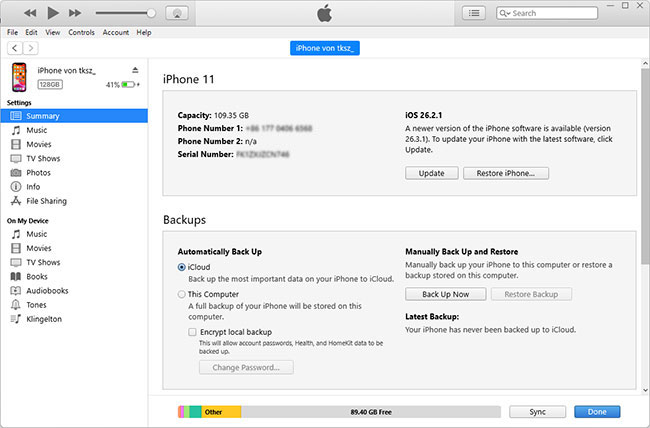
When over-the-air (OTA) updates consistently fail, routing the installation through a computer is a highly effective workaround. This method entirely bypasses the on-device verification process that often triggers the "Temporarily Unavailable" message for beta or massive public releases.
- Step 1. Connect your iPhone to your Mac or Windows PC using a compatible USB cable and ensure your computer's software (Finder or iTunes) is fully up to date.
- Step 2. Open Finder (on macOS Catalina or newer) or iTunes (on older macOS or Windows PCs), locate your connected iPhone, and click on the "Summary" or "location" tab.
- Step 3. Click the "Update" button, and follow the on-screen prompts to download and install the iOS 26 or 27 software.
Fix 7: Fix "iOS 26/27 Is Temporarily Unavailable" with TunesKit (Recommended)
If you've tried all the official troubleshooting methods but still see the "iOS 26/27 is Temporarily Unavailable" message, a dedicated iOS repair tool can help. TunesKit iOS System Recovery is designed to fix various iOS update and system issues. More importantly, Standard Repair fixes common software problems without erasing your personal data, making it a safe option for most users.
As a professional iOS system recovery tool, TunesKit supports repairing over 150 iOS and iPadOS issues, such as iPhone stuck on software update complete, update failures, recovery mode loops, and more. It also lets you upgrade or downgrade iOS, enter or exit Recovery Mode for free, and restore your device to normal in just a few clicks. And it supports the latest iPhone models and iOS versions.
Easily Fix "iOS 26/27 Is Temporarily Unavailable"
TunesKit iOS System Recovery helps you install the latest iOS 26/27 while fixing update-related issues quickly and safely.
 600,000+ Downloads
Let's see how to fix "iOS 26/27 Is Temporarily Unavailable" using TunesKit iOS System Recovery.
Step 1. Connect your iPhone
Download and launch TunesKit iOS System Recovery on your Mac or Windows PC, connect your iPhone using a reliable USB cable, and click "iOS System Repair" on the main interface. On the next page, click the Start button to continue.

Step 2. Choose A Mode
Select "Standard Repair" to ensure you do not experience any data loss, and follow the on-screen instructions to put your device into DFU or Recovery Mode if prompted.

Step 3. Download the Firmware Package
Confirm your device model details, click "Download" to fetch the correct firmware package.
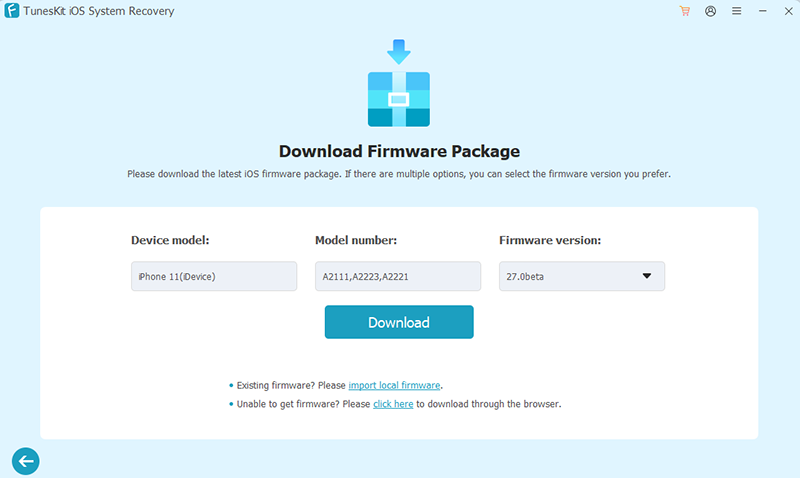
Step 4. Start to Repair
After the firmware finishes downloading and verifying, click the "Start Standard Repair" button to let the software work its magic. The program will automatically unpack the firmware and repair the system files that are blocking your update.
Keep your iPhone securely connected to the computer during this entire process, as unplugging the cable prematurely can cause further software damage. Once the repair is complete, your iPhone will automatically restart and should bypass the temporary unavailability error.

FAQs About iOS 26/27 Is Temporarily Unavailable
-
Can a VPN block my iOS update?
Yes, active VPNs or security software frequently block the secure connection needed to reach Apple's servers.
Temporarily disabling or removing your VPN usually resolves this issue immediately. If you are updating via a Mac or PC, temporarily turning off third-party antivirus software can also prevent connectivity drops.
-
How Do I fix "Unable to Check for Update"?
This specific error typically means your device cannot connect to the internet. You can usually fix this by adjusting your network connection.
Try connecting to a completely different Wi-Fi network to see if it forces the connection through. Alternatively, reset your network settings entirely to clear out any stubborn local bugs.
-
How long does the error last?
If the issue is caused by Apple's servers, it usually resolves within a few hours. During major iOS releases, waiting until server traffic decreases often fixes the problem.
Conclusion
Experiencing the "iOS 26/27 is temporarily unavailable" issue on your iPhone can be frustrating. However, this article gives a comprehensive list of causes and solutions through which you can easily solve the problem. TunesKit iOS System Recovery is your best bet to fix this issue with ease. Hit the download button below to give it a try.



