


iPhone Showing Two White Phones on Screen? What It Means and How to Fix It
Two white phones on your iPhone screen indicate Apple's nearby recovery mode. To fix it, connect your iPhone to power and use another compatible iPhone or iPad to restore its software.
Did your iPhone suddenly go dark and start showing two white phones moving toward, overlapping, or crossing each other on the screen? If so, you may wonder whether it is transferring data, stuck in recovery mode, or experiencing a serious issue.
In most cases, there is no need to panic. This screen usually points to a software recovery process rather than physical damage. Below, we'll explain what the two-phone icon means, why it appears, and how to get your iPhone working again.
- Quick Answer: What Do the Two White Phones on iPhone Mean?
- Why Is My iPhone Showing Two White Phones on Screen?
-
How to Fix iPhone Showing Two White Phones on Screen
- Method 1. Force Restart the iPhone
- Method 2. Use Apple's Restore Nearby iPhone Feature
- Method 3. Repair the iOS System If the Two-Phone Screen Keeps Returning HOT
- Method 4. Reinstall iOS with Finder or Apple Devices
- Method 5. Restore the iPhone as a Last Resort
- Method 6. Contact Apple If the iPhone Still Won't Recover
- Two White Phones vs. Other Similar iPhone Screens
- FAQs About iPhone Showing Two White Phones on Screen
- Conclusion
Quick Answer: What Do the Two White Phones on iPhone Mean?
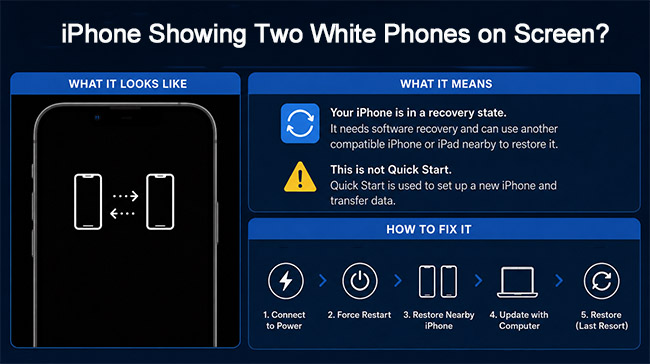
If your iPhone shows two white phone icons moving close together on a dark screen, it is usually Apple's nearby recovery animation on a supported device. The iPhone has entered a recovery state and can use another compatible iPhone or iPad nearby to restore its software. Apple specifically documents this animation as something that may appear during a wireless software update.
It is not the same as Quick Start, which is designed to set up a new iPhone and transfer your apps, data, and settings.
 Source:
 Why Is My iPhone Showing Two White Phones on Screen?
The two white phones on iPhone screen generally appear when the device cannot continue starting or updating normally and needs software recovery. Common reasons include:
- Interrupted iOS update: If a wireless update cannot finish successfully, the iPhone may enter a recovery state instead of booting normally.
- Startup failure: A software error may prevent iOS from loading properly, causing the device to request recovery.
- Waiting for nearby recovery: On supported models, the animation prompts you to bring another compatible iPhone or iPad nearby to start Restore Nearby iPhone.
So, the animation itself is not necessarily a sign that the iPhone is broken. In many cases, it simply means the device needs help completing a software recovery process.
How to Fix iPhone Showing Two White Phones on Screen
Before starting nearby recovery, connect the affected iPhone to a reliable power source. Apple specifically requires the device in recovery mode to be connected to power before using Restore Nearby iPhone.
Start with the least disruptive options. If one method does not work and the iPhone keeps showing two white phones, continue to the next solution.
| Fix | Does It Erase Data? |
|---|---|
| Force restart | No, no factory reset is performed. |
| Restore Nearby iPhone | Not explicitly guaranteed by Apple. |
| TunesKit Standard Repair | No, it preserves data. |
| Update via Finder/Apple Devices | No, personal data is kept. |
| Full Restore | Yes, all device data is erased. |
Method 1. Force Restart the iPhone
If the screen appears frozen or the animation does not progress, try a force restart first. This restarts the device without performing a factory reset.
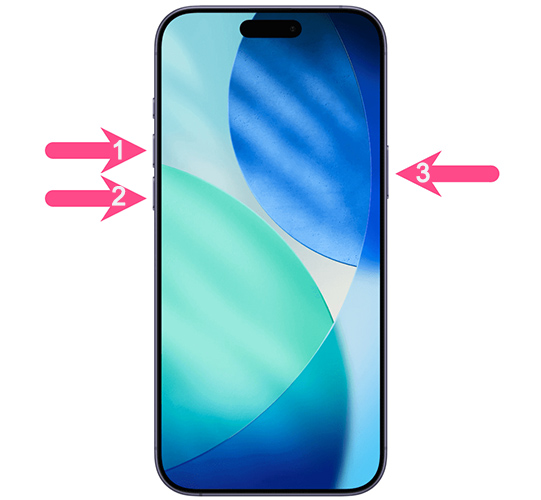
For iPhone 8 and later:
- Step 1. Quickly press and release the Volume Up button.
- Step 2. Quickly press and release the Volume Down button.
- Step 3. Press and hold the Side button.
- Step 4. Release the Side button when the Apple logo appears. Wait for the iPhone to boot normally.
If the two white iPhone icons appear again, the device may genuinely need software recovery rather than a simple restart. Move on to Apple's nearby restore procedure.
Method 2. Use Apple's Restore Nearby iPhone Feature
If your model supports it, this is the official solution most directly associated with the two-phone animation. You will need:
- The affected iPhone connected to power.
- Another unlocked iPhone or iPad nearby.
- The assisting device connected to Wi-Fi.
- iOS 18 or later on the assisting iPhone, or iPadOS 18 or later on the assisting iPad.
- Step 1. Connect the iPhone showing two white phones to power.
- Step 2. Bring another unlocked iPhone or iPad close to it.
- Step 3. Wait until Restore Nearby iPhone appears on the working device.
- Step 4. Tap Continue and wait for the two devices to connect.
- Step 5. A six-digit code should appear on the iPhone in recovery. Enter this code on the other device.
- Step 6. When you see the restoring message, confirm it and allow the recovery process to continue.

 Note
Note
Use a regular Wi-Fi network for Restore Nearby iPhone. Public Wi-Fi that requires a webpage sign-in, as well as some school or workplace networks with extra authentication, may not work.
Method 3. Repair the iOS System If the Two-Phone Screen Keeps Returning
If your iPhone repeatedly returns to the same recovery screen even after restarting or attempting nearby recovery, an underlying iOS system problem may be preventing it from booting properly.
In this situation, an iOS repair utility such as TunesKit iOS System Recovery can be another option before performing a complete factory restore. TunesKit's Standard Repair mode is designed for software-related problems such as an iPhone stuck in Recovery Mode, a black screen, or an unsuccessful iOS update, while preserving device data. Its Deep Repair mode is intended for more serious problems but erases data.
- Step 1. Install and open TunesKit iOS System Recovery on your Mac or Windows computer, then connect your iPhone with a USB cable.

- Step 2. Choose iOS System Repair and select Standard Repair.

- Step 3. Confirm your device information and download the matching firmware package.

- Step 4. Click Repair to begin reinstalling the necessary system components. Keep the iPhone connected until the process finishes, then check whether it starts normally.

Method 4. Reinstall iOS with Finder or Apple Devices
If nearby recovery does not work, Apple also provides a computer-based recovery method. Use Finder on a Mac or Apple Devices on a Windows PC.
If necessary, first put the iPhone into the traditional recovery mode. For iPhone 8 and later:
- Step 1. Connect the iPhone to your computer with a USB cable.
- Step 2. Press and quickly release Volume Up.
- Step 3. Press and quickly release Volume Down.
- Step 4. Press and hold the Side button. This time, continue holding it until the Connect to computer screen appears rather than releasing it at the Apple logo.
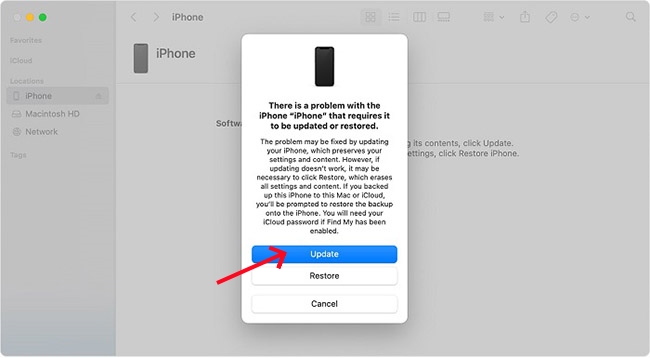
- Step 5. Open Finder or Apple Devices and select your iPhone.
- Step 6. If your computer offers Update or Restore, try Update to reinstall iOS while keeping your personal data. Keep the iPhone connected until the update finishes.
Method 5. Restore the iPhone as a Last Resort
If reinstalling iOS with Update still cannot fix the problem, a complete Restore may be necessary. However, there is an important difference: Restore reinstalls iOS and erases all data on the iPhone. Use this option only after less destructive recovery methods have failed.
- Step 1. Connect the iPhone to Finder or Apple Devices.
- Step 2. Put your iPhone into recovery mode if necessary.
- Step 3. Select your device, and choose Restore when prompted.
- Step 4. Wait for iOS to reinstall. Afterward, set up the iPhone again and restore your information from an available iCloud or computer backup.

Method 6. Contact Apple If the iPhone Still Won't Recover
If your iPhone remains stuck on the two phones screen, repeatedly returns to recovery, or cannot complete an update or restore, professional service may be required. Hardware damage, charging issues, or other physical failures cannot be fixed by reinstalling iOS alone.
Contact Apple Support team when:
- the device cannot be updated or restored through recovery mode; or
- a damaged or unresponsive button prevents Recovery Mode from working.

Two White Phones vs. Other Similar iPhone Screens
Different Apple setup and recovery screens can look confusingly similar. Here's how to tell them apart:
| What You See | What It Usually Means | What to Do |
|---|---|---|
| Two white phones moving or overlapping | Nearby device recovery on supported iPhones | Bring another compatible iPhone/iPad nearby |
| Quick Start setup instructions | Setting up or transferring to a new iPhone | Continue Quick Start |
| Cable / Connect to computer screen | Traditional Recovery Mode | Connect to Finder or Apple Devices |
| Blank or fully white display | Different display or system problem | Troubleshoot the screen separately |
Apple treats Quick Start, nearby-device restore, and the Connect-to-computer Recovery Mode workflow as separate processes. The key difference is purpose: Nearby Restore is for software recovery, Quick Start is for setting up a new device, and the Connect-to-Computer screen requires recovery through a Mac or PC.
FAQs About iPhone Showing Two White Phones on Screen
-
Can I fix the two white phones screen without a computer?
Yes, if your affected iPhone supports Restore Nearby iPhone. Connect it to power and place it near an unlocked iPhone or iPad running iOS 18/iPadOS 18 or later and connected to Wi-Fi. Then follow the Restore Nearby prompt.
-
Which iPhone models support Restore Nearby iPhone?
Apple currently lists iPhone 15 Pro models, iPhone 16 models, iPhone 16e, iPhone Air, and iPhone 17 models as compatible with nearby-device recovery.
-
What should I do if Restore Nearby iPhone doesn't appear?
Make sure the affected iPhone is connected to power. The assisting iPhone or iPad should be unlocked, connected to standard Wi-Fi, and running iOS 18 or iPadOS 18 or later. If the prompt still does not appear, try computer-based recovery with Finder or Apple Devices.
-
Will fixing the two white phones screen erase my data?
It depends on the method you use. A force restart does not erase your data, and choosing Update in Finder or Apple Devices reinstalls iOS while keeping your personal information. TunesKit iOS System Recovery's Standard Repair can also fix iOS system issues without data loss. However, a full Restore erases the iPhone.
Conclusion
When your iPhone is showing two white phones on screen, the unusual animation usually points to Apple's nearby recovery feature rather than Quick Start or an ordinary data transfer. On a supported iPhone, you can connect the device to power and use another nearby iPhone or iPad to start the recovery process.
If that doesn't work, try a force restart, repair the iOS system, or use Update through Finder or Apple Devices before resorting to a full Restore. Since Restore erases your data, it is best kept as the final software-recovery option.



