


iOS 26 Banking Apps Not Working? Fix It Fast
Upgrading to a new operating system can be incredibly frustrating when it suddenly locks you out of your finances. If you are dealing with iOS 26 banking apps not working, you are not alone; strict new security protocols and compatibility lags often cause these apps to crash, freeze, or refuse to open right after a major update.
Fortunately, regaining access is usually a straightforward process. In this guide, we will explore the most common culprits—from outdated app versions to network glitches—and walk you through the most effective troubleshooting methods to get your mobile banking back on track.
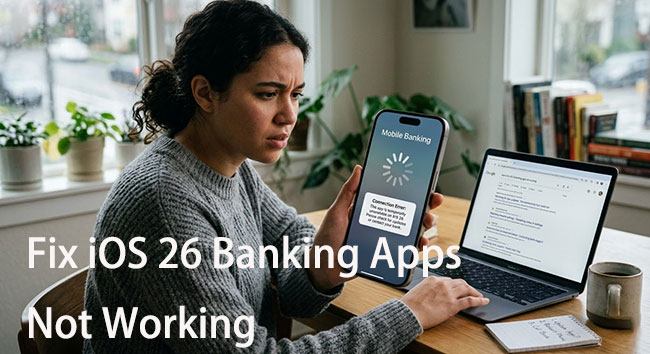
Why Are My Banking Apps Not Working on iOS 26?
This is actually a very common issue with iOS 26, especially right after updating. The short answer: it's usually not your bank—it's compatibility + security conflicts introduced by the new iOS. Here's what's going on.
- 01 You might be on a beta or early build : Many banks intentionally block beta iOS versions for security reasons. They treat beta software like a "modified" system → potential fraud risk.
- 02 The app isn't updated yet: iOS 26 introduced major changes (new security + system behavior). Banking apps need updates to stay compatible.
- 03 New privacy/security features interfere: Features like iCloud Private Relay, VPNs, and stricter encryption can block banking connections. Apps may think your connection is unsafe → block access.
- 04 iOS 26 bugs: Users have reported app crashes, freezing, and connectivity issues. Sometimes the OS itself is the problem—not the app.
- 05 App Store or update issues: Some users can't even update apps after upgrading, so you're stuck on an incompatible iOS version.
How to Fix iOS 26 Banking Apps Not Working?
Dealing with a broken banking app after a major iOS 26 update is stressful, but the solutions are often quite accessible. Most compatibility bugs can be ironed out with a few simple tweaks to your device settings or the app itself.
Fix 1. Update Your Banking Applications
The most common reason an app fails on a new operating system is that it simply hasn't been optimized yet. Developers frequently release patches right after a major Apple update to fix compatibility glitches. Installing the latest version ensures that the software's security protocols align correctly with iOS 26.
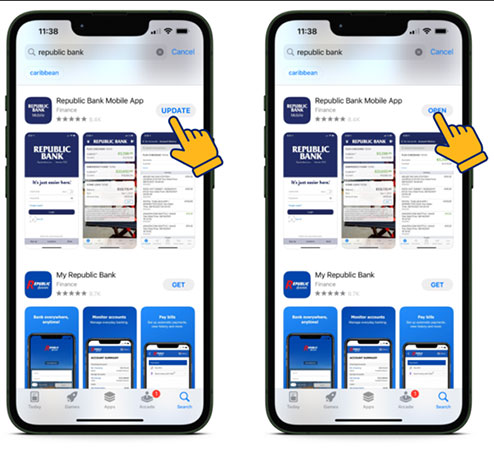
- Step 1. Open the App Store and tap on your profile picture in the top right corner.
- Step 2. Scroll down to the "Available Updates" section and pull down to refresh the page.
- Step 3. Locate your banking app and tap "Update," or choose "Update All" to refresh all your applications at once.
Fix 2. Perform a Quick Device Restart
Sometimes, the most straightforward solution is exactly what your iPhone needs to clear out temporary software hiccups. A quick reboot refreshes the system memory and closes background processes that might be interfering. It can often force stubborn applications to launch correctly on the second try.
- Step 1. Press and hold either volume button and the side button until the power-off slider appears.
- Step 2. Drag the slider and wait 30 seconds for your device to turn off completely.
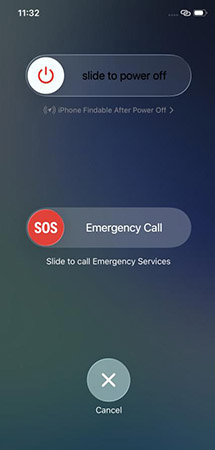
- Step 3. Press and hold the side button until you see the Apple logo to turn it back on.
Fix 3. Check Your Network and VPN Connections
Banking apps rely on highly secure, stable connections to protect your sensitive financial data. If you are using a Virtual Private Network (VPN) or if your Wi-Fi connection is unstable, the app's security protocols might block your access as a precaution. Disabling these extra routing layers can often resolve immediate login failures and restore normal functionality.
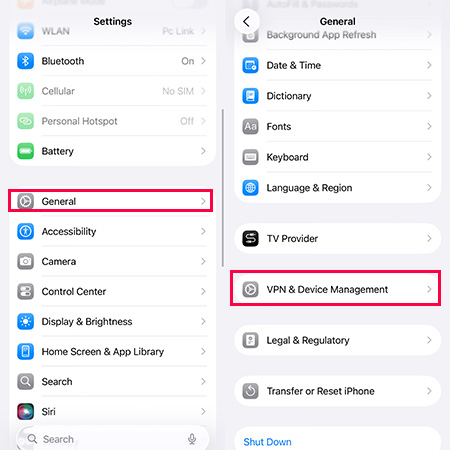
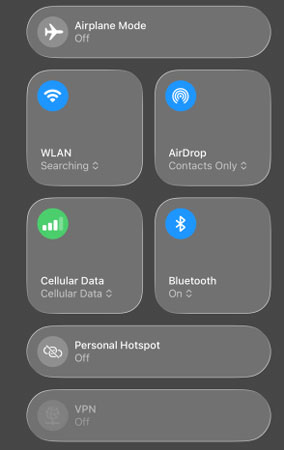
- Step 1. Open your iPhone's Settings app, tap the VPN & Device Management, and toggle off any active VPN connections.
- Step 2. Swipe down from the top right corner to access to your iPhone Control Center, switch from Wi-Fi to cellular data, or vice versa, to see if a different network resolves the communication issue.
Fix 4. Offload and Reinstall the App
If updating and restarting do not work, the app's core files might be corrupted from the iOS 26 transition. Reinstalling the app gives it a completely fresh start on your new operating system. Keep in mind that you will likely need your login credentials and two-factor authentication setup handy after doing this.
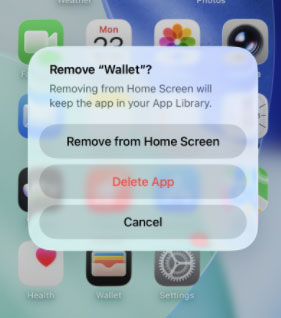
- Step 1. Long-press the banking app icon on your home screen and select "Remove App."
- Step 2. Choose "Delete App" to completely erase it from your device.
- Step 3. Head back to the App Store, search for your bank, and download the application again.
Fix 5. Fix Deep System Glitches with TunesKit iOS System Recovery
If standard troubleshooting fails, the problem might be rooted deeply within the operating system itself. Sometimes, a major update leaves behind hidden bugs or corrupted system files that prevent secure applications from launching. In these complex scenarios, a specialized repair tool like TunesKit iOS System Recovery can be incredibly effective. This software is designed to diagnose and resolve various software issues without deleting any of your personal data.
For instance, it can fix more than 150 issues like iPhone Safari not working, iOS 26 auto-rotate not working, and live activities not working, etc. And it supports a broad range of iPhone, iPad, and iPod touch models, including the latest iOS versions. Moreover, it's the one-click solution to put your device into or out of recovery mode.
Fix iOS 26 Banking Apps Not Working Easily
Quickly resolve banking app crashes, login failures, and compatibility issues on iOS 26 without data loss using a safe and user-friendly system repair solution.
 600,000+ Downloads
Here's how to fix iOS 26 banking apps not working with TunesKit iOS System Recovery.
Step 1Connect Your iPhone
Download and install TunesKit iOS System Recovery on your computer, then connect your iPhone using a compatible USB cable. Launch the program, select "iOS System Repair" from the main interface, and on the next page, just click the Start button to continue.

Step 2 Select Standard Repair
There are two repair modes for you to choose from, Standard Repair and Deep Repair, the former can fix the iOS 26 banking apps not working issue without erase your data, the latter can fix more serious iOS but erase all your data. You can choose the "Standard Repair" mode to ensure no data is lost.

Step 3 Download the Firmware Package
Verify your device model on the screen, if nothing wrong, click the Download button, and follow the on-screen prompts to download the appropriate firmware package for your device

Step 4Start to Repair
Click "Repair" button to begin the fixing process. Once repaired, your iPhone will restart, and your banking apps should back to normal.

FAQs About iOS 26 Banking Apps Not Working
-
Will I lose my account data if I delete and reinstall my banking app?
Deleting the application from your iPhone will not erase your actual bank account information or your funds. Your financial data is securely stored on the bank's remote servers, not locally on your device's hard drive. Once you reinstall the app from the App Store and log back in with your credentials, all of your balances, transaction history, and account details will immediately repopulate.
-
Can I just downgrade back to the previous iOS version?
Downgrading your operating system is technically possible for a very short window after a new release, you can use TunesKit iOS System Recovery to downgrade iOS without iTunes.
Please note that Apple stops "signing" older iOS versions quickly, meaning you cannot revert back once that security window officially closes. Furthermore, the downgrade process requires completely wiping your device and restoring it from an older backup, which can easily lead to data loss.
Conclusion
Banking apps not working on iOS 26 can stem from system bugs, compatibility issues, or update glitches—but most problems are fixable with the right approach. After trying basic troubleshooting like updating apps or resetting settings, a dedicated repair tool can save time and effort. TunesKit iOS System Recovery stands out as a reliable solution, allowing you to fix system-level issues quickly and safely—often without any data loss—so your banking apps can run smoothly.


