


How to Fix iOS 26 Brightness Issue: A Complete Guide
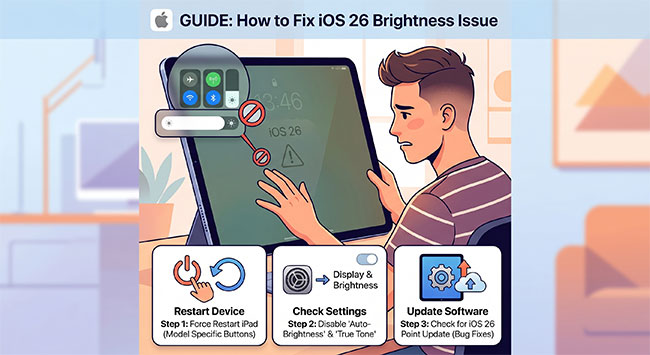
Is your iPhone screen behaving erratically, or does the brightness seem stuck regardless of your settings? After a significant software update, it is not uncommon for users to encounter display glitches. Recently, we have seen a growing number of reports regarding the iOS 26 brightness issue, where screens fail to adjust properly, dim unexpectedly, or flicker during use.
In this guide, we will walk you through the most effective methods to identify the root cause and restore your display to its optimal state.
- Reasons for iOS 26 Brightness Issue
- How to Fix iOS 26 Brightness Issue
- Method 1: Turn Off Auto-Brightness
- Method 2: Toggle True Tone and Night Shift
- Method 3: Perform a Force Restart
- Method 4: Adjust or Disable Reduce White Point
- Method 5: Fix iOS 26 Bugs Using TunesKit iOS System RecoveryHOT
- Method 6: Toggle Always On Display
- Method 7: Disable Low Power or Adaptive Modes
- Method 8: Disable Transparency and Zoom Filters
- Method 9: Manage Device Temperature
- Method 10: Update iOS
- Method 11: Reset All Settings
- FAQs About iOS 26 Brightness Issue
- Conclusion
Reasons for iOS 26 Brightness Issue
Here are some common reasons for brightness issues in iOS 26, let's check it one by one.
- 01 Auto-Brightness Settings: If Auto-Brightness is enabled, your iPhone may automatically adjust the screen brightness based on ambient light, which can make it seem like the brightness is changing randomly.
- 02 True Tone Display: True Tone adjusts the color and intensity of your display to match surrounding light conditions, which can sometimes affect perceived brightness levels.
- 03 Low Power Mode: When Low Power Mode is turned on, your iPhone may reduce brightness to conserve battery life.
- 04 Overheating Protection: If your device gets too warm, iOS may temporarily dim the screen to prevent overheating and protect internal components.
- 05 Software Bugs or Glitches: New iOS versions like iOS 26 may contain bugs that cause brightness fluctuations or screen dimming issues.
How to Fix iOS 26 Brightness Issue
Now that we've identified the possible causes of the iOS 26 brightness issue, it's clear that the problem often comes from a mix of system settings and display features rather than a single fault. Fortunately, it can usually be fixed with a few simple adjustments. Below are the most effective solutions to help restore normal brightness behavior on your device.
Method 1: Turn Off Auto-Brightness
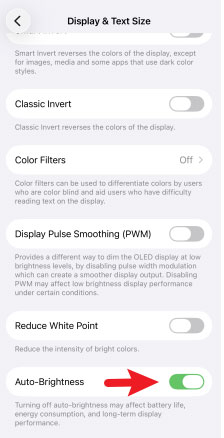
Sometimes, the iOS 26 update causes a temporary synchronization error between your ambient light sensor and the software. Toggling these settings helps "wake up" the sensor and forces the OS to re-establish the connection.
- Step 1. Navigate to Settings and tap on Accessibility.
- Step 2. Select Display & Text Size and toggle Auto-Brightness off.
- Step 3. Wait for about 10 seconds, then toggle it back on.
Method 2: Toggle True Tone and Night Shift
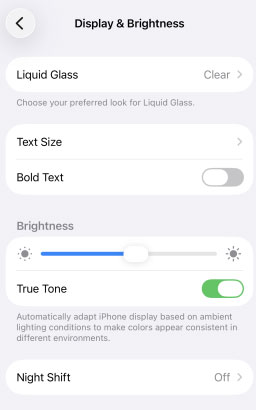
True Tone and Night Shift adjust your screen's color temperature based on lighting conditions, which can sometimes make the display appear dimmer than it actually is. Temporarily turning these features off helps you determine whether the issue is related to brightness or just color balance. You can enable them again afterward for a more comfortable viewing experience.
- Step 1. Open Settings and tap Display & Brightness.
- Step 2. Toggle True Tone off (or on if you're testing changes).
- Step 3. Tap Night Shift, then turn off its schedule—or enable it to compare how the screen looks under different settings.
Method 3: Perform a Force Restart
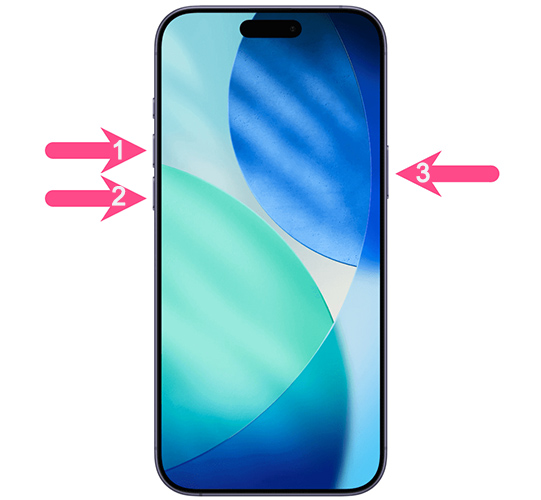
When background system processes hang or become corrupted during an update, a standard shutdown is often insufficient. A force restart bypasses the standard software shutdown sequence, effectively clearing the device's temporary memory and rebooting the hardware drivers for the display.
- Step 1. Press and quickly release the Volume Up button.
- Step 2. Press and quickly release the Volume Down button.
- Step 3. Press and hold the Side button until the Apple logo appears on the screen, then release it.
Method 4: Adjust or Disable Reduce White Point
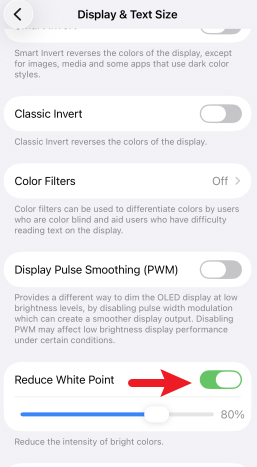
The Reduce White Point setting dims bright colors on your screen, which can make everything appear darker or less vibrant. Sometimes updates can change this setting without you noticing. Turning it down or off can help restore normal brightness and clarity.
- Step 1. Open Settings, then go to Accessibility → Display & Text Size.
- Step 2. Locate Reduce White Point.
- Step 3. Lower the slider or switch it off completely if it's enabled.
Fix 5. Fix iOS 26 Bugs Using TunesKit iOS System Recovery
If your brightness problems started right after updating to iOS 26, the most likely cause isn't your screen—it's the software. Major updates can introduce temporary bugs that affect display behavior, including dim screens, auto-brightness glitches, or settings not responding properly. That's where a repair tool like TunesKit iOS System Recovery comes in. It's an all-in-one solution that can fix 150+ iOS issues such as iOS 26 laggy, iOS 26 auto-rotate not working, and iOS 26 keyboard lag, etc.
In addition to its powerful iOS repair capabilities, it enables your iPhone or iPad to enter or exit recovery mode without manual button operations, fixes iTunes errors at no cost, installs the latest iOS beta without requiring a developer account, and supports downgrading to a still-signed version of iOS without iTunes.
Fix iOS 26 Brightness Issues Easily
Repair dim screens, auto-brightness glitches, and display bugs caused by iOS 26—no data loss required in Standard Repair.
 600,000+ Downloads
Here's a step-by-step guide to fix iOS 26 brightness issue using TunesKit iOS System Recovery.
Step 1Connect Your iPhone
Download and install TunesKit iOS System Recovery on your Mac or PC. Connect your iPhone to the computer using an original lightning or USB-C cable and select iOS System Repair from the main dashboard. Then click the Start button.

Step 2Choose a Repair Mode
Select Standard Repair. This is critical because it repairs the system bugs—like the brightness glitch—without deleting any of your photos, messages, or apps. Only use "Deep Repair" if the standard method fails.

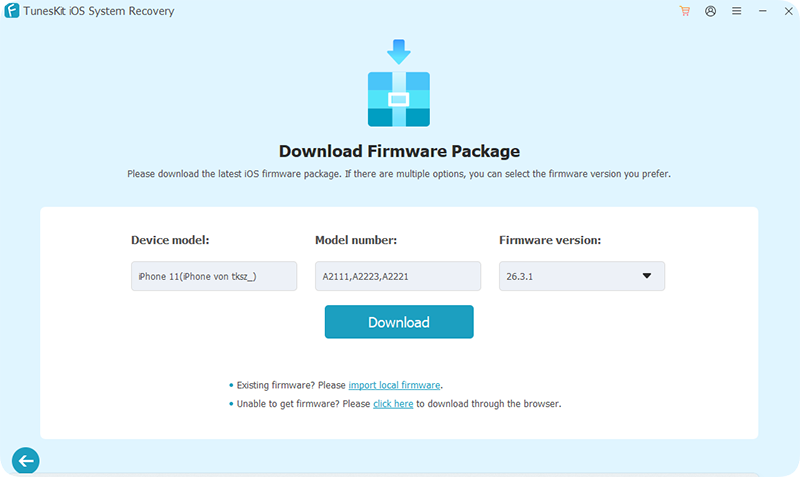
Step 3Download the Firmware Package
Confirm your device details and click Download. TunesKit will fetch the official iOS 26 firmware package from Apple's servers that matches your specific iPhone model.
Step 4Repair the System
Once the download finishes, click Start Standard Repair. Keep your phone connected until the progress bar reaches 100%. Your iPhone will reboot, and the brightness functionality should be restored to factory standards.

Method 6: Toggle Always On Display
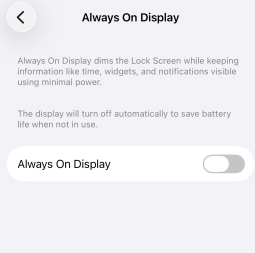
The Always On Display feature is designed to keep your screen in a low-luminance state to conserve battery. Occasionally, iOS 26 may fail to exit this dimmed state properly, leaving your screen dark even after you wake the device.
- Step 1. Open the Settings app and navigate to Display & Brightness.
- Step 2. Scroll down and tap on the Always On Display menu.
- Step 3. Toggle the switch to Off. Wait for approximately ten seconds to allow the display controller to reset, then toggle it back to On to refresh the illumination logic.
Method 7: Disable Low Power or Adaptive Modes
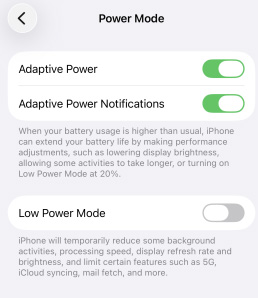
iOS 26 uses aggressive power management to extend battery life, which often includes hard-capping your maximum brightness. Turning these modes off ensures that the system is not intentionally throttling your screen's light output.
- Step 1. Open the Settings app and select the Battery > Power Mode section.
- Step 2. Locate the switches for Low Power Mode and Adaptive Power Mode.
- Step 3. Switch these modes Off if they are enabled. You should notice an immediate increase in the available brightness range, especially if your battery percentage is currently low.
Method 8: Disable Transparency and Zoom Filters
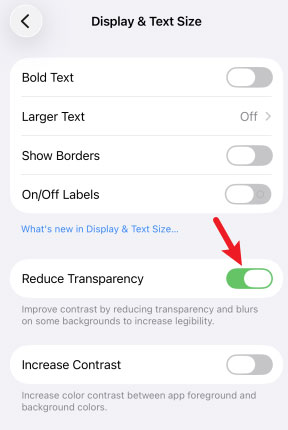
Certain accessibility settings can unintentionally lower the perceived brightness of your screen by adding dark overlays or reducing contrast. These filters often persist after an update and can make the iOS 26 interface look significantly dimmer than intended.
- Step 1. Open the Settings app and navigate to Accessibility, then tap Display & Text Size.
- Step 2. Locate the Reduce Transparency option. If it is enabled, toggle it Off to restore the natural brightness and vibrancy of the background layers.
- Step 3. Return to the main Accessibility menu and select the Zoom category.
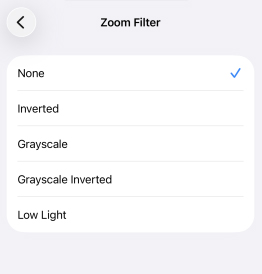
- Step 4. If Zoom is turned on, tap on Zoom Filter to check for active effects.
- Step 5. Ensure the filter is set to None. If a filter like "Low Light" was selected, it will artificially dim the screen regardless of your main brightness settings.
Method 9: Manage Device Temperature
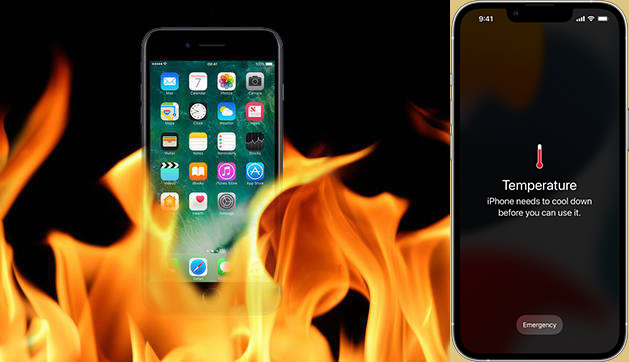
It is important to note that iOS 26 includes a hardware safety feature that force-dims the display if the internal temperature gets too high. This often happens during fast charging, intensive gaming, or when using GPS in a hot vehicle.
- Step 1. Check if the back of your iPhone feels notably warm or hot to the touch.
- Step 2. If the device is overheating, remove any protective case and stop using power-intensive apps for several minutes.
- Step 3. Move the phone to a cooler environment and wait for the internal temperature to normalize. Once the hardware cools down, the system will automatically lift the brightness restriction and return the screen to its full luminance.
Method 10: Resetting All Settings
If you have ruled out major system corruption but the iOS 26 brightness issue is still inconsistent, your current configuration preferences might be clashing with the new iOS 26 framework. Resetting all settings reverts your device to factory defaults for system configurations—such as Wi-Fi, Bluetooth, and display preferences—without deleting your apps or photos.
- Step 1. Open Settings and go to General.
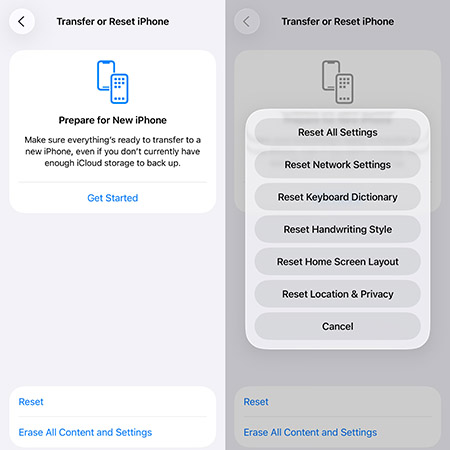
- Step 2. Scroll down to Transfer or Reset iPhone and tap Reset.
- Step 3. Select Reset All Settings and enter your lock screen and Screen Time passcodes to confirm. Your device will restart with a fresh set of system configurations.
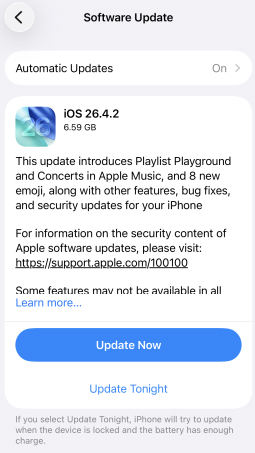
Method 11: Update iOS
Some early versions of iOS 26 introduced display-related bugs, including random dimming. Updating to the latest version often resolves these issues by improving brightness performance and fixing system glitches. Keeping your device up to date helps maintain stable display behavior.
- Step 1. Open Settings and go to General → Software Update.
- Step 2. If an update is available, tap Update Now button.
- Step 3. Follow the on-screen instructions to complete the update, then restart your device.
- Step 4. Once updated, check if the brightness is working properly.
FAQs About iOS 26 Brightness Issue
-
Does iOS 26 dim the screen specifically during gaming?
Yes, this is a common occurrence during high-performance tasks. When the processor works hard, it generates heat; to prevent damage, iOS 26 will reduce the power sent to the display, which is one of the largest heat sources in the device. This is a protective measure rather than a permanent bug.
-
Why is my screen still dim even when the brightness slider is at 100%?
This is almost always due to the Reduce White Point setting. This feature acts as a secondary "dimmer" that caps the intensity of bright colors. Even if your main slider is at maximum, a high White Point percentage will make the screen appear significantly darker.
-
Can a screen protector cause these brightness issues?
While less common, a thick or poorly aligned screen protector can interfere with the Ambient Light Sensor located near the top of the display. If the sensor is covered, it may "think" you are in a pitch-black room and automatically dim the screen to its lowest possible setting.
Conclusion
Resolving iOS 26 brightness issue usually involves adjusting settings like Reduce White Point or managing device temperature, but deep-seated software bugs often require a more robust solution. TunesKit iOS System Recovery provides a professional-grade fix. By utilizing its Standard Repair, you can efficiently bypass complex troubleshooting and restore your screen’s full luminance through a reliable, automated process.


