


iOS 26 Beta 4 IPSW Download | Easy Guide
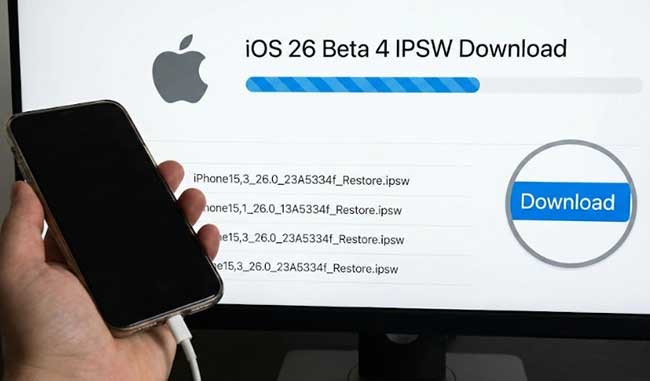
Ready to experience the latest stability improvements and features on your iPhone? Apple has just pushed the newest developer build, but waiting for the over-the-air update to appear can often be frustrating. To bypass the queue and ensure a clean, error-free installation, securing the correct iOS 26 Beta 4 IPSW download file is the most reliable method for updating your device manually via your computer.
This guide will walk you through everything you need to know about securing the correct IPSW file for your specific device and installing it safely without losing your valuable data.
Part 1. Why You Should Update to iOS 26 Beta 4?
Beta 4 is often the turning point where Apple shifts focus from introducing raw new features to polishing the user experience. Early reports indicate that this version significantly smooths out the animations in the new Liquid Glass design language, which had been causing battery drain in previous betas.
- Enhanced Stability: Fixes the random springboard crashes reported in Beta 3.
- Battery Life Optimization: Major improvements for iPhone 16 and 17 series devices.
- Apple Intelligence Upgrades: Siri's contextual awareness is faster and more responsive offline.
If you have been holding off on joining the beta program due to fears of bugs, the iOS 26 Beta 4 IPSW download offers a much more stable entry point. It bridges the gap between the experimental early betas and the final Golden Master (GM) release.
 View Also:
Part 2. Important Prerequisites Before Downloading IPSW
Before you rush to grab the firmware files, you must prepare your device. Beta software is inherently volatile, and skipping these safety measures can lead to data loss.
Back Up Your Data: Never install a beta update without a full backup. Use iCloud for convenience, but for beta installation, a local encrypted backup on your Mac or PC is far safer. This ensures that if you need to downgrade later, you have a snapshot of your data that is easily accessible.
Check Device Compatibility: Ensure your device supports iOS 26. This update is generally available for the iPhone 11 and newer models. Older devices may not see the update or may experience severe performance degradation.
 Note
Note
You must have an active Apple Developer account or be registered in the public beta program to activate this software after installation.
Part 3. Where to Download iOS 26 Beta 4 IPSW?
Finding a secure and compatible firmware file is the most critical step in the update process. It is essential to choose a source that guarantees file integrity to prevent damaging your device. To help you avoid corrupted downloads, we have compiled the three most reliable channels to secure your iOS 26 Beta 4 IPSW download.
Method 1. The Official Apple Developer Portal
For registered developers, this is the only 100% official source. If you have a paid Apple Developer account ($99/year), you can bypass third-party sites entirely.
Step 1. Navigate to developer.apple.com/download on your Mac or PC.
Step 2. Sign in with your Apple Account.

Step 3. Select the "Operating Systems" tab and find "iOS 26 Beta 4".
Step 4. Click "View Details" and locate the specific IPSW file for your iPhone model (e.g., iPhone 17 Pro Max).
Step 5. Click the "Download" button to save the signed .ipsw file directly to your drive.
Method 2. Using TunesKit iOS System Recovery [Easiest Method]
If you find searching for direct links on repository sites risky or confusing, there is a much safer, automated alternative. You can streamline the iOS 26 Beta 4 IPSW download process by using a specialized tool like TunesKit iOS System Recovery.
This software removes the guesswork by automatically detecting your device model and matching it with the correct firmware. Instead of manually hunting for files, you can use the built-in "Explore iOS Beta Features" function to upgrade your device directly.
Moreover, it can also help you fix "This iPhone Encountered an Issue While Starting", enter or exit recovery mode without buttons, and repair iTunes error for free. This software has even more features worth exploring.
Upgrade to iOS 26 Beta 4 easily
Discover the latest enhancements and improvements in iOS 26 Beta 4, and upgrade smoothly with TunesKit iOS System Recovery for a safer, hassle-free experience.
 600,000+ Downloads
 Here is how to use TunesKit to get the update:
Step 1Connect Your iPhone
Connect and Launch Download and install TunesKit iOS System Recovery on your computer. Connect your iPhone via USB cable and wait for the software to detect your device. On the main interface, click "More Tools" option, then click the "Explore iOS Beta Features".

This specialized mode is designed specifically for users who want to upgrade to the latest beta versions without needing a developer account profile manually installed on the iPhone/iPad.
Step 2Start the iOS 26 Beta 4 IPSW Download
The software will display available beta versions compatible with your specific iPhone model. Select "iOS 26 Beta 4" from the drop-down list and click "Download." TunesKit will handle the entire iOS 26 Beta 4 IPSW download securely from Apple's servers.

Step 3Install the Update
Once the firmware package is downloaded, click "Upgrade" button to begin the installation. TunesKit will flash the new iOS 26 Beta 4 onto your device, ensuring your data remains intact during the upgrade process.

Method 3. Trusted Firmware Repositories (IPSW.me)
If you do not have a developer account, reputable database sites are the industry standard for finding direct download links. Sites like IPSW.me or The Apple Wiki do not host the files themselves; instead, they provide direct links to Apple's own servers, ensuring the file is authentic and unmodified.
Step 1. Visit a trusted repository site.
Step 2. Select your product type (iPhone) and your precise model.
Step 3. Look for the "Betas" or "OTA" section (note: some sites only list public releases, so you may need to check the "The iPhone Wiki" for beta links).
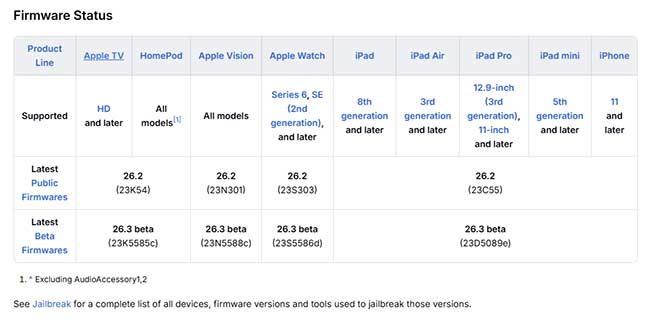
Step 4. Click the download link. Verify that the URL starts with updates.cdn-apple.com to ensure you are pulling data from Apple's official server.
Part 4. Manual Installation Guide: Using Finder or iTunes
Once you have secured the iOS 26 Beta 4 IPSW download file using one of the methods above, you can proceed with the manual installation. This method forces your computer to use the specific file you downloaded rather than checking Apple's servers for the latest public release.
Step 1. Connect your iPhone to your computer. Ensure you use a certified cable to prevent connection dropouts during the verification phase.
Step 2. Open Finder (macOS) or iTunes/Apple Devices (Windows). Select your iPhone icon from the sidebar or top menu.
Step 3. Perform the manual update key combination:
- Mac Users: Hold down the Option (Alt) key on your keyboard and click the "Check for Update" button.
- Windows Users: Hold down the Shift key on your keyboard and click the "Check for Update" button.

Step 4. A file browser window will appear. Navigate to the location where you saved the iOS 26 Beta 4 IPSW download file. Select the file and click "Open."

Step 5. A prompt will appear asking you to confirm the update. Click "Update" to begin. Your computer will verify the file with Apple, extract the software, and reboot your iPhone to begin the installation.

Step 6. Wait for the progress bar on your iPhone to complete. This process typically takes 15 to 30 minutes. Once finished, your device will reboot into iOS 26 Beta 4.
Part 5. FAQs about iOS 26 Beta 4 IPSW Download
- 1. Will installing the iOS 26 Beta 4 IPSW file delete my data?
It depends on how you install it. If you use the "Check for Update" method (holding the Option key on Mac or Shift key on Windows) and select the IPSW file, your data should remain intact. However, if you choose "Restore iPhone", it will wipe your device completely and set it up as new. We always recommend backing up your device before attempting either method.
- 2. Do I need a paid Apple Developer account to get the IPSW?
While the official Apple Developer Portal requires an account to access the direct links easily, you do not strictly need a paid ($99) membership just to install the software. You can find the iOS 26 Beta 4 IPSW download links on trusted third-party repositories or use tools like TunesKit iOS System Recovery to access the firmware without a developer account.
- 3. How long does the update process take?
Using an IPSW file is generally faster than an Over-the-Air (OTA) update because the download happens on your computer's stable connection. The actual installation usually takes between 20 to 45 minutes, depending on your computer's speed and the amount of data on your iPhone.
Conclusion
While the iOS 26 Beta 4 IPSW download offers essential stability fixes, manual installation can be risky and complex. TunesKit iOS System Recovery removes the hassle by automatically detecting and installing the correct firmware via its "Explore iOS Beta Features" mode. It is the safest, fastest way to upgrade your device without risking data loss or compatibility errors.


