


How to Restart iPhone from Computer Easily
Need to restart an iPhone from a computer? This guide covers the most effective methods, including an iOS repair tool, Recovery Mode, and DFU Mode, to help fix a frozen or unresponsive iPhone with ease.
When your device's screen is unresponsive or the physical buttons stop working, you need an alternative solution to power on the phone. Finding out how to restart iphone from computer is often the workaround for these hardware situations.
It is important to note that for security reasons, Apple does not provide a simple "Restart" button within Finder or iTunes. Instead, you generally need to rely on entering Recovery Mode or utilizing specialized third-party utility software to force the system to reboot. In this post, we'll guide you on how to restart iPhone from computer fast.
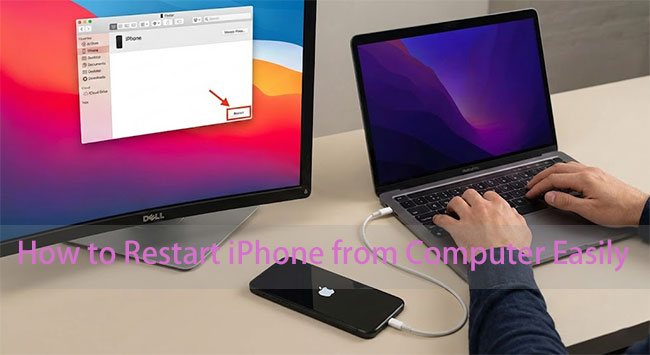
Can I Restart My iPhone Directly from a Computer?
For most users, no. Apple does not provide a built-in way to perform a normal restart of an iPhone directly from a Mac or Windows PC, at least not in the sense of "press a Restart button and wake up the phone."
What you can do from a computer
- If your iPhone is unresponsive or stuck, you can connect it to a computer (via USB) and use tools like iTunes (on Windows or older macOS) or the Finder (on newer macOS) to enter recovery mode or DFU mode — this lets you restore or update the device, which forces a restart.
- Some third-party tools / "system recovery" utilities like TunesKit iOS System Recovery can trigger a restart or re-boot via computer if the iPhone is stuck.
What you can't do
- You cannot perform a normal, safe reboot (like what happens when you hold the power button or use the software "Shut Down" + "Turn On" on the iPhone) directly from your Mac/PC.
 Note
Note
Entering Recovery Mode or DFU Mode does not automatically erase data. However, choosing to restore the device will erase its contents unless you have a backup available.

3 Ways to Restart iPhone from Computer
Before getting started, it's important to understand that Apple does not provide a built-in way to perform a standard restart of an iPhone directly from a computer. However, if your iPhone is frozen, stuck on the Apple logo, trapped in a boot loop, or unresponsive to button presses, you can use the following computer-based methods to force the device to reboot.
| Method | Best For | Data Loss Risk |
|---|---|---|
| TunesKit System Recovery | Frozen or stuck iPhone | No |
| Recovery Mode Update | Failed updates, boot loops | Usually No |
| DFU Restore | Severe system corruption | Yes |
Method 1: Restart iPhone from Computer Using TunesKit iOS System Recovery
When your iPhone is frozen on the Lock screen or stuck on the Hello screen, you may not be able to restart it with the usual button combinations. In this case, a dedicated system repair tool such as TunesKit iOS System Recovery can be very helpful.
It is designed to fix more than 150 types of iOS system issues without causing data loss. With its intuitive interface and step-by-step instructions, it allows users—even those without technical experience—to resolve common iOS errors easily, eliminating the need to seek help from a technician.
Restart Your iPhone Easily with TunesKit!
Fix unresponsive iPhone and restart it from your computer in just a few clicks—no data loss required.
 600,000+ Downloads
Well, let's see how to restart your iPhone from a computer using this powerful software when simply pressing the volume and power buttons doesn't work.
Step 1Connect Your iPhone
Download and install the TunesKit iOS System Recovery software on your PC or Mac. Launch the program and connect your iPhone to the computer using a USB cable. Wait for the software to detect your device. Click the "iOS System Repair" button on the main interface and then click the "Start" button.

Step 2 Select Standard Repair
You will be presented with two repair modes. Select "Standard Repair". This is the critical step to ensure your data is preserved; do not select "Deep Repair" unless you are willing to erase your phone.

Step 3Download the Firmware Package
Confirm your device information (Model, iOS version) displayed on the screen. Click the "Download" button to download the firmware package required for the repair. This file is large (several GBs) and may take some time to complete download.
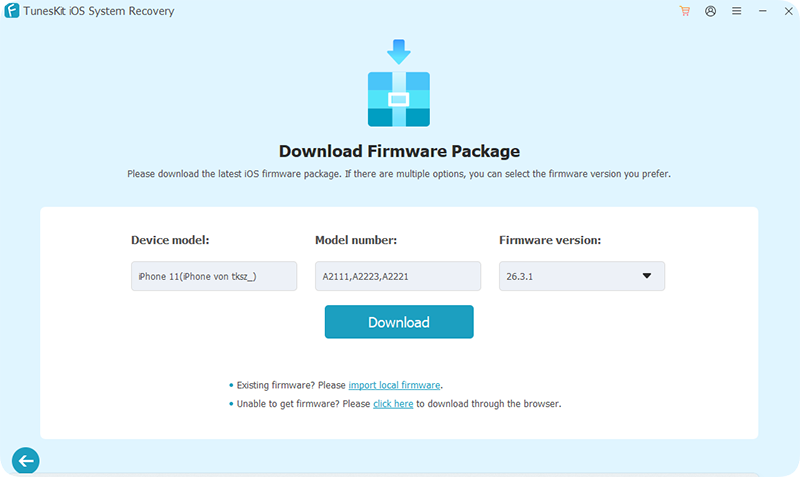
Step 4Restart iPhone from Computer without Buttons
Once the download is complete, click the "Start Standard Repair" button. The software will now fix the iOS system. When the process finishes, your iPhone will automatically restart and boot up to the lock screen.

Method 2: Reboot a Frozen iPhone via Recovery Mode
Recovery Mode is a deep repair tool used when your iPhone is too incapacitated to restart normally due to software corruption. You can rely on this method when iPhone stuck in boot loop, frozen during a failed update, or completely unresponsive to physical button presses. It allows your computer to bypass the damaged operating system and reinstall the necessary software to restore functionality.
Here are the steps to enter recovery mode on different iPhone models:
For iPhone 6S or Earlier:
- Press and hold the Power and Home buttons simultaneously.
- Keep holding until you see the Recovery Mode screen (iTunes logo with a cable).
For iPhone 7 / 7 Plus:
- Press and hold the Power and Volume Down buttons together.
- Continue holding until the Recovery Mode screen appears.
For iPhone 8 or later models:
- Quickly press and release Volume Up, then Volume Down.
- Press and hold the Side button until the Recovery Mode screen appears.

Pro tips
If entering Recovery Mode manually fails, TunesKit iOS System Recovery lets you do it with a single click—no button-pressing required. It applies to all iPhone models and it's free to use.
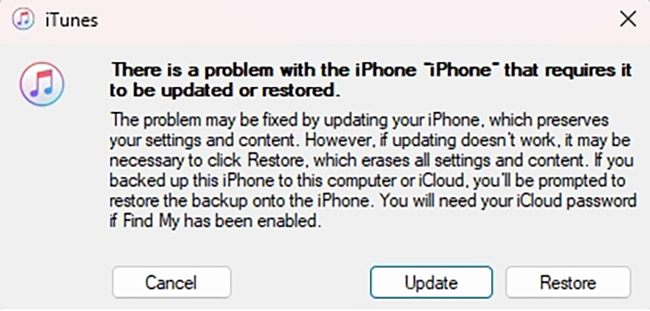
Connect your iPhone to a computer running iTunes (or Finder on macOS Catalina or later). iTunes/Finder will detect your device in Recovery Mode. Choose Update to reinstall iOS without erasing data, or Restore to reset your iPhone completely.
Method 3: Restart iPhone Using DFU Mode from Computer
DFU (Device Firmware Update) mode allows you to reload your iPhone's software and firmware. This makes it possible to restart your iPhone from a computer even when the device is unresponsive. Using DFU mode carries about a 50% risk of data loss. If you are aware of this, follow the steps below carefully.
For iPhone 6S or Earlier
- Press and hold both the Power and Home buttons.
- After a few seconds, release the Power button but continue holding the Home button. If the Apple logo appears, you held the Power button too long.
- When the screen stays black, your iPhone has successfully entered DFU mode.
For iPhone 7 / 7 Plus
- Press and hold both the Power and Volume Down buttons.
- After a few seconds, release the Power button while continuing to hold the Volume Down button.
- When the screen turns black, DFU mode is activated.
For iPhone 8 or later models:
- Quickly press and release the Volume Up button, then the Volume Down button.
- Press and hold the Side button for about 8 seconds.
- While holding the Side button, press and hold the Volume Down button for 5 seconds.
- Release the Side button, but continue holding the Volume Down button for another 10 seconds.
- If the screen remains black (without showing the Apple logo), DFU mode is successfully entered.

Now connect your iPhone to your computer. Open iTunes (or Finder on macOS Catalina or later). iTunes/Finder will detect your device in DFU mode, allowing you to restore your iPhone. Click OK in the pop-up window, then click Restore iPhone and follow the on-screen instructions to restore your device.

 Pro Tip:
- Make sure you hold the buttons for the correct amount of time; releasing too early may cause DFU mode to fail.
- DFU mode is a powerful tool, but always back up your data if possible before using it.

FAQs About Restarting iPhone on Computer
-
Will restarting from the computer erase my data?
It depends on the button you click. "Exit Recovery Mode," "Force Restart," or "Update" (in iTunes/Finder). These do not touch your photos or apps.
"Restore" (in iTunes/Finder) or "Deep/Advanced Repair" (in third-party tools). These will wipe your phone back to factory settings. Always read the pop-ups carefully! -
Can I restart my iPhone from the computer without trusting it?
Generally, no. To send commands from a computer (like a restart signal via third-party software), the iPhone must first "Trust" the computer. This requires tapping the "Trust" button on the iPhone screen.
-
My Power button is broken and my screen is black. What now?
Try connecting your iPhone to a charger. If the battery is fully drained, the device may power on automatically after charging for a few minutes. If the iPhone is recognized by your computer, you can also use Recovery Mode tools such as TunesKit iOS System Recovery to troubleshoot software-related issues without using the Power button. If the device remains unresponsive, hardware service may be necessary.
Conclusion
When exploring how to restart iPhone from computer, the most reliable and user-friendly solution is using a dedicated repair tool. TunesKit iOS System Recovery stands out by offering one-click entry and exit from recovery mode, fixing over 150 iOS system issues, and safely repairing the device without causing data loss. Its straightforward interface makes it easy for anyone to reboot an unresponsive iPhone directly from a computer, making TunesKit an effective choice when standard restart methods fail.


