


Fixed: This Accessory Uses Too Much Power on iPhone
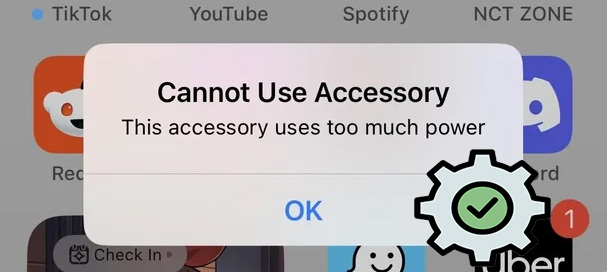
When connecting a USB-C hub, a camera adapter, or a power bank to your iPhone, iPad, or Mac, few things kill your workflow faster than the sudden notification: This accessory uses too much power. This warning signals a fundamental power struggle where your external hardware demands more energy than your device can supply, but it rarely means your accessories are actually broken.
Instead of panicking, you simply need the right approaches to resolve this issue. In this guide, we will explain why this error happens and walk you through the quick, safe fixes to get your devices connected again.
- Part 1. What Does "This Accessory Uses Too Much Power" Mean on iPhone?
- Part 2. Why Does My iPhone Say "This Accessory Uses Too Much Power"?
- Part 3. How to Fix "This Accessory Uses Too Much Power" on iPhone?
- Fix 1. Use MFi-Certified Accessories
- Fix 2. Clean Your Charging Port
- Fix 3. Charge Your iPhone to at Least 80%
- Fix 4. Restart Your iPhone
- Fix 5. Update to the Latest iOS Version
- Fix 6. Use TunesKit iOS System Recovery to Fix System GlitchesHOT
- Fix 7. Use the Apple Lightning to USB 3 Camera Adapter
- Fix 8. Use a Powered USB Hub
- Fix 9. Factory Reset Your iPhone
- Part 4. Conclusion
Part 1. What Does "This Accessory Uses Too Much Power" Mean on iPhone?
When you see the "This accessory uses too much power" alert on your iPhone, it means the external device you are trying to connect is attempting to draw more electrical current than the iPhone's port is designed to supply.
Every iPhone has a strict power output limit for its Lightning or USB-C port. This limit exists to protect the phone's logic board and battery from overheating or being drained too rapidly by power-hungry peripherals.
Part 2. Why Does My iPhone Say "This Accessory Uses Too Much Power"?
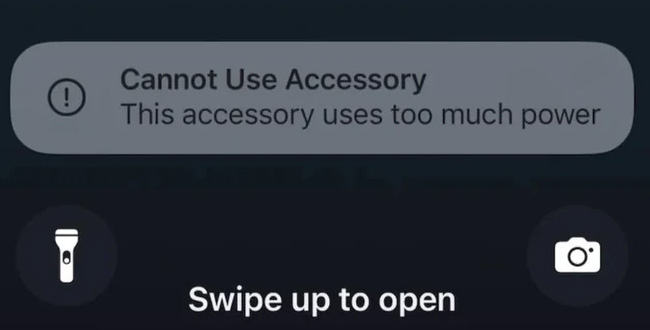
Your iPhone shows the message "This Accessory Uses Too Much Power" when a connected device tries to draw more power than your iPhone can safely provide. This is a built-in protection feature designed to prevent battery drain, overheating, or hardware damage.
Common reasons this happens
1. The accessory needs more power than your iPhone can supply
Devices like external hard drives, USB hubs, audio interfaces, or cooling fans often require more power than an iPhone port can deliver.
2. Low iPhone battery level
When your battery is low, iOS limits power output, which can trigger this warning even with normally compatible accessories.
3. Incompatible or uncertified accessories
Non-MFi-certified cables, adapters, or accessories may not communicate power requirements correctly with iOS.
4. Temporary iOS system glitches
Software bugs or corrupted system settings can make iOS misjudge how much power an accessory actually needs.
5. Using an unpowered USB hub or adapter
Multiple connected devices sharing one port can exceed the power limit.
Part 3. How to Fix "This Accessory Uses Too Much Power" on iPhone?
If you are stuck with this error, don't throw away your accessory just yet. In most cases, the issue is solvable by changing how you connect the device or managing the power supply. Here are 9 proven methods to fix the "This accessory uses too much power" alert on iPhone.
Fix 1. Use MFi-Certified Accessories
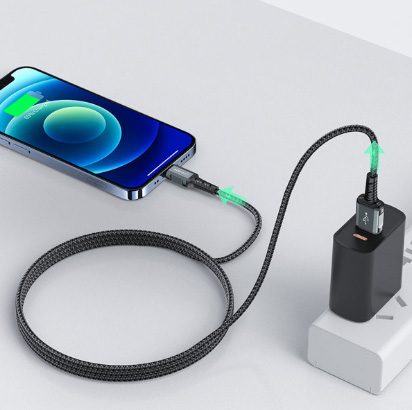
Cheap, unbranded cables and adapters often lack the proper power regulation chips required by Apple. Always use accessories with the MFi (Made for iPhone/iPad) certification. Non-certified devices may draw power inefficiently, triggering the safety shutoff instantly.
Fix 2. Clean Your Charging Port
Compacted pocket lint, dust, or debris inside your port can create electrical resistance, confusing the iPhone into thinking the accessory is drawing too much power.
You can turn off your iPhone and use a non-conductive tool (like a wooden toothpick) or compressed air to clean the port.

Fix 3. Charge Your iPhone to at Least 80%
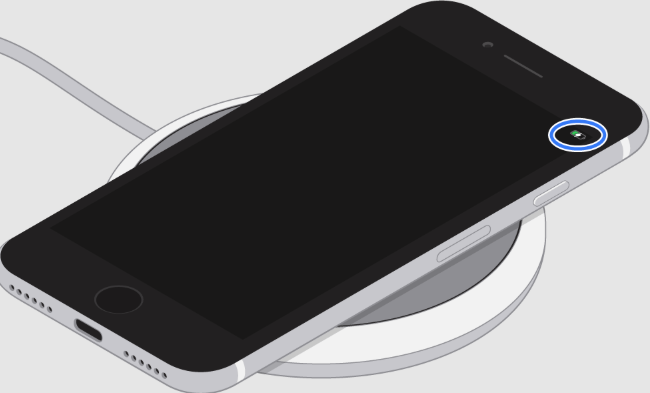
Your iPhone manages power output more aggressively when its own battery is low. If your charge is below 20-30%, iOS may cut power to external accessories. Charge your device to at least 80% before connecting high-drain peripherals.
Fix 4. Restart Your iPhone
A quick restart can clear temporary iOS glitches, reset hardware communication, and free up system resources. It also helps your iPhone re-establish a proper connection with the accessory. Since this method is fast, safe, and doesn't require any additional tools, you can easily perform it by following the steps below:
Step 1: Press and hold the Power and Volume Up or Volume Down buttons at the same time until the power slider appears. Drag the Slide to Power Off slider and wait for the screen to turn black.
Step 2: After a few seconds, press and hold the Power button again until the Apple logo appears to restart your iPhone.

Fix 5. Update to the Latest iOS Version
System updates can enhance how iPhone recognize and manage connected accessories. Running the latest version helps eliminate software glitches, improve system stability, and reduce false error alerts. Once updated using the steps below, your iPhone can communicate more smoothly with accessories and manage power distribution more efficiently.
Step 1: Connect your iPhone to Wi-Fi and plug it into a charger.
Step 2: Go to Settings > General > Software Update.
Step 3: If an update is available, tap Update Now button to download and install the latest update.
Step 4: Enter your passcode and wait for the update to complete.

 Note
Note
Make sure your battery is at least 50% or keep the device charging during the update.
Fix 6. Use TunesKit iOS System Recovery to Fix System Glitches
If a simple restart or update doesn't clear the error, the issue might be a deeper iOS system glitch affecting your port's power distribution. TunesKit iOS System Recovery is a professional tool designed to repair over 150+ iOS system issues without data loss. It fixes common iOS system issues such as boot loops, iPhone frozen on lock screen, black/white screen, and update failures.
In addition, It enables you to upgrade or downgrade iOS in 1-click, enter or exit recovery mode for free, and repair all kinds of iTunes error such as iTunes error 53 for free. What's more, it can explore the latest iOS Beta version without developer account. Sounds powerful, right? It's an all-in-one iOS tool that you can’t miss.
Why Use TunesKit iOS System Recovery?
It effectively fixes the "This Accessory Uses Too Much Power" error by repairing iOS system glitches and restoring normal power and accessory communication—without data loss.
 600,000+ Downloads
Here's a guide to fix the “this accessory uses too much power” Alert with TunesKit iOS System Recovery.
Step 1 Connect Your iPhone
Download, install, and launch this software on your computer, and plug your iPhone into PC using a lightning-to-USB cable. Select iOS System Repair on the main interface, and click the Start button to continue.

Step 2Select Standard Repair
You'll see two repair options, select Standard Repair is recommended cause it can fix system issues without deleting data; the Deep Repair solves deeper system problems but will erase device data. To fix the accessory power error safely, choose Standard Repair.

Step 3Download Firmware Package
TunesKit will automatically display the correct firmware version. You can also click the arrow to select the firmware version, once confirmed, just click Download button and wait for the firmware package to finish downloading.

Step 4Start to Repair
After the firmware is downloaded, click Repair button. TunesKit will begin fixing iOS system errors that may be causing incorrect power detection or accessory communication issues.
When the repair process is complete, your iPhone will restart automatically. Reconnect the accessory and check whether the "this accessory uses too much power" warning is disappeared.

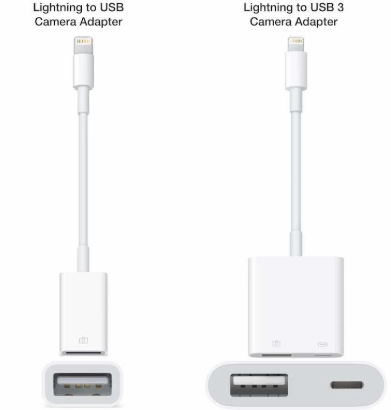
Fix 7. Use the Apple Lightning to USB 3 Camera Adapter
For Lightning devices (iPhone 14 and older), the standard adapter often fails because it lacks power pass-through. Switch to the Lightning to USB 3 Camera Adapter, which features an extra Lightning port.
You can plug your charger into the adapter to power the accessory, bypassing the iPhone's battery limits.
Fix 8. Use a Powered USB Hub
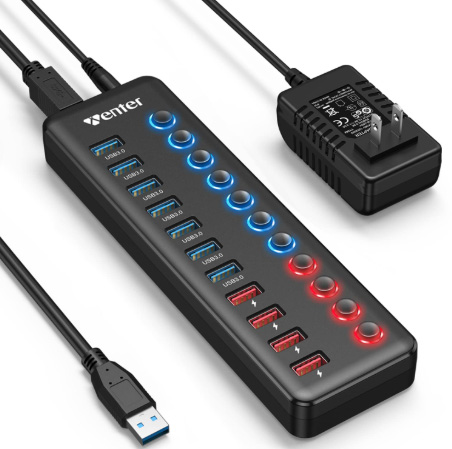
The most reliable fix for power-hungry devices—like external hard drives (HDD/SSD), MIDI keyboards, or audio interfaces—is to bypass the iPhone's battery entirely.
Connect your accessory to a powered USB hub (one that plugs into a wall outlet) and then connect the hub to your iPhone. This allows the accessory to draw energy from the wall rather than your phone's limited port.
Fix 9. Factory Reset Your iPhone
Factory resetting your iPhone can be an effective last-resort solution, especially when the issue is caused by deep system misconfigurations or persistent software conflicts. Here's how to factory reset your iPhone.
Important
A factory reset erases all data on your iPhone, so back up your device first.
Step 1: Before resetting, back up your data using iCloud or a computer.
- iCloud: Go to Settings > [your name] > iCloud > iCloud Backup > Back Up Now.
- Computer: Connect your iPhone and back it up via Finder or iTunes.

Step 2: Once backed up, open Settings app on your iPhone. Go to General > Transfer or Reset iPhone, tap Erase All Content and Settings. Then enter your passcode and Apple Account password, and wait for the reset to complete.

Step 3: Once the reset finishes, set up your iPhone as new or restore from backup, and reconnect the accessory to check if the error is resolved.
Part 4. Conclusion
This guide explores 9 effective ways to resolve the “this accessory uses too much power” problem, from basic fixes like restarting your iPhone and updating iOS to more advanced solutions. Among these methods, TunesKit iOS System Recovery stands out as a reliable and efficient option, as it can repair iOS system issues affecting accessory recognition without data loss.


