iPhone Stuck on Updating iCloud Settings? 6 Ways to Fix It
Is your iPhone stuck on Updating iCloud Settings during setup, an iOS update, or after restoring from a backup? The screen may remain on "Updating iCloud Settings…" for a long time and prevent you from finishing the process.
This issue can be caused by an unstable internet connection, temporary Apple server problems, iCloud syncing errors, insufficient storage, or an iOS system glitch. In this guide, we'll explain the possible causes and show you 6 practical ways to get your iPhone working normally again.
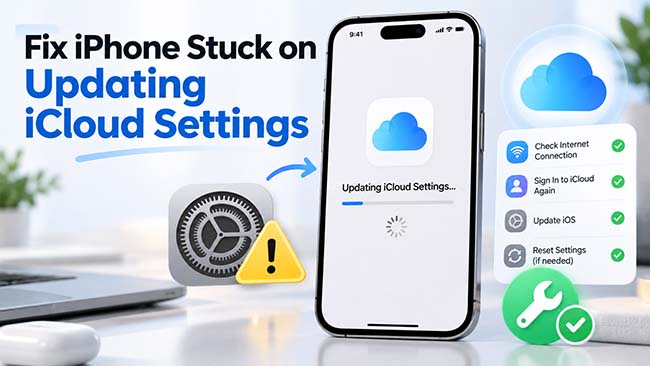
Why Is My New iPhone Stuck on Updating iCloud Settings
If your new iPhone stuck on updating iCloud settings, it may be caused by the following reasons. After understanding these possible reasons, we can fix the problems accordingly.
- 01 Your device storage space is not sufficient. If the iPhone storage is almost full, it might affect the performance and stability during the updating process, and thus cause the device to be stuck on updating iCloud settings screen.
- 02 Bad internet connection. When you start to update the iOS software, you should make sure that your Internet connection is reliable and stable. Otherwise, it will fail.
- 03 Low battery. Every iOS update may take a while, so you need have enough power for your device. If your iPhone has lower battery status, it probably gets frozen or stuck or become black.
- 04 Apple servers are too busy. When lots of people are updating the iOS software at the same time, the Apple servers will become very busy and even shut down, which might cause your iPhone stuck problem.
How to Fix iPhone Stuck on Updating iCloud Settings – 6 Solutions
If your iPhone stays on the "Updating iCloud Settings" screen for an unusually long time, start with the basic troubleshooting methods below. If simple fixes do not work, you can move on to updating or repairing the iOS system.
Method 1. Restart Your iPhone
A temporary system or iCloud syncing glitch may cause the setup process to stop responding. Restarting your iPhone reloads iOS and its background services, making it one of the easiest solutions to try first.
- Step 1. Press and hold the Side button and either Volume button until the power-off slider appears.
- Step 2. Drag the slider and wait for the iPhone to turn off.
- Step 3. Wait about 30 seconds, then press and hold the Side button until the Apple logo appears.
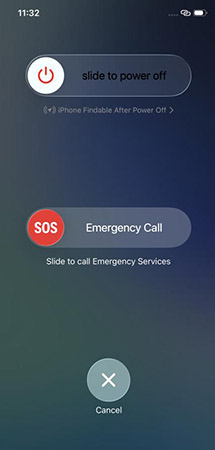
After the restart, continue the setup process and check whether iCloud settings update normally.
Method 2. Force Restart Your iPhone
If the iPhone is completely frozen and does not respond to a normal restart, try a force restart instead. This does not erase your data and can help clear a temporary system freeze.
For iPhone 8 and later:
- Step 1. Quickly press and release the Volume Up button.
- Step 2. Quickly press and release the Volume Down button.
- Step 3. Press and hold the Side button until the Apple logo appears.
For iPhone 7 and iPhone 7 Plus:
- Step 1. Press and hold the Side button and Volume Down button at the same time.
- Step 2. Release both buttons when the Apple logo appears.
For iPhone 6s and earlier:
- Step 1. Press and hold the Home button and Side/Top button simultaneously.
- Step 2. Release them when the Apple logo appears.

Method 3. Check Your Internet Connection
Updating iCloud settings requires your iPhone to communicate continuously with Apple's servers. A weak, slow, or unstable Wi-Fi connection can therefore make the process take much longer or prevent it from completing.
- Step 1. Make sure your iPhone is connected to a stable Wi-Fi network.
- Step 2. Move closer to your Wi-Fi router if the signal is weak.
- Step 3. Turn Wi-Fi off, wait a few seconds, and turn it back on.
- Step 4. If possible, connect to another reliable Wi-Fi network and try again.

Method 4. Update iOS with a Computer
If the problem occurs during or after an iOS update, updating the device through a computer may help. On a recent Mac, you can use Finder, while Windows users can use the Apple Devices app.
On a Mac:
- Step 1. Connect your iPhone to the Mac and open Finder.
- Step 2. Select your iPhone in the Finder sidebar.
- Step 3. Click General > Check for Update.
- Step 4. Click Download and Update if an update is available.

On Windows:
- Step 1. Connect the iPhone to your PC and open the Apple Devices/iTunes app.
- Step 2. Select your iPhone and open General.
- Step 3. Click Check for Update or Update.
- Step 4. Follow the on-screen instructions to complete the update.
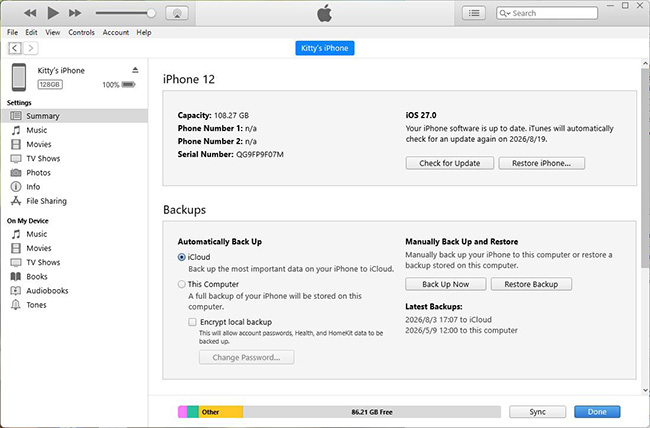
Keep the iPhone connected until the update is finished.
Method 5. Sign Out and Sign Back In to Your Apple Account
If you can access the Home Screen and Settings, refreshing your Apple Account connection may help resolve an iCloud syncing problem. However, skip this method if your iPhone is still locked on the setup screen.
- Step 1. Open Settings and tap your name
- Step 2. Scroll down and tap Sign Out.
- Step 3. Follow the on-screen instructions to complete the sign-out process.
- Step 4. Restart the iPhone. Open Settings again and sign back in to your Apple Account.

Allow some time for iCloud data to sync before checking whether the issue is resolved.
Method 6. Repair iOS with TunesKit iOS System Recovery
This might be the most effective method to fix your iPhone stuck problem while you're updating the iOS software. That is, use a professional iOS system repair tool named TunesKit iOS System Recovery to fix iPhone stuck on iCloud settings.
Why you need to use TunesKit iOS System Recovery program? It is so far one of the safest ways to resolve many iOS stuck problems like iPhone stuck on update requested, iPhone stuck on Apple logo, and iPhone black screen, etc. And you don't have to worry about the loss of your data. TunesKit offers you an opportunity to fix your iOS problem with no data loss. Besides, your iOS software will be updated to the latest version after the repair process.
Fix Updating iCloud Settings with TunesKit
Repair iOS system glitches with TunesKit iOS System Recovery using Standard Repair, while keeping your existing data intact.
 600,000+ Downloads
In the following section, we will show you how easily it is to use TunesKit iOS System Recovery to repair iPhone stuck on updating iCloud settings problem.
Step 1. Connect Your iPhone
Install and launch TunesKit iOS System Recovery on your Windows PC or Mac. Connect the affected iPhone with a USB cable, choose iOS System Repair, and click Start.
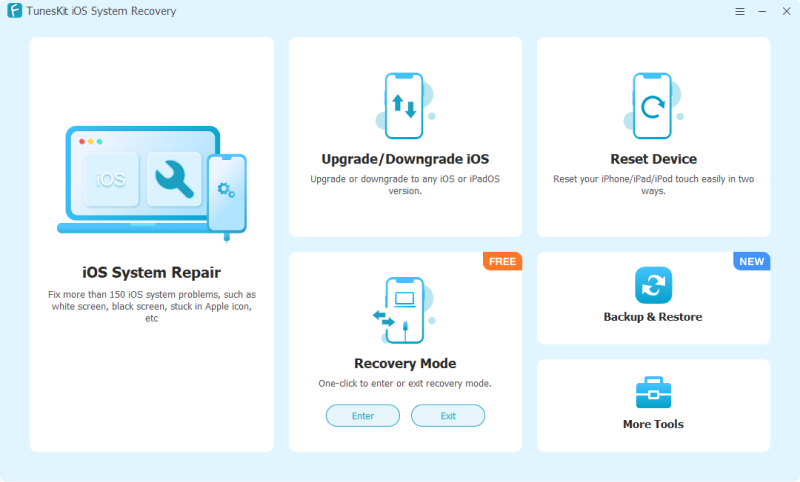
Step 2. Choose Standard Repair
Select Standard Repair to repair the iOS system while preserving your existing data. If the device cannot be detected normally, follow the onscreen instructions to enter Recovery Mode or DFU Mode.

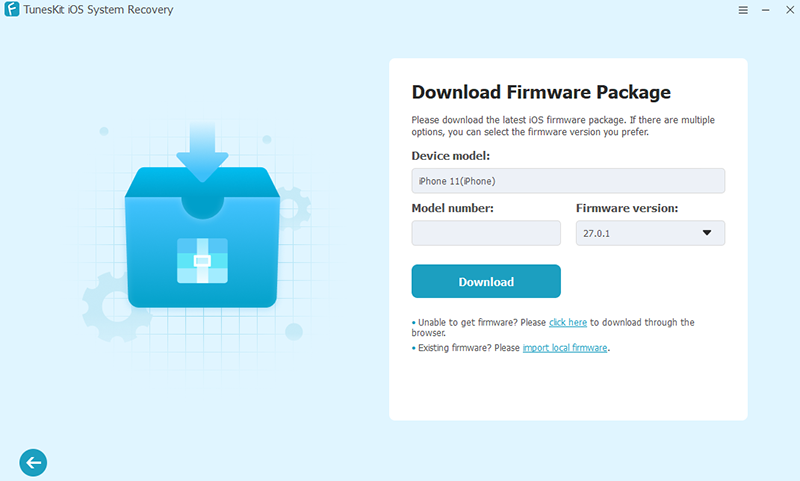
Step 3. Download the Firmware Package
Check that the detected iPhone model and firmware information are correct. Click Download to obtain the matching firmware package.
Step 4. Start Standard Repair
Once the firmware is ready, click Start Standard Repair and keep your iPhone connected throughout the process. After the repair finishes, the device will restart. Continue the setup and check whether the "Updating iCloud Settings" screen is gone.

Why Not Learn it Faster Through a Video
Prefer a more visual guide? Watch the video below to see how to fix an iPhone stuck on Updating iCloud Settings step by step. It walks you through the main solutions in a clear and easy-to-follow way.
Summary
When your iPhone is stuck on updating iCloud settings unexpectedly, you can try these 6 solutions one by one. If the problem cannot be solved by restart, force restart or iTunes, TunesKit iOS System Recovery will be your final trump card. In one case, if your issue is caused due to busy Apple servers, you have nothing to do but wait Apple to fix it shortly. Or you can simply take it to the Apple store to get fixed.